# HTML widget
The block sends a widget — a small interactive card right in a message: a poll, a quiz, a calculator, a timer, a wheel of fortune. The person taps in the card, and the bot gets the answer and moves on through the scenario, as after a button press.
The widget is shown in private Telegram chats and in the [website chat](https://support.watbot.org/chatbots/channels/web). Contacts from other messengers go down the "Widget not shown" output — connect it to a regular message.
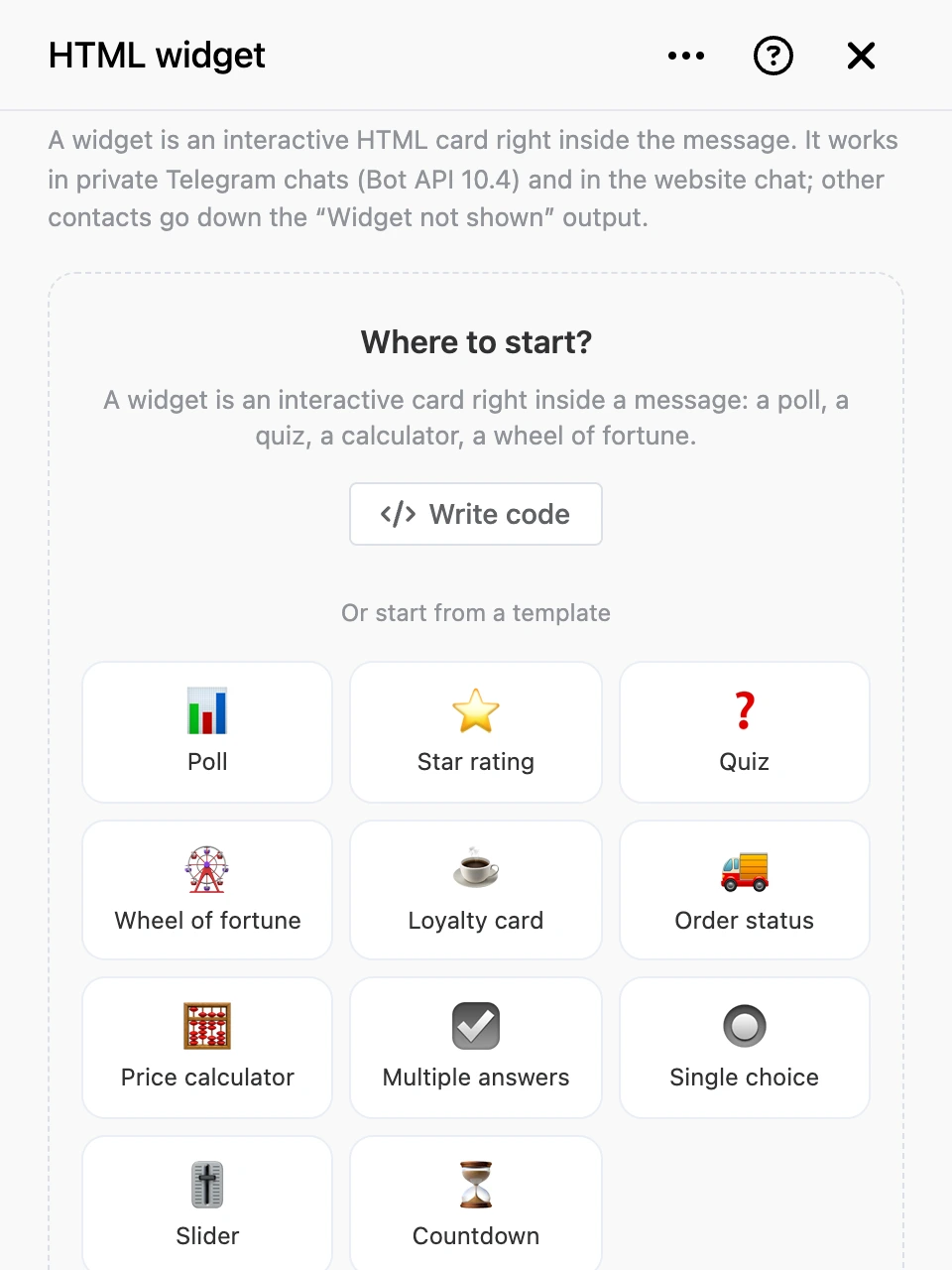
## Where to start
In a new block, the panel offers three ways:
- **"Describe for AI"** — opens the ["Create with AI"](https://support.watbot.org/chatbots/blocks#create-with-ai) panel: describe the card in words, and the AI writes its code and data.
- **"Write code"** — opens an empty HTML editor.
- **A template** — a ready-made card that you only need to adapt.
Templates: "Poll", "Star rating", "Quiz", "Countdown", "Multiple answers", "Single choice", "Slider", "Wheel of fortune", "Loyalty card", "Order status" and "Price calculator". After you pick a template, a hint appears under the field: which answers to add and where to change the texts. You can also pick a template later — the "Templates" button above the editor. The chosen template replaces the widget's code and data.
## Settings
The code, data and preview are in the tabs above the editor:
- **"HTML code"** — the widget's markup, styles and script. Under the field you see its size and its size after compression.
- **"Data"** — the data of this message (`chat_data`), up to 1024 bytes, usually JSON. The widget reads it as `TelegramWidget.chatData`. It is handy to keep texts and options here and keep the code shared.
- **"Preview"** — how the card looks and works. The ☀/☾ switch changes the light and dark theme, "Restart" starts the widget again. The requests the widget would send to the bot appear under the preview.
- **"Side by side"** — code and preview at once. The tab expands the panel to [full screen](https://support.watbot.org/chatbots/blocks#block-settings) and returns it when you switch to another tab.
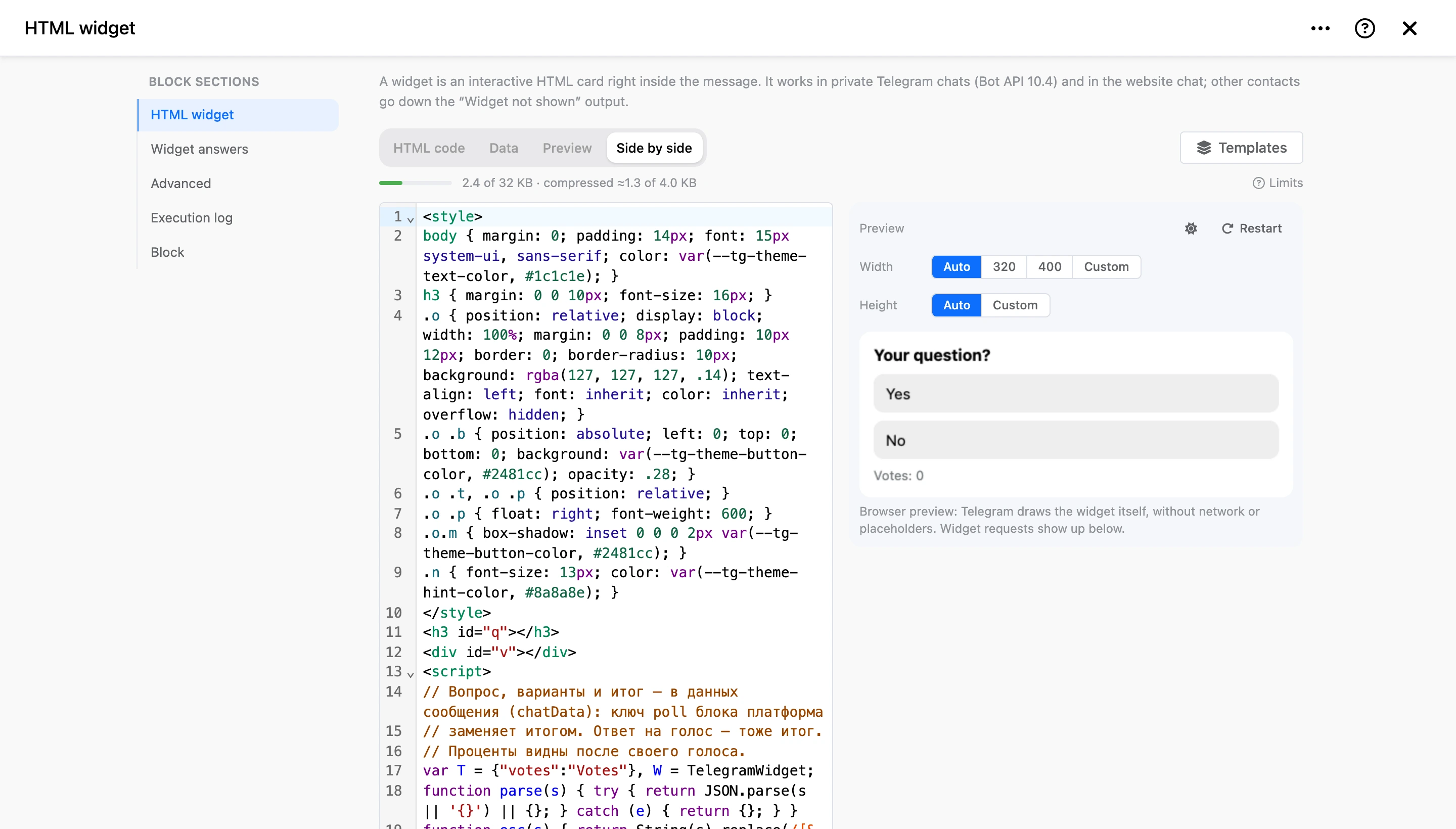
Above the preview is the widget size:
- **"Width"** — "Auto" (the width of the message), 320, 400 or "Custom" — from 200 to 600 points.
- **"Height"** — "Auto" (by content) or "Custom" — from 50 to 600 points. Whatever does not fit is clipped: there is no scrolling inside the widget.
Below the editor:
- **"Caption"** — text under the widget, up to 1024 characters.
- **"Widget answers"** — the block's outputs, see below.
- **"Advanced"** — "Write the answer to the user variable" and "Deliver silently", see ["Advanced"](https://support.watbot.org/chatbots/blocks/messages#advanced).
[Templates](https://support.watbot.org/chatbots/templates) work in the code and data: `{{ $name }}` is replaced before sending. The preview shows the code as is, without substitutions.
### Limits
- The code is up to 32 KB and up to 4 KB after compression. If it does not fit, you can still save it, but the widget will not go out: the contact goes down the "Widget not shown" output, and the reason appears in the "Execution log".
- There is no network: the widget cannot load scripts, styles, fonts and images by link and does not send requests. Images only as inline SVG or a `data:` address.
- The data of one tap is up to 52 bytes: about 50 Latin letters.
- A message with a widget cannot be forwarded or saved.
## Answers and outputs
A button inside the widget calls `TelegramWidget.request('yes')` — and the contact goes down the "yes" output, as if they pressed a button with that text. The contact does not see these buttons: they only link taps in the widget to the scenario.
- **Widget answers** — add an answer for each value the widget sends.
- **"Any other answer"** — the widget sent a value that is not among the answers. To save it, turn on "Write the answer to the user variable".
- **"Widget not shown"** — the contact is not from Telegram or the website chat, the code is over the limit, or Telegram refused the message. Connect the output to a regular message with the same meaning.
- **"Continue"** — visible only on the scheme: the bot moves on without waiting for a tap.
Taps on old widgets in the chat history also come to this block.
### Reply to the widget and new state
After the output, the scenario can reply to the widget — set contact variables, for example with the "Variable operation" or "JavaScript interpreter" block:
- **`widget_answer`** — what the widget gets in response to its request: `TelegramWidget.request()` returns `{ result }` with this value.
- **`widget_chat_data`** — new data for the tapped widget: the card is redrawn in the same message.
The widget's own code has to redraw the card: on new data the platform sends it the `chatDataChanged` event. Put the drawing into a function and call it both on load and on the event — otherwise the card stays as it was. The ready-made templates already work this way.
```js
function render() {
const data = JSON.parse(TelegramWidget.chatData || '{}')
// …
}
render()
TelegramWidget.onEvent('chatDataChanged', render)
```
To update the widget later — for example, when an order is paid — use the ["Update HTML widget"](https://support.watbot.org/chatbots/blocks/messages/widget-update) block.
### Poll and wheel of fortune
Two keys in the widget data turn on ready-made mechanics, no scenario needed:
- **`"poll": ["Yes", "No"]`** — a poll, up to 10 options. The platform counts the votes itself: one vote per contact, a repeated vote changes the choice. The widget gets the result: the options, the number of votes and the contact's own choice.
- **`"prizes": ["5% off", …]`** — a wheel of fortune. The platform picks the prize: at random and once per contact.
The chosen option or the prize won is written to the `widget_result` contact variable before the output is taken — you can put it straight into the next message: "Your prize: {{ $widget_result }}".
## Widgets from the AI agent
The AI agent can send widgets too — turn on the "HTML widgets" tool in the [AI Agent](https://support.watbot.org/chatbots/blocks/ai-agent#tools) block. A tap in the agent's card comes to it as a message from the contact.