# Policy

The "Policy" tab adds a consent step before the conversation: a person who goes to the bot by a link first sees a page with your Personal Data Processing Policy and only then gets to the messenger.

## What it looks like for a person

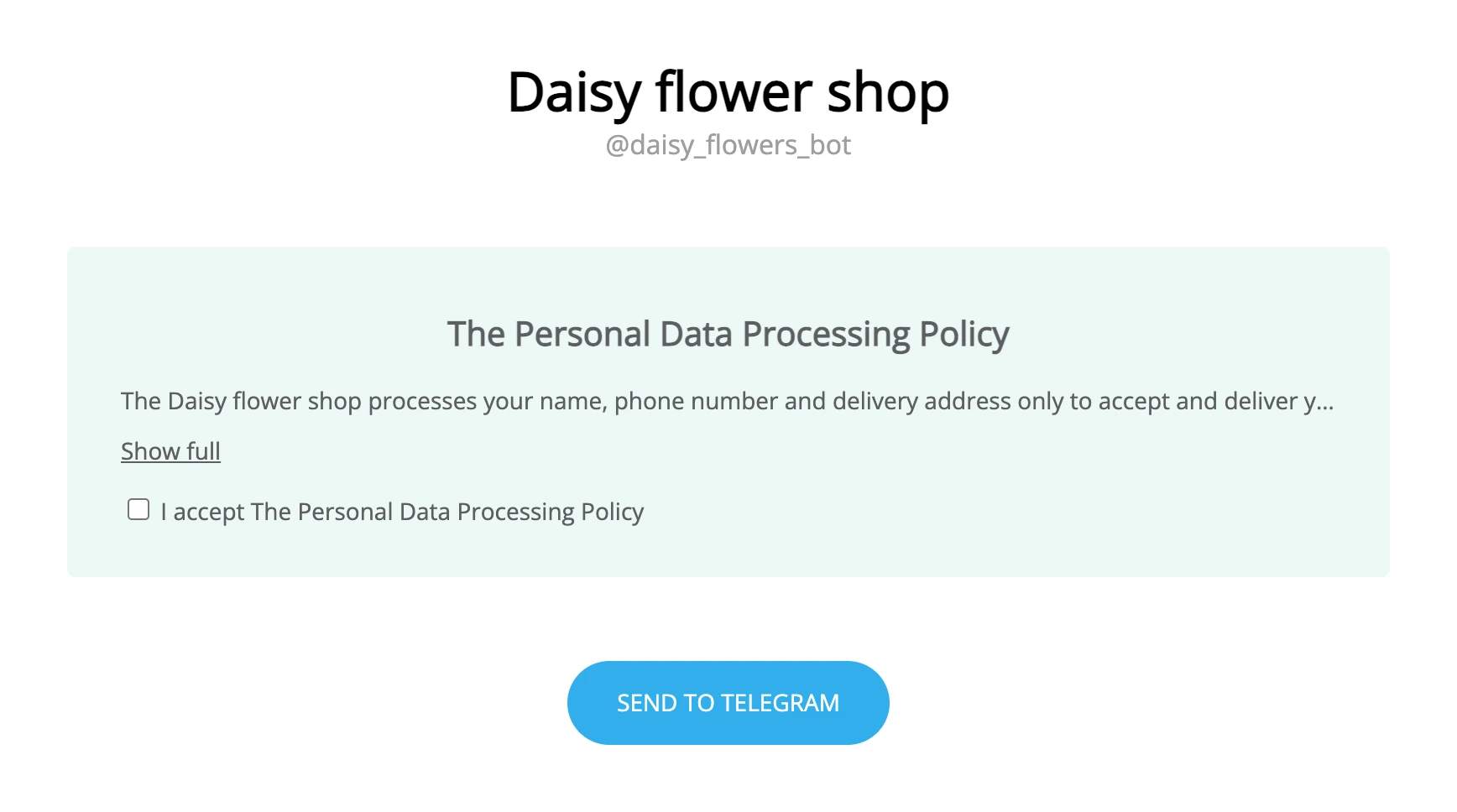
The policy is shown on the transition page — the one that opens by a [link to the bot](https://support.watbot.org/chatbots/links). The page has the bot's name and the button for going to the messenger, for example "Send to Telegram".

There are two options:

| Option | What the person sees |
|---|---|
| Consent by the button | Under the bot's name is the line "By clicking the 'Send to Telegram' button, you accept The Personal Data Processing Policy". The policy's name is a link: it expands the full text. The button works right away |
| Consent by a checkbox | The "The Personal Data Processing Policy" heading, the beginning of the text with the "Show full" link and the "I accept The Personal Data Processing Policy" checkbox. Until the checkbox is ticked, the button does not lead to the messenger but shows the message "To go to the bot, you must accept the Personal Data Processing Policy" |

![The transition page with consent by the button](https://support.watbot.org/_media/en/01-chatbots/12-settings/_images/policy-button.webp?v=1791781230)

![The transition page with consent by a checkbox](https://support.watbot.org/_media/en/01-chatbots/12-settings/_images/policy-checkbox.webp?v=1791781230)

The page opens in the [bot's language](https://support.watbot.org/chatbots/settings/main).

## How to turn it on

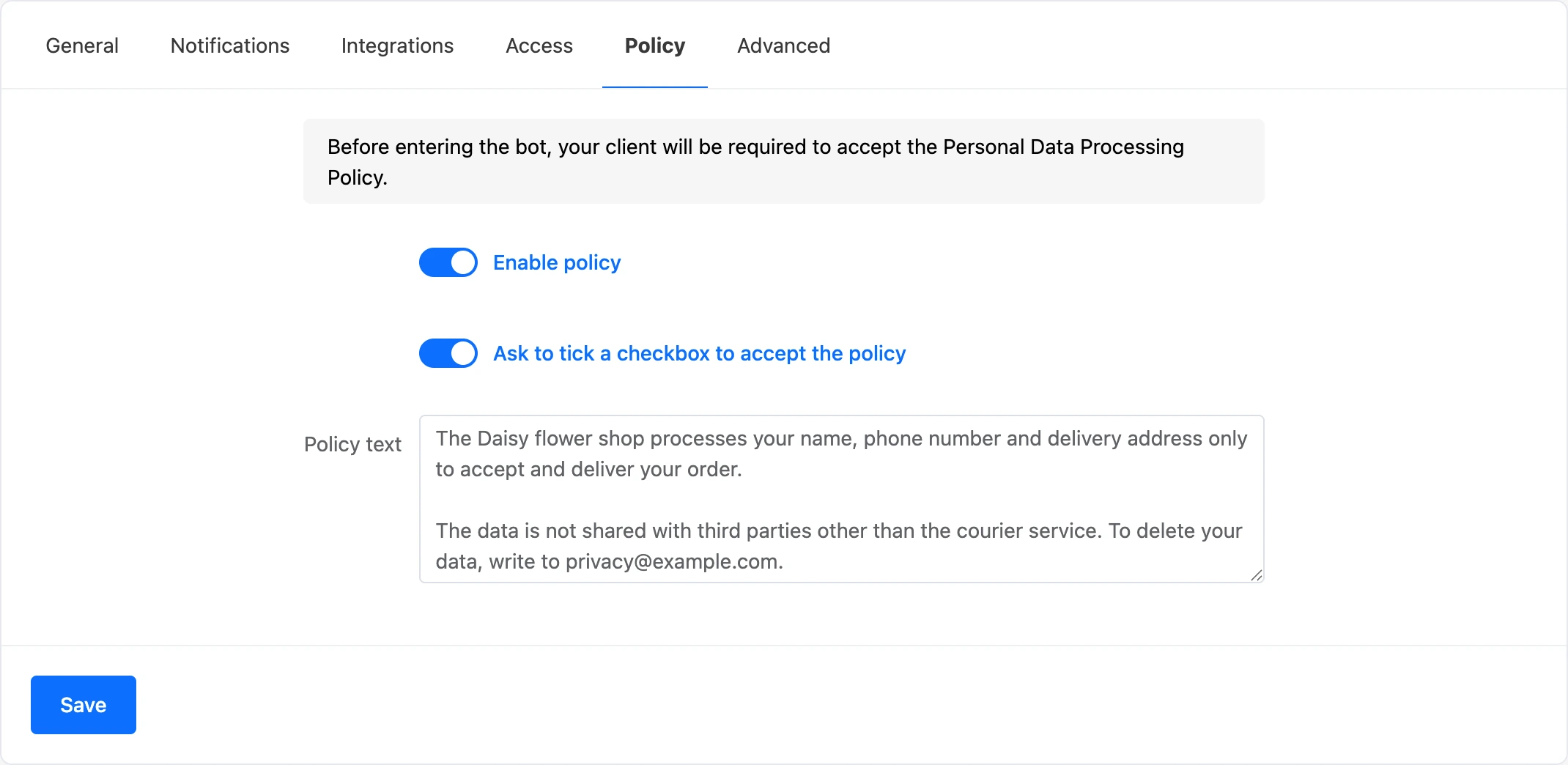
1. Open the bot's "Settings", the "Policy" tab.
2. Turn on the "Enable policy" switch.
3. Paste the text of your policy into the "Policy text" field and click "Save".
4. If explicit consent is needed, turn on "Ask to tick a checkbox to accept the policy".

The switches are saved right away, the text — with the "Save" button.
![The "Policy" tab with the policy, the checkbox and the text turned on](https://support.watbot.org/_media/en/01-chatbots/12-settings/_images/policy.webp?v=1791781230)

Line breaks in the text are kept. For formatting you can use tags without attributes: `<b>`, `<i>`, `<u>`, `<p>`, `<div>`, `<br>`, `<ul>`, `<li>`. Other tags and any attributes are shown as plain text — you cannot insert a link with the `<a>` tag.

> [!IMPORTANT]
> The platform does not provide a ready-made policy text — it is your company's document. Draw it up yourself or with a lawyer.

## Where the policy applies

- **Only on the page opened by a link.** If a person found the bot through the messenger's search or opened it by the messenger's direct link, there is no transition page — and they will not see the policy.
- **Telegram.** Without the policy the link leads to the messenger right away. With the policy turned on, the page with the button opens first.
- **MAX.** The same: without the policy the link leads to the messenger right away, with the policy — first to the page with the button.
- **VK.** The page with the button always opens; with the policy turned on, the consent appears on it.
- **Viber.** The page with the button always opens; with the policy turned on, the consent appears on it.
- **Website chat.** It has no transition page, so the policy from this tab is not shown in it.

Consent is checked only on the page: the platform does not record a mark on the contact that they accepted the policy. If the consent needs to be kept, ask for it as a separate step of the scenario — with a button in a message — and write the answer to a variable or a tag.

## Who can change it

The bot's owner and a team member with the "Bot settings" permission. A Pro subscription is not needed for this tab.
