

Limits and security
AI on the platform acts within set boundaries: it has only the capabilities you have turned on and only the permissions you have. This page collects the limits worth knowing in advance.
What AI sees and what it can change
The model in the AI chat receives only what is in the conversation and what the enabled tools return.
| What | When it is available to AI |
|---|---|
| Your messages and the conversation's attachments | Always |
| The content of the project's knowledge bases | When "Knowledge base search" is on |
| Knowledge base documents: add and delete | When "Knowledge base changes" is on |
| Web pages | When "Web search" and "Read web pages" are on |
| The project's bots: scenarios, variables, lists | Only while chatbot building is on |
| The project's mini apps, lists, shops, booking branches | Only while mini app building is on |
| The project's mini landing pages, bots and their channel links | Only while mini landing page building is on |
| The project's widgets, bots and their channel links | Only while widget building is on |
| Booking branches: services, specialists, schedules, booking rules | Only while booking setup is on |
| Online schools of the project: courses, curriculum, lessons, quizzes, access packages | Only while the online school builder is on |
The AI chat has no tools for reading contacts, conversations with customers, payments or orders.
Project data can be changed by building — of a chatbot, a mini app or a mini landing page — and by "Knowledge base changes". The AI turns it on by itself when you ask to build or fix a bot, an app or a landing page, and a building chip is then shown above the message field. Until building is on, AI cannot change a bot, an app or a landing page — it can only explain how to do it. The AI never changes the published version of a mini app: changes go into a draft. The AI also edits a mini landing page in a draft — visitors see the page after it is published.
Widget building changes project data too — and right away what visitors of your sites see: a widget has no draft, and what is saved appears on the sites where the widget is installed. It cannot delete widgets. See the Building a widget in the AI chat page.
Booking setup changes project data too: branches, services, specialists, their schedules and booking rules. It cannot delete anything — it only hides services and specialists, and it does not touch client appointments. See the Setting up booking in the AI chat page.
Online school building changes project data too: schools, courses, the curriculum, lessons, quizzes and access packages. It cannot delete anything, it creates packages off sale, and it does not touch students, payments or certificates. Everything goes into a draft except quizzes: a quiz in a lesson students already see changes for them at once. See the Building a course in the AI chat page.
The AI connects "Knowledge base changes" by itself, like building, when you ask to save, add or delete something in a knowledge base, and only if the project has a paid base where you may add or delete documents. It adds new text documents to the project's knowledge bases and deletes whole documents. Adding waits for confirmation in the "Ask first" mode, deleting always does. It does not touch the bases themselves, their plan or settings. See the Connect a base to AI page for details.
The other tools read and search but change nothing. "File creation" creates a new file in the conversation and does not touch the documents you uploaded.
Confirming changes
Chatbot building has two modes — you choose them in the menu of the "Chatbot builder" chip above the message field:
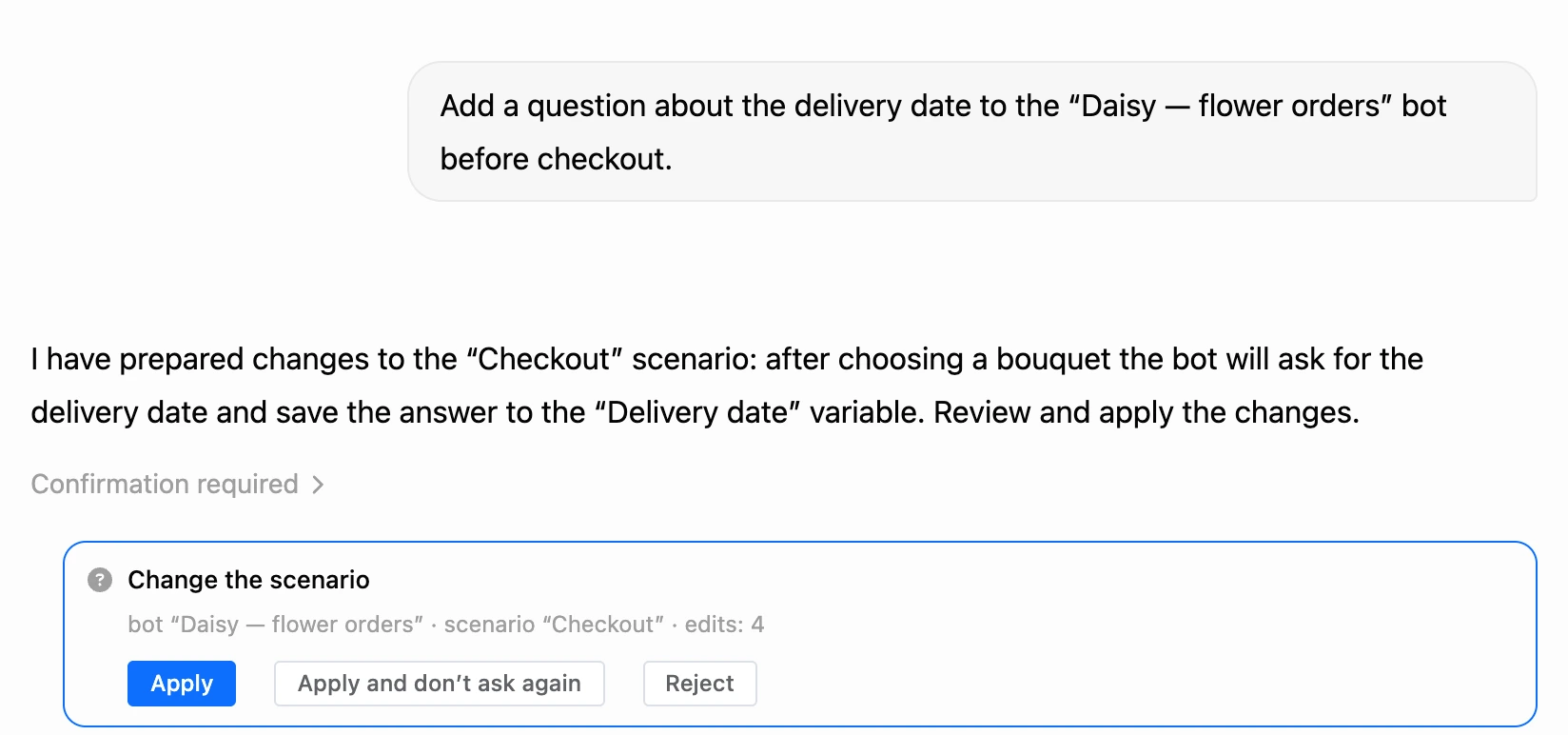
- "Ask first" — the default mode. Before each change, AI shows a card: what exactly will change — the bot, the scenario or the list, the number of blocks, edits or records. The change is made only when you click "Apply". "Reject" cancels it, and AI suggests another option.
- "Automatic" — AI makes changes right away, without cards.
You can change the mode at any time, even while the AI is working. The "Apply and don't ask again" button on a card applies the change and switches the chat to "Automatic". At your request the AI can turn on "Ask first", but not "Automatic": only you can remove confirmations.
Publishing
Mini app and mini landing page building can offer to publish the result, but publishes only with your consent. Every time, a "Publish the mini app version" or "Publish the mini-landing" card with the "Publish" and "Reject" buttons appears in the conversation. The card appears in the "Automatic" mode too, and it has no "Apply and don’t ask again" button. See the Building an app in the AI chat and Building a landing page in the AI chat pages for details.
Online school building publishes the same way: the "Publish the course" card appears every time, including in the "Automatic" mode. See the Building a course in the AI chat page.
Warning
Building has no one-click undo. When editing a working bot, keep the "Ask first" mode.
Extra protection: AI does not edit a working scenario that contacts are going through — it makes a copy and changes the copy. How this works and what AI never does in a bot is on the Building a bot in the AI chat page.
Knowledge base
Adding a document to a knowledge base follows the mode, like building: in the "Ask first" mode an "Add to the knowledge base" card with the document name, the base and the start of the text comes first, in the "Automatic" mode the document is added at once. The mode is chosen in the menu of the "Knowledge base changes" chip.
Deleting a document always asks: the "Delete from the knowledge base" card appears every time, including in the "Automatic" mode, and the document is deleted only when you click "Delete".
Links the model made up
Someone else's text — a web page, a document, an email — can hide instructions for the model: for example, to open a third-party site's address with data from the conversation added to it. That is why the AI chat tells apart addresses that already appeared in the conversation (your messages, web search results, pages it has read, what it found in the knowledge base and the help center) from addresses the model wrote itself.
- Pages. A page at an address that did not appear in the conversation is opened only after the "Open a page" card and your "Open" click. The card appears every time, including in the "Automatic" mode. See the Tools and files in the chat page for details.
- Pictures. A picture from the conversation is shown in the response as usual. Instead of a picture at an address the model wrote itself, the response has a "Picture from … — open" link: it opens in a new tab only when you click it.
This applies only to the AI chat. The "AI Agent" block has no such cards.
Permissions
AI does not extend your permissions. It can change bots within the same limits as you can: create a bot — if your role allows it, edit a scenario — if you have the permission to edit this bot's scheme. The same goes for mini apps, mini landing pages and widgets: the AI edits them only if your role allows it. Knowledge bases work as in the "Knowledge bases" section: documents can be added by the base author, the project owner and a team member with the "Add documents" permission, and deleted with the "Delete documents" permission.
Only the author of the conversation can apply a confirmation card.
Who sees conversations
AI chat conversations are personal. Each user sees and continues only their own conversations; other project members, including the owner, do not have them in their list.
At the same time, usage across all of the project's conversations is visible in "Logs" to those with the "View logs" permission: the time, model, number of tokens and cost — without the text of the messages.
Files attached to conversations go to the shared "Project files" library. Any project member with access to the AI chat can choose them for their own conversation.
Limits of a single response
| What | Limit |
|---|---|
| Tool steps per response | 10 |
| The same with chatbot building on | 30 |
| Results of one web search | 10 |
| Knowledge base fragments per search | 5 |
| Files created per response | 5 |
| Attachments per message | 10 |
A step is one call to the model after which it calls tools. If there are not enough steps, the response ends with what the model managed to do. Ask it to continue in the next message.
Before each step, the platform checks "AI Credits". If no funds are left, the response stops — a long chain of actions will not take the balance far below zero. See the AI Credits page for details.
You cannot run many responses at the same time: when responses are already being generated in several of your conversations, a new one will not start — "Too many responses at once. Wait for the generation in other chats to finish."
What the AI chat does not do
- It does not run programs or convert files. A file is made from the text the model wrote.
- It does not insert images into PDF and Word documents.
- It does not edit the files you uploaded — only the files it created itself.
- It does not connect messengers, launch mailings or set up payment systems.
The model can make mistakes: retell a document incorrectly or invent a fact that is not in the source. Check important figures and wording — using the links from the search and the knowledge base fragments shown in the response steps.
AI agent in a bot
Your customers talk to the AI agent, and you pay for the responses. That is why the block has its own limits: the agent does only what is turned on in its settings, and the number of responses to one contact is limited. All the limits are on the AI Agent page.
Where the data goes
For the model to respond, it is sent the request text: your message, the conversation history, the document fragments found. The request goes to the provider of the selected model and is processed on its servers.
- Russian models. When a conversation is on a Russian model, the chat's service requests are also performed by a Russian model. Building a chatbot is not available on Russian models, and the chat will not switch the model by itself — the decision is yours.
- Knowledge bases. When creating a base, you choose the embedding model. Its description says whose servers the document text is sent to during processing. The model can be chosen only once.