

Building a bot in the AI chat
You can build a bot by describing the task in words. The AI creates the bot, writes the scenario from blocks, creates lists and shows the result on a scheme next to the conversation. A finished scenario can be edited the same way: "add a button with the address to the menu", "ask for the phone number before booking".
A Pro subscription is not needed for building. You pay for the model's tokens — they are charged to "AI Credits". How it works and what the models cost is on the Prices of additional services page. Pro will be needed later, to connect the built bot to a messenger.
Where to find it
- The "AI chat" button on the top toolbar of your account opens the chat of the project you worked in last.
- The "AI help" button on the top toolbar of the bot's scheme opens the same chat, already aimed at this bot and the open scenario: building is turned on, and the scheme is shown on the right.
- The "Build a bot with AI" block above the bot creation form. Click "Build", describe the task or pick an example and click "Build with AI" — the AI chat opens, and the description is sent to it as the first message.


How building turns on
There is nothing to switch on: ask in the chat to build or fix a bot, and the AI connects the building tools by itself. In the answer it shows as a "Chatbot builder" step marked "Chatbot building tools connected", and a "Chatbot builder" chip appears above the message field.
If you came through the "AI help" button, building is on from the first message. If the AI is also building a mini app in the same chat, the chip reads "Building: bot and mini app", and if it is a mini landing page — "Building: bot and mini-landing".
If the AI is also setting up online booking in the same chat, the chip is called "Building: bot and booking".
If the AI is also building an online course in the same chat, the chip is called "Building: bot and school".
If the AI is also building a website widget in the same chat, the chip reads "Building: bot and widget".
General questions about bots — how a block works, what a service costs — the AI answers from the help center without turning building on. Until it is on, the AI cannot change anything in bots.
Mode
The "Chatbot builder" chip shows how the AI makes changes. Click it to choose the mode:
- "Ask first" — before every change the AI shows a card and waits for your decision. This mode is chosen by default;
- "Automatic" — the AI makes changes right away and reports at the end.


You can change the mode at any time, even while the AI is working: the next change follows the new mode. Two more ways:
- the "Apply and don't ask again" button on a card applies the change and switches the chat to "Automatic";
- ask in words: "check with me before every change" — the AI turns on "Ask first". The AI cannot turn on "Automatic" by itself; only you can.
The same menu has "Turn building off" — for when the AI took it up by mistake or the conversation moved on. While building is on, its instructions go into every request to the model and add to the token usage. Ask to build a bot again, and the AI turns it back on.
Building a new bot
- Describe the task: what the company does, what the bot should ask, what it should answer, where to write requests. For example: "Build a bot for the 'Daisy' flower shop: a greeting, the 'Catalogue' and 'Place an order' buttons, on an order ask for the phone number and save the request to a list".
- The AI tells you what it is going to do and shows the "Create a chatbot" card. Click "Apply".
- Next the AI creates lists, if they are needed, and writes the scenario. Every change has its own card: "Create a list", "Add records to the list", "Write a new scenario version", "Change the scenario". The card shows what will change: the name of the bot, scenario or list, the number of blocks, edits or rows.
- Click "Apply" to accept a change, or "Reject" for the AI to suggest another option. "Apply and don't ask again" accepts the change, and from then on the AI works without cards.
The "Chatbot scheme" panel opens to the right of the chat: it shows how the scenario appears and grows, and the changed blocks are highlighted. The "Open in the builder" button opens the bot in a new tab.
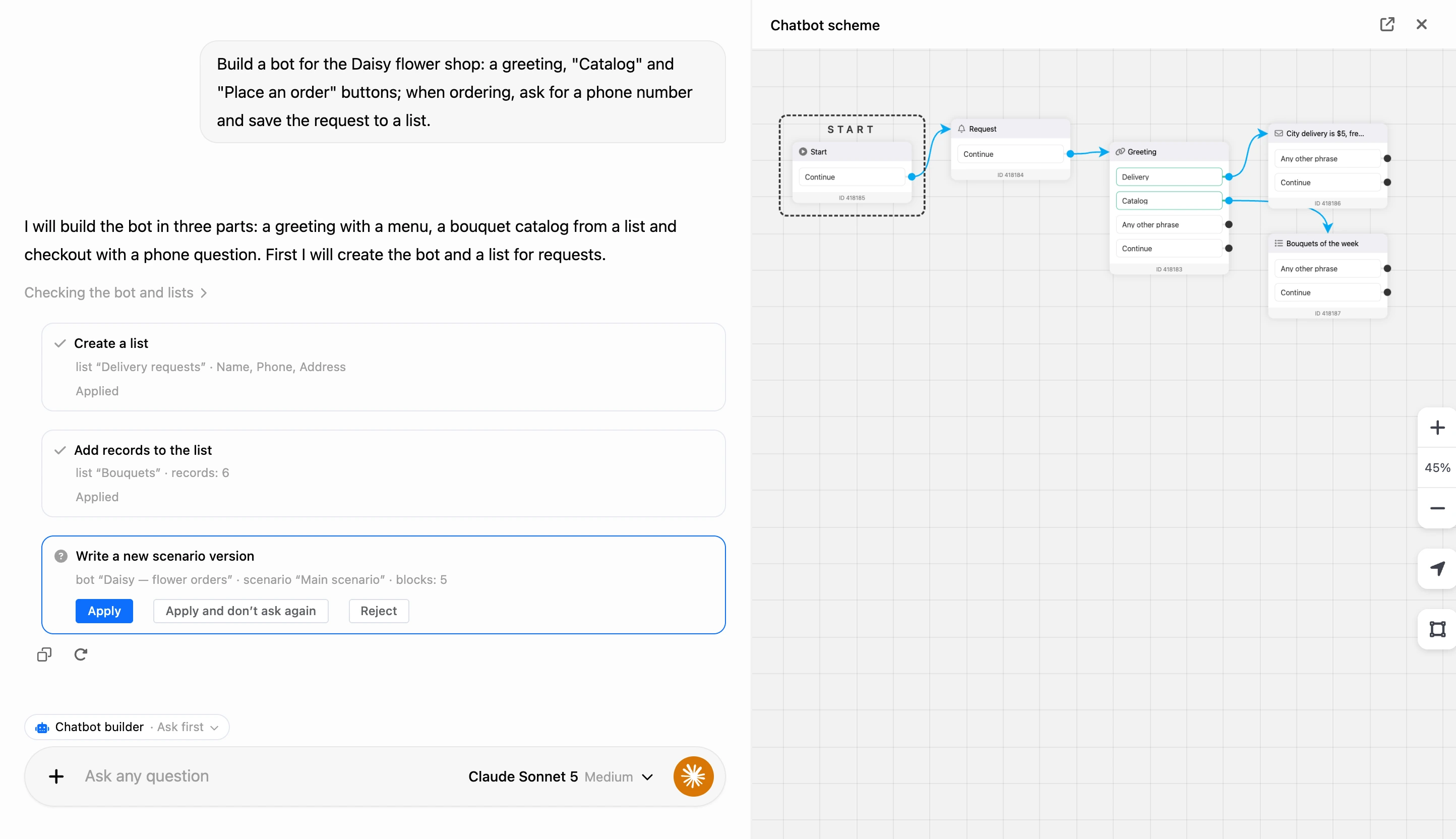
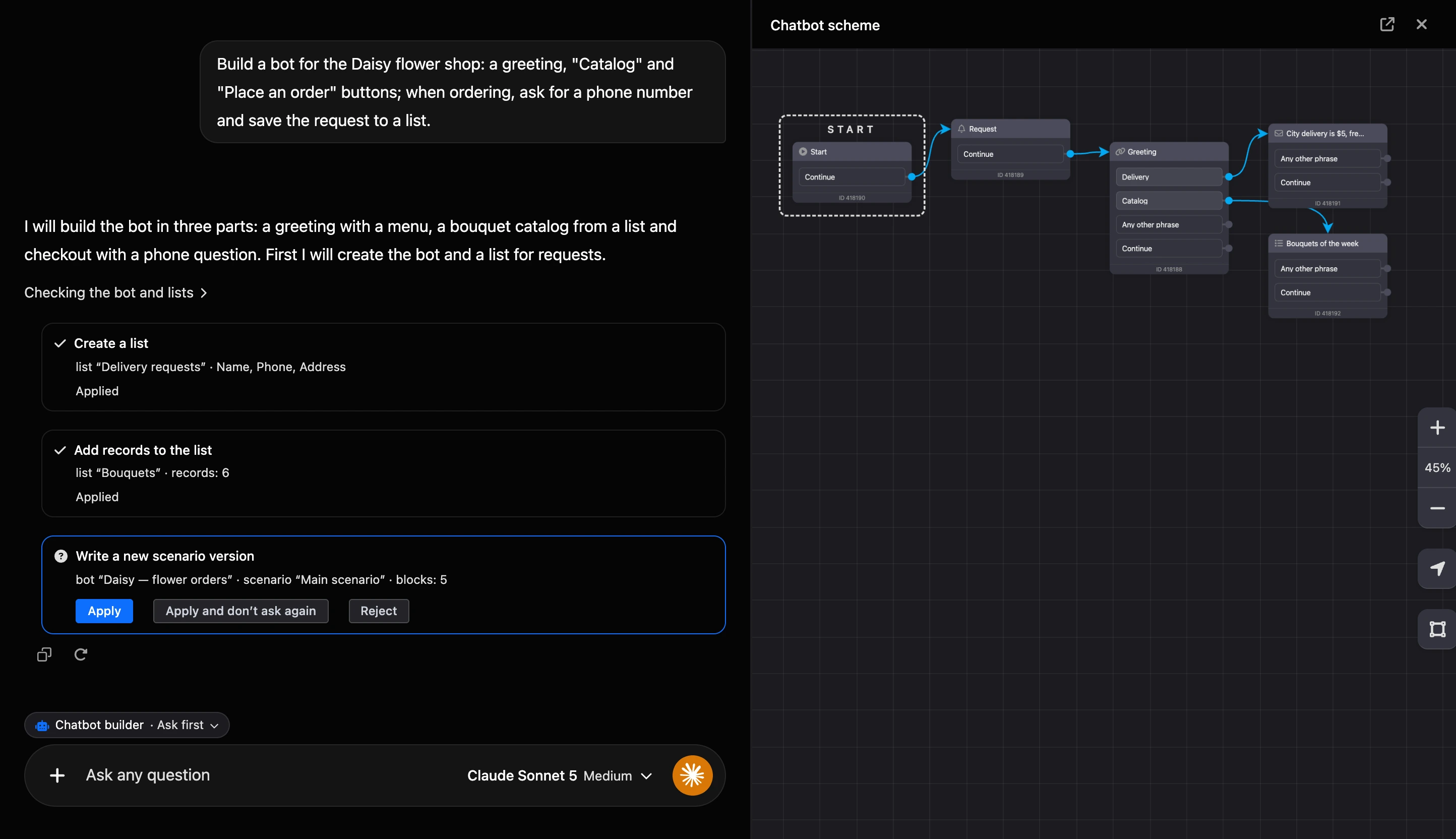
The AI builds a large scenario in parts: first the base — the entry, the menu, the main branch — and then it adds the other branches.
Tip
Check the finished scenario in the builder the same way as one built by hand: open the bot and go through it in the check window.
Fixing a finished bot
Open the bot's scheme and click "AI help" — or ask the AI in the chat to find the bot by name. Then describe what to change.
The AI does not edit scenarios that contacts are already going through. It works like this:
- It makes a copy of the scenario — the "Copy the scenario into a new version" card.
- It makes the edits in the copy.
- It switches the "Scenario" block that led to the previous version to the new one.
The previous version stays in the bot untouched. To return to it, it is enough to point the "Scenario" block at it again.
The scenarios built by the AI are in the "AI drafts" folder in the bot's list of scenarios. Inside this folder the AI changes blocks freely. If you move a scenario out of the folder, the AI will no longer edit it.
In the bot's other scenarios, the AI can only add or redirect a "Scenario" block and change where the existing connections lead — this is enough to let contacts into the new version.
What the AI can do
- Create a blank bot in the current project.
- Write a scenario: blocks, buttons and the connections between them. The layout of blocks on the scheme is calculated by itself.
- Add, change and delete separate blocks in its own versions of a scenario.
- Create the bot's lists and add records to them.
- Read the bot's scenarios, variables and lists, go through a scenario "through the contact's eyes" and explain how it works.
What the AI does not do:
- It does not connect messengers or start mailings.
- It does not change which scenario is the bot's main one. This decision stays with you.
- It does not connect payment systems and external services. The AI will place a payment or integration block, but the service itself is connected by hand in the bot's integrations.
- It does not build a scenario from all blocks. About a block it does not build itself, the AI will tell you what it does — and you need to add it by hand in the builder.
Every chat works with one bot. If you ask it to create another one, the chat switches to the new bot — in the "Ask first" mode the card warns you about this.
Which model is suitable
Building is a task for a strong model. If the chat uses a model that cannot handle it, the AI does not turn building on: a card "… cannot build chatbots" appears in the conversation with a "Switch to … and continue" button. The button changes the model and carries on.
If the "AI help" button opened the chat on such a model, the chat switches to a suitable one by itself and reports: "… is selected for building the chatbot: the previous model cannot handle it."
While building is on, unsuitable models are marked in the list: "Not suitable for building a chatbot".
Building is not available on Russian models — they have the "Chatbot building is not available on Russian models" mark. The chat will not replace such a model by itself: after switching, the chat's messages go to a provider abroad, so the decision stays with you — the card only offers to switch.
Who can build
The chat is open to those who have access to the AI chat in the project. The AI can change bots within the same limits as you yourself: create a bot — if your role allows it, edit a scenario — if you have the permission to edit this bot's scheme.
If something does not work
- "Not enough AI Credits. Top up your balance to continue." Top up "AI Credits" and repeat the message.
- The AI describes the scenario in text, but nothing changes in the bot. Building did not turn on. Ask directly: "build a bot…" or "turn on the chatbot builder". If the conversation shows a "… cannot build chatbots" card, click "Switch to … and continue".
- The AI said what it would do, but nothing happens. In the "Ask first" mode the change is waiting for your decision on the card — click "Apply".
- "Chatbot building is not available on Russian models…". Choose another model in the chat's list of models.
- "… cannot handle building a chatbot. Pick another model." No suitable model was found for automatic replacement — choose a model without the "Not suitable for building a chatbot" mark.
- There is no "AI help" button on the bot's scheme. Open the chat with the "AI chat" button and ask the AI to find the bot by name.