

Excel import and export
Import adds records from an Excel file to a list and updates the ones already there. Export saves all records of a list to a file. An exported file can be edited in Excel and loaded back without any preparation.
Both buttons — "Import from Excel" and "Export to Excel" — are above the table of records: in the bot's "Lists" section, in the project's "Lists" section and in the lists window that opens from a scenario block.
Preparing a file for import
- Format — an Excel workbook,
.xlsx, up to 50 MB in size. - Sheet — only the first sheet of the workbook is read.
- Header row. While "First row is headers" is ticked at the first step, the first row of the file is skipped. If the file has no headers, untick it — otherwise the first record will not be loaded.
- No empty rows. The import stops at the first row in which all the columns chosen for fields are empty.
- One row is one record, one column is one field of the list.
What a cell must contain:
| Field type | Value in the cell |
|---|---|
| "Text" | Any value — it is saved as text |
| "Number" | A number |
| "Money" | The amount as a number, without the currency sign: 1500 or 1500.50 |
| "Yes/No" | 1 — "Yes", 0 — "No". An empty cell does not change the value; for a new record it is "No" |
| "Date", "Date and time" | A cell with a date format, or text like 2026-10-02 14:30:00, 2026-10-02, 02.10.2026 |
| "File", "Image" | A public link to the file, starting with http:// or https:// |
| "Contact ID" | The number of a contact of one of your bots |
| "Bot ID" | The number of your bot |
Important
The platform does not download files and images by the links: the bot gives a person the file straight from your address. The links must keep working for as long as the bot uses the list.
The unique field
The unique field is the field by which the import recognises a record: a product SKU, an order number, a promo code. For every row of the file, the import looks in the list for a record with the same value of this field:
- the record is found — it is updated;
- there is no such record — a new one is added.
Choosing the unique field is mandatory. A row in which it is empty is rejected — unless the row holds the ID of an existing record (see below).
An update changes only the fields that have a value in the row. An empty cell does not erase the previous value, while 0 and "No" are written.
Tip
To update only the prices, load a file of two columns: A — the SKU, B — the new price. At the first step, assign column A to the SKU field, column B to the price field, and columns that the file does not have to the other fields. Choose the SKU as the unique field. The other values of the records will not change. This works if the list has no other required fields: a required field must be filled in every row of the file.
The ID column
At the first step, the "Record ID" field selects the column with the record identifier — "Export to Excel" adds it. If a row holds the ID of a record in this list, exactly that record is updated, even if its unique field value has changed. Rows with an empty or unknown ID are matched by the unique field as usual.
By default this is the first column to the right of all fields — that is where the export writes it. If your file has no ID column, there is nothing to change.
Starting an import
- Click "Import from Excel".
- Check the "First row is headers" tick. For every field of the list, choose the letter of the file column to take the value from. By default the fields go in order: the first from column A, the second from B and so on. Below, check the "Record ID" column. Click "Next".
- In the "Unique field" field, choose the field for finding existing records. Click "Next".
- Upload the file and click "Next" — the import starts.


The column mapping, the ID column, the header tick and the unique field are remembered in the list: next time you only need to check them.
The import runs in the background, and the window shows its progress. When it finishes, a report stays in the window:
- "Import completed" — the date and time;
- "Rows processed" — how many rows of the file were read;
- "New records" — how many records were added;
- "Updated records" — how many records were updated;
- "Rejected rows" — how many rows did not pass the check;
- "Errors" — the list of errors. Each begins with the cell address, for example
[B7].
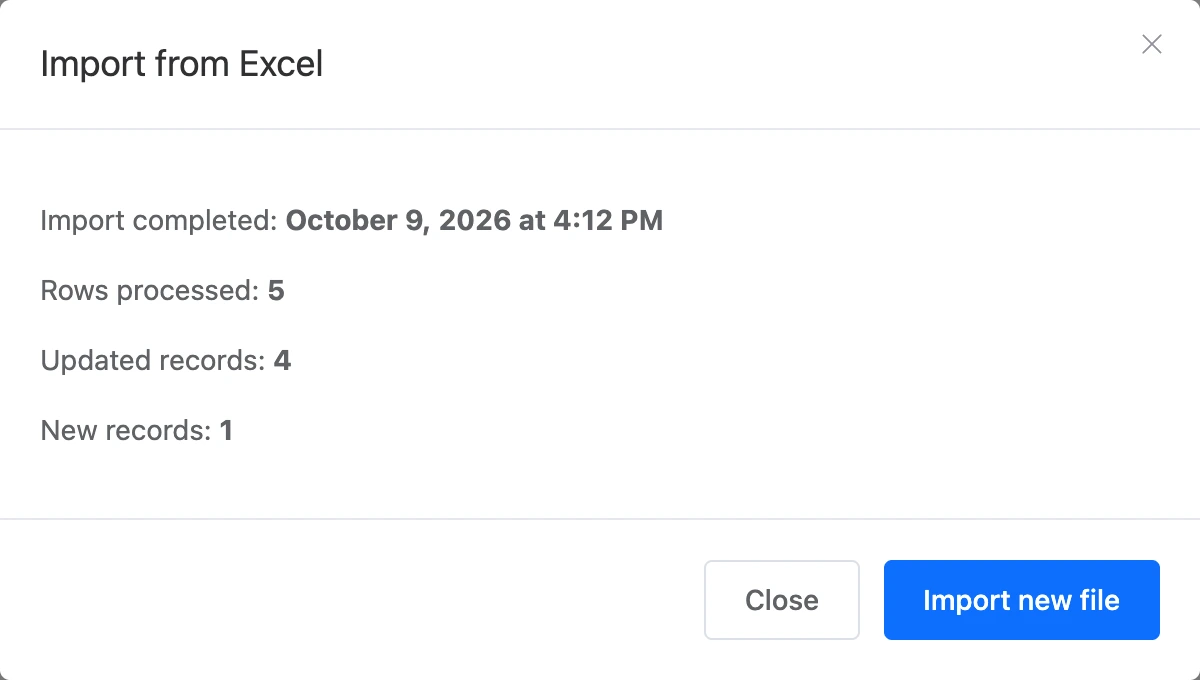
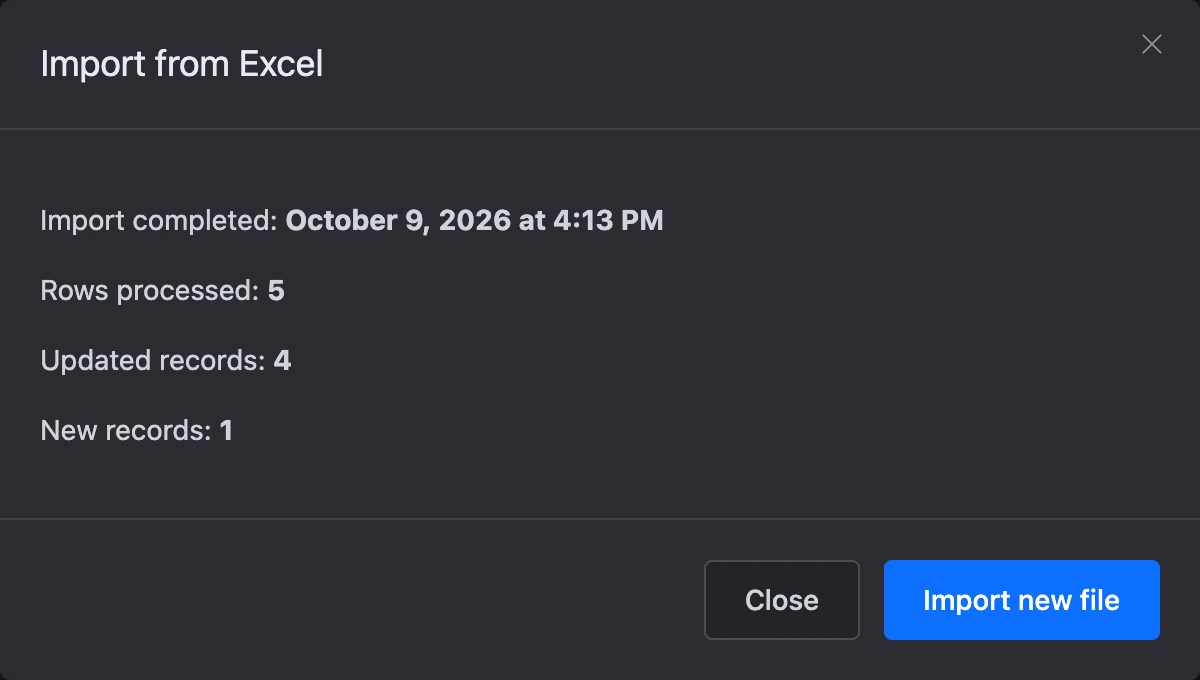
The report is kept until the next import. The "Import new file" button returns to the first step. When the import finishes, the table of records refreshes by itself.
Why a row was rejected
A rejected row does not get into the list; the other rows of the file are loaded.
| Error in the report | What to fix |
|---|---|
| "Unique field must not be empty." | Fill in the unique field's column in the row |
| "Unique field not found." | The unique field is not chosen or has been deleted from the list. Start the import again and choose the field at the second step |
| The field is required | A required field is empty in the row |
| The field must be a number | There is text in a number or money field |
| "The … field must be 0 or 1." | The logical field contains something other than 0 and 1 |
| "The … is not a valid date." | The date is written as text in another form — give the cell a date format or write the date as 2026-10-02 |
| The field's format is invalid | The file or image field does not contain an http:// or https:// link |
| The field must be an integer | The "Contact ID" or "Bot ID" field does not contain a number |
| "The bot from the … field must belong to your account." | The number of someone else's or a non-existent bot is given |
| "The contact from the … field must belong to your account." | The number of a contact that is not from your bot is given |
Other messages:
- "Processing was stopped: too many errors." — the file has accumulated more than 1000 errors. The rows loaded before the stop stay in the list. The most common cause is wrongly mapped columns or a header row with "First row is headers" unticked.
- "A new import cannot be started while the previous process is in progress" — an import into one of the lists is already running in the project; its name is given in the message. Wait until it finishes.
- "Only xlsx or csv files can be imported" — a file of another type was uploaded, for example an old
.xls. Save it in Excel as.xlsx.
Export to Excel
- Click "Export to Excel".
- In the window, click "Start export".
- When the export finishes, the window shows "Export completed" with the date, "Rows processed" and the "Download file" link.
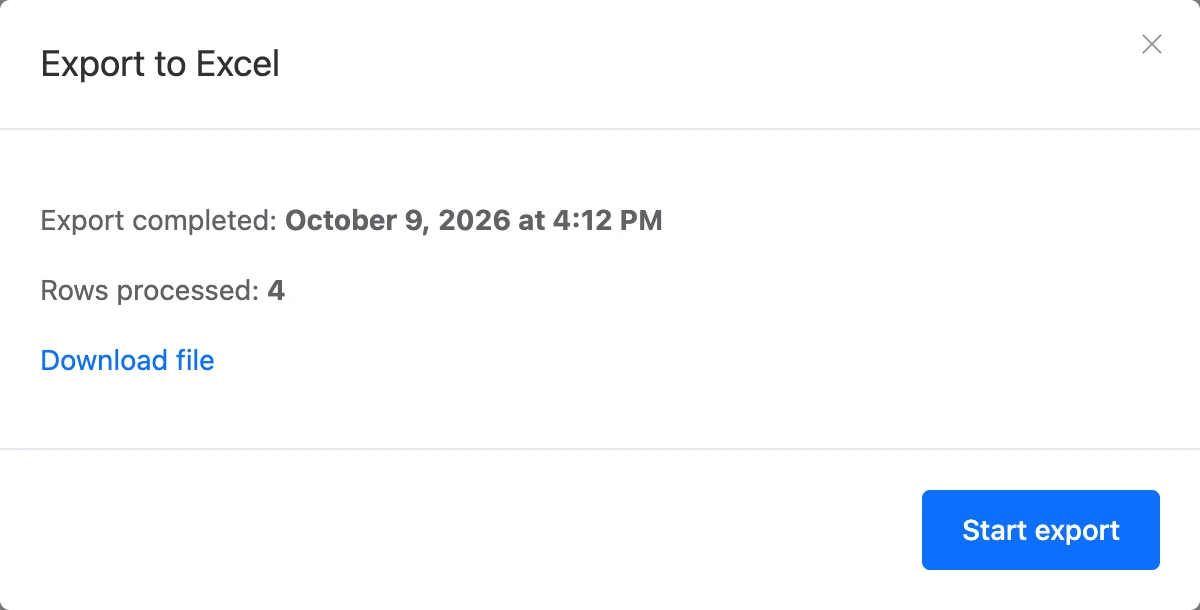
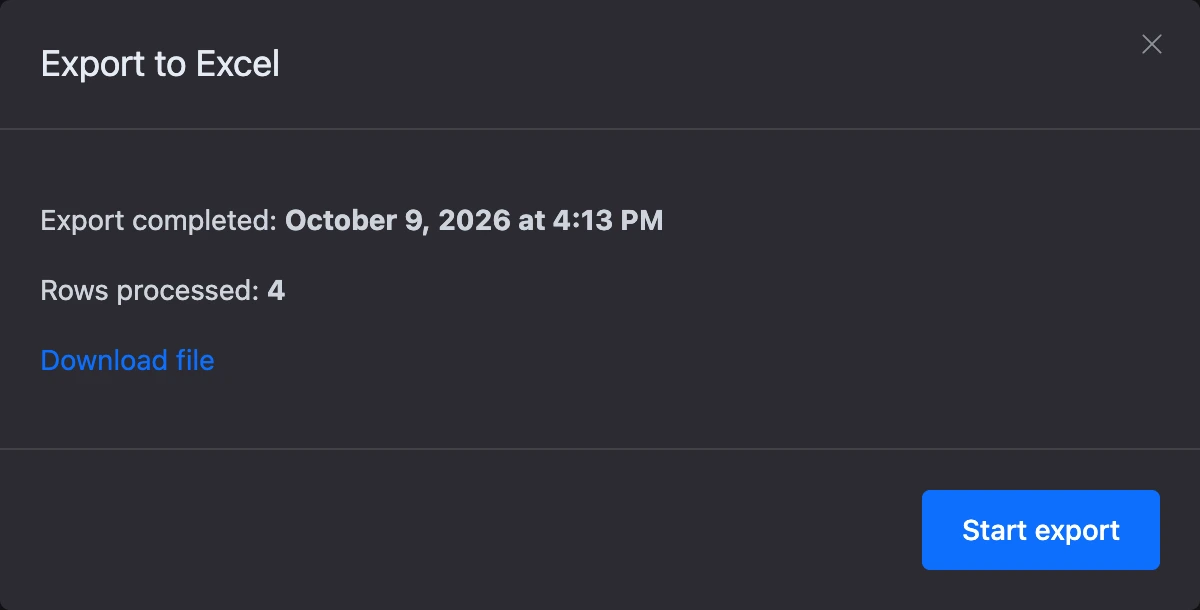
The link to the last file stays in the window until the next export.
What goes into the file:
- all records of the list — the search and filters in the table do not affect the export;
- the first row is the headers: the field names, including hidden ones, and "ID";
- the fields are in the same columns that are chosen for import (by default in order from A), the "ID" column is to the right of the fields;
- a logical field —
1or0; - a date — as
2026-10-02 14:30:00; - a file and an image — a link to the file;
- a contact and a bot — the number;
- a money field — the amount in the main units of the currency, as in the record form:
1500.5.
Only one export runs in a project at a time. If you start a second one, the message "A new export cannot be started while the previous process is in progress" appears.
Tip
To fix many records at once, export the list, change the values in Excel and load the file through "Import from Excel" as is: the records are found by the "ID" column. Rows without an ID become new records if their unique field value does not match an existing one.
Team member permissions
- Import changes the list's settings, so it requires the "Editing lists" permission. In the bot's section, only team members with this permission see the "Import from Excel" button.
- Export is available with the "Viewing records" permission.
A Pro subscription is not needed for import and export.