

Building an app in the AI chat
A mini app can be built by describing it in words: "an app for booking a salon appointment", "a bouquet catalog with ordering", "a sign-up form for event participants". The AI creates the app, writes the screens and blocks, sets up lists and shows the result on the scheme next to the conversation. You can fix an existing app the same way: "add a button with the phone number to the main screen", "after booking, show a screen with the address".
You pay for the model's tokens — they are charged to "AI Credits". How they work is described on the Prices of additional services page.
How building turns on
Open the AI chat — with the "AI chat" button on the top bar of the account — and describe what you need. There is nothing to switch on: the AI connects the mini app building tools by itself, and a "Mini app builder" chip appears above the message field. If a bot is being built in the same chat too, the chip reads "Building: bot and mini app".
You can also start from the builder: the "AI help" button on the toolbar above the map opens the AI chat about this app and the open version. Building is on from the first message, and the scheme of this version is shown on the right at once — no need to name the app in the chat.
A new app can also be started from the creation form: above it is the "Build an app with AI" block. Click "Build", describe the task or pick an example and click "Build with AI" — the AI chat opens, and the description is sent to it as the first message.
In the chip's menu you choose the mode — "Ask first" or "Automatic" — and turn building off. The modes are the same as for building a bot: see the Building a bot in the AI chat page.
Building a new app
- Describe the app: what a person does in it, which screens are needed, where to save requests. For example: "Build an appointment booking app: choosing a service, a specialist and a time; after booking — a screen with the booking number and a "My appointments" button".
- The AI looks at what the project already has — lists, shops, booking branches, bots — and offers to create the app: the "Create a mini app" card.
- Then it writes the app — the "Write the app" card — and builds the rest with changes — "Change the app" cards. If a new list is needed for requests, "Create a list" and "Add records to the list" cards appear.
- In the "Ask first" mode, click "Apply", "Apply and don’t ask again" or "Reject" — just as when building a bot.
If the app is for booking appointments and the project has no booking branch yet, or the branch has no services, specialists or schedule, the AI first sets up booking — creates a branch, adds services, specialists and their schedule — and then builds the app with this branch. See the Setting up booking in the AI chat page.
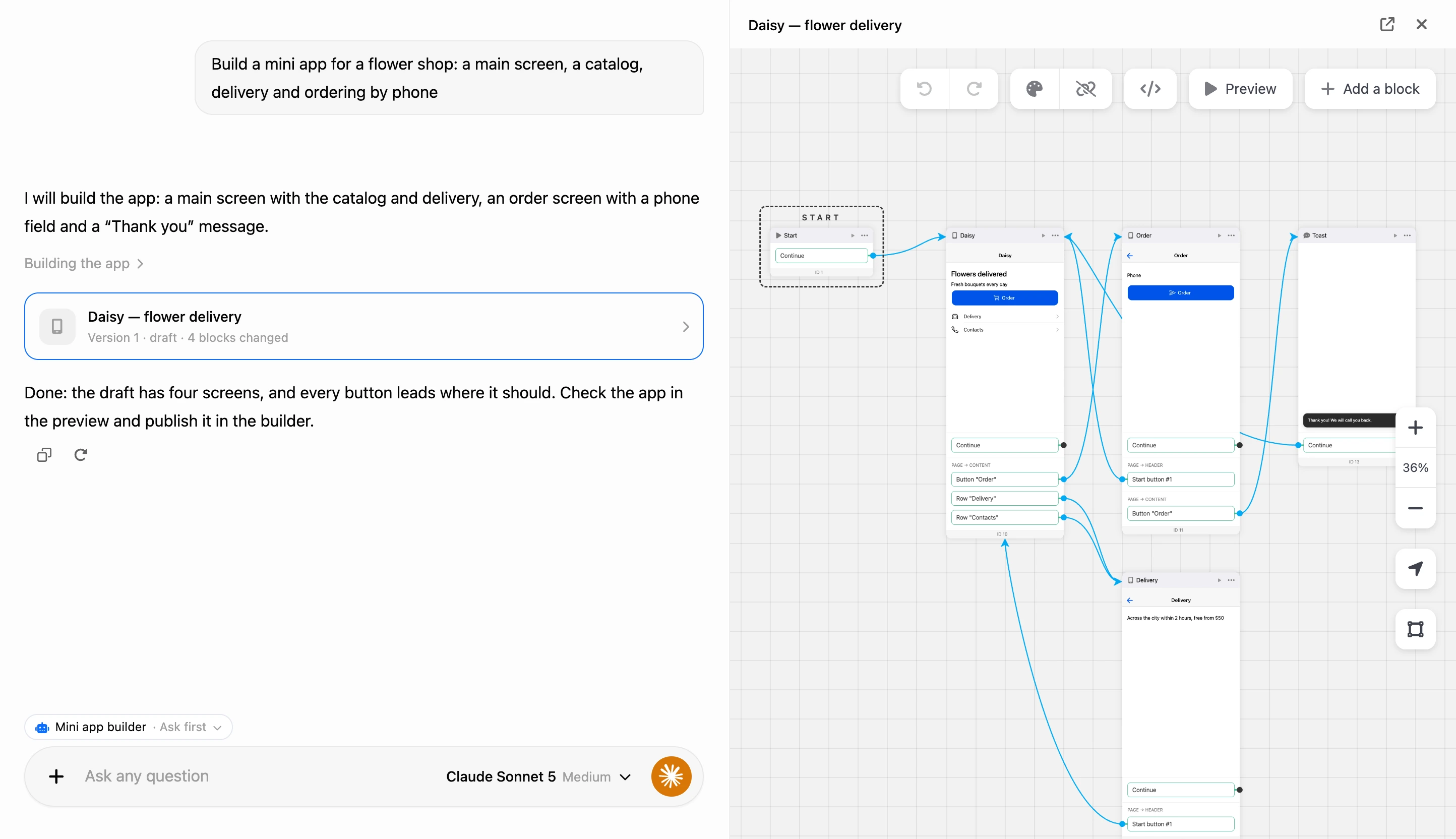
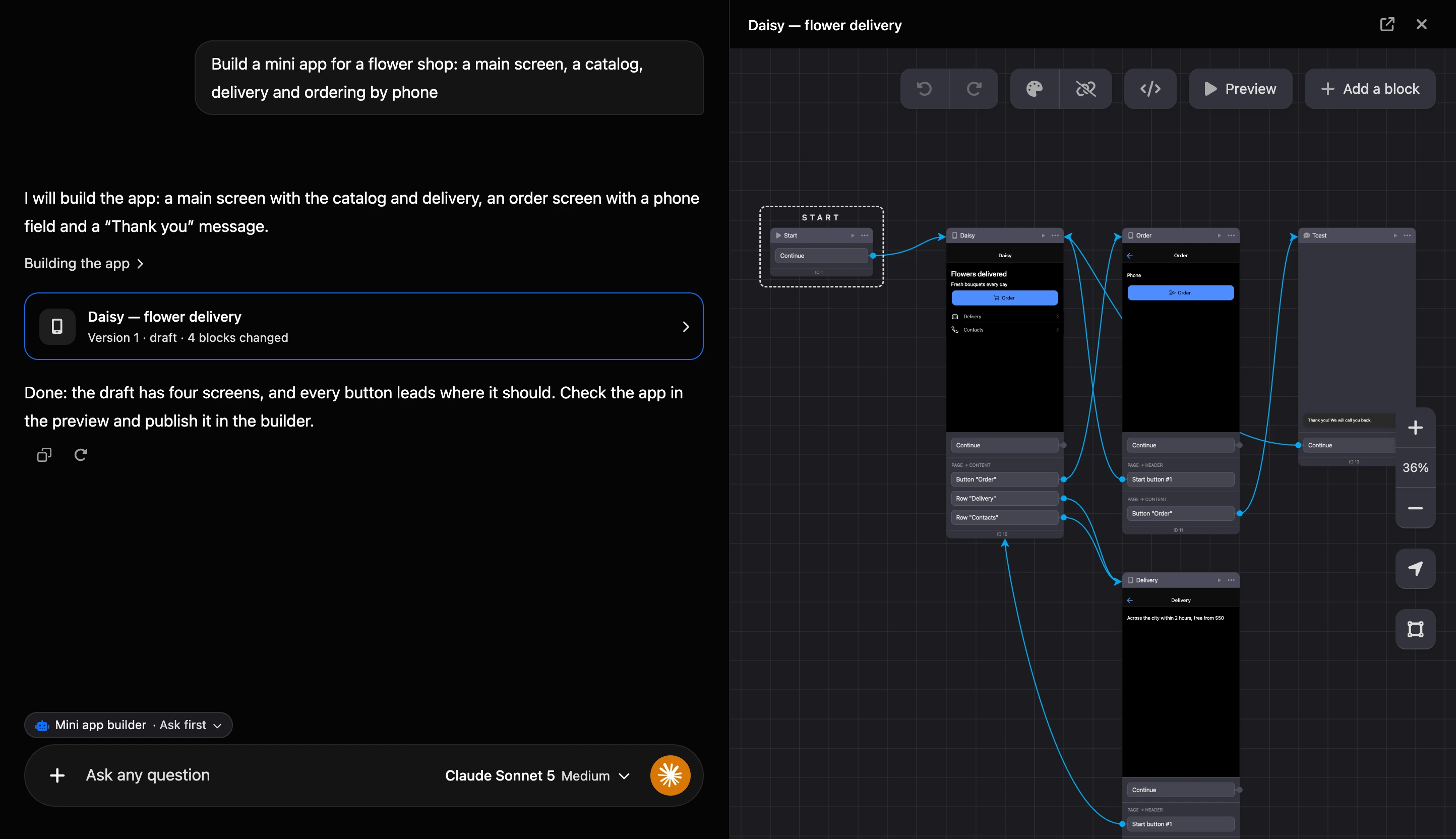
The app's scheme opens to the right of the chat — the same builder as in the "Mini apps" section. Changed blocks are highlighted on it, and the preview works as usual. The "Open in the builder" button opens this version in a new tab.
After every write, an app card stays in the conversation: the name, the version and what changed — for example, "Version 2 · draft · 4 blocks changed". The "not finished yet" mark means the AI has found mistakes in the app and is still fixing them. A click on the card opens the scheme again.
Fixing an existing app
Name the app in the chat — the AI finds it in the project — or open it in the builder and click "AI help". Then describe what to change.
The AI never changes the published version, the one people open. If you ask to fix a published app, it first makes a draft — the "Make a draft of the version" card — and makes the changes there. The draft appears in the app's list of versions.
When the draft is ready, check it in the preview and publish it.
Publishing
You can publish a version in the builder — with "Publish" in the versions menu. The AI can offer to publish too, but publishes only with your consent: a "Publish the mini app version" card with the "Publish" and "Reject" buttons appears in the conversation. The card appears every time, even in the "Automatic" mode, and it has no "Apply and don’t ask again" button.
The version the chat works with becomes the published one. Only one version can be published: the previous one stops being published, and people following the link open the new one right away. Versions can be published by someone with the "Building a mini app" permission, and by the owner — with a Pro subscription. How versions work is described on the Versions and publishing page.
What the AI can do
- Create apps in the current project.
- Write screens with a header, tabs and elements, windows, alerts and toasts, as well as screens and elements from your own HTML code.
- Add blocks: requests, conditions, launch source, work with lists, checkout and payment, appointment booking, bot messages and scenarios, JavaScript.
- Link screens and blocks and set the start screen.
- Create project lists and add records to them.
- Take lists, shops, booking branches and bots from the project — the AI does not invent them but chooses from what exists.
- Bind bots to the app — needed for the app to open from a messenger and for the bot blocks to work.
- Put pictures by a link you give: the AI uploads the file into the app.
- Walk through the app "through a person’s eyes" and check that no button leads nowhere.
What the AI does not do:
- It does not publish without your consent. The AI can publish a draft only after you click "Publish" on its card. It does not edit the published version.
- It does not delete apps or versions and does not change the app’s name, icon and address.
- It does not rewrite screens with a grid of columns. The AI changes the links of such screens, but their content is edited by hand in the builder.
- It does not upload files from the chat. The AI puts a picture only by a link to it on the web.
What you need
- A Pro subscription — as for working with mini apps in the builder. Without it, the AI tells you that the app cannot be built.
- Permissions. The AI changes apps within the same limits as you: create an app — with the "Creating a mini app" permission, build and edit — with the "Building a mini app" permission. See the Mini apps page.
- A suitable model — the same as for building a bot. If the selected model cannot handle building, a "… cannot build mini apps" card appears in the conversation with a button to switch to a suitable one. See the Building a bot in the AI chat page.
If something does not work
- The AI describes the app in text but creates nothing. Building did not turn on. Ask directly: "build a mini app…". If the conversation shows a "… cannot build mini apps" card, click the button on it.
- The AI said what it would do, but nothing happens. In the "Ask first" mode the change is waiting for your decision on the card — click "Apply".
- People do not see the changes. The AI works in a draft: publish it in the builder, or ask the AI and click "Publish" on the card.
- There is no picture on the screen. The link did not lead to a picture, or the picture is not available without signing in. The AI says so in its answer — give another link.