

Templates
A template is a ready-made bot with scenarios that you can install for yourself. On installation a new bot appears in your project — an independent copy of the template: change it as you like, this does not affect the template or other people's bots.
You can browse the catalogue and install templates without a subscription. Pro is needed to create your own template.
The catalogue
The catalogue opens with the "Templates" item of the side menu.
On the right are the catalogue's sections:
- "All templates" — everything that is open to all users;
- "My templates" — the templates you created;
- "Categories" — templates by topic. Empty categories are not shown.
Next to each section is the number of templates in it. The "Search by name" field searches within the open section.
A template's card has the cover, name, author, description, categories, number of installations and publication date. The more installations, the higher the template is in the list.
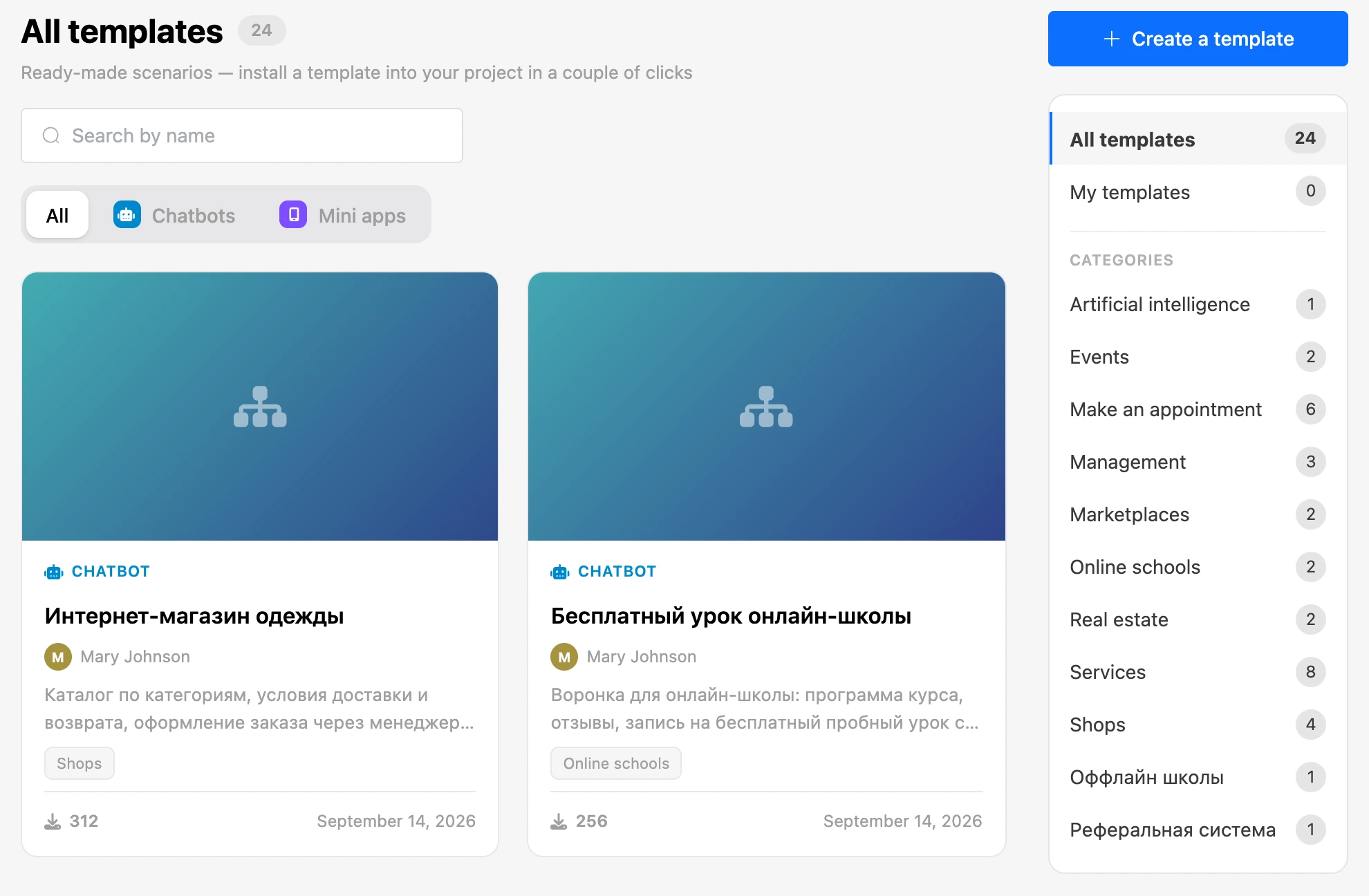
The catalogue also holds mini app templates — they have the "Mini app" mark. The "All", "Chatbots", "Mini apps" switch above the list leaves templates of one kind. This page is only about chatbot templates.
Viewing and installing a template
- Click the template's card. Its scheme opens — the same as in the builder.
- Study the template. The side menu has its "Scenario", "Mailings" and "Lists".
- Click "Install this template" at the bottom of the screen.
- If the author suggested filling in values, the "Fill in the template" window opens. The fields contain the author's values — replace them with your own, and they are inserted into all scenarios of the bot. Then click "Install".
After installation the new bot's scheme opens.
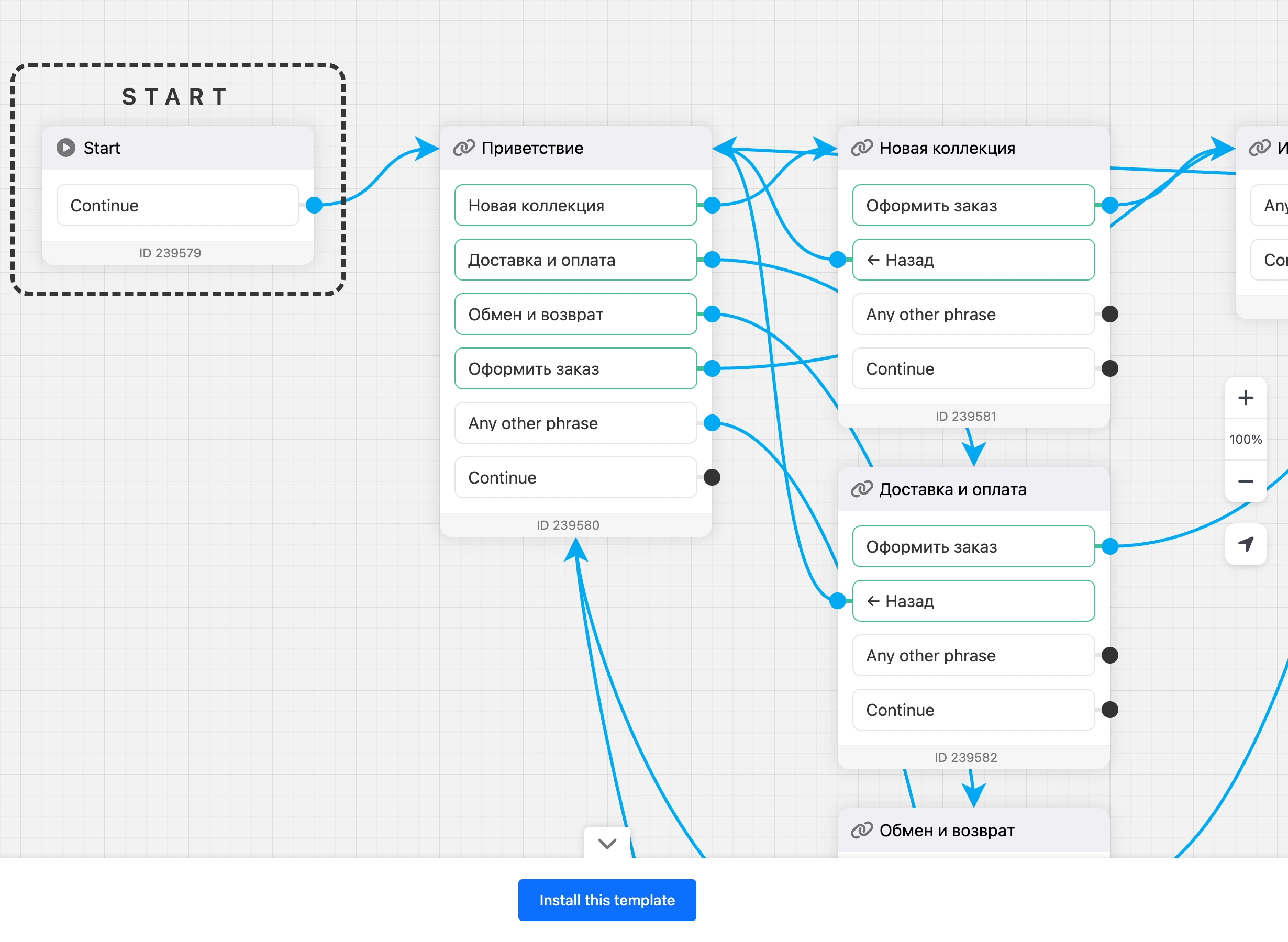


The bot appears in the project that has "Default project" turned on in its settings. To install a template into another project, create a bot in the project you need and choose the template right in the form — as described on the The list of bots and creating a bot page. The "Preview" link from that form also leads to the template's page, and installing from there puts the bot into the project where you started creating it.
What is installed with the bot
| Installed | Not installed |
|---|---|
| All scenarios and scenario folders, blocks with settings, buttons and connections | Contacts and conversations |
| Notes on the scheme | Connected messengers |
| Lists — the structure only: names and fields | Records in the lists |
| Mailings — as drafts, they need to be started again | The bot's integrations |
| Global variables, the bot's sets of tags and variables | Recipients of notifications about requests |
| The policy text, the bot's avatar and description | Statistics |
The new bot's time zone is taken from your browser, not from the template.
Note
After installation, check the blocks that send notifications: a template does not carry recipients over, they have to be chosen again. Messengers are connected as for any new bot — in the Connecting channels section.
Your own template
A template is made from your bot. The platform takes a copy of the bot and publishes it: open to everyone or by link only.
- Open the catalogue and click "Create a template".
- In the "Chatbot for template" field, choose a bot. The list has the bots you own. The "Open scenario" button opens the chosen bot in a new tab.
- Fill in "Name" and "Description" — they are shown in the template's card.
- Choose the "Access":
- "Public" — all users of the platform can find and install the template;
- "Access via link" — everyone who has a link to the template can install it.
- If you wish, tick "Categories" — no more than five.
- Turn on "Suggest filling in variables" if you want a person to enter their own values of the bot's global variables before installation.
- Upload the "Cover" — a JPG, PNG or GIF image.
- Click "Create".


What happens next depends on the access:
- "Public" — the template goes to moderation and appears in the catalogue after the check.
- "Access via link" — the template is published by itself, usually within a few minutes.
Warning
Everything written in the bot's blocks and global variables gets into the template: addresses, tokens and keys in HTTP requests, code, variable values. Remove from the bot everything you are not ready to share before creating a template.
Template states
In the "My templates" section, a mark is shown on the cover:
| Mark | What it means |
|---|---|
| "Template processing" | The platform is taking a copy of the bot |
| "Under moderation" | The template is waiting for the check |
| "Rejected" | Moderation was not passed. The reason is shown at the top of the editing window — "Reason for rejecting this version of the template" |
| "Error" | Publishing failed. Click "Edit" and send the template again with the "Publish changes" button |
| "Public" | The template is published in the catalogue |
| "Access via link" | The template is published and available by link |
The link to a template
A published template with access via link gets the "Link" button on its cover — it copies the template's address. The same link is in the editing window next to the "Copy" button.
The "Generate new link" button replaces the address. The template will no longer open or install by the previous link.
Updating a template
A template is a snapshot of the bot at the moment of publication. If you change the bot later, the template stays the same.
To update a template, hover over its card in the "My templates" section, click "Edit", correct the fields if needed and click "Publish changes". The platform takes a new copy of the bot. Edits of a public template go through moderation again; while the check is under way, the previous version stays in the catalogue.
Bots that have already been installed from the template do not change — neither when the template is updated nor when it is deleted.
Deleting a template
Hover over the card in the "My templates" section and click "Delete". The action is irreversible. The bot the template was made from stays with you.
If something does not work
- "This feature is available on Pro" opened instead of the template creation window. Creating, updating and deleting your own templates is possible only with a Pro subscription.
- The bot you need is not in the "Chatbot for template" list. The list has only your own bots. A bot from a project where you were invited as a team member cannot be chosen.
- The template is not installed: "You cannot create more than 100 bots in one project." The project the template is installed into has no room. Delete extra bots or install the template into another project.
- The template is not installed: "You cannot create more than 50 bots per day. Please try again later." Installing a template creates a new bot and counts toward the account's daily limit. Try again later.
- The link to a template does not open. The author generated a new link or deleted the template. Ask for the current link.