

Accepting payments
Payment blocks issue an invoice to a person right in the conversation: the bot sends a link to the payment system's page and, after the payment, leads the scenario on. Each payment system has its own block, but they all work the same way.
How a payment block works
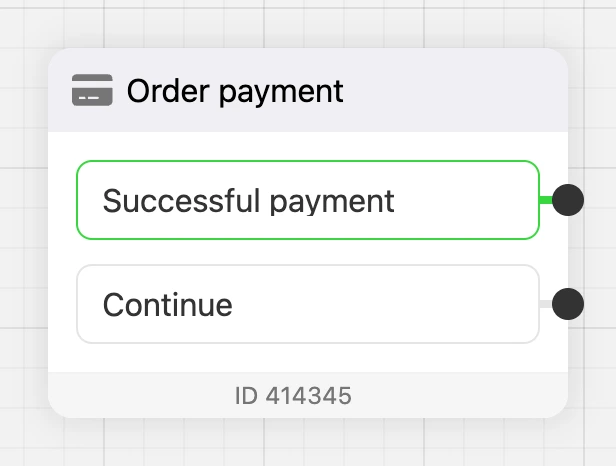
- The scenario reaches the block. The block creates a payment in the payment system and sends the person a message with a link button to the payment page.
- Right after that the scenario moves on through the "Continue" output — without waiting for the money.
- When the payment system reports that the invoice is paid, the bot leads the person through the "Successful payment" output.
Connecting a payment system
A block works only with a connected payment system. It is connected separately for each bot: open "Settings" in the bot, the "Integrations" tab, choose the system in the "Available integrations" list and enter the keys from its merchant account.
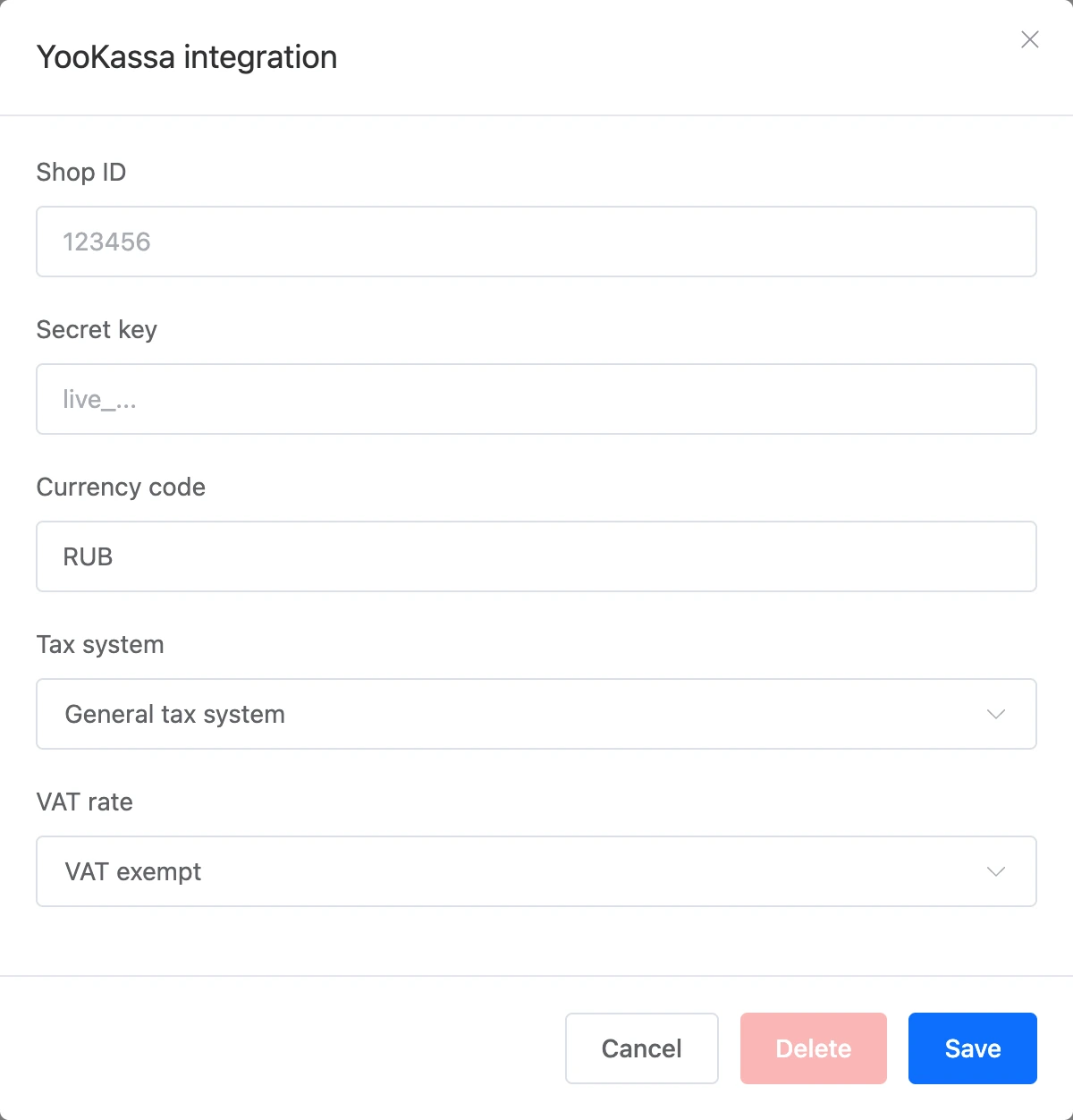
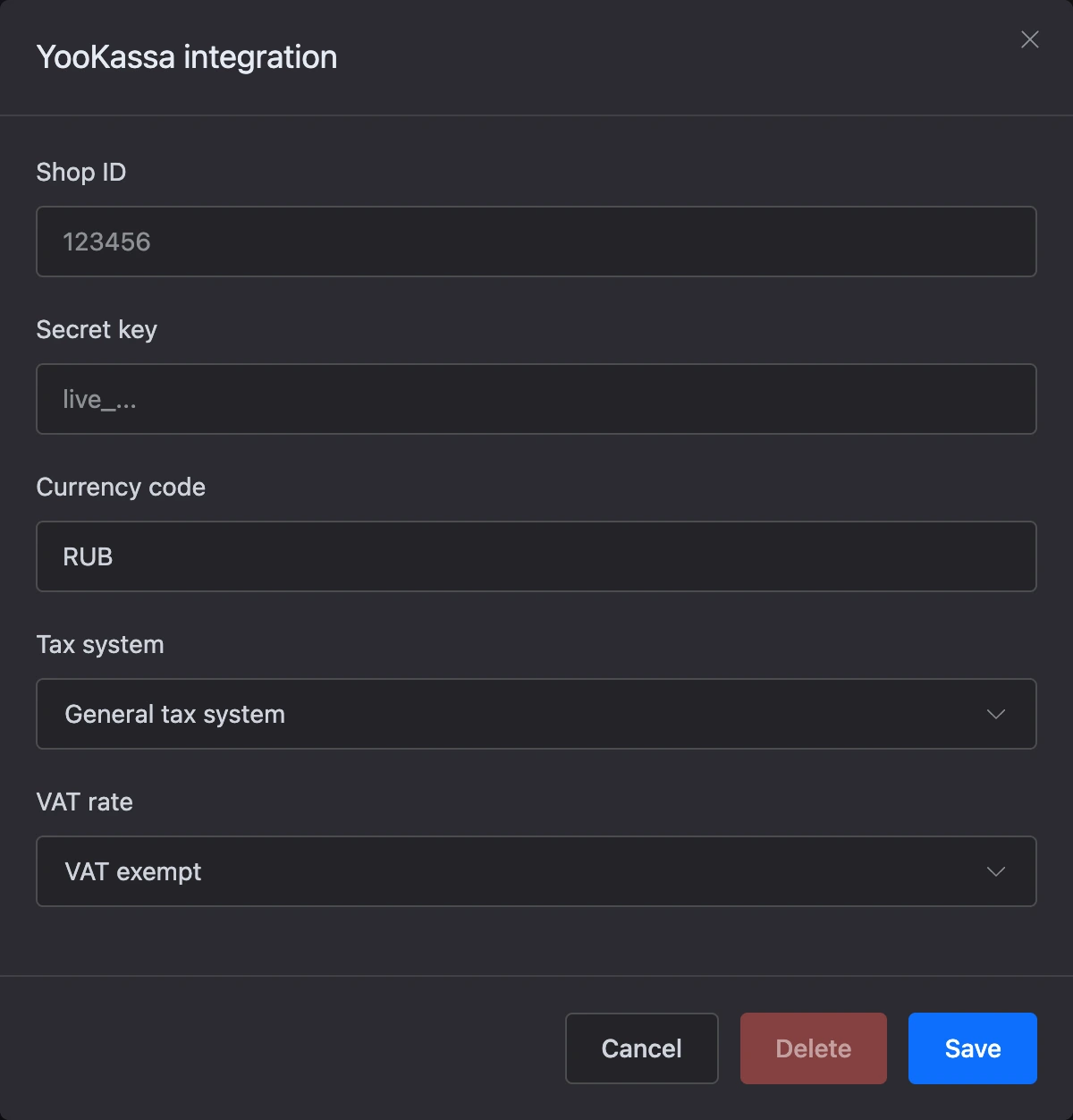
For most systems, a notification address (Webhook) appears after saving. Copy it into your account with the payment system — this is the address it uses to tell the bot about a payment. Without it, the "Successful payment" output will not fire.
Warning
If the system is not connected, instead of an invoice the person gets a message like 'Payment system "…" is not connected.'. Connect the system before launching the bot.
Settings
The set of fields differs slightly between blocks, but the main ones repeat:
- "Purpose of payment" — what the person is paying for. The field must be filled in: with an empty purpose the block does not issue an invoice and sends the person an error message instead.
- "Payment Description" — a note on the payment. Also required.
- "Amount" — how much to pay. The currency is not chosen in the block: it depends on the payment system and its settings in the integration.
- "Count the amount from the user variable" — turn it on if the scenario calculates the amount. The "Variable name" field appears: the block takes the amount from this contact variable. If the contact does not have the variable, they get the message "Amount not found. Please retry.".
- "Transfer money to user account" — after the payment the amount is credited to the contact's internal account in the bot. It can be debited from that account with the "Debit a contact's account" block.
- "Payment mode" and "Payment subject" — attributes for the sales receipt: full prepayment or full payment, a commodity or a service, and so on. They are present in the blocks of systems that pass receipt data.
- "Chatbot message" — the text the payment link comes with. Write
{url}where the link should be. If you leave the field empty, the bot sends "Link to payment: …". - "Payment button name" — the button caption, up to 30 characters.
{amount}is replaced with the amount. If you leave the field empty, the button says "Pay" and the amount.
Templates work in the purpose, the description and the message text.


Outputs
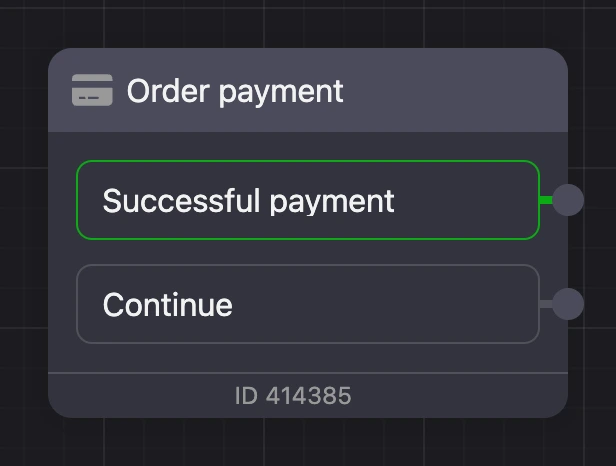
- "Continue" — right after the bot has sent the payment link. It is a handy place for a "Waiting for payment" message or a reminder.
- "Successful payment" — when the payment system has confirmed the payment. It fires even if the person has moved further along the scenario by then.
The blocks have no separate outputs for a declined payment or an expired invoice.
Good to know
- The link button is delivered in Telegram, VK, MAX and the web chat. Other channels have no button, and the link goes as message text. So if you write your own "Chatbot message", do not forget
{url}in it. - The block does not accept a zero or negative amount: the person gets an error message instead of an invoice.
- You receive notifications about issued and paid invoices — by email and to the chats connected in the bot settings on the "Notifications" tab.