

Variable operation
Writes to a variable a value you set yourself or the result of a calculation. The block suits counters, points in tests and quizzes, and calculating a total.
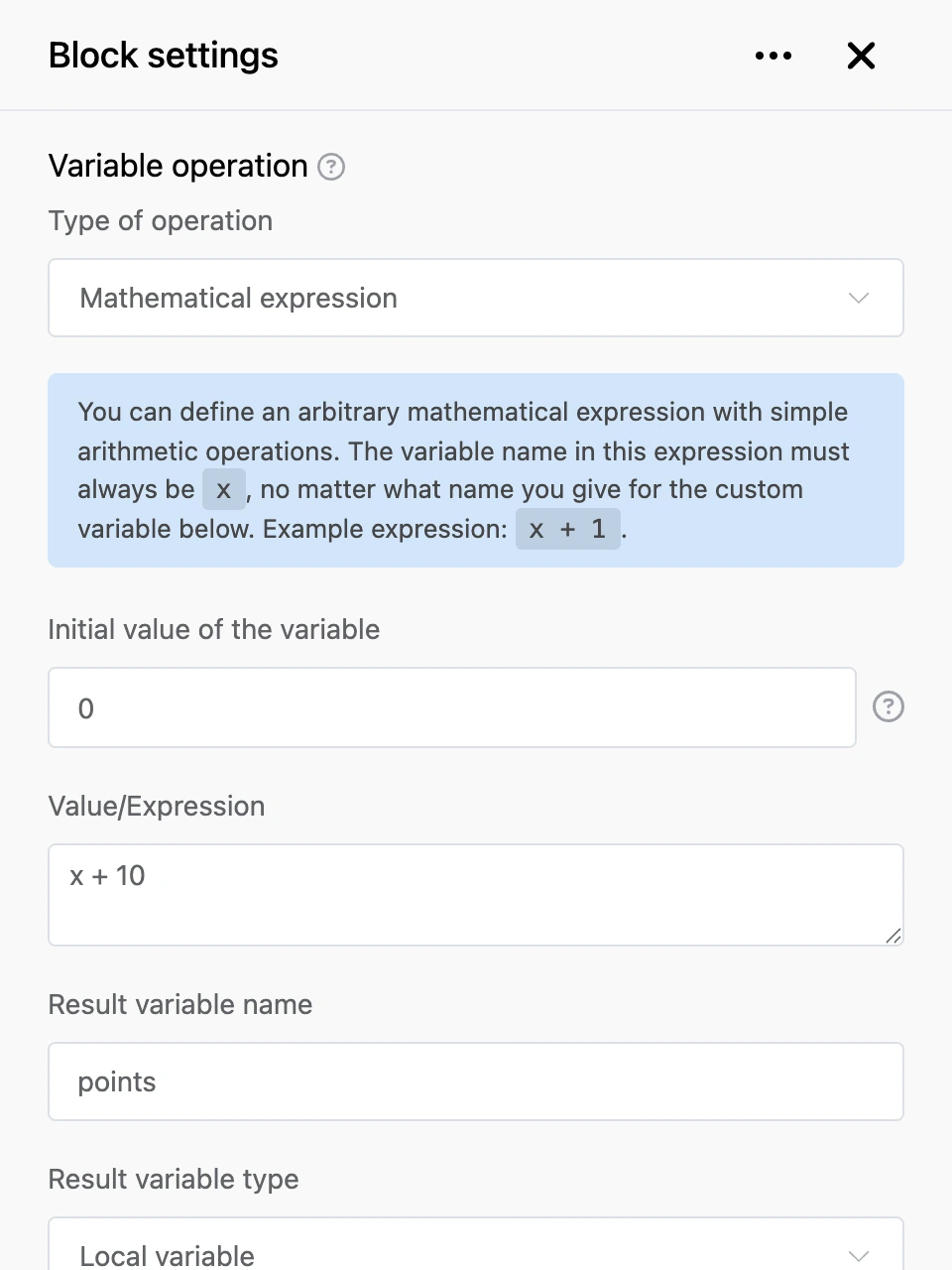
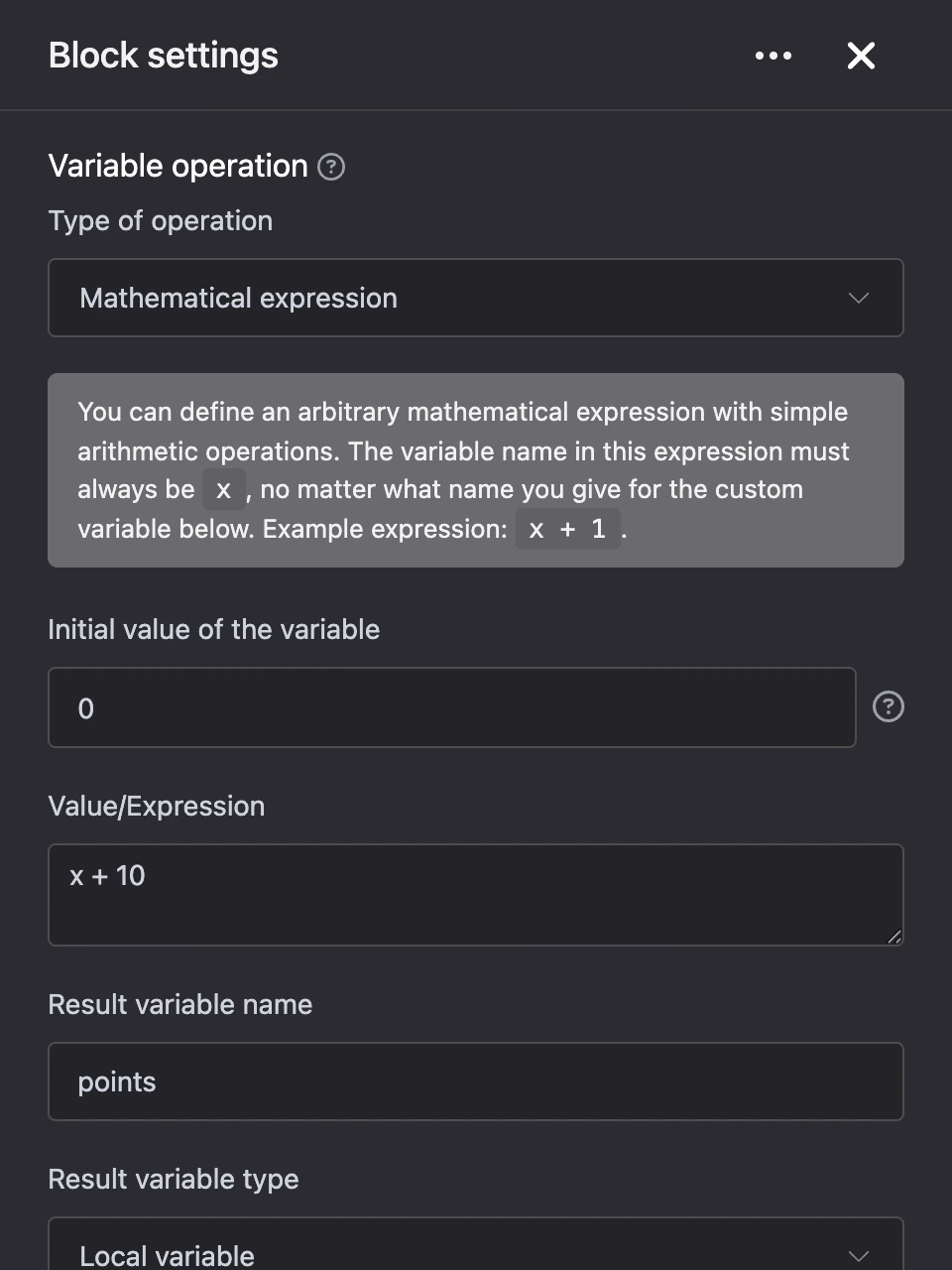
Settings
- "Type of operation" — what exactly the block does:
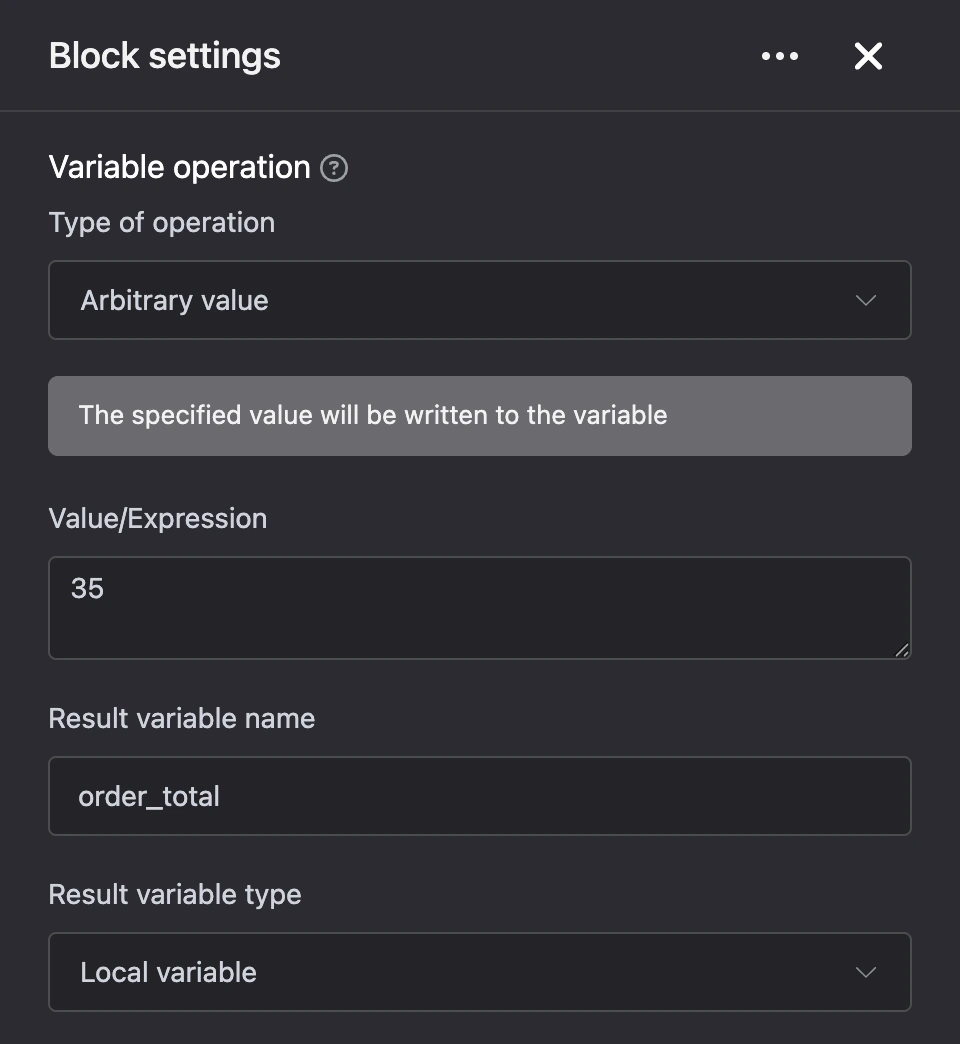
- "Arbitrary value" — write the given value to the variable;
- "Mathematical expression" — change one variable: add, subtract, multiply, divide;
- "Mathematical expression 2.0" — calculate an expression with several variables;
- "Mass assignment" — write values to several variables at once.
- "Value/Expression" — what to write or what to calculate. How to fill in the field for each type is described below.
- "Result variable name" — the variable the result goes to.
- "Result variable type" — "Local variable" (each contact has their own) or "Global variable" (shared by the whole bot).
The "Mass assignment" type has none of these three fields — the "Variables to assign" list takes their place.
Arbitrary value
Type text or a number in the "Value/Expression" field. Templates work here, including expressions, — so you can build the value from other variables and contact data.

Mathematical expression
Calculates the variable's new value from its current value. In the expression the variable is always written as x — whatever name you gave in the "Result variable name" field. For example, x + 1 increases the variable by one.
- "Initial value of the variable" — if the variable did not exist before this block, the calculation starts from this number.


Mathematical expression 2.0
The expression can use several variables. In the "Variables for Expression" list, click "Local variable" or "Global variable" and enter the variable name. Each one gets a short name: the first — x, the second — y, the third — z and so on. These short names are what you write in the expression, for example (x + y) * 10.
If one of the variables does not exist yet, 0 is used instead.


What you can write in a mathematical expression
- Numbers, the
+,-,*,/signs and brackets. - Fractional numbers — with a dot:
1.24. - Rounding up to a whole number: wrap the whole expression in
ceil( ), for exampleceil(x / 3).
{{ }} templates do not work in mathematical expressions — use the short variable names. The bot removes everything from the expression except numbers, signs and short names.
Mass assignment
In the "Variables to assign" list, click "Local variable" or "Global variable", enter the variable name and its value. You can add several rows — the block writes all the values at once. Templates work in the values, but only with simple functions.


Outputs
- "Continue" — the bot moves on right after saving.
Good to know
- If a variable with this name does not exist yet, the block creates it.
- The result is saved as text. You can insert it into a message like any other variable.
- If the mathematical expression has an error — for example, division by zero, or the variable holds text instead of a number — an error message is written to the variable. Check the expression in the bot preview.