

Creating an app
The list of apps
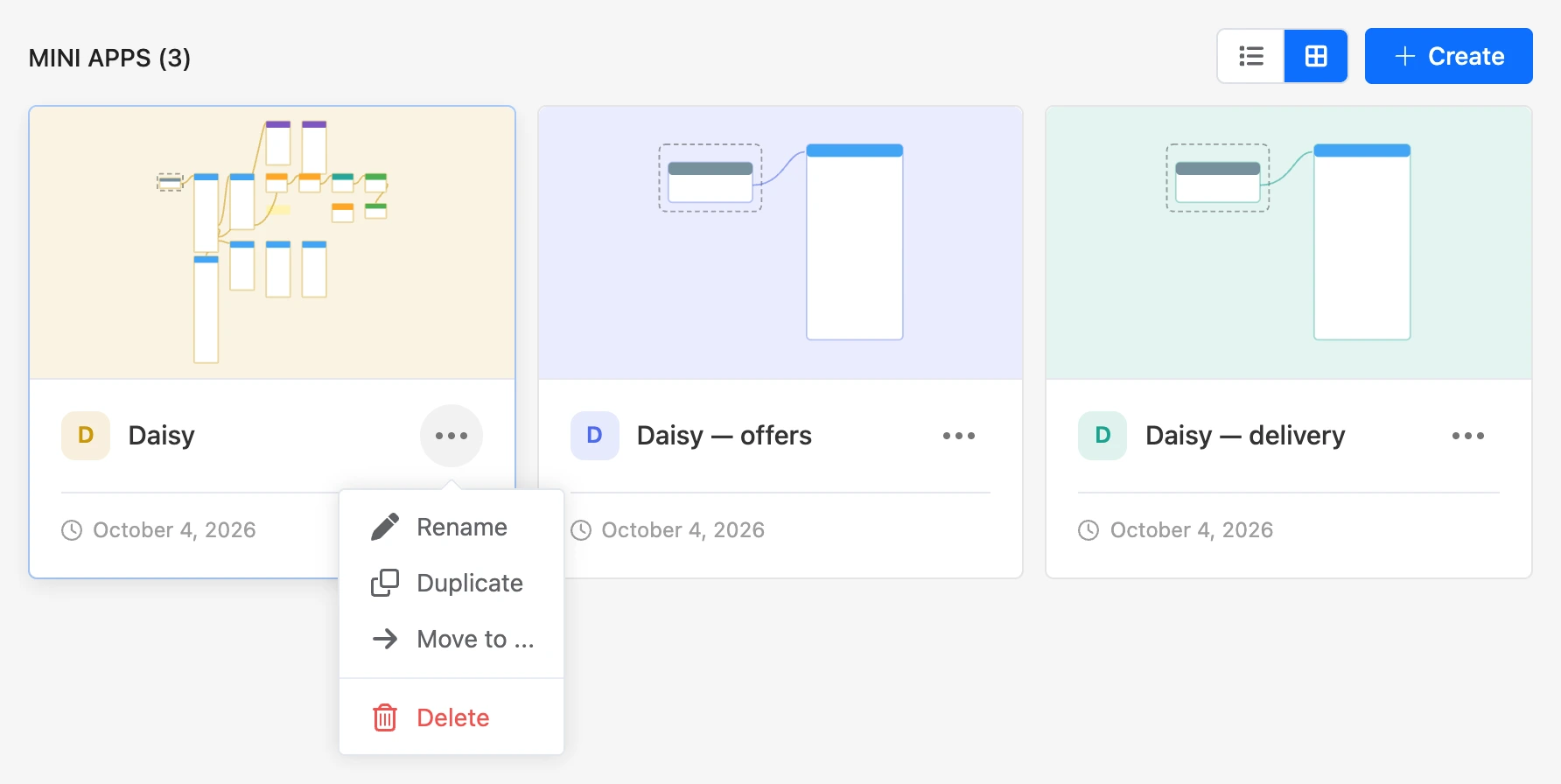
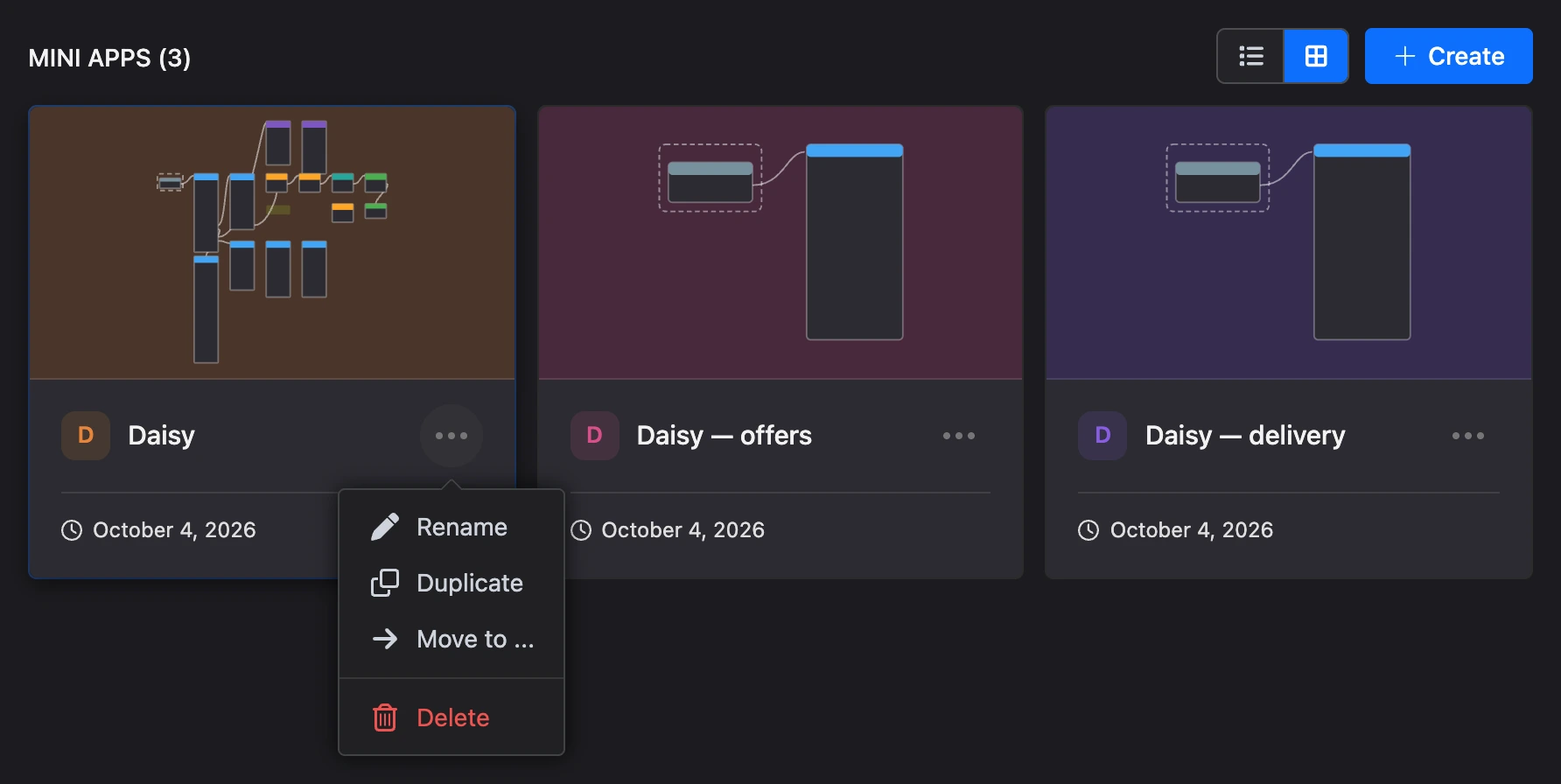
All apps of the project are gathered in the "Mini apps" section of the project's menu. The heading shows the number of apps.
- A click on an app opens its builder.
- The switcher next to the "Create" button changes the view: "List" or "Cards". A card shows a thumbnail of the scheme and the creation date. The chosen view is remembered in the browser.
- The order is changed by dragging the icon on the left. It is shared by all members of the project.
- An app shows its icon if one is uploaded, otherwise the first letter of its name.
In the "⋯" menu on the right:
- "Rename" — change the name.
- "Duplicate" — add a new app to the project with a name like "Daisy (copy)" and the same guest limit. Screens are not carried over to the copy: it opens with the default screen.
- "Move to ..." — move the app to another project. The item is visible to the project owner.
- "Delete" — delete the app. Its link will stop opening.
Tip
To repeat the screens in a new app, save the version as a template and create an app from it — see below.
Create an app
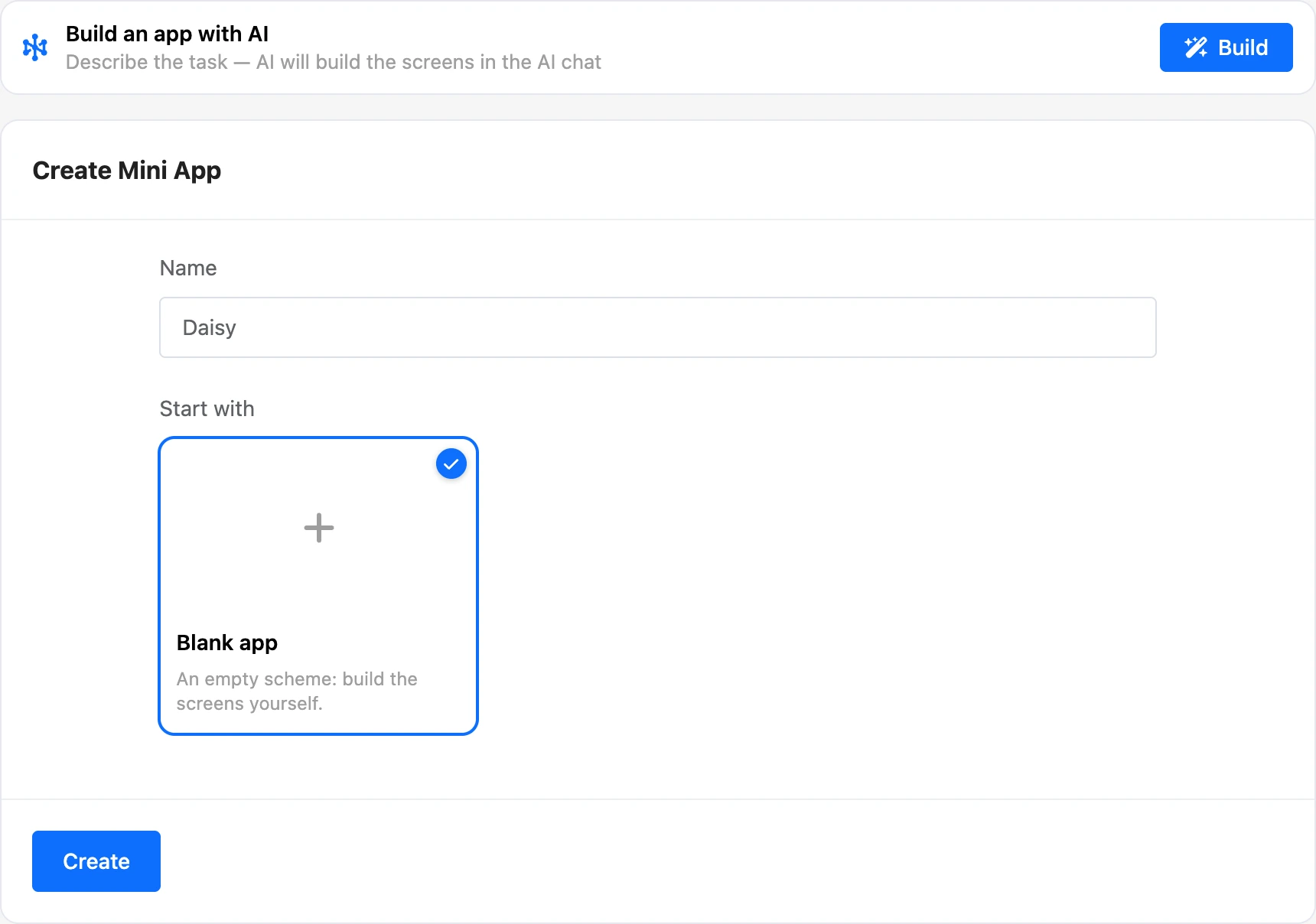
- In the "Mini apps" section, click "Create".
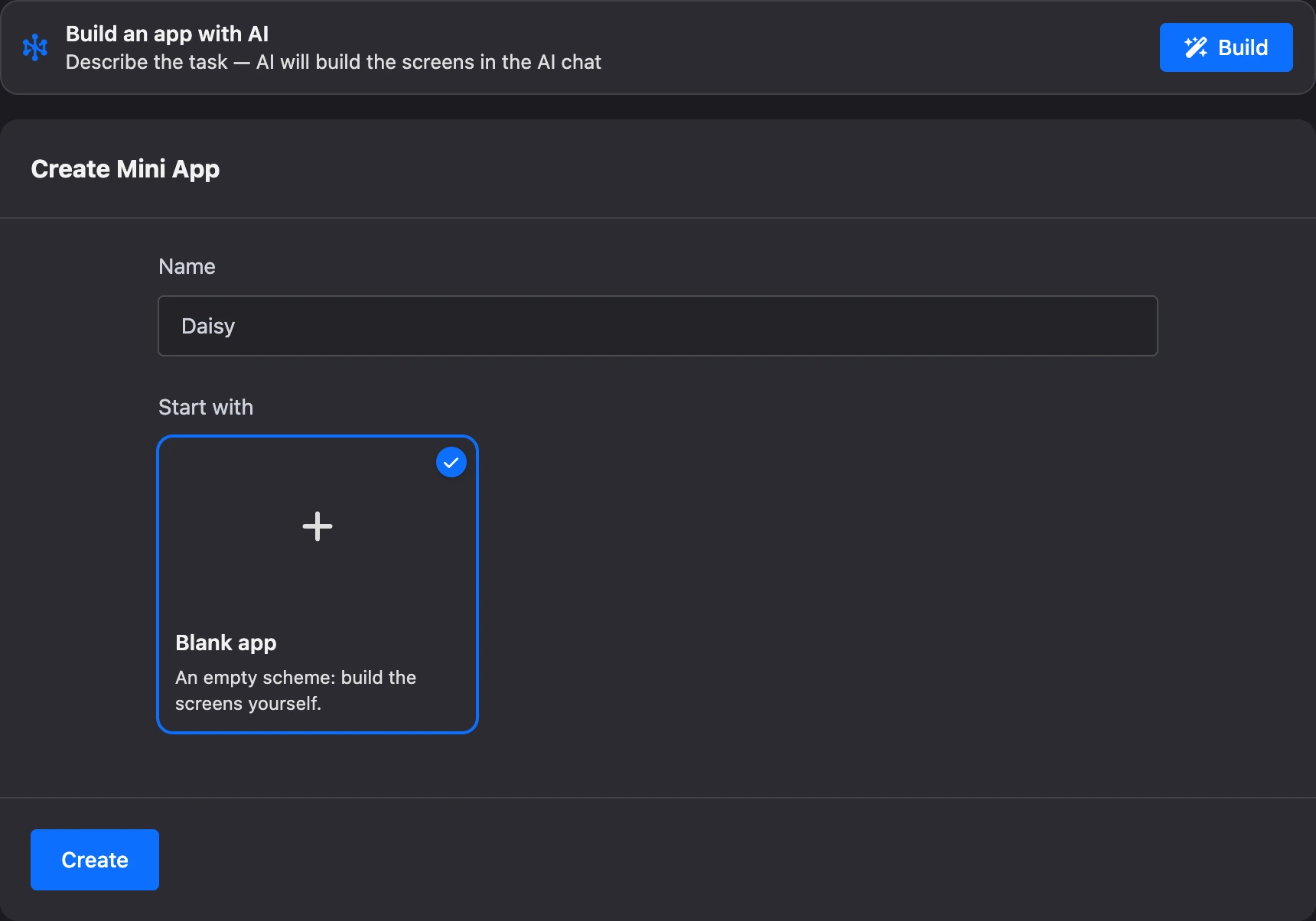
- Enter the "Name". You see it in your account, and people see it in the title of the app page and under the icon on the phone screen.
- In the "Start with" block, leave "Blank app" or choose a template. The block is not shown if there is nothing to choose from: neither your own templates nor the platform's templates.
- Click "Create". The builder opens.
Above the form is the "Build an app with AI" block: you can describe the app in words, and the AI will build it. See the Building an app in the AI chat page for details.
A blank app already has the "Start" block and the first screen, "Home screen", with a greeting — open it and replace the text with your own. What comes next is on the Builder page.
An app from a template
A template is a snapshot of a ready app: its screens, blocks and the links between them. A template gives you an independent app: change it any way you like, the template is not affected.
You choose a template in two places:
- In the creation form — as tiles in the "Start with" block. Here are your templates (marked "Mine") and the templates offered by the platform. The number of blocks is shown under the name.
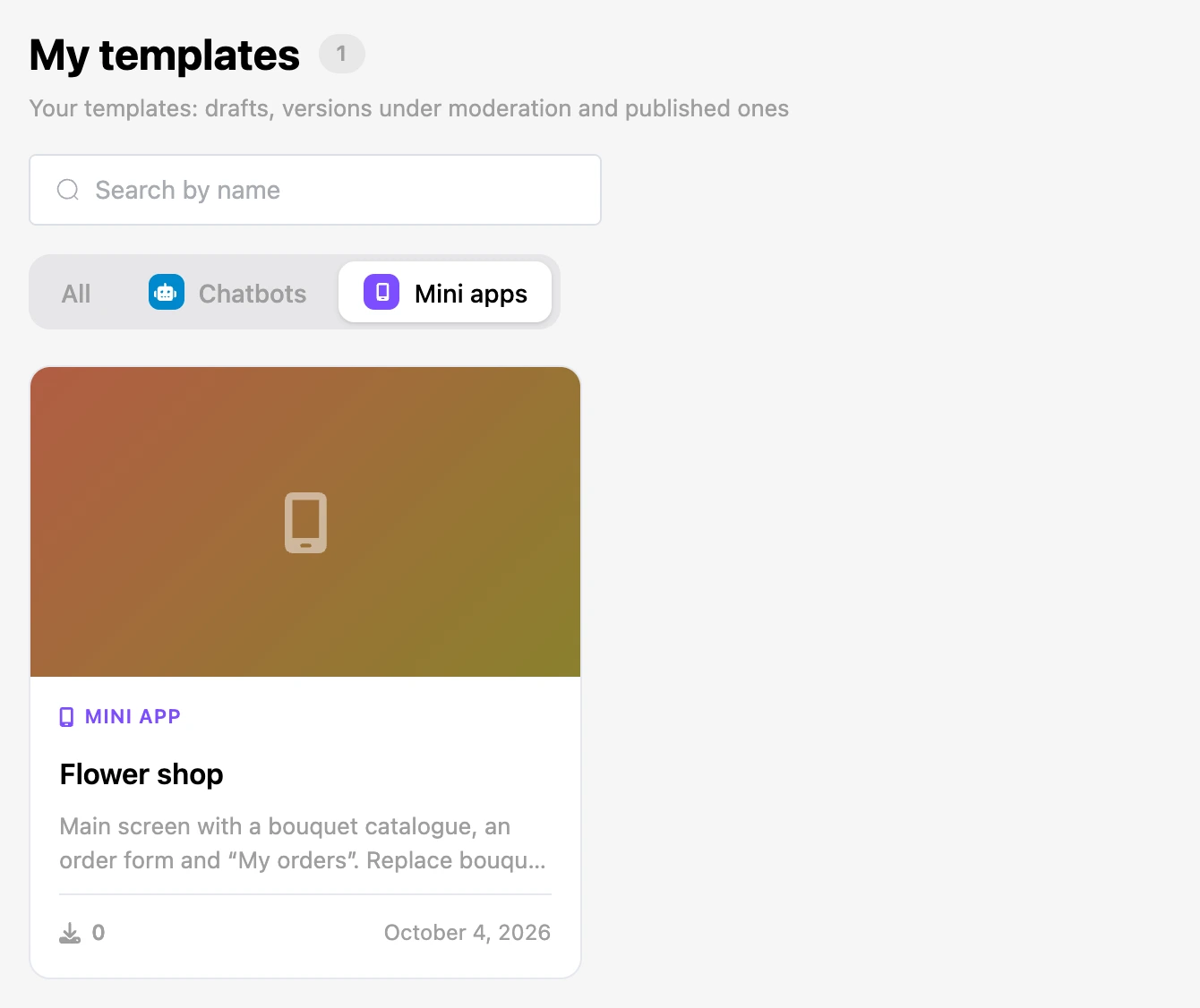
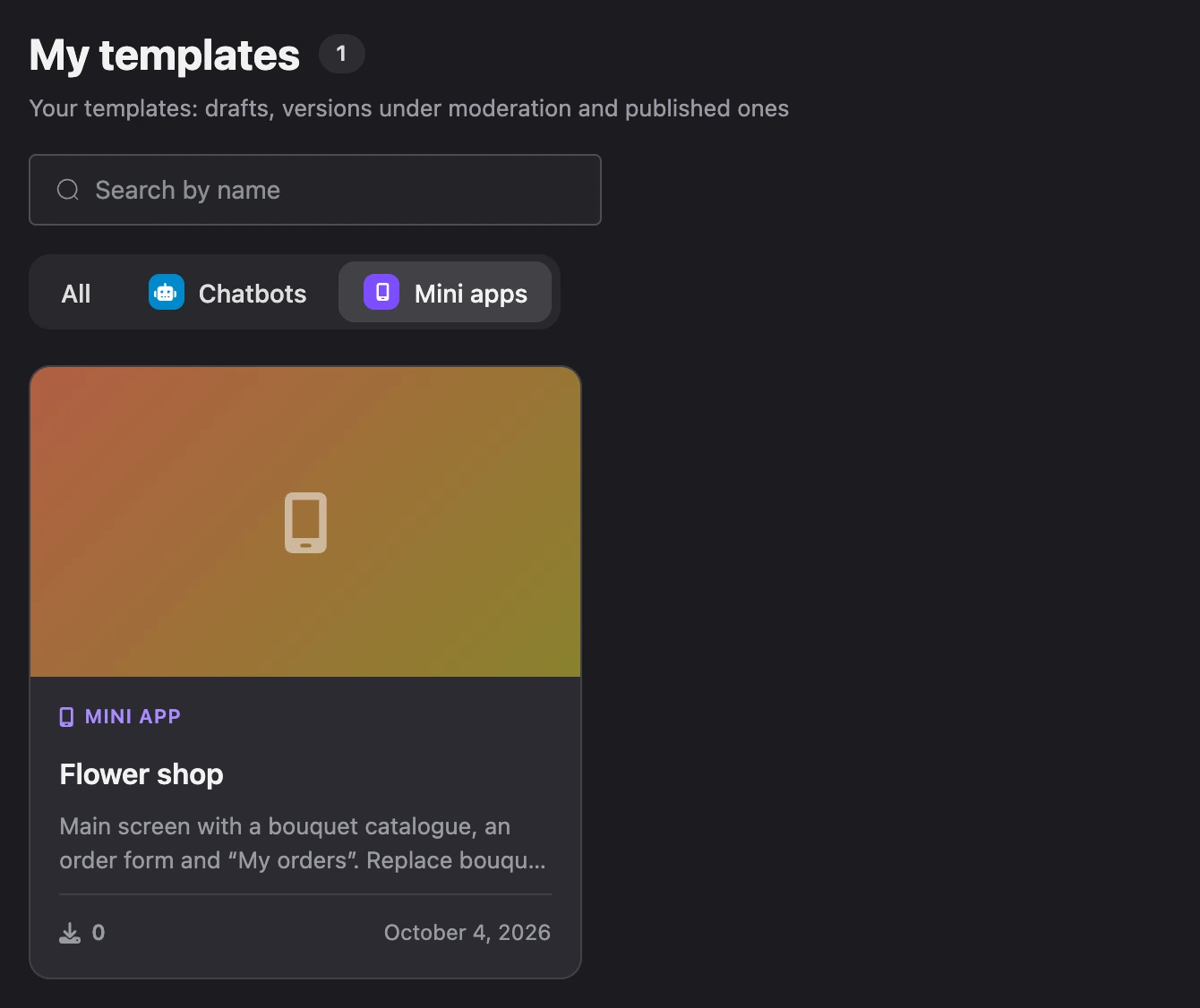
- In the template catalogue — the "Templates" item of the side menu. App templates are marked "Mini app"; the "All", "Chatbots", "Mini apps" switcher above the list leaves templates of one kind. A click on a card opens a window where you choose a project; the "Continue" button leads to the creation form with the template already selected. How the catalogue works is described on the Templates page.
What happens when you create an app from a template:
-
Lists. If the template's screens work with lists, the same lists are created in the project — with the same fields and no records. The message "Template lists created in the project: …" tells you about it.
-
Images and videos of the template move to the new app.
-
Appointments. The "Booking branch" is chosen the same way. The "The client chooses the branch" option fits when the app has a screen with the "Booking branches" element.
You can close the window with the "Later" button and open it again: the version menu in the builder → "Shop and branch". The item is there when the version has elements that need a shop or a branch.
Your own template
You can turn any version of an app into a template and create new apps from it.
- In the builder, open the version menu — the "Version N" button or the arrow next to "Publish".
- Choose "Save as template".
- In the "Your own template" window, fill in the "Name" and the "Description" — what the app consists of and what to change in it. The description is up to 500 characters.
- Click "Save".


The template appears in the app creation form and in the catalogue, in the "My templates" section. In the catalogue you can give it a cover and categories — up to five.
- A template is a snapshot of the version at the moment it was saved. Later edits to the version do not get into it: to update the template, save the version as a template again.
- You can have no more than 30 templates of your own.
- You can delete your template with the bin icon on its tile in the creation form. Apps created from the template stay.
If you cannot create an app
- The Pro checkout window opens. You can create apps only with a subscription.
- "You can create no more than 20 mini apps per day". The limit is counted over the last 24 hours, copies count too.
- "You can create no more than 100 mini apps in one project". Delete the apps you do not need or create a new one in another project.
- "You cannot keep more than 30 of your own templates — delete the ones you do not need". This is the limit on your own templates.