

Operator's work
An operator is you or your team member who replies to people manually from the "Messages" section. There is no separate "take the conversation" button: it is enough to write to the person, and the bot hands the conversation over on its own.
The pause after an operator's reply
When you send a message from the "Messages" section, the bot is turned off for this contact for 15 minutes. Each next message of yours postpones the turning on: the bot comes back 15 minutes after the operator's last reply.
While the bot is turned off:
- the bot does not reply to the person's messages and does not guide them through the scenario — the messages are only saved in the conversation;
- a banner hangs above the conversation: "The bot is off for this contact and will turn back on…" with the time it turns on;
- the contact has a pause icon in the list of conversations.
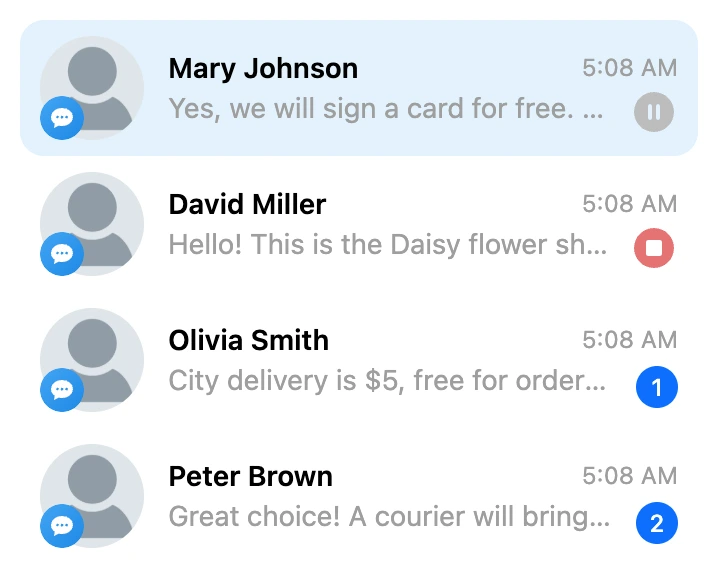
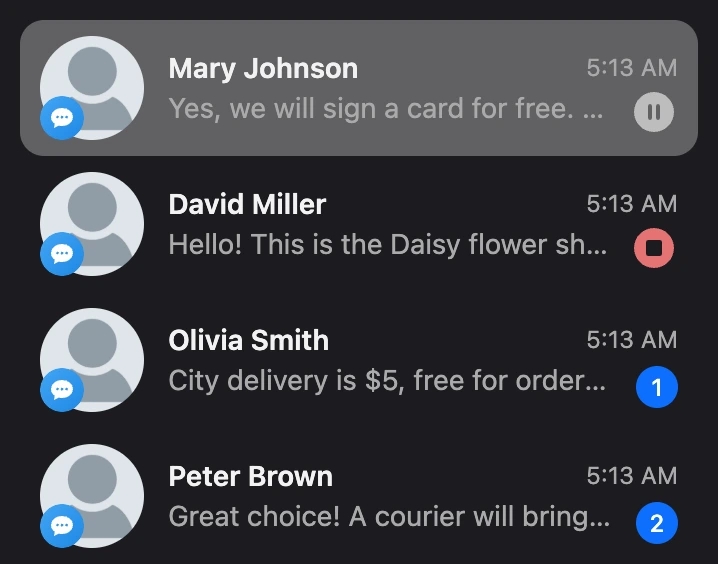
When the pause ends, the bot starts replying again — to the messages the person writes after that. The bot does not reply to messages that arrived during the pause.
Changing the pause time
On the banner above the conversation, click "Change time" and choose:
- a period from the current moment — 5, 15 or 30 minutes, 1, 3, 6, 12 or 24 hours;
- "Another time" — the "Set when the bot turns back on" window opens. Set "Date and time" and click "Set timer". The window has quick choices: "Week", "Month", "3 months", "Half a year", "Year";
- "Enable bot" — remove the pause right away;
- "Disable forever" — turn the bot off for the contact with no end date.


Disabling the bot for a contact
The bot can be turned off for one person with no end date — for example, if only a manager works with the customer.
- From the "⋯" menu in the conversation's header: the "Disable bot" item. The menu is visible to the owner and to team members with the "Download contacts" or "Editing scenarios" permission.
- From the pause banner: "Change time" → "Disable forever". This way is available to everyone who can reply in the conversation: write to the person, and the banner appears.
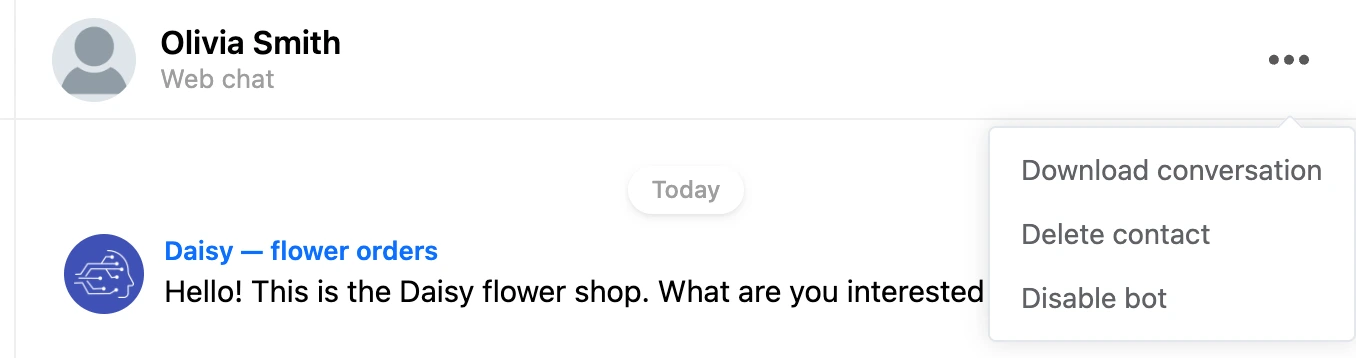
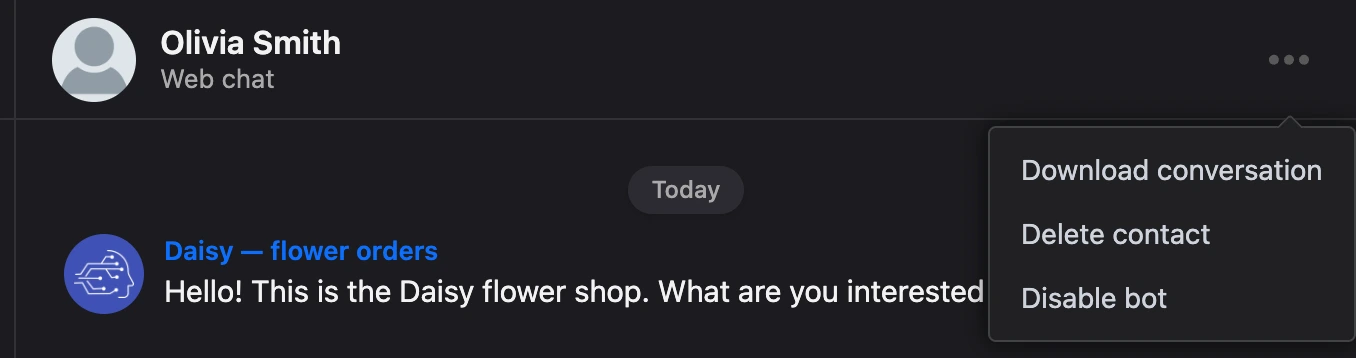
The "The bot has been disabled forever for this user" banner appears above the conversation, and a red stop icon appears in the list of conversations. The bot replies to the other contacts as usual.


To bring the bot back, click "Change time" → "Enable bot" on the banner or choose a period after which it turns on by itself.
What happens to mailings and waits
| Temporary pause | Bot disabled forever | |
|---|---|---|
| The bot's replies to the person's messages | None until the pause ends | None until the bot is turned on |
| "Delay" and "Timer" blocks the person is waiting at | Fire when the pause ends | Postponed until the bot is turned on |
| Mailings | The contact stays among the recipients | The contact is not included in the recipients, including when sending from the previous block |
Warning
The platform keeps a postponed wait for no longer than a week after its due time. If the bot is turned off for the contact for longer, the block after the wait may not run.
A bot for correspondence only
If you do not need a scenario and only humans should reply for the bot, turn the bot off entirely: in the bot settings, on the "Advanced" tab, turn on "Turn the bot off and use the service only for messaging with customers". The bot settings are covered in the Settings section.


In this mode:
- the bot replies to none of the contacts, all messages arrive in the "Messages" section;
- no pause is set after an operator's reply — it is not needed;
- waits in the scenario are postponed the same way as when the bot is disabled for a contact;
- in the project's list of bots, the bot opens right at the "Messages" section.
Several operators
Several team members can work with one bot at the same time. For everyone who has the section open, the following update on their own:
- new messages — from people, the bot and other team members;
- unread counters: when one team member opens a conversation, the counter is reset for everyone;
- drafts: an unfinished reply is visible to colleagues in the list of conversations;
- the pause and the disabling of the bot for a contact.
Under a reply in the feed is the name of the team member who sent it. A conversation cannot be assigned to a team member — anyone with access to the section can reply.
Team members' access
The bot's owner sees the section and can do everything. A team member needs permissions in their role:
| What you can do | Permission in the role |
|---|---|
| Open the section, read conversations, reply, set and remove the bot's pause, work with reply templates | "Messaging with customers" |
| Send photos, videos and files | "Messaging with customers" and "Sending files to customers" |
| The "Download conversation" item in the conversation menu | "Download contacts" |
| The "Delete contact" item in the conversation menu | "Editing scenarios" |
Without the "Sending files to customers" permission, there is no paperclip at the input field.
How to invite a team member and set up a role is in the Settings section.
Tip
A team member does not need their own Pro subscription to work in your bot. It is enough for them to turn on "Operator mode" in their account menu.
Limits
- No more than 1000 messages per hour can be sent manually from one bot — the messages of all team members are counted.
- You can write only to someone who is already among the bot's contacts.
- You cannot write to a person who has blocked the bot or unsubscribed from mailings: there is no input field in their conversation.
If something does not work
- There is no "Messages" section in the bot's menu. The team member's role does not have the "Messaging with customers" permission.
- The Pro checkout window opens instead of the section. The bot's owner has no subscription. If you are a team member, turn on "Operator mode" in the account menu.
- "Access limited." when sending. You do not have the permission for this action: for example, you are sending a file without the "Sending files to customers" permission.
- "Message limit reached…". The operator's hourly message limit is used up. Wait and send again.
- "The size of uploaded files per day should not exceed 2 GB". The daily file upload limit is used up.
- The bot does not reply to a person. See whether there is a "The bot is disabled…" banner above the conversation: the bot is paused after an operator's reply or disabled for the contact. Click "Change time" → "Enable bot". Also check whether the "correspondence only" mode is turned on in the bot settings.
- There is no input field. The person has blocked the bot or unsubscribed from mailings.
- There is no sound. Check the "Sound for new messages" switch in the section settings. The browser allows sound only after the first click or key press on the page.