

Main settings
The "General" tab opens first when you go to the bot's "Settings". It has four settings. For the changes to apply, click "Save".

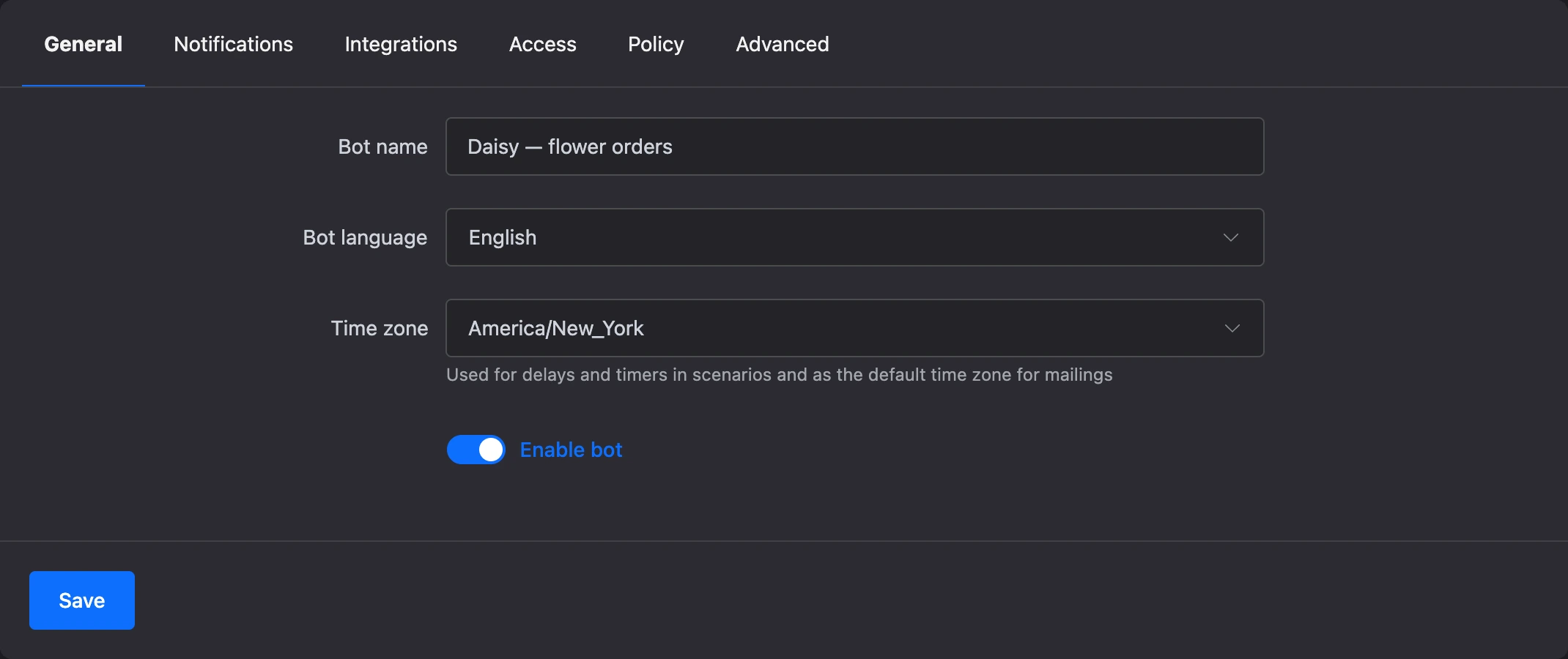
Bot name
The name is visible in your account: in the project's list of bots and in the bot's menu. It is also inserted into notifications to team members — for example, into the "New request for … bot" title.
The name under which people see the bot in the messenger is set separately — in the messenger itself or in the "Avatar and description" window, covered below.
Bot language
The language in which the bot sends service phrases — those that are not written by you in the scenario blocks:
- replies to subscribing to and unsubscribing from mailings;
- the bot's service messages about errors;
- the message about a new referral;
- titles and field labels in notifications about requests and payments;
- the page with the button for going to the messenger, which opens by a link to the bot.
The language does not translate the texts of your blocks: they go out as you wrote them.
Time zone
The bot uses the time zone to count time wherever a date, a time or a day of the week is involved in the scenario:
- the "Delay" and "Timer" blocks;
- comparison by date and by day of the week in the "Condition" and "Switch" blocks;
- the sending time of mailings — the bot's time zone is put into a new mailing by default, and it can be changed in the mailing itself.
When a bot is created, the time zone is taken from your browser. Bots created before this setting appeared have UTC — check the time zone if delays fire at the wrong time.
Note
A mailing has its own time zone: it is saved in the mailing when it is created. If you change the bot's time zone, the mailings already created stay in the previous one.
Enable bot
The "Enable bot" switch stops and starts the scenario without disconnecting the channels.
While the bot is turned off:
- it does not reply to messages and does not guide people through the scenario;
- incoming messages are saved — they are visible in the "Messages" section, and an operator can reply by hand;
- the steps waiting for their time in the "Delay" and "Timer" blocks are postponed. After it is turned on, the bot runs those of them whose scheduled time passed no more than seven days ago.
In the project's list of bots, a turned-off bot has the "Disabled" mark.
Tip
If the bot is needed only for operators to talk to customers and the scenario is not needed at all, turn on the "conversation only" mode on the "Advanced" tab instead of turning the bot off.
Avatar and description
The bot's avatar and profile are changed in a separate window. There are two ways to open it:
- in the bot's menu, click the bot's name at the top and choose "Avatar and description";
- in the project's list of bots, open the bot's menu and choose "Avatar and description".
The window is available to whoever can change the bot itself: the owner and a team member with the "Editing scenarios" permission.
Avatar
Click "Upload image" and choose a file: JPG, PNG, GIF, WebP or AVIF up to 5 MB. A square image works best. Later you can change the image with the "Replace image" button or remove it with the "Delete" button.
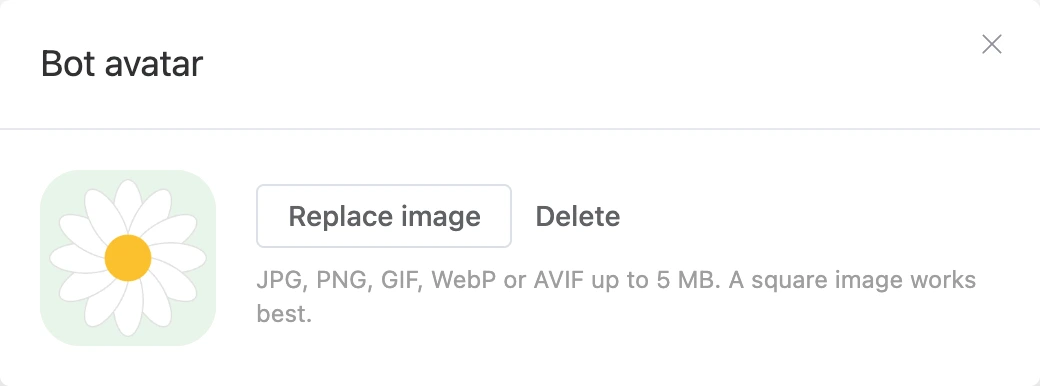
The avatar is visible in your account — in the list of bots and in the bot's menu — and in the website chat.
Profile in Telegram
If Telegram is connected to the bot, three more fields appear in the window, and the window itself is called "Bot profile":
| Field | Where it is seen in Telegram | Length |
|---|---|---|
| "Name in messenger" | The bot's name. If left empty, the name set in BotFather stays | up to 64 characters |
| "Short description" | In the bot's profile and in the preview when a link to the bot is shared | up to 120 characters |
| "Description" | In an empty chat, until the person presses "Start" | up to 512 characters |
When you change the image or the text, the "Also set it in messengers" block with a tick next to Telegram appears at the bottom of the window. Leave the tick for the new avatar and texts to appear in the messenger itself, or remove it to change them only in your account. Then click "Save".
After saving, the window shows the result in the "Messengers" block: "updated" or "failed" with the reason the messenger returned.
The "Delete" button removes the image only in your account: in Telegram the bot's avatar stays the same.
The profile in Telegram can be changed by the bot's owner or a team member with the "Editing channels" permission.
Other channels
In MAX, VK and Viber the bot's avatar and description are not changed from your account — the window reminds you that there the profile is set up in the messenger itself. If the bot has only such channels connected, the image is saved right after the file is chosen and is used only in your account and in the website chat.
Who can change the main settings
The tab is visible to the owner and to a team member with the "Bot settings" permission. The name, language, time zone and the "Enable bot" switch can be saved by the owner or a team member whose role has the "Editing scenarios" permission. More about permissions is on the Team member access page.