

Lists and tables
The blocks in this group work with data stored separately from the contact: a product catalogue, a schedule, requests, promo codes. The bot can show such data to a person, add a new entry, check whether it exists or delete it.
The data is stored in one of three places:
- Lists — the project's "Lists" section. A list has fields with names and types: text, number, date, money, image, file and others. The bot can do everything with them: read, add, update, check and delete entries. For data that the scenario itself writes and reads, this is the simplest option.
- Tables — the project's "Tables" section. This is a spreadsheet with sheets, rows and columns A, B, C… The bot can only read its rows.
- Google Sheets — a spreadsheet in your Google account. The bot reads, adds, updates and deletes rows, but first a Google account has to be connected to the bot. It suits cases when the data is also worked on outside the platform.
How to add blocks and connect their outputs is covered in the section overview.
Common settings of list blocks
These settings repeat across the list blocks. The block pages describe only the differences.
List
In the "List" field, choose which list the block works with. Lists belong to the project and are available to any of its bots. If there are many lists, "Created in this bot" comes first, then "Other lists of the project" — with a caption showing where the list was created.
The "Open lists" button next to the field opens the lists window: there you can create a list, change its fields and view entries without leaving the scheme.
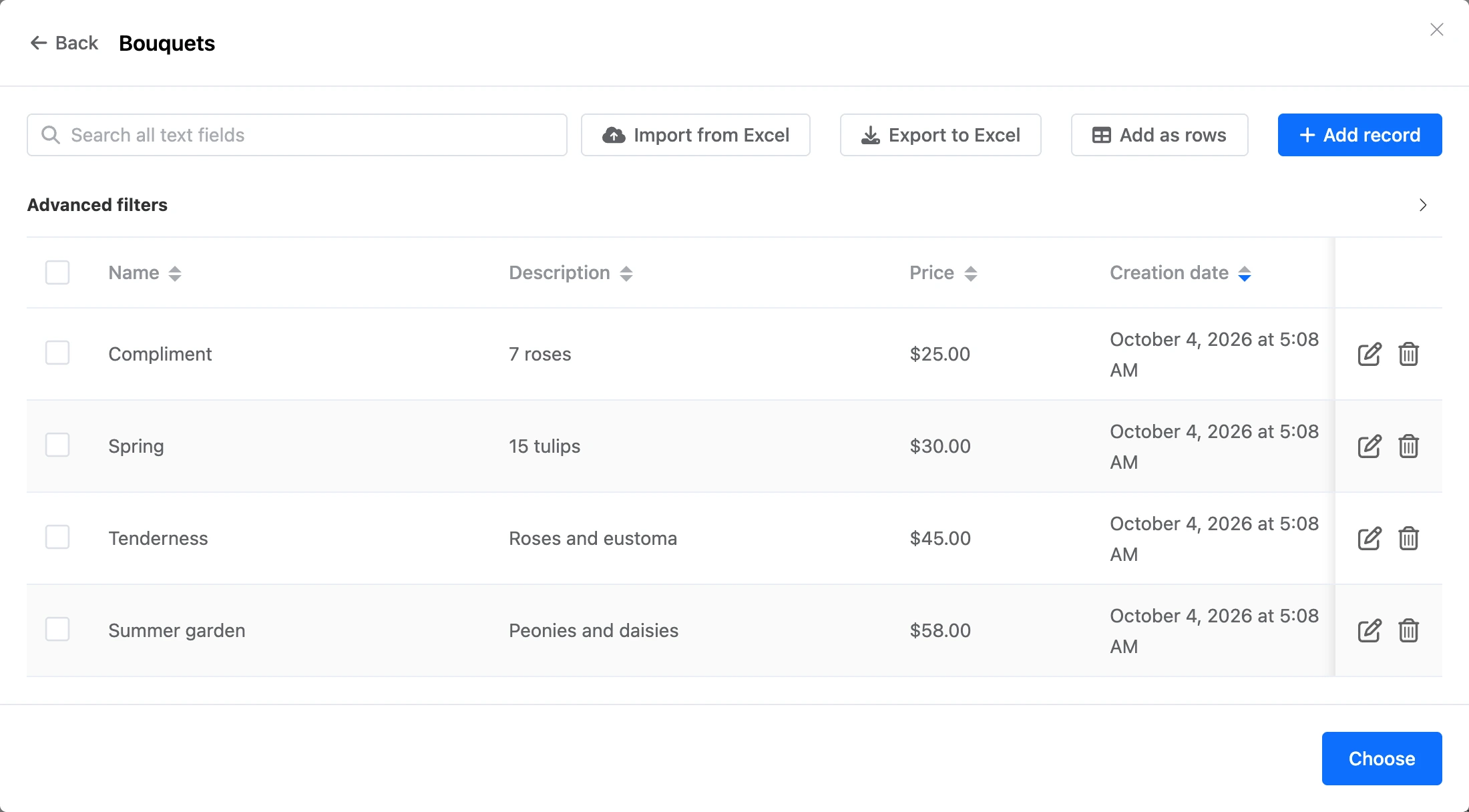
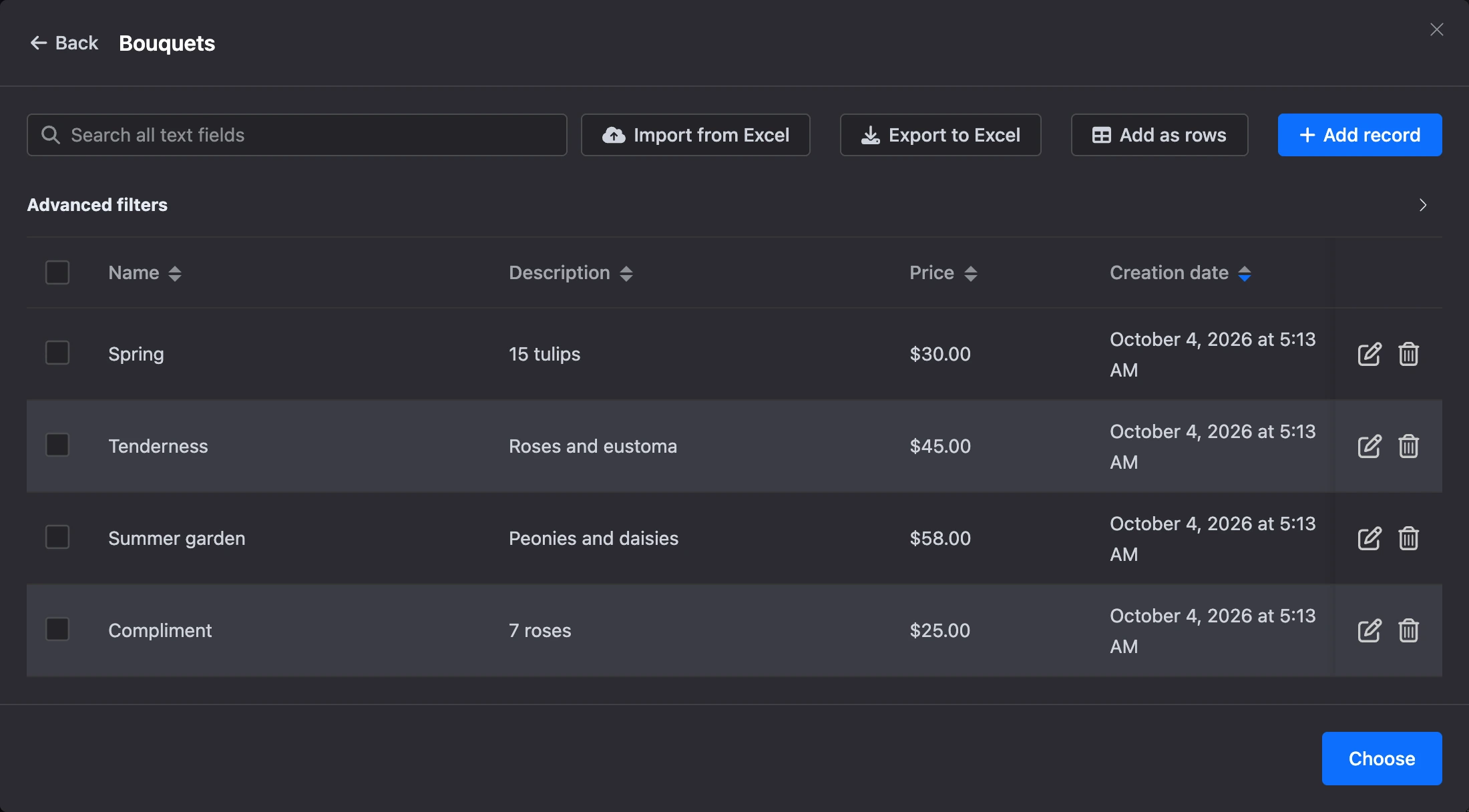
The other settings appear once a list is chosen. In the reading blocks, choosing another list resets the filters, sorting and templates.
Filters
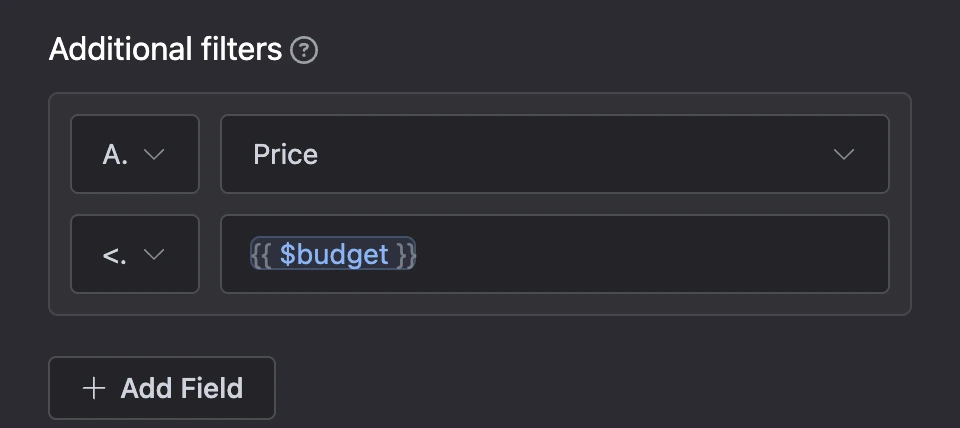
A filter selects entries by field values. Each condition has four parts:
- "AND" / "OR" — how the condition is joined to the previous ones.
- Field — a list field. Besides the list's own fields, "Entry creation date" and "Entry update date" are available.
- Comparison —
=,>,<,>=,<=,!=. - "Value" — what to compare with, up to 64 characters.
Templates work in the value. This is how an entry is found by the contact's data: for example, the "Phone" field = {{ phone }} or the "Customer" field = {{ id }}.
The value is converted to the field type: to a number for a number field, to an amount for a money field, to a date for a date field. Write a date as 2026-10-02 or 2026-10-02 14:30. For a field holding a contact or a bot, enter its ID number.
A new condition is added with the "Add Field" button.

Warning
In the reading blocks, a condition with an empty value is skipped as if it were not there. A variable the contact does not have counts as empty;
0does not. If all conditions drop out this way, the block shows the whole list. The "Delete list entries" block deletes nothing when a condition is empty.
Search by contact phrase
In the "Read list entries", "Read list entry" and "Delete list entry" blocks, an entry can be searched for by the text the person sent:
- "Search field" — the list field to search in. The bot looks for the text the person entered the block with: through the "Any other phrase" output of the previous block or from the "Inline Telegram bot" block.
- "Search type" — how to compare the field text with the phrase: "The search phrase is in the text", "Search phrase matches text", "Text starts with search phrase", "Text ends with search phrase".


Messages chain template
The reading blocks do not save an entry to variables. They send it to the person right away — in the form set in the "Messages chain template" section. The template is built from parts, and for each entry the bot sends them in order:
- "Template" — the message text. Under the field there are the "ID" and "Date of creation" buttons and buttons with the names of the list fields. A button inserts the field's placeholder into the text, for example
{{ title }}. When the message is sent, the value from the entry takes its place. - "Photo" — a picture from a list field that stores an image.
- "File" — a file from a list field that stores a file.
Parts can be reordered by dragging. If text comes right after a photo, it becomes the picture's caption. If an entry has no photo or file, that part is skipped.
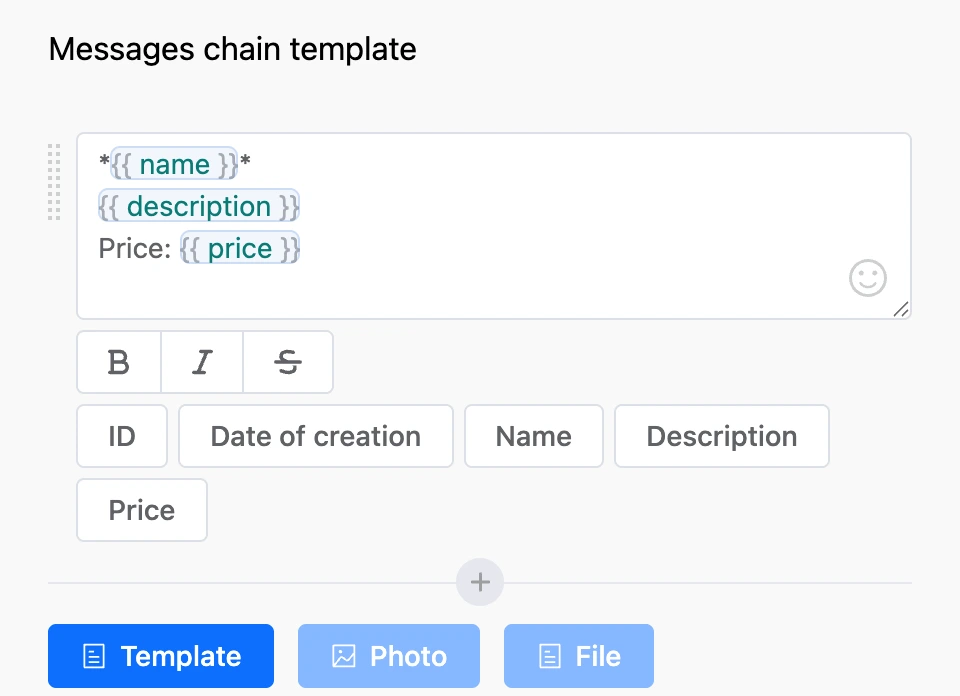
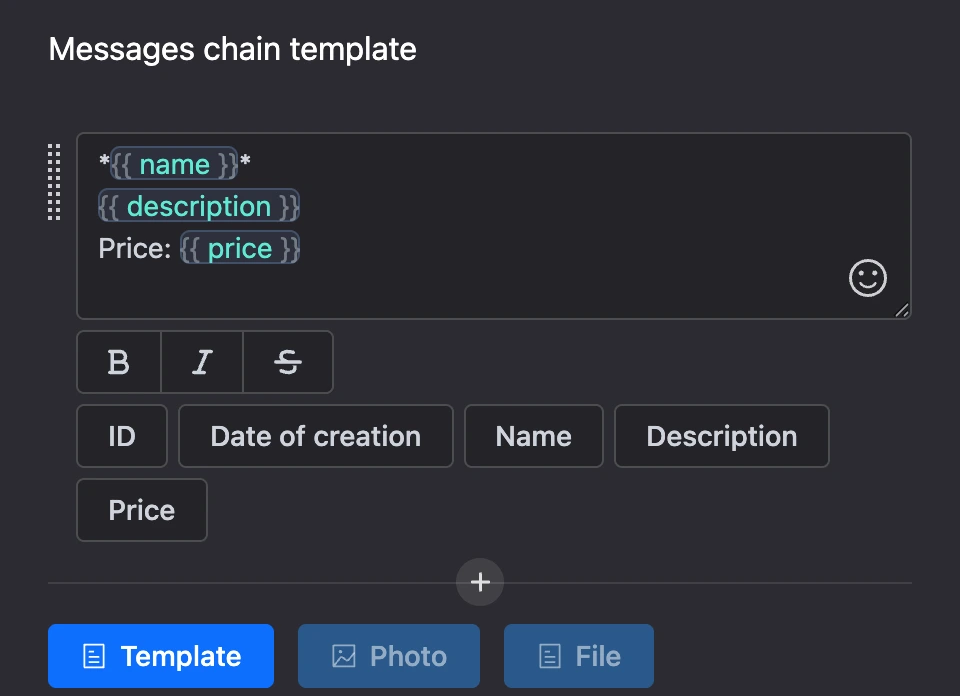
A money field is inserted already formatted — with separators and a currency sign, so there is no need to write the currency sign next to it. To show the amount in another currency, put its code after a vertical bar: {{ price | USD }}.
Regular templates also work in the template text — for example, {{ first_name }}.
Tip
A list entry can also be shown in any other bot message — with the
getListRowandgetListRowsfunctions. They are described in the function reference.
Sort
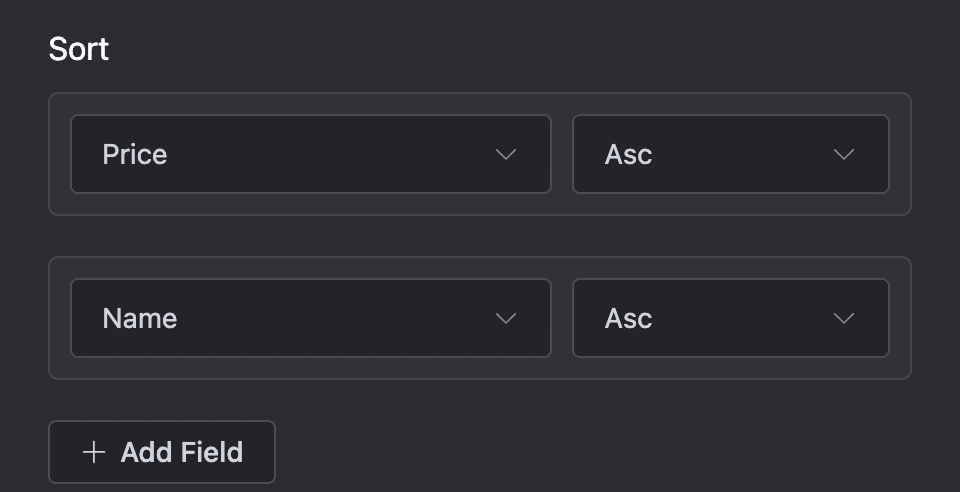
In the "Sort" section, choose a field (or "ID") and the order: "Asc" or "Desc". You can set up to three fields.

Common settings of Google Sheets blocks
Connecting a Google account
The blocks access the spreadsheet on behalf of the Google account connected to the bot. Connect it once:
- Open the bot settings and go to the "Integrations" tab.
- Choose "Google Sheets" — the "Google Sheets integration" window opens.
- Click the Google sign-in button and allow access.
- Choose the linked account in the "Account" field and save.
The spreadsheet must be accessible to this account. Without the connection, the block sends the person "Add Google Sheets integration in the Integrations section." and stops.
Spreadsheet and sheet
- "Link to table" — the spreadsheet address from the browser, of the form
https://docs.google.com/spreadsheets/d/.... - "Sheet" — a sheet of the spreadsheet. The list of sheets loads after you paste the link.
Important
Only spreadsheets in the Google Sheets format are suitable. Microsoft Excel files (
.xlsx) opened in Google are not supported.
Range of rows to process
The "From" and "to" fields set from which row to which row of the sheet the block reads data. The default is from row 2 to row 100000: the first row is treated as the header. The smaller the range, the faster the block works. Filters and sorting apply only within the range.
Column filters
A condition consists of a column (a letter: A, B, C…), a comparison and a value. A value is added with one of the buttons:
- "Add variable" — a contact variable;
- "Add constant" — contact data: "ID", "Messenger ID", "Bot ID", "Username", "Name", "Phone", "Email", "Address", "Creation date", "Referrer ID";
- "Add global variable" — a global variable of the bot;
- "Add text" — free text; templates with simple functions work in it.
Comparisons:
| Comparison | When a row matches |
|---|---|
= |
The cell equals the value |
!= |
The cell does not equal the value |
>, >=, <, <= |
The cell is greater or less than the value. An empty cell never matches |
in |
The cell contains the value |
not in |
The cell does not contain the value |
A row must match all conditions at once. Letter case is ignored in =, !=, in and not in. Numbers are compared as numbers — with either a point or a comma.
Limits
- The number of calls to Google per minute is limited. When there are many contacts, the block waits its turn and the bot replies with a delay.
- If Google returns an error, the bot sends the person an error message and goes no further. The details are in the block's "Execution log".