

Board and stages
The "CRM" section opens on the "Deals" page. You can view deals in two ways: as a board, where every stage is a column, and as a list.
The board
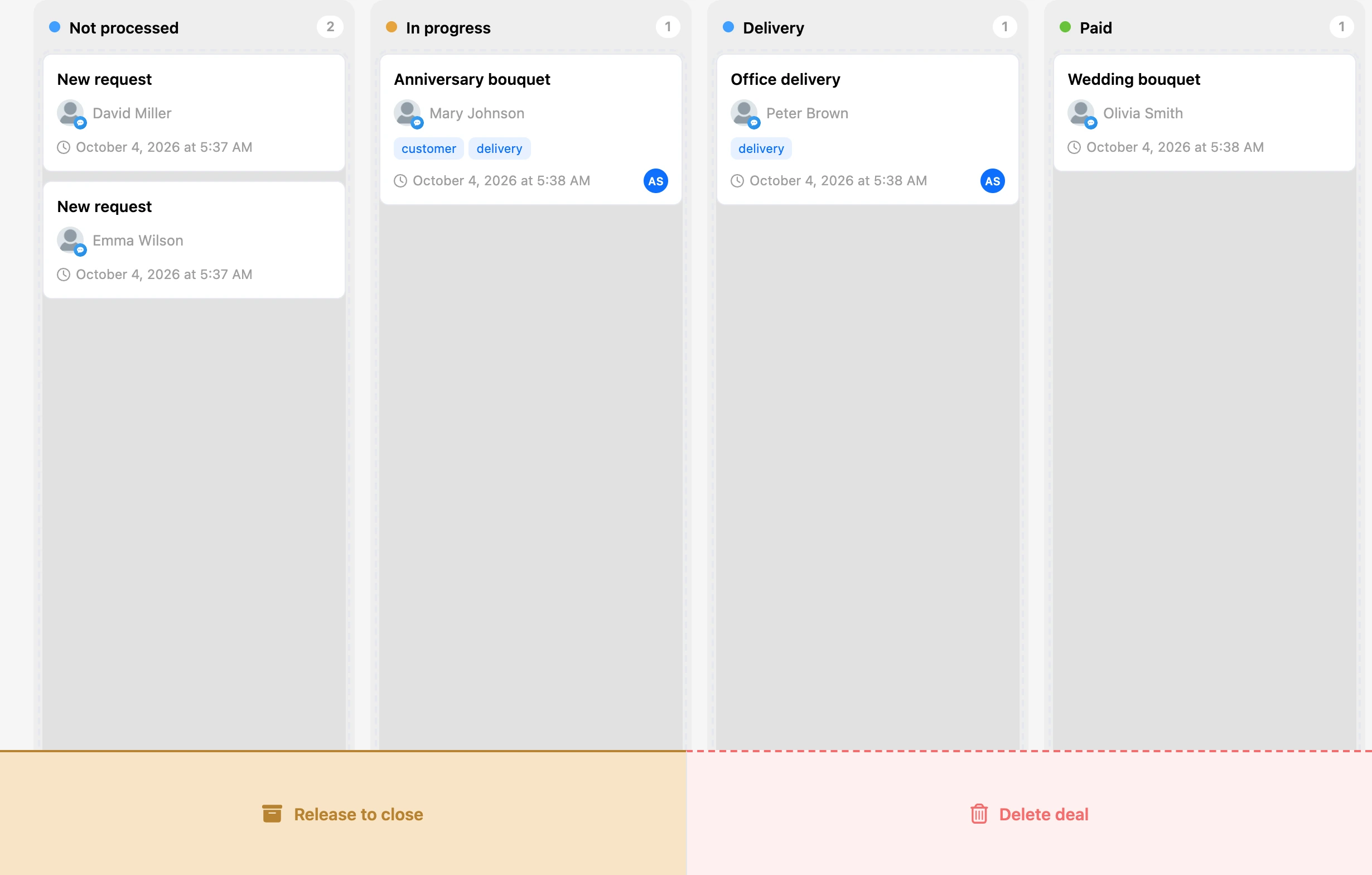
Every column on the board is a stage of the pipeline. The column's header shows the stage's colour and name and the number of deals in it. If there are more than 99 deals, "99+" is shown. An empty column says "No deals".


A deal's card shows:
- the deal's name;
- the contact — an avatar with the messenger's icon and the name;
- tags — the first four, the rest are folded into "+N";
- the date and time;
- the assignee — their avatar or initials in the bottom right corner, if one is assigned.
A click on the card opens the deal card. In the "⋯" menu on the card:
- "Open deal";
- "Send message" — open the conversation with the contact in the "Messages" section;
- "Close deal";
- "Delete".


A column shows 10 deals at first. The rest are loaded as you scroll the page down.
The list
The switch with icons on the right above the board changes the view: "Board" or "List". The chosen view is remembered in the browser.
In the list, deals go in one feed, new ones at the top. A row shows the deal and the contact, the stage, the assignee and when the deal was created. The "⋯" menu in a row is the same as on a board card.


Open and closed
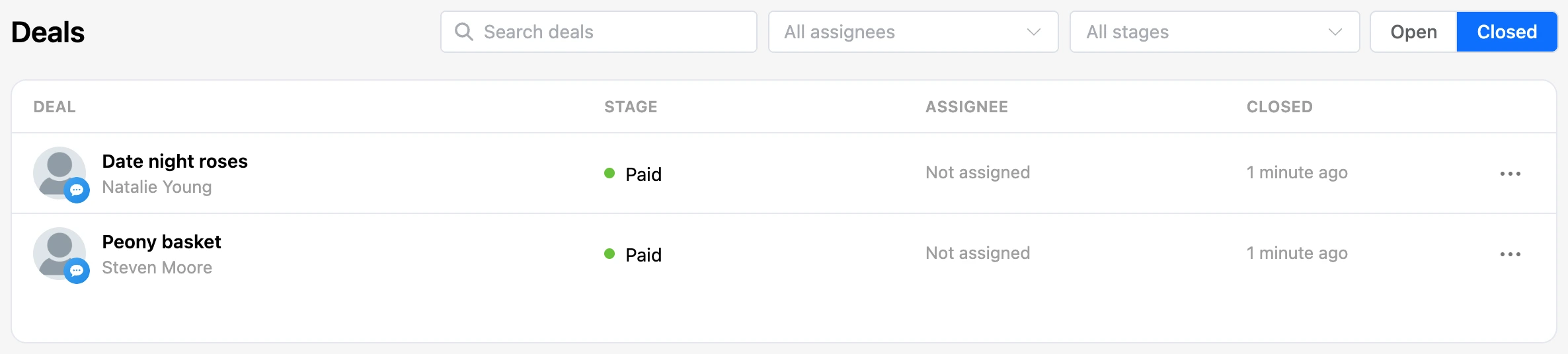
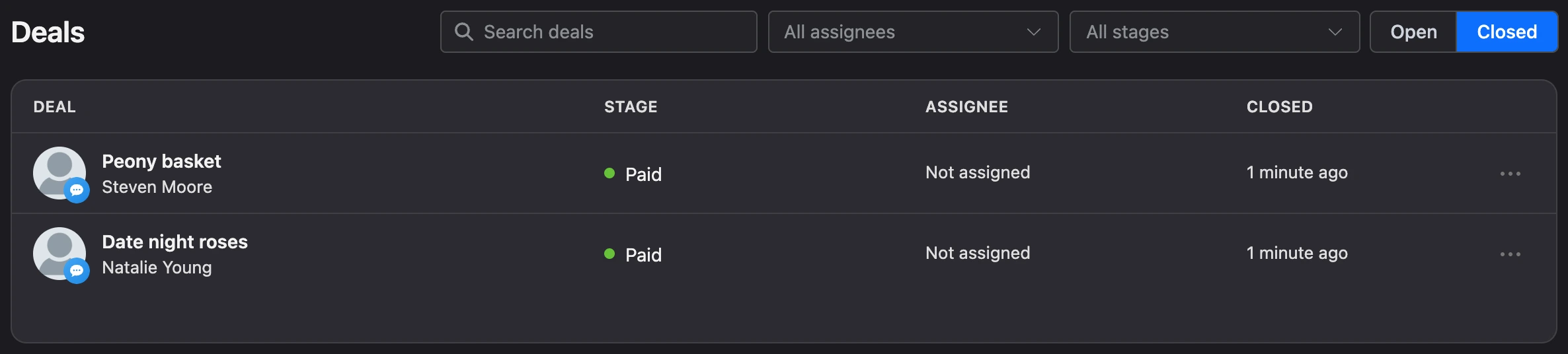
The "Open" / "Closed" switch chooses which deals to show. Closed deals are shown only as a list: instead of the creation date it has the "Closed" column, with the recently closed ones at the top. In the "⋯" menu of a closed deal, "Return to board" replaces "Close deal".
Search and filters
- "Search deals" — finds deals by name, as well as by the contact's name, phone, email and Telegram username.
- "All assignees" — leaves the deals of one team member or the "Unassigned" deals.
- "All stages" — leaves the deals of one stage. This filter exists only in the list.
The search and the filters work together. If nothing matched, the column or the list says "Nothing found".


Note
For a team member, the section opens with a filter by themselves right away — they see their own deals. To see the other available ones, reset the assignee filter.
Moving a deal to another stage
On the board, drag the card to the column you need. Cards can also be rearranged within a column — the order is saved.
A deal cannot be moved from the list: open the deal card and choose the stage there.
The scenario can move a deal too — with the "Deal stage" block.
Closing a deal
A closed deal leaves the board but is not deleted: it stays in "Closed" and opens by its link. There are three ways to close a deal:
- in the "⋯" menu of a card or a row — "Close deal";
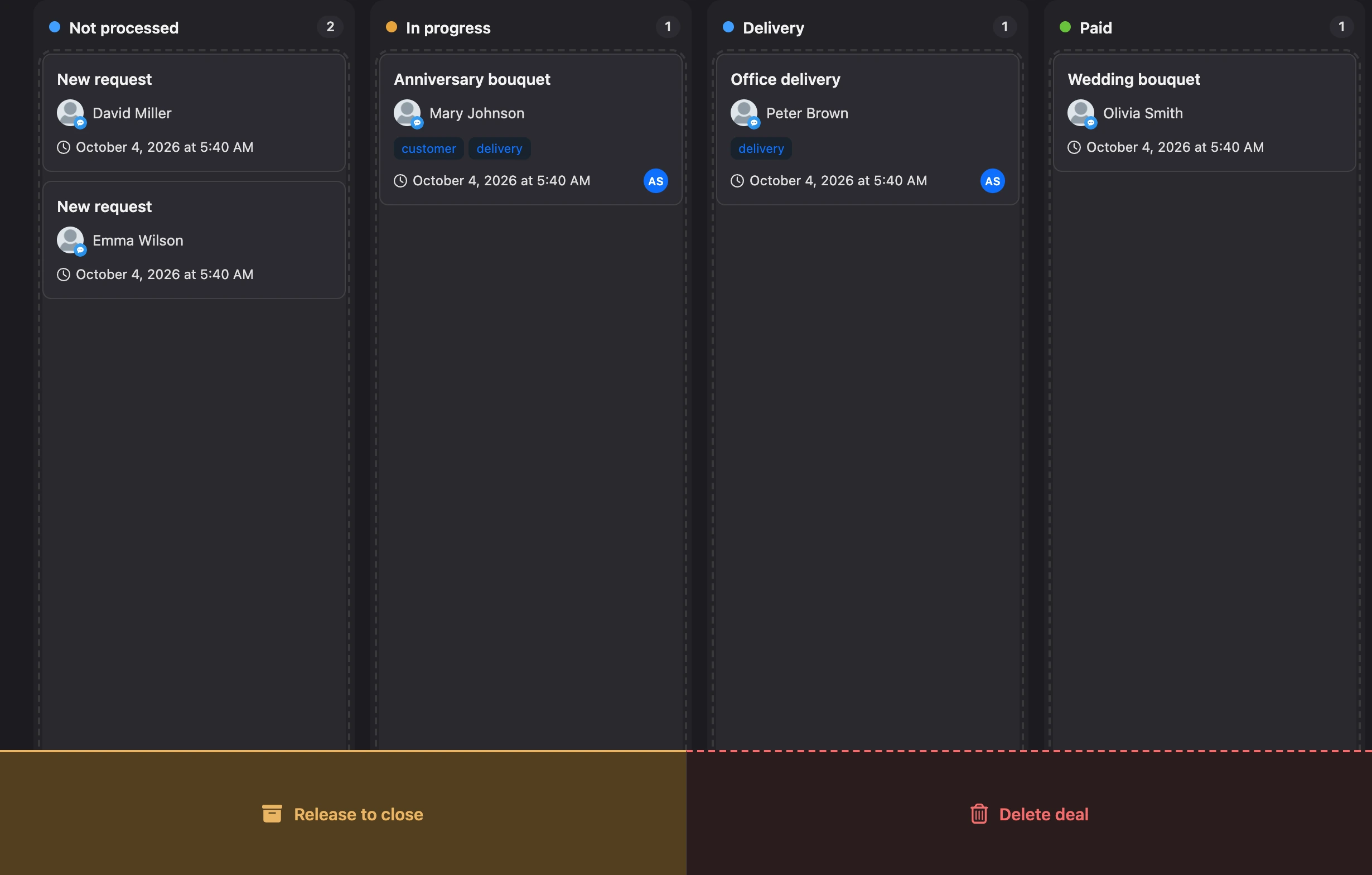
- drag the card: while you are dragging it, the "Close deal" and "Delete deal" areas appear at the bottom of the board. Release the card over the first one;
- in the deal card itself.
After closing, the "Deal closed" notification appears with the "Undo" button — it puts the deal back right away.
To return a deal later, open "Closed" and choose "Return to board" in the "⋯" menu. The deal returns to its stage.
A deal has no "won" and "lost" marks — it is either open or closed. If the result matters, create separate stages for it, for example "Paid" and "Declined", and move the deal to the right one before closing.
Tip
Close the deals on which the work is finished. While a contact has an open deal, a "Request" block with "No duplicates" turned on will not create a new one for them.
Deleting a deal
Choose "Delete" in the "⋯" menu or drag the card to the "Delete deal" area at the bottom of the board. The platform asks: "Are you sure you want to delete this deal?"
Warning
A deleted deal cannot be restored. If it may still be useful, close it.
Deals can be deleted by the bot's owner and by team members with the "CRM administration" permission.
A new deal by hand
You can create a deal yourself — for a contact that is already in the bot.
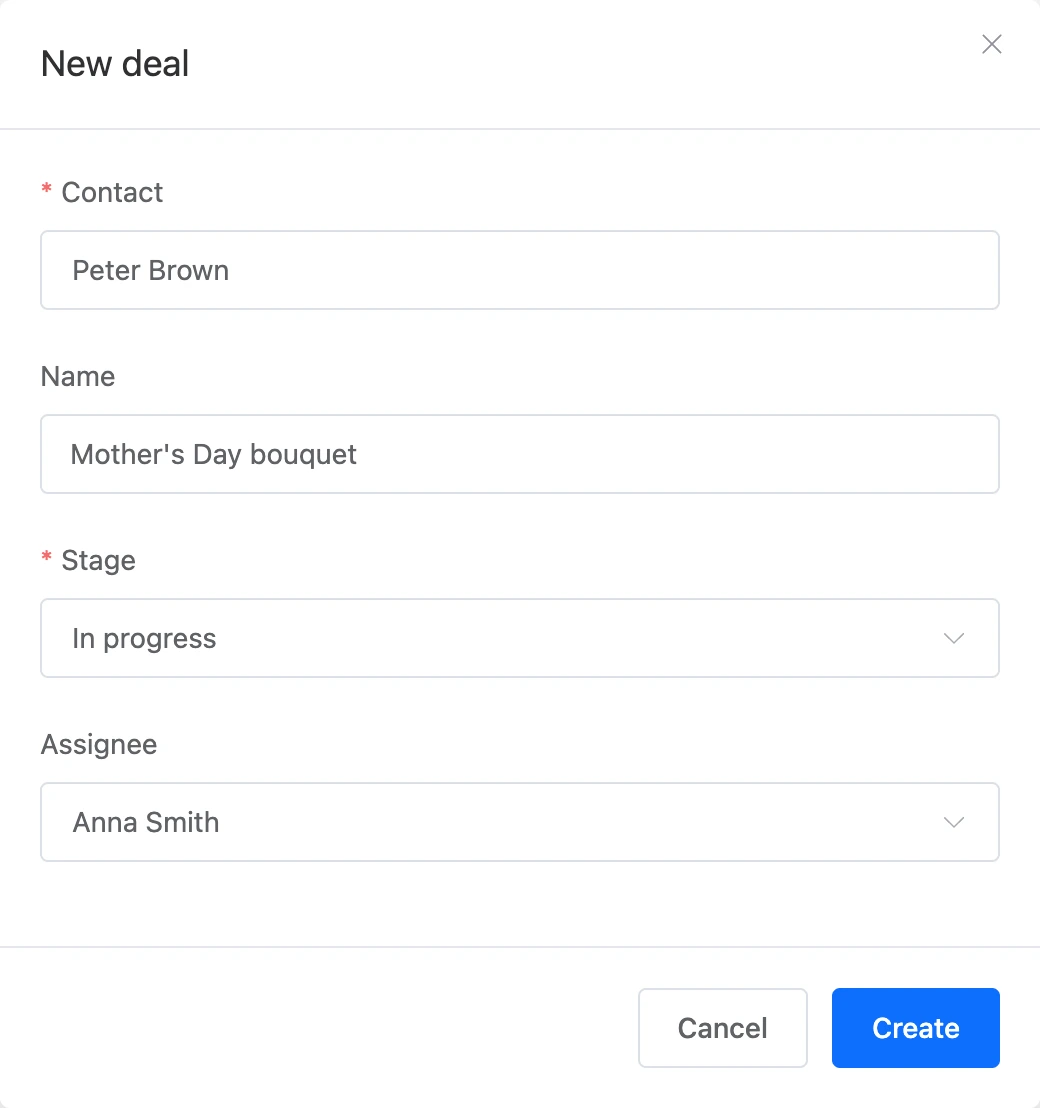
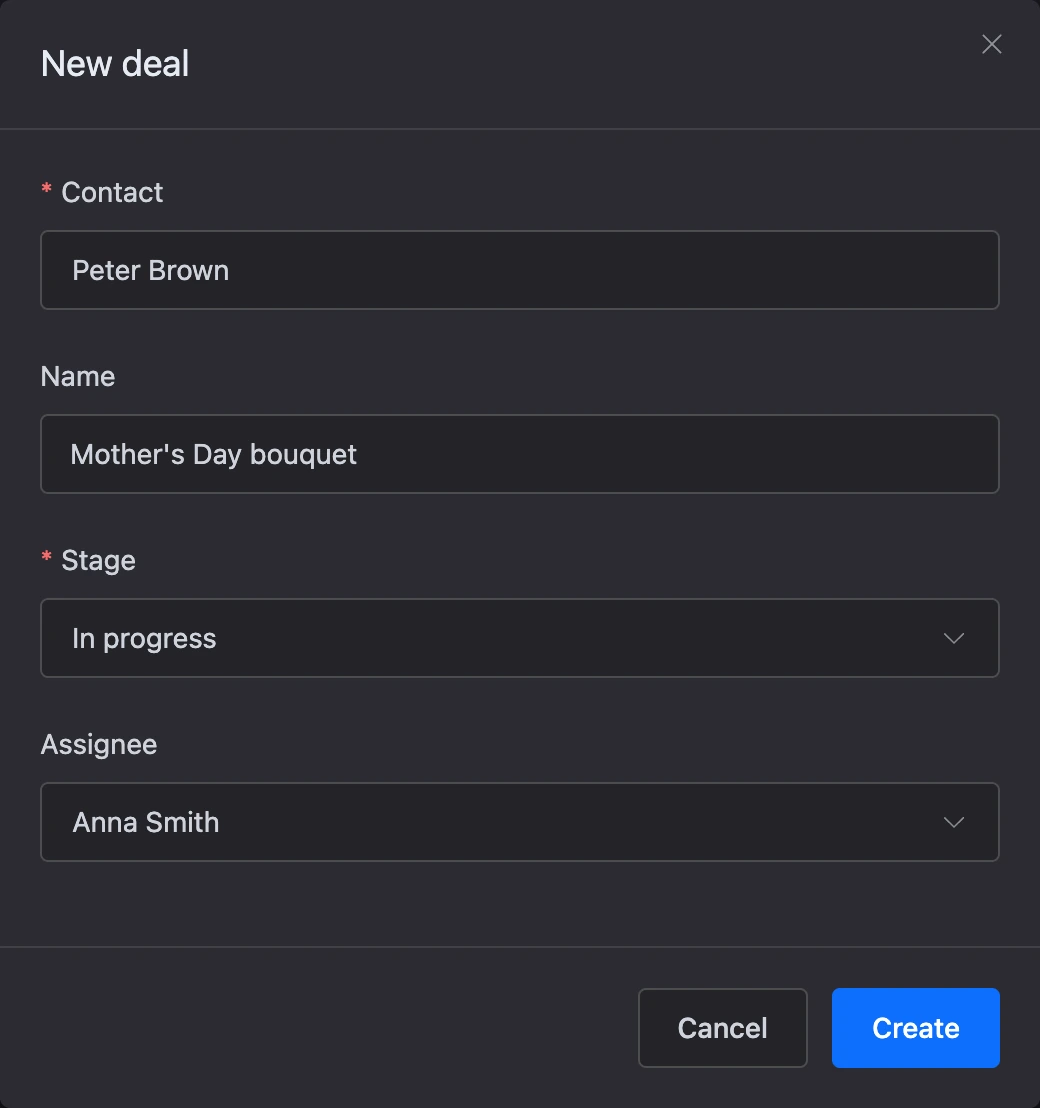
- Click "New deal" above the board.
- In the "Contact" field, find the person by name, phone or username. Without a query, the list shows the bot's latest contacts.
- Fill in "Name". If you leave the field empty, the deal will be called "New deal".
- Choose the "Stage". The first stage of the pipeline is set by default.
- If needed, choose the "Assignee".
- Click "Create". The new deal's card opens.
A deal created by hand is created empty: the contact's tags and variables are not copied into it. You can add fields in the card.
The "New deal" button is available to the bot's owner and to team members with the "CRM administration" permission. You cannot create a deal for a person who is not among the bot's contacts.
Setting up stages
Only the bot's owner sets up stages. The "Add stage" and "Edit stages" buttons are above the board — the list does not have them.
Adding a stage. Click "Add stage": a new column with a name field appears at the end of the board. Enter the name and press Enter.
Changing stages. Click "Edit stages". The header of every column gets:
- a drag icon — pull it to change the order of the columns;
- a coloured circle — a click opens the stage colour picker;
- a field with the name — type a new one;
- a bin icon — delete the stage.
When you are finished, click "Done".


The order of stages matters: requests from the scenario land at the first stage — the leftmost column.
Deleting a stage. First move its deals to other stages — otherwise the platform reminds you: "To delete this stage, move its deals to another stage." Closed deals of a deleted stage move to the first of the remaining ones. The last stage of a pipeline cannot be deleted.
Limits:
- a pipeline can have no more than 100 stages;
- stage names within one pipeline do not repeat.
If something does not work
- Deals do not appear. Check that the scenario has a "Request" block, the "Built-in CRM" channel is turned on in it and the contact reaches it. Deals are not created in the "Bot test" window.
- A repeated request did not create a deal. "No duplicates" is turned on in the "Request" block, and the contact has an open deal. Close the previous deal or turn the switch off.
- A team member does not see a deal. With the "Manage own deals" permission only the deals where they are the assignee are visible, with the "Manage unassigned deals" permission — only deals without an assignee. Also check the assignee filter above the board.
- There are no "Add stage" and "Edit stages" buttons. Only the bot's owner has them, and only in the "Board" view with open deals.
- "A stage with this name already exists." The pipeline already has a stage with this name — choose another one.
- A deal disappeared from the board. Most likely it was closed — by you, a team member or the "Close deal" block in the scenario. Switch to "Closed".