

AI Agent
The "AI Agent" block hands the conversation over to an AI model. The agent replies to the contact on its own following your instructions, remembers the dialogue and, when the conversation reaches an outcome, sends the contact further along the scenario.
The block is needed where a branch with buttons is not enough: a consultation, answers to frequent questions, finding out what the person needs before handing them over to an operator.
What you need
- A Pro subscription — for the bot to reply to people in messengers. What is available without it is on the What is available without Pro page.
- Topped-up "AI Credits". The block is not included in the subscription: every reply of the agent is paid from "AI Credits" at the price of the chosen model. Model prices are on the Prices of additional services page.
- A chosen model in the block settings. Without it the block sends nothing.
The cost of every reply is shown in the "Logs" section — it is recorded there with the "AI agent" type.
Note
When you test through "Test the bot", the agent calls the model too, and the replies are paid from "AI Credits".
How the block differs from message blocks
- The reply text is written by the model. You set not a message but an instruction — the "System prompt".
- The contact stays in the block and chats with the agent. Every new message from the contact is a new reply from the agent, until the agent chooses a transition or the contact leaves the block on their own.
- The block has no buttons. The block's transitions are not buttons for the contact but scenario branches the agent chooses.
- The reply is not instant. While the model is thinking, the scenario does not stand still: the contact can follow the "Continue" output, and when the reply is ready, they return to the block and receive it.
- Each block has its own memory. The conversation history is stored separately for each contact and each "AI Agent" block: a second agent in the same bot does not know what the contact discussed with the first.
Settings
"System prompt"
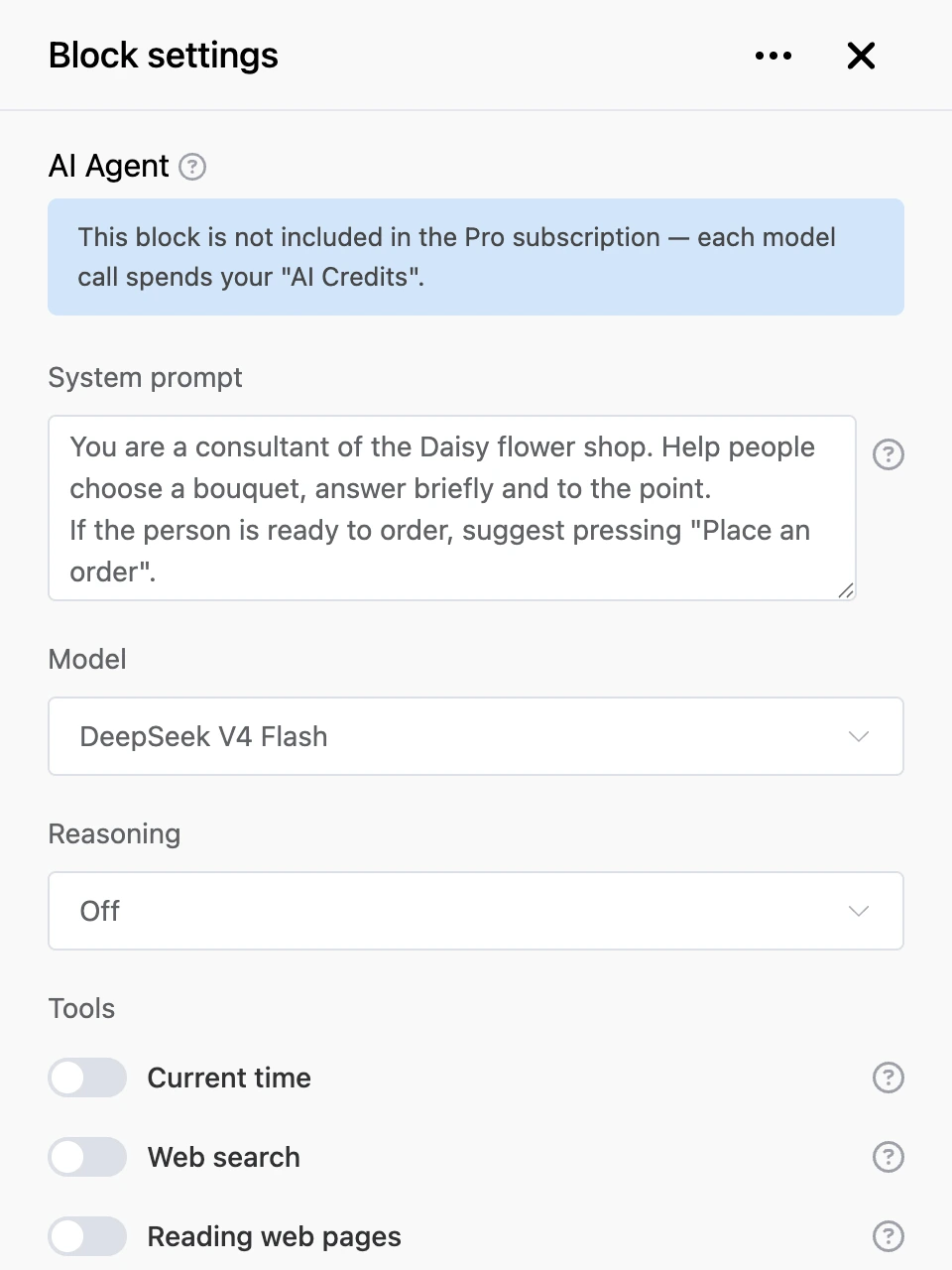
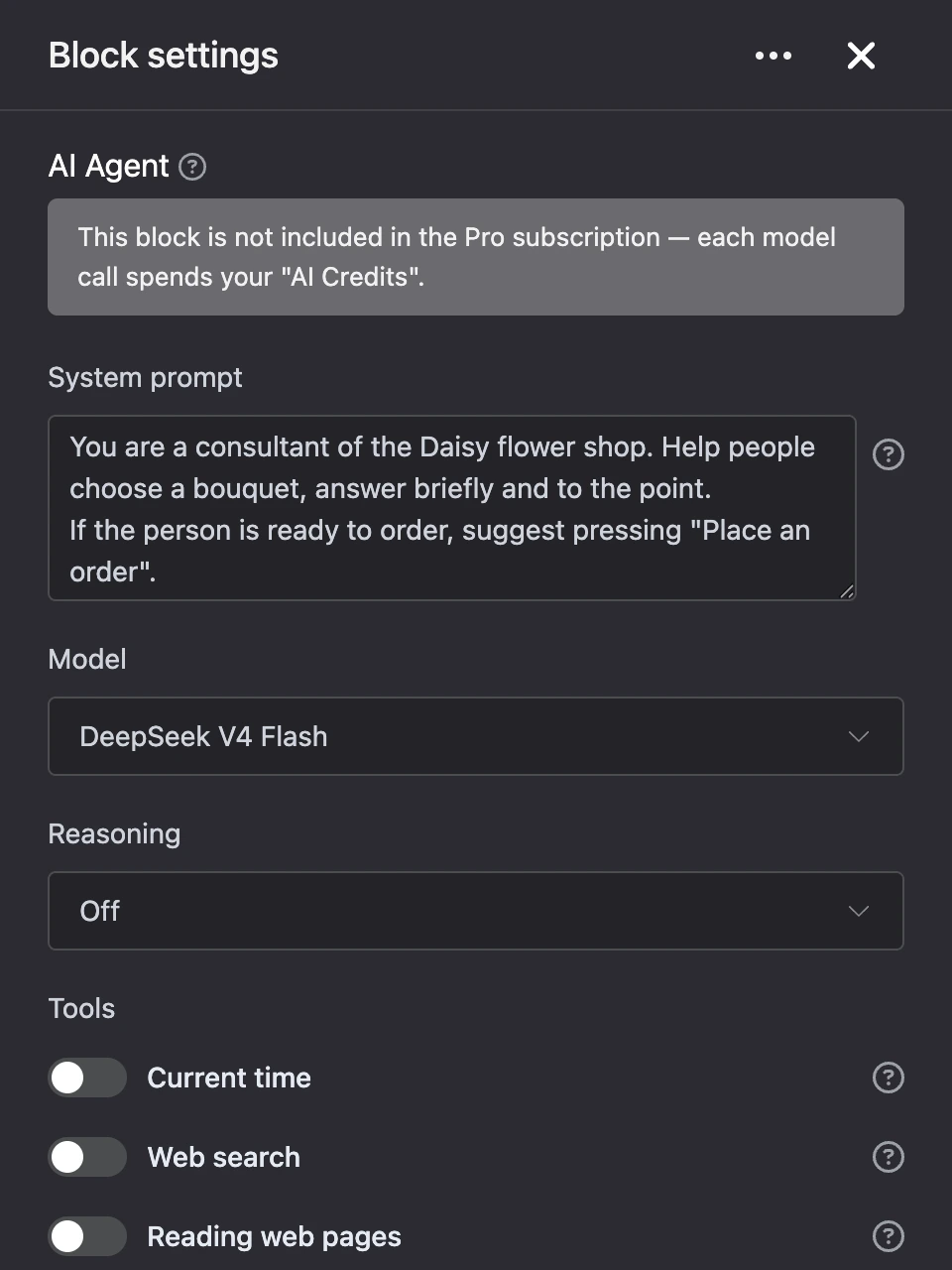
The instruction for the agent: who it is, what it talks about, what it should find out and by what signs it should choose a transition. Up to 10,000 characters.
A new block already has a prompt draft with a role, rules and a list of transitions — replace it with your own.
Templates work in the prompt: the contact's name, tags and variables are inserted anew before every reply. Only simple functions are available — which ones exactly is described on the Where templates work page.
Tip
Describe the limits of the topic in the prompt and what to do with an off-topic question. An agent without limits will answer anything — on behalf of your company.
"Model"
The model that replies to the contact. In the list, models are grouped by provider, with the price of input and output tokens next to each.
Once a model is chosen, the "Reasoning" field appears — how much the model thinks before replying. The set of levels depends on the model; the "Off" value is always there. If the model cannot reason, the list has no other values.
"Tools"
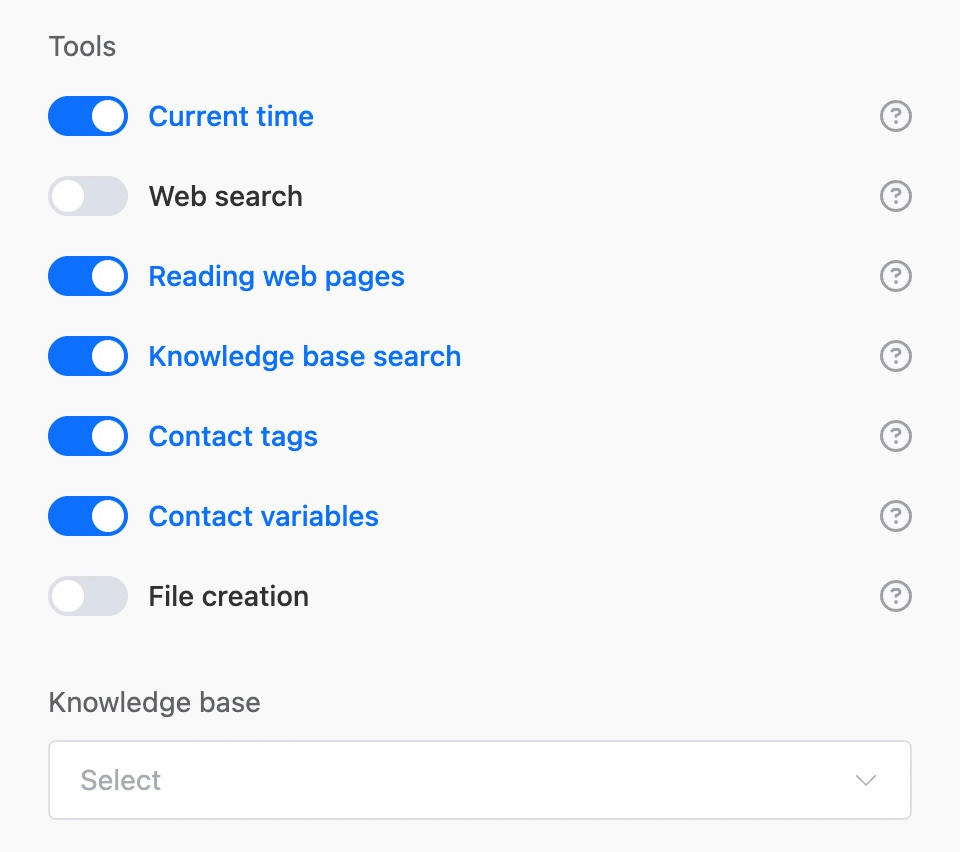
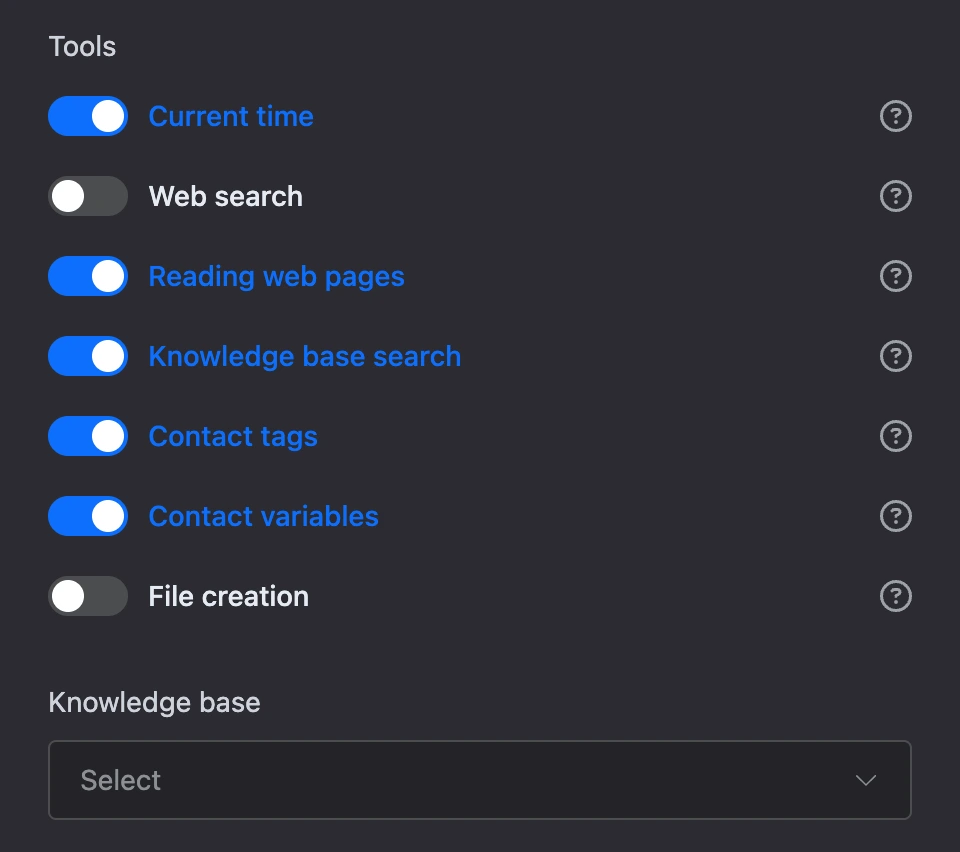
What the agent is allowed to do besides replying with text. In a new block all tools are off.
- "Current time" — the agent can find out the current date and time.
- "Web search" — the agent looks for information on the internet. Every search is paid from "AI Credits" separately, on top of the model's tokens.
- "Reading web pages" — the agent opens a page by a link and reads its text.
- "Knowledge base search" — the agent looks for the answer in your documents. When the switch is on, the "Knowledge base" field appears below — choose one of the project's knowledge bases in it. Until a base is chosen, the search does not work.
- "Platform help center search" — the agent looks for the answer in the Watbot help center and gives links to its sections. Useful for a bot that helps your customers find their way around Watbot — for example, if you build bots for others.
- "Contact tags" — the agent assigns and removes the contact's tags during the conversation. Describe in the prompt which tags to set and when.
- "Contact variables" — the agent writes and deletes the contact's variables. Describe in the prompt which variables to fill in. The agent works only with text variables: it does not change variables holding files, pictures, audio and video.
- "File creation" — the agent creates PDF and Word documents, Excel spreadsheets, CSV and text files, sends them to the contact and edits the files it sent earlier. Describe in the prompt when and which files to make.
Conversation history
- "Message history size" — how many of the latest messages of the dialogue the agent sees when it prepares a reply. Both the contact's messages and the agent's replies are counted. From 1 to 1000, 10 by default. The longer the history, the better the agent remembers the conversation and the more each reply costs.
- "Message history relevance (days)" — the agent ignores messages older than this period. 0 — no time limit.
- "Reset history" — the history is cleared before every reply. The agent sees only the contact's last message and does not remember the earlier ones.
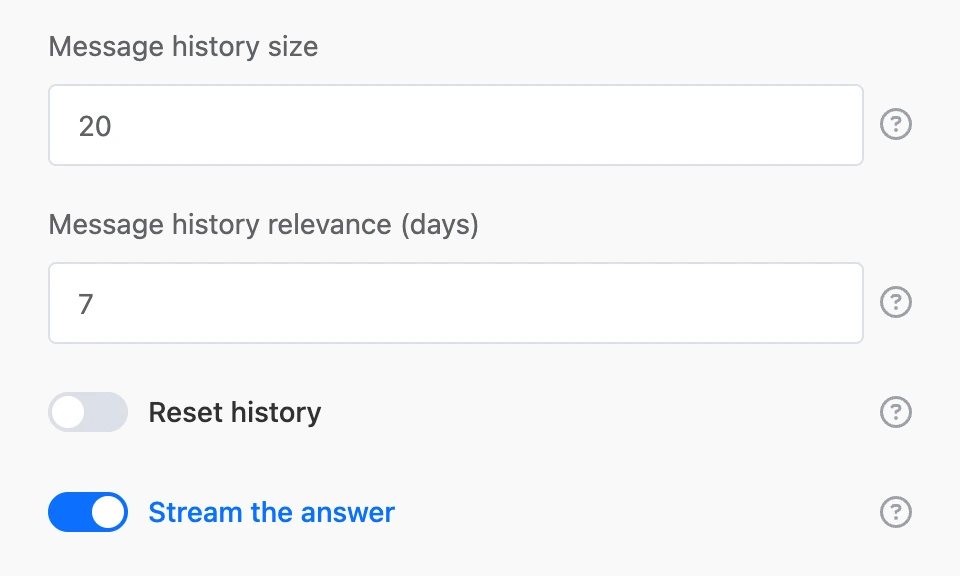
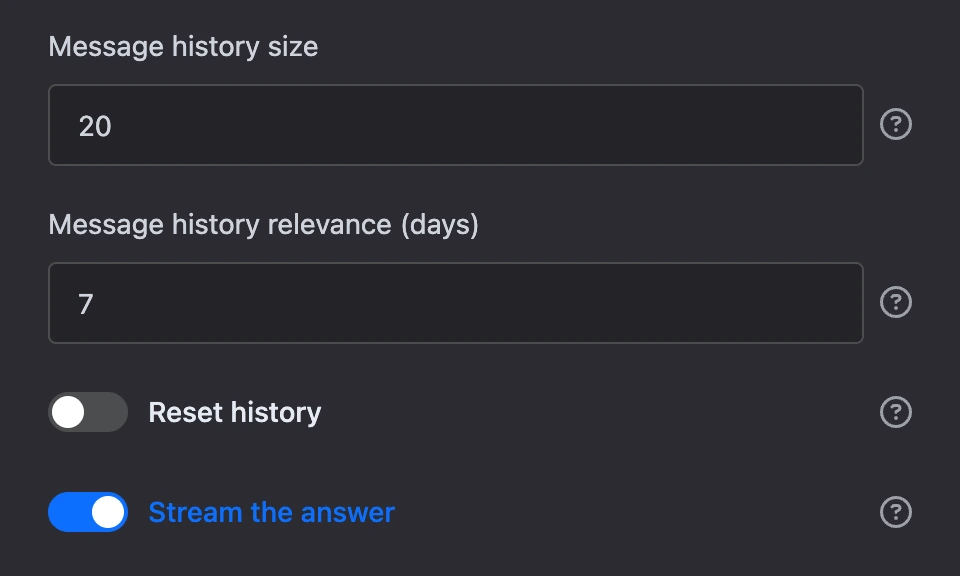
"Stream the answer"
The reply appears in the chat as the model writes it. While the model is silent — for example, searching the knowledge base — the contact sees "Thinking…".
The setting works in private Telegram chats and in the web chat. In other channels it has no effect: the reply arrives in full when it is ready.
"Transitions"
The scenario branches the agent can send the contact along. The "Add transition" button adds a branch; its name becomes an output of the block on the scheme.
The agent sees the transition names and chooses one of them when the outcome of the conversation clearly fits a branch. If no transition fits, the agent chooses nothing, and the contact stays in the block. The contact gets the agent's reply in any case — first the reply, then the transition.
Give transitions clear names — "Laptops", "Operator" — and describe in the prompt when to choose each one.


Warning
If the contact types text that matches a transition name, they follow that transition right away, without a reply from the agent.
"Advanced"
Two switches in this section change the agent's behaviour:
- "Answer in numbers" — on by default. When the contact sends a number, it is treated as a transition number: "2" sends the contact along the second transition without a reply from the agent. If the agent asks questions that are answered with a number — "how many people?", "what size?" — turn this setting off.
- "Write the answer to the user variable" — every message from the contact in this block is written to the given variable, each new one over the previous one.
Outputs
- Transitions — outputs with the names you set in the "Transitions" section. The one the agent chose fires, right after its reply.
- "Any other phrase" — fires when the contact types any text in the block. Leave this output unconnected: then the message goes to the agent. If you connect it to another block, the contact's next message goes there, and there will be no conversation with the agent.
- "AI error" — fires when there will be no reply:
- the model is unavailable or returned an error;
- there are no funds in "AI Credits";
- the funds ran out while the agent was preparing the reply — the work already done is paid for, and the reply is not sent;
- the contact exceeded the limit of messages to the agent (see Limits).
- "Continue" — fires at once, as soon as the block has received a message and started preparing a reply. It does not wait for the reply. When the reply is ready, the contact returns to the "AI Agent" block and receives it. If the output is not connected, the contact simply waits for the reply in the block.


Important
Connect "AI error" to a regular message — for example, "I can't answer right now, please write later" — or to a handover to an operator. Without a connection, the contact gets nothing when an error occurs.
The reason for the error is written to the block's "Execution log": "Failed to get a response from the model", "Not enough AI Credits" or "Generation limit for this contact reached".
If no model is chosen in the block, or the model is no longer connected in the project, "AI error" fires as well, and the "Model is not set" or "Model not found" entry appears in the log. If the "AI error" output is not connected to anything, the block sends nothing, and the contact follows "Continue" if that output is connected.
Files and pictures from the contact
The agent handles more than text.
- Pictures — if the chosen model accepts images. If it does not, the agent does not reply, and the contact gets a message asking to describe the question in text.
- Documents — the agent reads their contents.
- Voice messages, audio and video are not handled by the agent.
Up to 10 attachments are taken into account in one message. Pictures larger than 5 MB and documents larger than 50 MB are skipped.
Limits
- One reply at a time. While the agent is preparing a reply, it neither processes nor remembers new messages from this contact. Meanwhile the contact follows the "Continue" output if it is connected.
- Per-contact limit. One contact can get no more than 20 replies from the agent in 10 minutes and no more than 200 a day across all "AI Agent" blocks of the bot. Beyond the limit, the "AI error" output fires. The limit protects your "AI Credits": you pay for the replies, and anyone can write to the bot. When you test through "Test the bot", the limit does not apply.
- Files. The agent creates no more than 3 files per reply and no more than 30 files a day for one contact.
- Connections. The block's outputs cannot be connected to another "AI Agent" block, or to the "Global menu", "Inline Telegram bot" and "Incoming webhook" blocks.
Differences between channels
| Telegram | VK | MAX | Viber | Web chat | |
|---|---|---|---|---|---|
| The reply is typed out as it is generated | yes, in private chats | no | no | no | yes |
| Reply formatting: bold text, lists | yes | no, plain text | yes | no, plain text | yes |
The model formats the reply with markup. Where a channel does not support it, the contact gets the same text without formatting and without service characters.
Files created by the agent arrive to the contact as documents right after the reply.