

Accounts and referrals
The contact card has two tabs besides "Main": "Accounts" and "Referrals".
Accounts
An account is the contact's internal balance in the bot: bonuses, points, a deposit. It is bookkeeping inside the bot, not a wallet in a payment system. A contact has a separate account for every currency.
How an account appears
You cannot open an account for a contact by hand. An account appears on its own when money in that currency first arrives on it — for example, after these scenario blocks:
The "Debit a contact's account" block debits the account. All the blocks for working with contact data are in the Blocks section.
While there are no accounts, the tab says "Empty".
The "Accounts" tab
The table shows the "Currency", "Balance" and "Creation date" of every account. The buttons on the right:
| Button | What it does |
|---|---|
| "+" | Opens the "Top up account" window |
| "−" | Opens the "Debit the account" window |
| "Journal" | Shows all operations on the account |
| "Block" / "Unblock" | Forbids or allows again debits from the account |


Topping up or debiting manually
- Click "+" or "−" in the account's row.
- Enter "Amount" and "Description" — both fields are required. The description goes to the journal, and later it makes clear what the operation was for.
- Click "Top up" or "Debit".
You cannot debit more than there is on the account.
Blocking an account
Money cannot be debited from a blocked account — neither manually nor by the scenario:
- the "Debit a contact's account" block sends the contact along the insufficient funds branch;
- the "Top up a contact's account" block with a negative amount debits nothing and stops the scenario.
A blocked account can be topped up. The "Unblock" button lifts the ban.
The journal
The "Journal" button opens the list of operations on the account: "Type", "Amount", "Description" and "Date of operation". The latest are at the top.
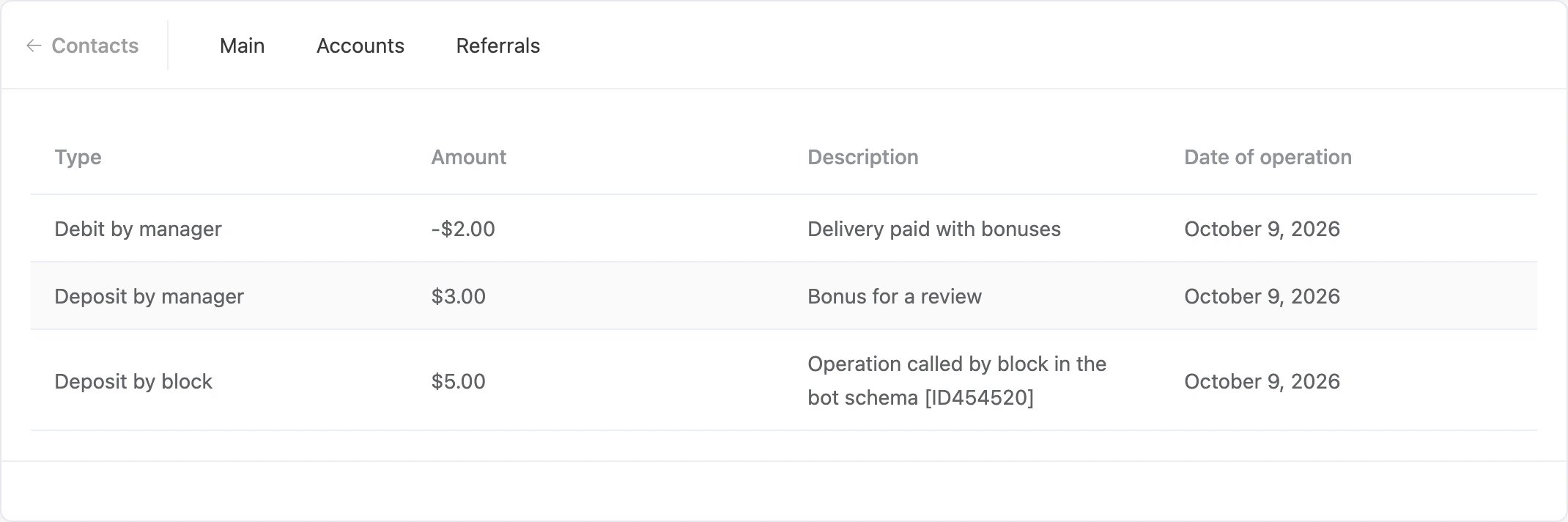
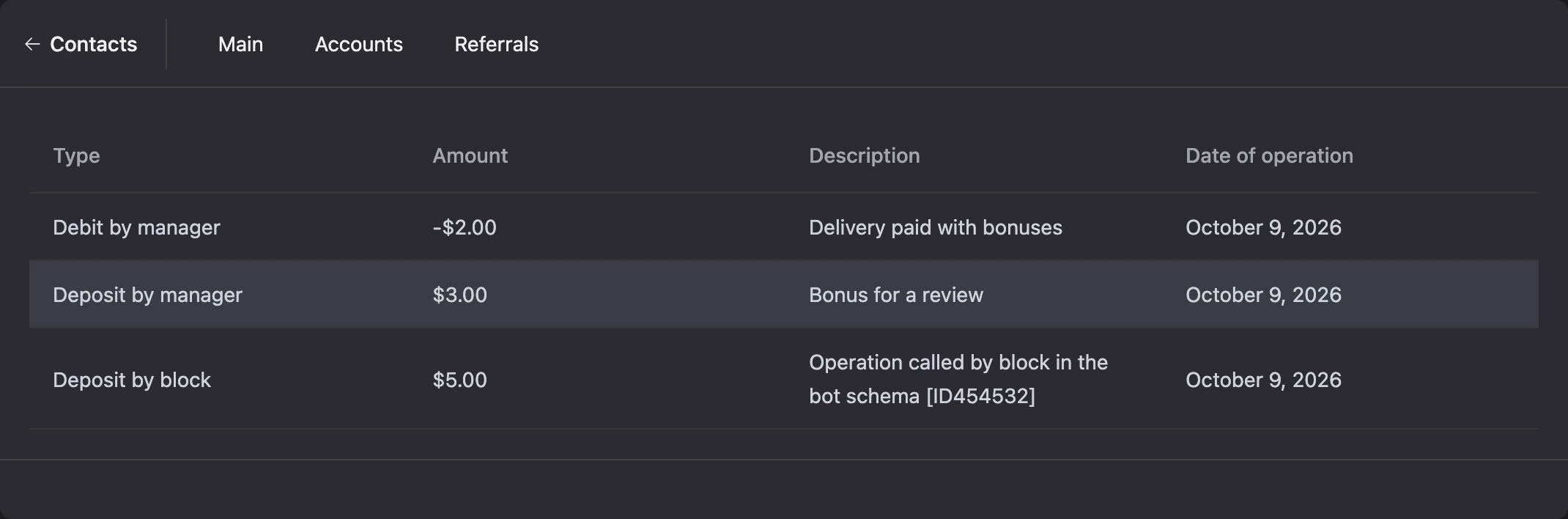
| Type | Where the operation comes from |
|---|---|
| "Deposit by block", "Debit by block" | Scenario blocks |
| "Deposit by manager", "Debit by manager" | Manually on the "Accounts" tab |
| "Deposit by referral" | A referral reward |
| "Deposit via payment system", "Debit by payment system" | A payment through a payment system |
| "Deposit via API", "Debit via API" | An external program through the platform's API |
You can show the balance to the contact in a message — with the getBalance function. It is described on the Function reference page.
Referrals
The referral link shows who brought whom to the bot:
- a referrer — the contact who invited the person;
- a referral — the invited contact.
The links form a chain. Those the contact invited personally are their first line. Those invited by them are the second line, and so on. All the lines together are the contact's network.
How the link arises
By a referral link. Every contact has their own referral link to the bot. The bot sends it to the person in a message — with the functions from the "Referral program" section on the Function reference page. When another person comes to the bot by this link, they become a referral of the link's owner. If the newcomer already has a referrer, the link does not change.
Manually. In the contact card, in the "Referral program" section:
- In the "Referrer (parent)" row, click "Assign".
- Enter the ID of the referrer contact. The ID is shown in the header of their card and in the first column of the list of contacts.
- Click "Save".
The cross next to the referrer's name removes the link. Those invited by the contact stay with them.
Notification about a new referral
The bot can tell a referrer that a new person has come by their link. This is turned on in the bot settings, on the "Advanced" tab: the "Receive notification of new referrals" switch and the "Depth" field — up to which line up the chain to send the notification. Your own text is set there too — "Custom message about a new referral". See the Bot settings section for details.
When a referrer is assigned manually, no notification is sent.
Where to see it
- In the contact card, in the "Referral program" section: "Referrer (parent)" — who invited; "Referrals" — "First line" and "Whole network" with the number of invited people. The "Referrals" row is there only if the contact has invited someone.
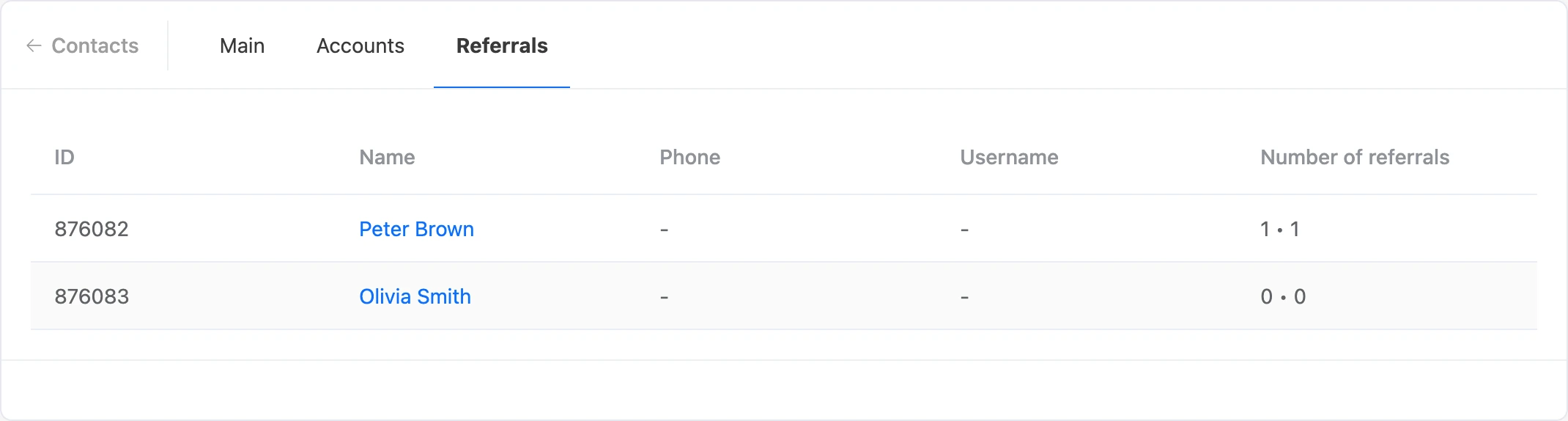
- On the "Referrals" tab — the first-line contacts: ID, "Name", "Phone", "Username" and "Number of referrals". The last column has two numbers: those invited by the referral personally and their whole network. A click on a name opens the referral's card — this way you can go down the chain.
- In the list of contacts — the "Referrer" column.
- In the contact export — the Referrer ID column.

What you can do with referrals
- reward the inviters — the "Reward the referrer" block;
- branch the scenario by the number of invited people — the "Condition" block;
- pick a mailing's recipients with the "Has a certain number of referrals" filter — the Recipients and filters page;
- show the contact their link and the list of invited people — template functions.
If something does not work
- "Insufficient funds". The debit amount is larger than the account balance. The same message appears when debiting a blocked account — unblock it first.
- "Zero amount transferred". Enter an amount greater than zero.
- "No such referrer was found for the current bot". There is no contact with this ID in this bot. Only a contact of the same bot can be a referrer.
- "The current contact cannot be their own referrer". The contact's own ID is entered.
- "The referrer you specified is in the network of referrals of the current contact". You cannot assign as a referrer someone this contact has brought themselves — directly or through the chain.