

Input
One line for input: a name, phone, email, promo code, quantity. What is entered goes into a variable.
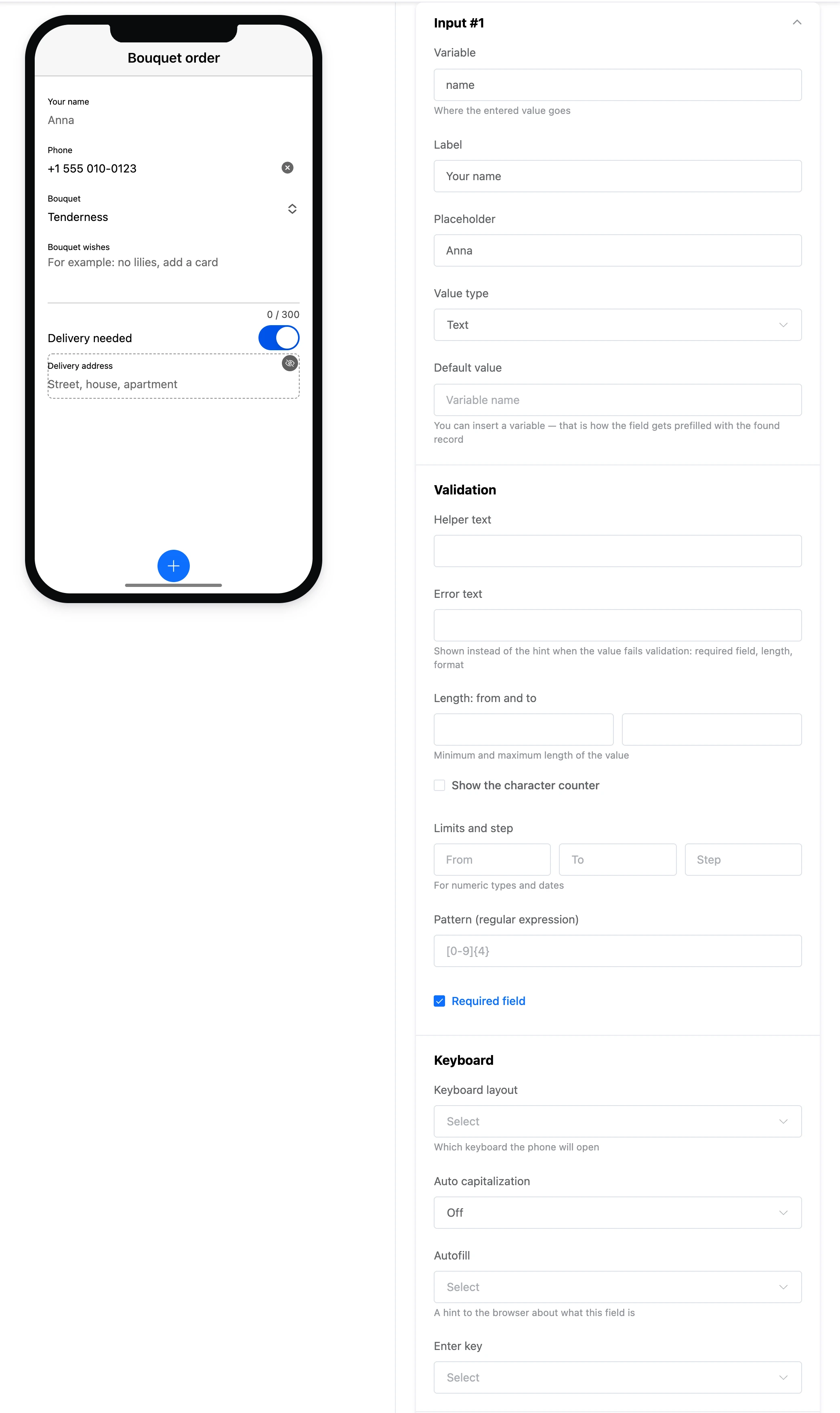
Settings
- "Variable", "Label", "Placeholder" — as for all fields.
- "Value type" — "Text", "Number", "Phone", "Email", "Password", "URL", "Search", "Date", "Time". The type defines the phone keyboard and how the value is shown: for example, a password is hidden behind dots.
- "Default value" — what is already in the field. You can insert a variable.
Validation
- "Helper text" and "Error text".
- "Length: from and to" and "Show the character counter".
- "Limits and step" — "From", "To" and "Step" for numbers and dates.
- "Pattern (regular expression)" — for example,
[0-9]{4}for four digits. - "Required field".
More in the Validation section.
Keyboard
- "Keyboard layout" — which keyboard the phone opens:
text,tel,email,numeric,decimaland others. If empty — by the value type. - "Auto capitalization" — "Off", "Sentences", "Words", "All caps".
- "Autofill" — a hint to the browser about what the field is, so that it fills in saved data:
name,email,tel,street-address,one-time-codeand others. - "Enter key" — what is written on the Enter key:
done,go,next,search,sendand others.
Style
- "Label placement", "Filling" and "Round" — as for all fields.
- "Clear button" — a cross in a filled field.
- "Clear on first edit" — the value is erased as soon as the person starts typing.
- "State" — "Read only" or "Disabled".