

Lists in a chatbot
Lists are tables with your data in a project: a catalogue, a price list, a schedule, requests. How to create a list, set up fields, manage records and load them from Excel is covered in the Lists section. This page is about how the bot works with lists.
The bot reads records and shows them to people, adds new ones, checks whether a record exists and deletes it. Lists belong to the project, so a list created in one bot is available in the blocks of any other bot of that project.
"Lists" in the bot's menu
The table has two columns — "Name" and "Count". The bot's reference tables come first, and below them are the lists created in this bot. A click on a list's name opens its records. To the right of a list there are icons: copy, edit fields, delete. The "Create list" button is under the table.


A copy gets a name with the "(copy)" mark and the same fields. Records are not carried over to the copy.
A list created in another bot or in the project's menu is not shown in this table. It is still available in the scenario blocks. All lists of the project are gathered in the "Lists" section of the project's menu.
The bot's reference tables
Above the lists, the table shows the bot's reference tables:
| Row | What it is |
|---|---|
| "Contacts" | All contacts of the bot |
| "Global variables" | Values shared by the whole bot: in the scenario text they are inserted by name — {{ VariableName }} |
| "Tag hints" | The names of the bot's tags. Deleting a tag from this table does not change the contacts' tags |
| "User variable hints" | The names of contact variables. Deleting a variable from this table does not change the contacts' variables |
| "Votes" | The data of the voting blocks. These blocks are outdated |
Contacts, tags and variables are described in the Contacts section.
The "Payments" and "Orders" rows appear when the bot has payments or orders.
The "Lists" window in a block
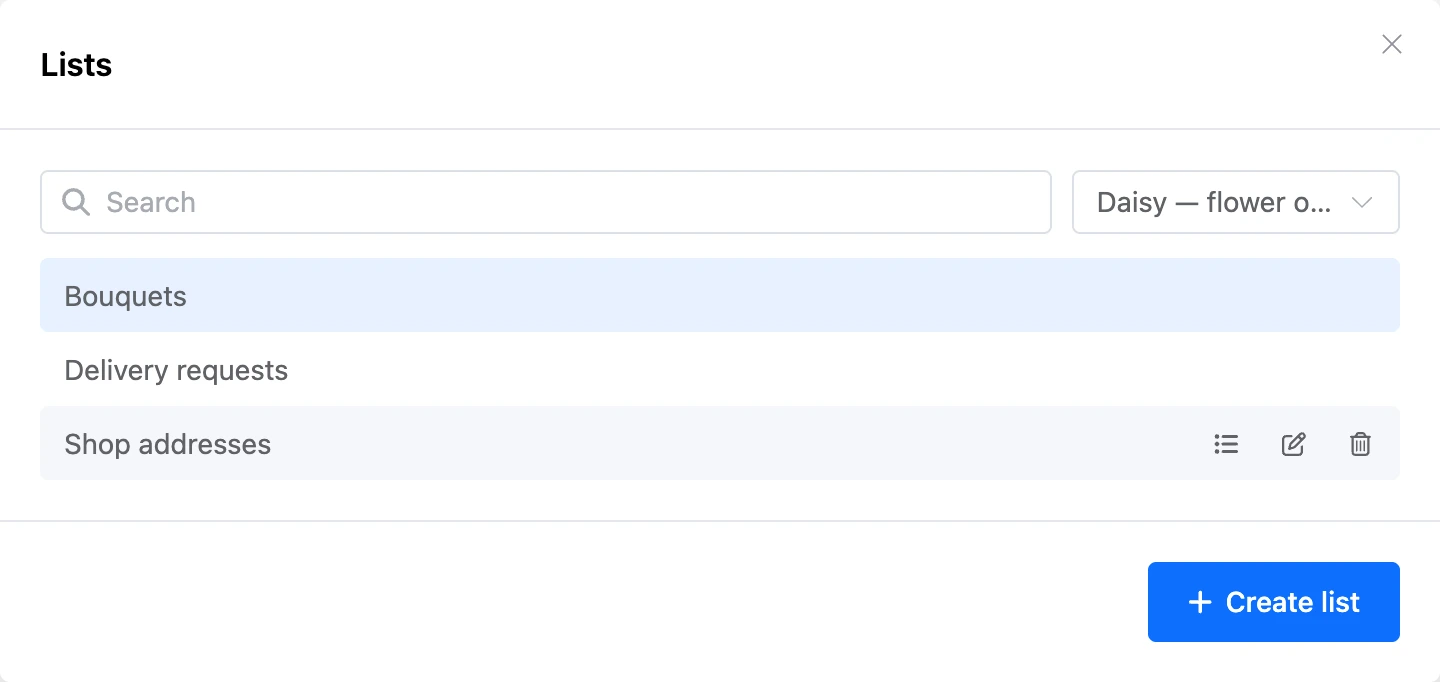
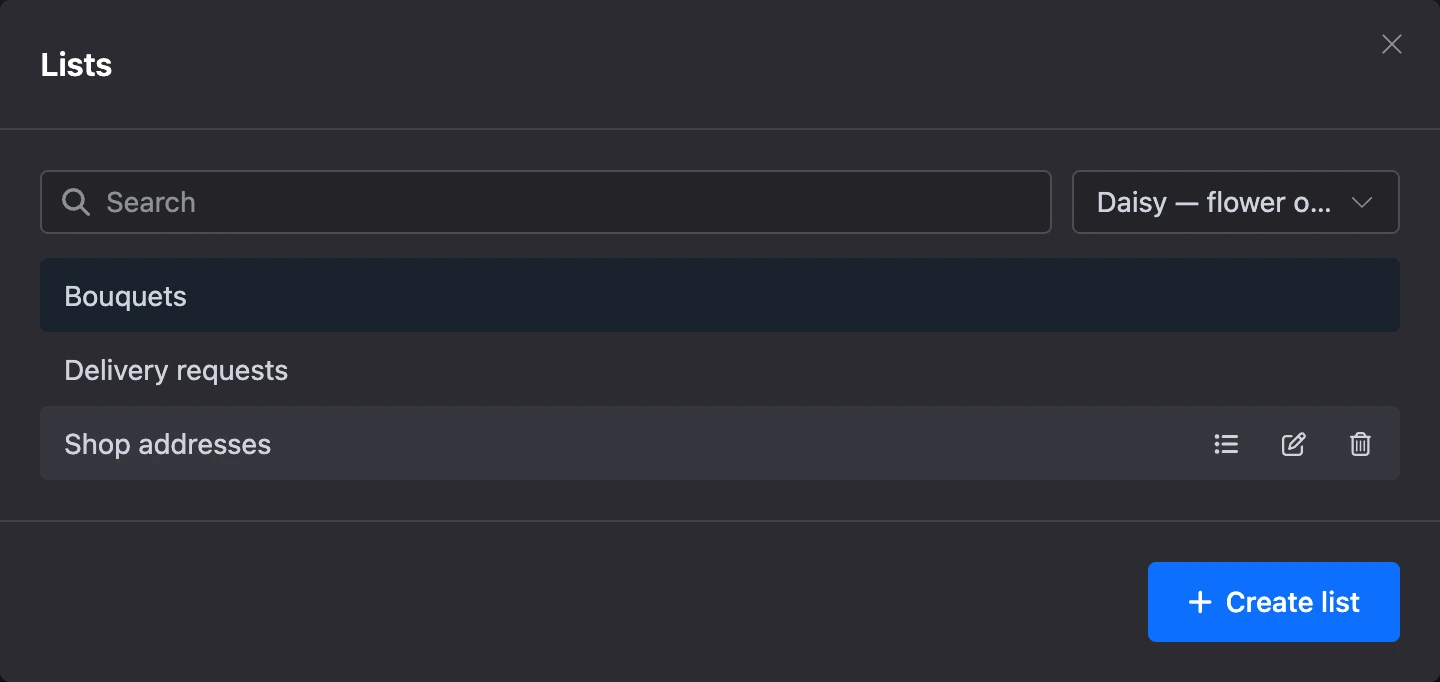
In blocks that work with a list, there is an "Open lists" button next to the "List" field. The window has a search by name, a choice of "Whole project" or one bot, and the "Create list" button. By default it shows the lists of this bot, if there are any. A new list created in the window is chosen in the block right away.
If the project has lists created in mini apps, one more choice appears — "All apps" or one of them.
A click on a row chooses the list for the block. The icons in the row open the records, the list's fields and deletion. Records opened from the window also have "Import from Excel" and "Export to Excel" above them.
How lists work in a scenario
Lists are handled by the "Add list entry", "Read list entries", "Read list entry", "Check if a list entry exists", "Delete list entries" and "Delete list entry" blocks. They are described in the Blocks section, and their common settings are on the Lists and tables page.
The values of a record's fields are inserted into messages:
- In the reading blocks, the message text is set by a template. The buttons under the template insert a field's placeholder — for example,
{{ title }}for the "Title" field. Where these names come from is explained on the Creating a list and fields page. - In any other message, a record is shown with the
getListRowandgetListRowsfunctions. They are described in the Templates section.
Hidden list fields are not hidden from the bot's blocks: the bot reads and writes them like ordinary ones.
Before deleting a list, check that it is not chosen in the scenario blocks.
Team member permissions in the bot
Permissions for lists are set in a team member's role — see permissions in the Lists section. In the bot they work like this:
- Without the "Viewing lists" permission, there is no "Lists" item in the bot's menu.
- In the bot's section, only team members with the "Editing lists" permission see the "Import from Excel" button.
- The "Global variables" and "Votes" rows open with the "Editing scenarios" permission.
How to give a team member access to a bot is covered in the Bot settings section.