

Record form
A short path from a screen to a record: each form field is a column of the list, and submitting creates or changes the record right away. No separate block is needed.
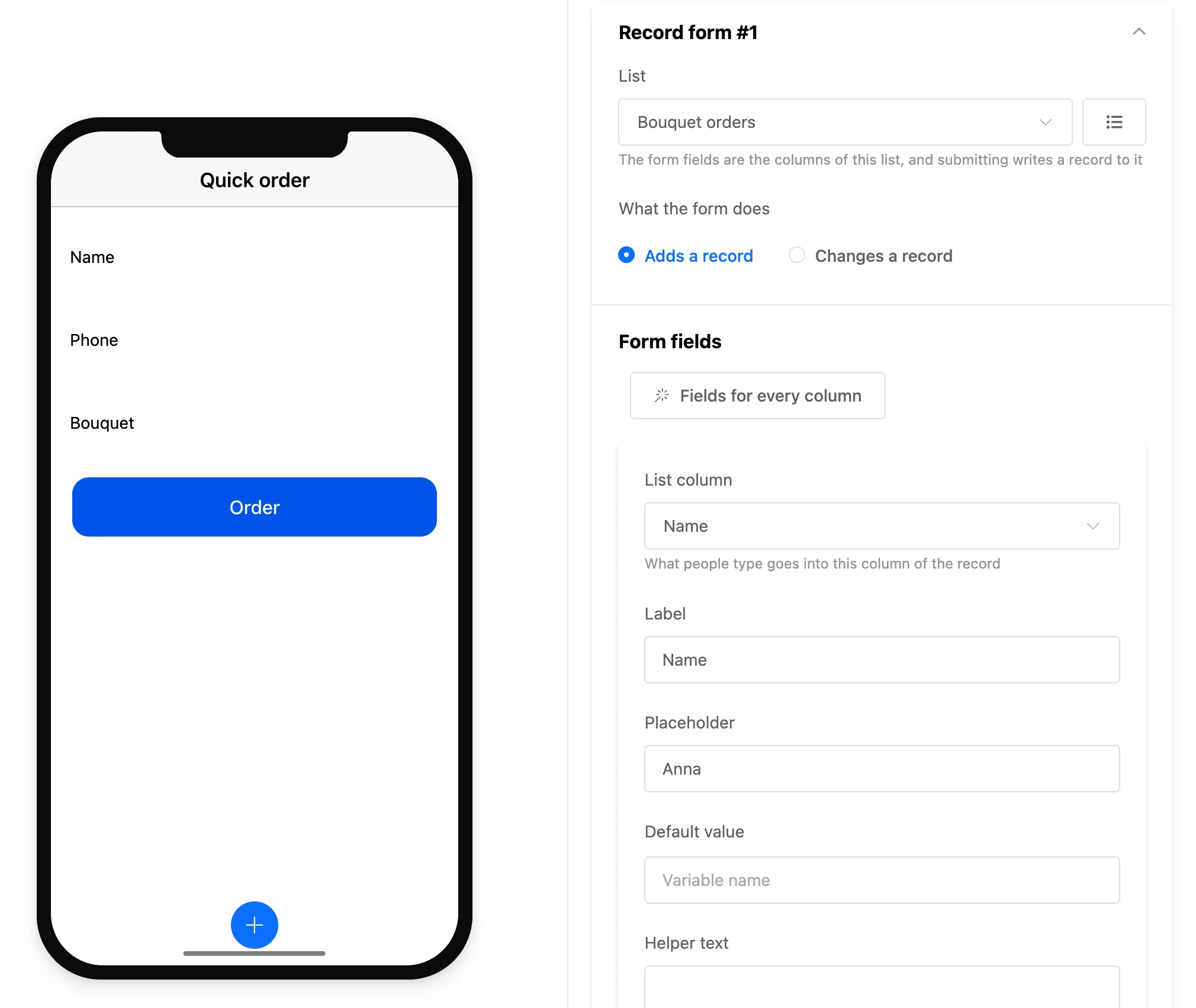
Settings
- "List" — the form fields will be columns of this list, and a submission becomes a record in it right away.
- "What the form does" — "Adds a record" or "Changes a record". For changing — "Which record to change" (usually the variable set by a tap on a list record) and "Show the record values in the fields": the person sees what they are editing, not an empty form.
- "Form fields" — "Add a field" or "Fields for every column". A field has a "List column", "Label", "Placeholder", "Default value", "Helper text" and validation:
- for text — "Required field", "Length: from and to", "Pattern (regular expression)";
- for a number — "Value bounds";
- for a date — "Date bounds" in the form
2026-01-01; - "Error text" — shown instead of the standard one.
- "Submit button" — "Button name", "Filling", "Width", "Color" and "Error text for a required field" (if empty — "Please fill in this field").
- "After submitting" — a variable for the id of the new record and "The record belongs to the user": "only own records" works by this tick, and a changing form edits only the user's own records.
The form is described step by step, with error texts and limits, on the App data page.
Exit
The "Form "Button label"" exit fires after a successful submission. While there are errors, the form stays on the screen and highlights the fields.