

Appointments
Booking clients with specialists right in the app: the client chooses a branch, a service, a specialist and a time, leaves a name and phone — and the appointment appears in the journal. The elements take services, specialists, the schedule and booking rules from the branch. How to set up a branch and build the booking path with the "Book an appointment", "Cancel appointment" and "Reschedule appointment" blocks is on the Booking through a mini app page.
How to add elements and what they have in common is on the Screen elements page.
| Element | What it shows the client | Exit |
|---|---|---|
| "Booking branches" | A list of branches | "Branch N" |
| "Booking services" | The branch's services with price and duration | "Service N" |
| "Booking specialists" | Specialists for the chosen service | "Specialist N" |
| "Booking time slots" | Free time by day | "Time N" |
| "Booking checkout" | A booking summary and client fields | The button label, "Book" by default |
| "My appointments" | The client's appointments | "Appointment N" |
| "Appointment card" | One appointment with buttons | "Cancel appointment", "Reschedule appointment", "Rate visit" |
| "Visit rating" | Stars and a comment after the visit | "After rating" |
Branch
Most elements start with the "Branch" setting:
- a specific branch — the element works with it. You can set the branch in all screens of the version at once in the "Shop and branch" window;
- "The client chooses the branch" — the element takes the branch the client chose on the screen with "Booking branches". Usually it is
{{ branchId }}. If the app has a branch selection screen, a hint with the "Use the branch the client chose" button appears under the field.
For "My appointments", "Appointment card" and "Visit rating", a branch is optional: with "All branches" they show the client's appointments in all branches of the project.
In the builder, the elements show the real services and specialists of the chosen branch; if the client chooses the branch — those of the first suitable one. The client's appointments in the builder are a sample.
The elements pass the choice to each other through variables: branchId, serviceId, staffId, slot, appointmentId. Suitable ones are already set in each element's settings — you only need to change them if you build your own scenario.
Booking branches
A list of branches from which the client chooses theirs. Needed when there are several branches.
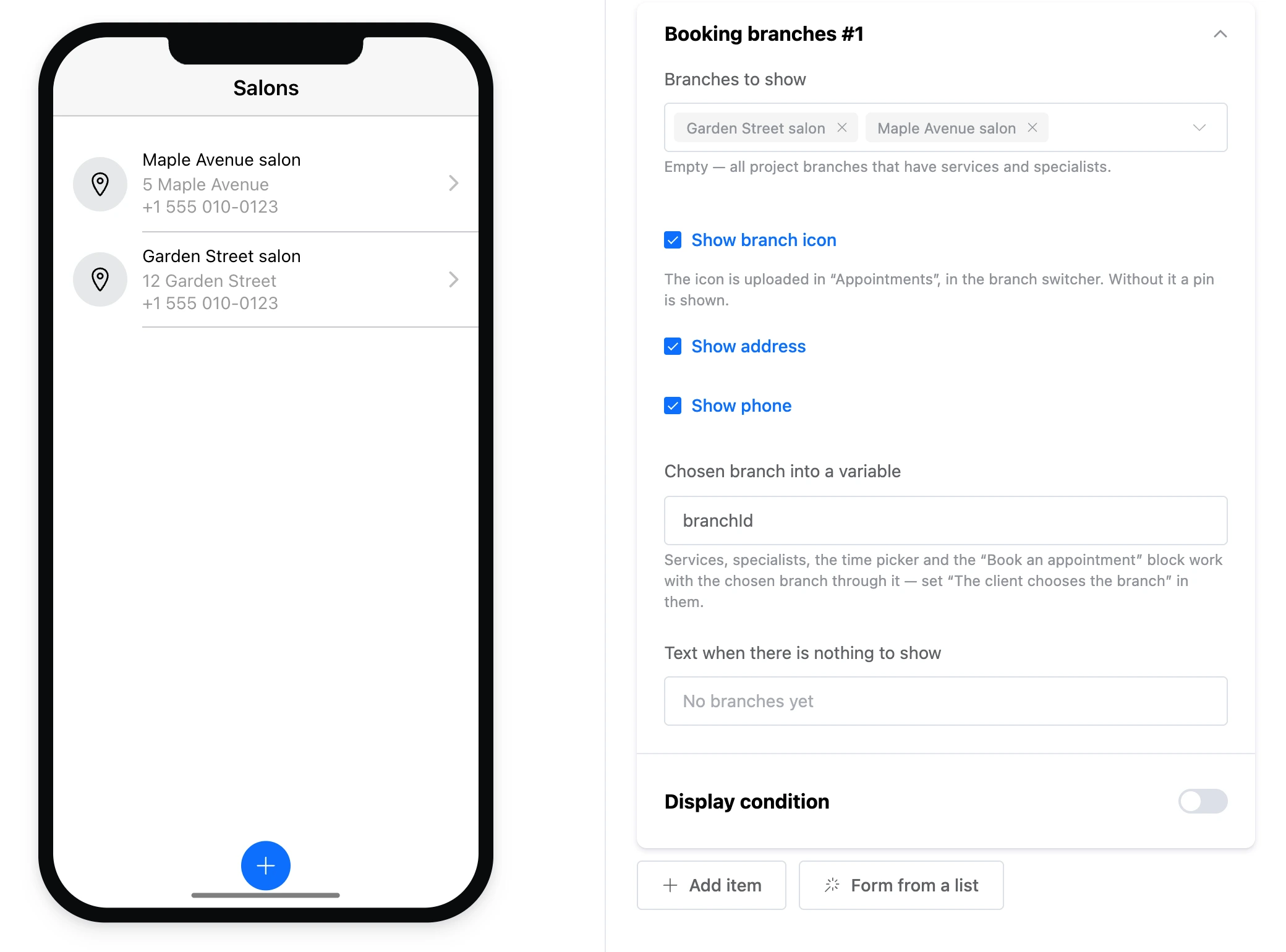
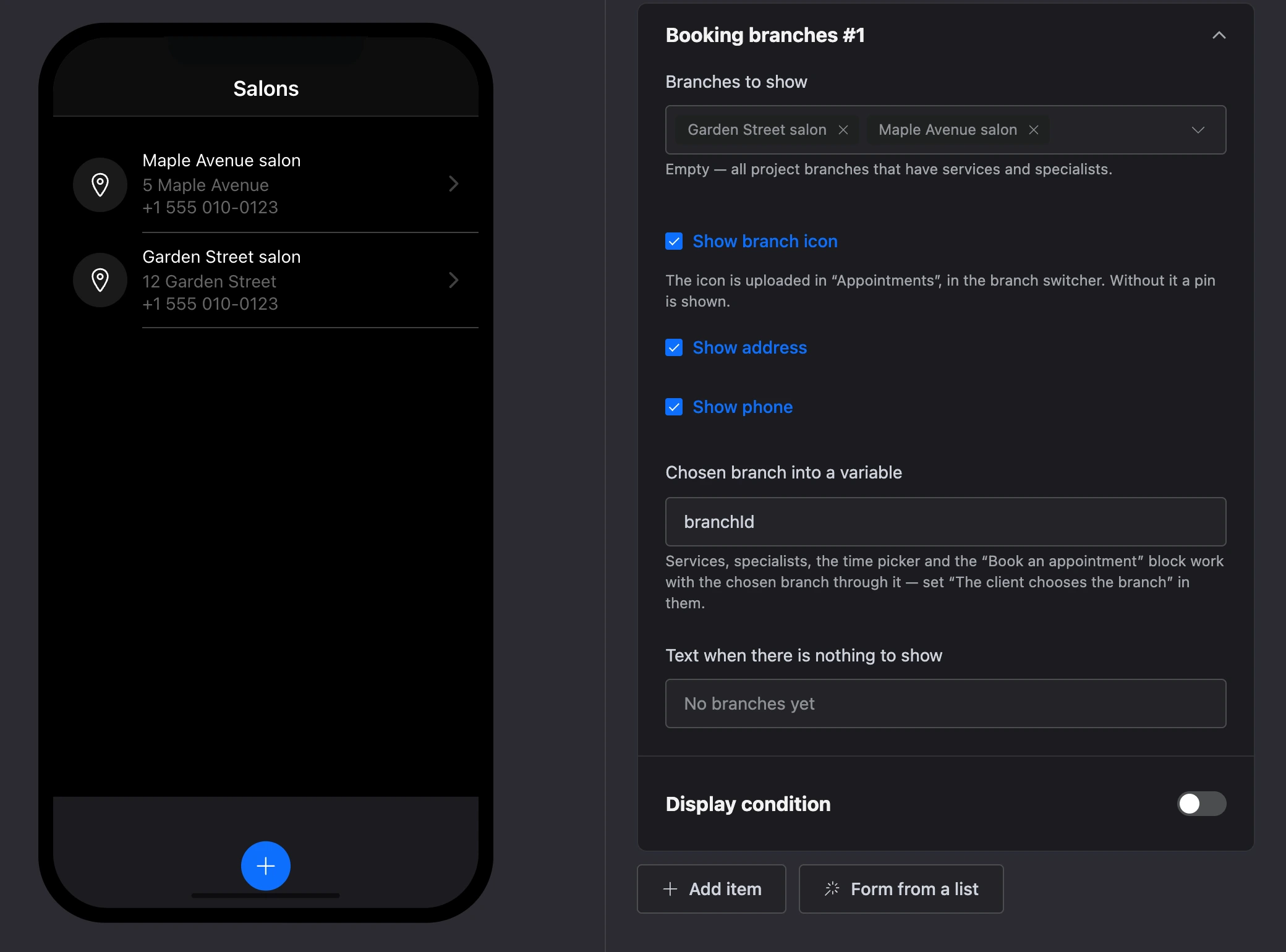
- "Branches to show" — if empty, all branches of the project that have services and specialists.
- "Show branch icon" — the icon is uploaded in the Appointments section, in the branch switcher. Without it, a pin icon is shown.
- "Show address", "Show phone".
- "Chosen branch into a variable" —
branchIdby default. Through it, services, specialists, time and the "Book an appointment" block work with the chosen branch — set "The client chooses the branch" in them. - "Text when there is nothing to show" — if empty, "No branches yet".
Booking services
The branch's services available for booking.

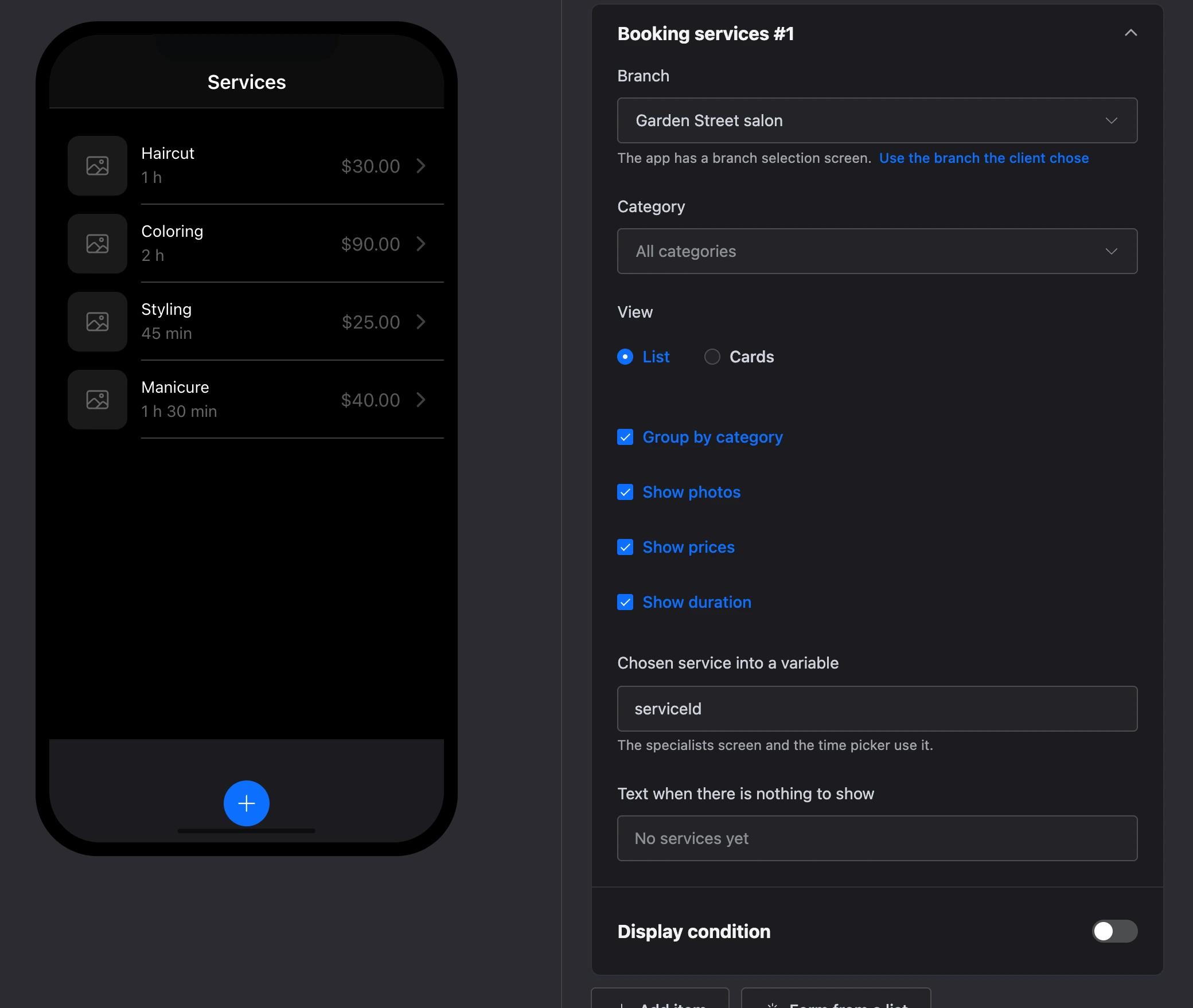
- "Category" — the services of one category or "All categories". When the client chooses the branch, there is no filtering by category: each branch has its own categories.
- "View" — "List" or "Cards".
- "Group by category", "Show photos", "Show prices", "Show duration".
- "Chosen service into a variable" —
serviceIdby default. Through it, the specialists screen and the time choice show what fits. - "Text when there is nothing to show" — if empty, "No services yet".
Booking specialists
The specialists who provide the chosen service.


- "Service" — usually
{{ serviceId }}, set by the "Services" element. - "“Any specialist” row" and "Row text". The appointment goes to a free specialist with fewer appointments that day.
- "Show photos", "Show rating".
- "Chosen specialist into a variable" —
staffIdby default. Through it, the time choice shows this specialist's free hours. - "Text when there is nothing to show" — if empty, "Nobody provides this service right now".
Booking time slots
Free time by day: a strip of days and the times of the chosen day.


- "Service" and "Specialist" — usually
{{ serviceId }}and{{ staffId }}. Empty oranyin the specialist means any free specialist. - "Rescheduling" — for a rescheduling screen:
{{ appointmentId }}. The time is matched to the services and specialist of that appointment. - "Days to show" — up to 31, but no further than booking is allowed in the branch settings.
- "Chosen time into a variable" —
slotby default. Booking checkout and the "Reschedule appointment" block expect it. - "Text when there is nothing to show" — if empty, "No free time".
Booking checkout
A booking summary — service, specialist, date, duration and price — and fields for the name, phone, email and comment.
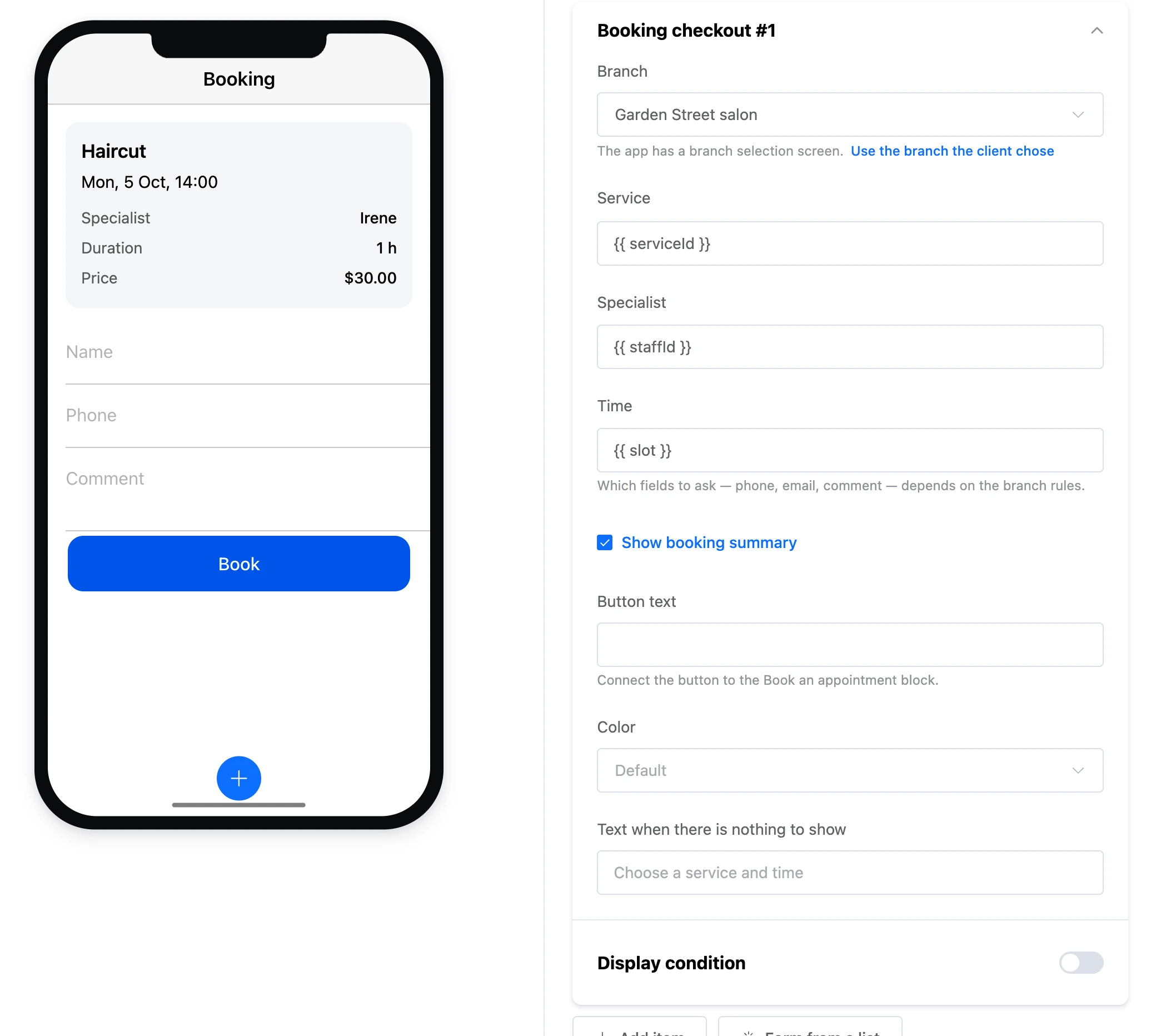
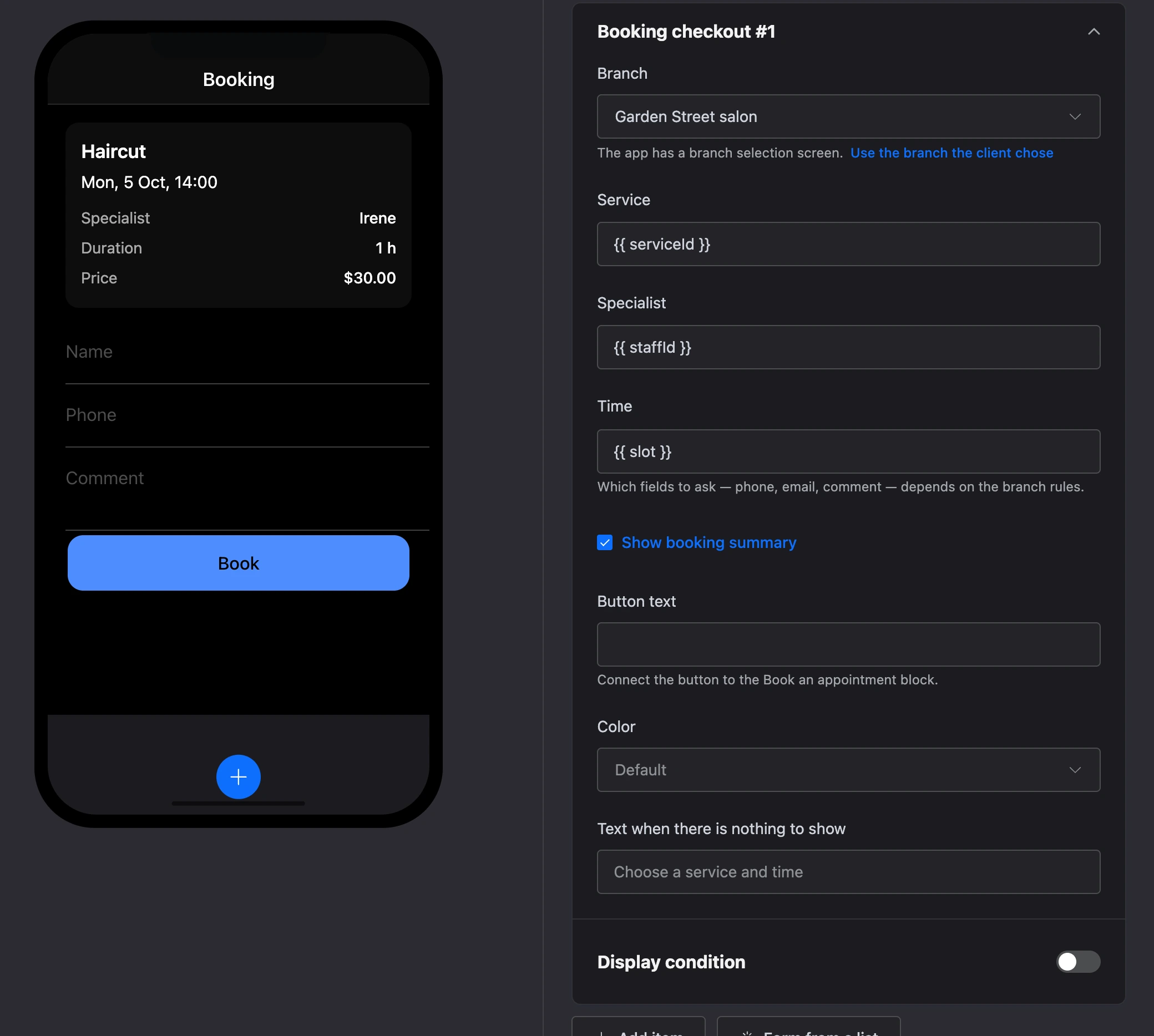
- "Service", "Specialist", "Time" — usually
{{ serviceId }},{{ staffId }}and{{ slot }}. - Which fields to ask for — phone, email, comment — is decided by the branch rules.
- "Show booking summary".
- "Button text" ("Book" by default) and "Color". Lead the button to the "Book an appointment" block.
My appointments
The client's appointments: upcoming ones and, optionally, past and canceled ones.
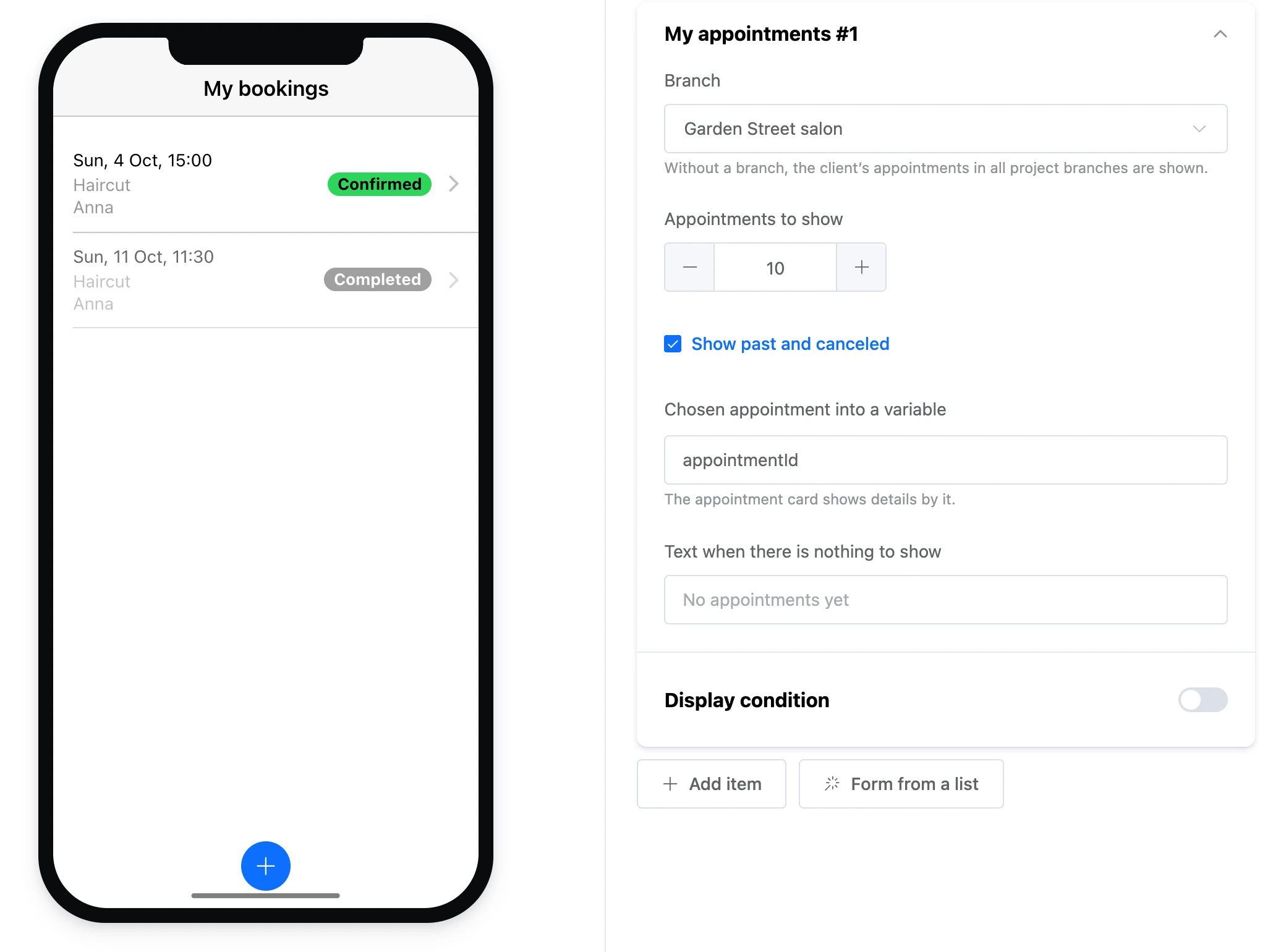
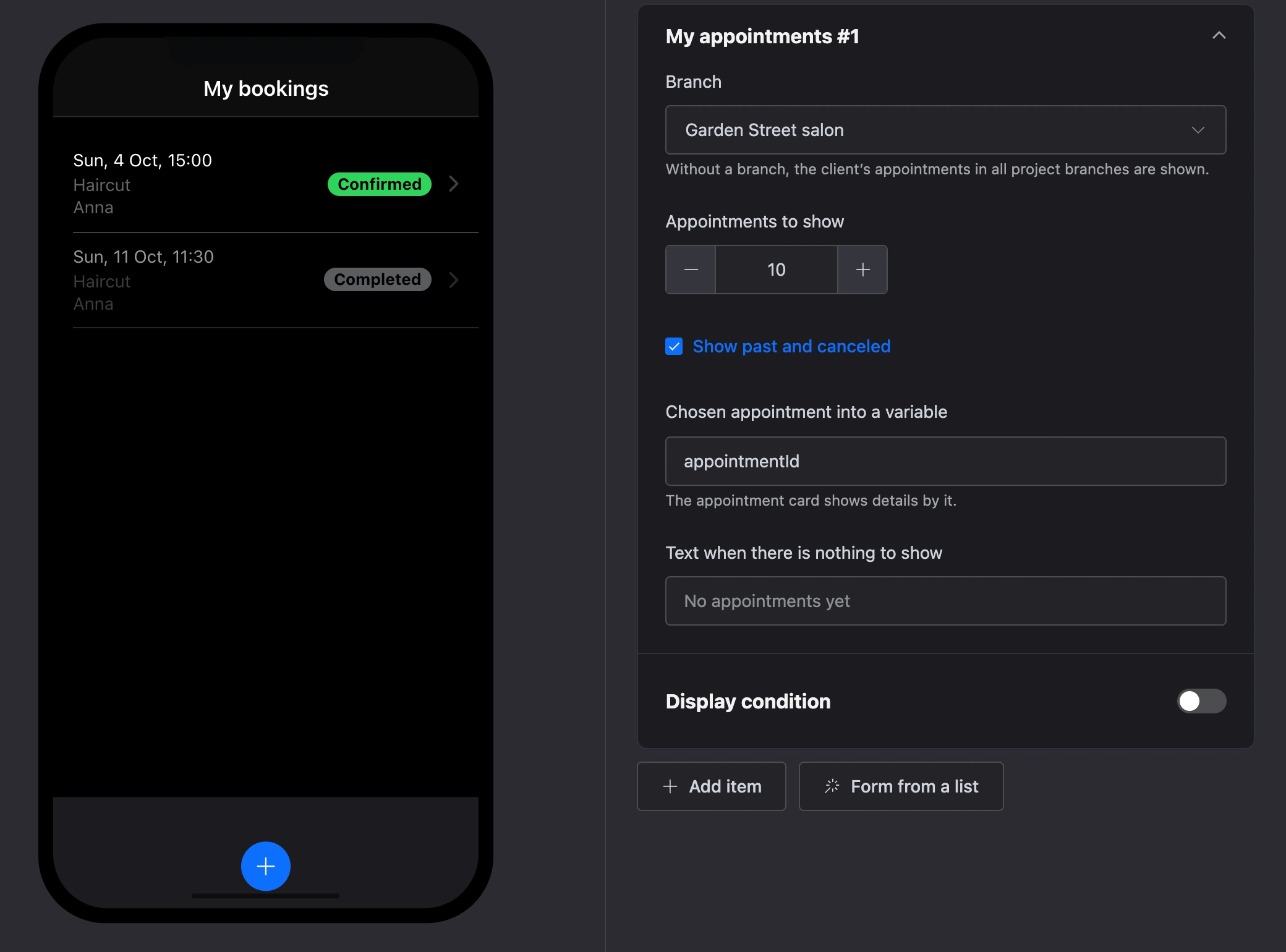
- "Appointments to show" — up to 50.
- "Show past and canceled".
- "Chosen appointment into a variable" —
appointmentIdby default. Through it, the "Appointment card" shows the details. - "Text when there is nothing to show" — if empty, "No appointments yet".
Appointment card
One appointment: number, status, services, specialist, date and price — and action buttons.
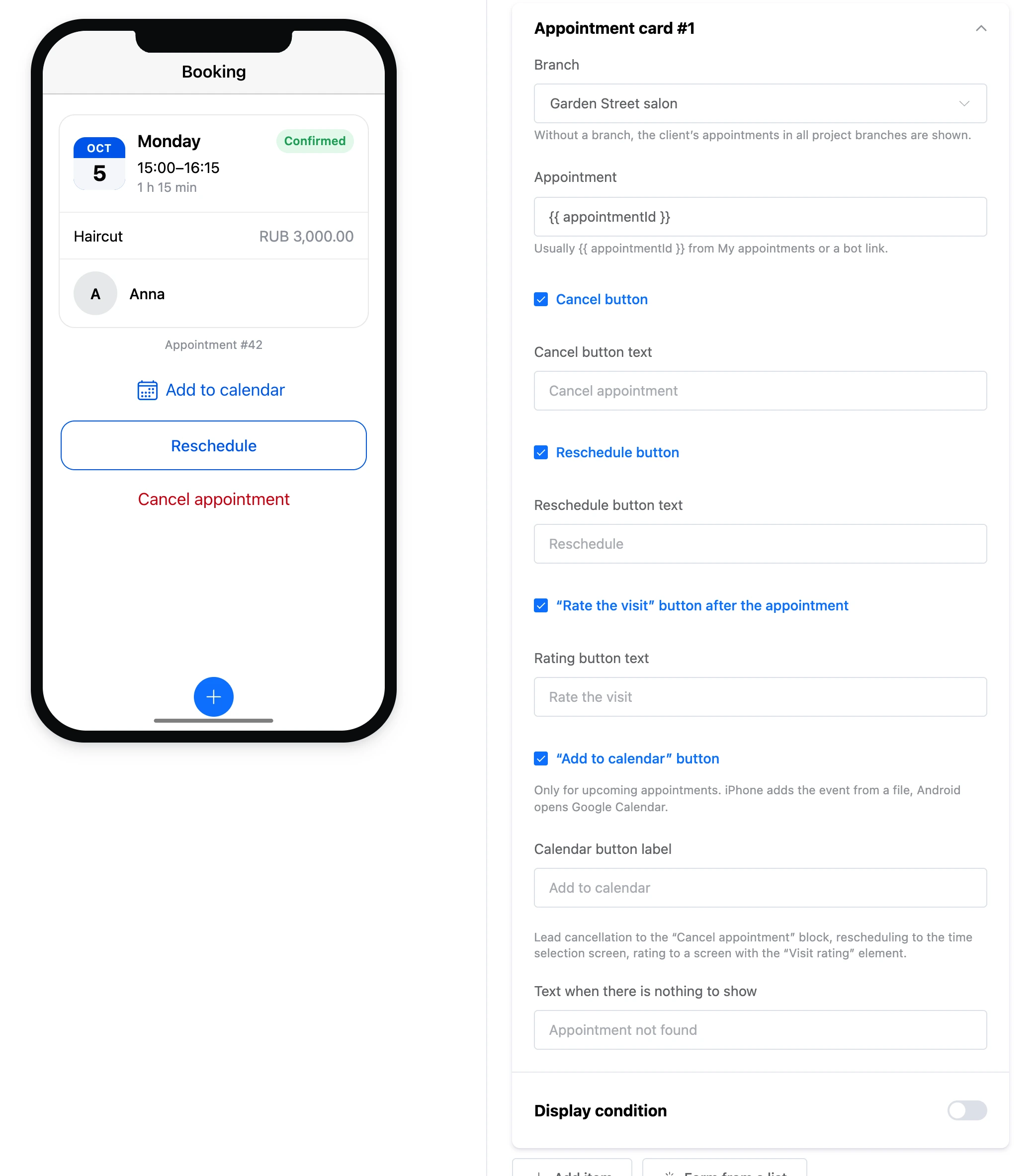
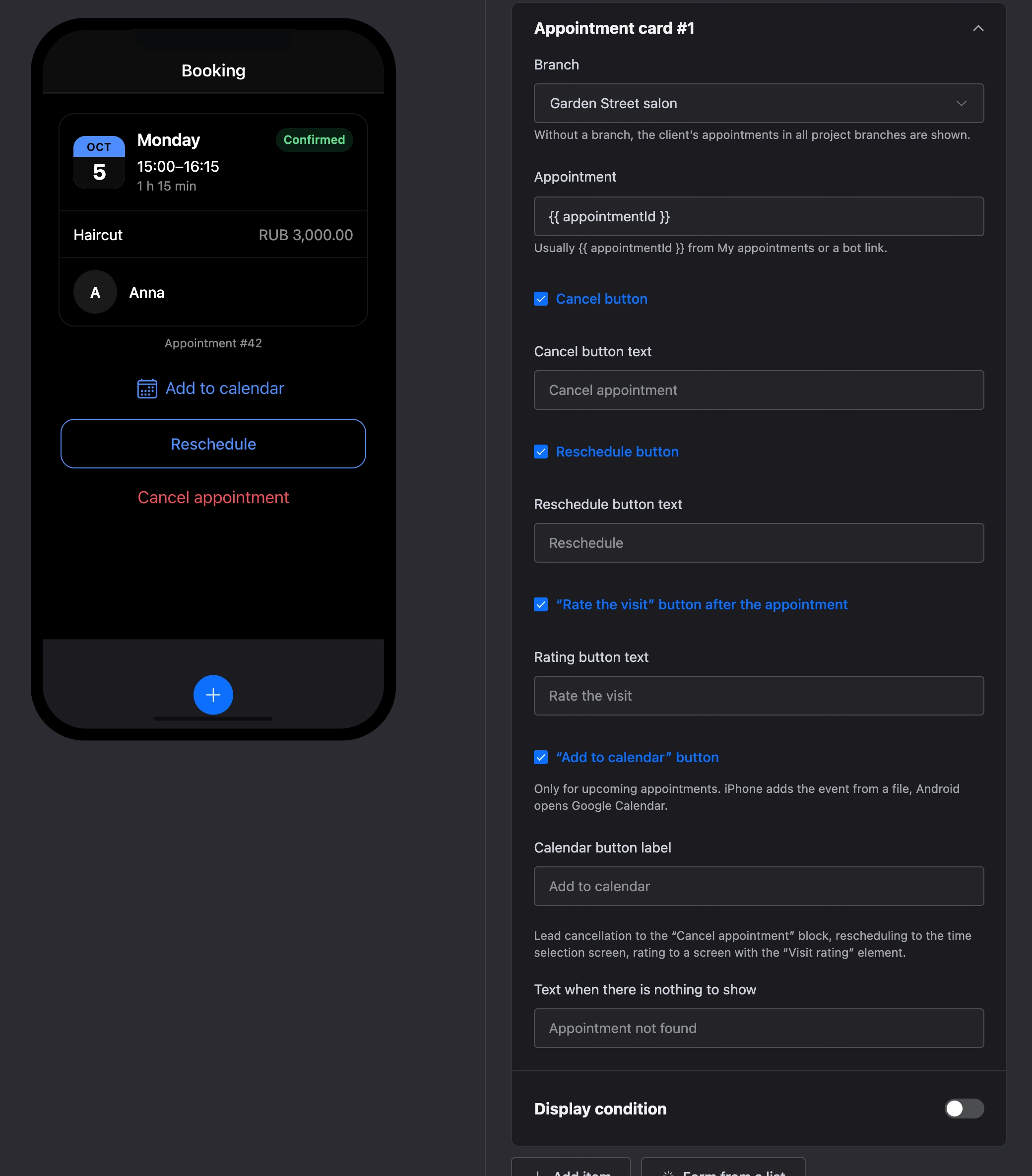
- "Appointment" — usually
{{ appointmentId }}, from "My appointments" or from a link sent by the bot. - "Cancel button" and "Cancel button text" — before canceling, the app asks the client to confirm.
- "Reschedule button" and "Reschedule button text".
- "“Rate the visit” button after the appointment" and "Rating button text".
- "“Add to calendar” button" and "Calendar button label" — only for an upcoming appointment. An iPhone adds the event from a file, Android opens Google Calendar.
- "Text when there is nothing to show" — if empty, "Appointment not found".
Each button has its own exit: lead cancellation to the "Cancel appointment" block, rescheduling to the time selection screen, rating to a screen with the "Visit rating" element. The client can cancel or reschedule an appointment no later than the deadline in the branch rules.
Visit rating
Stars from 1 to 5 and a comment field after the visit. The rating is saved at once — no separate block is needed. It can be changed during the first week.
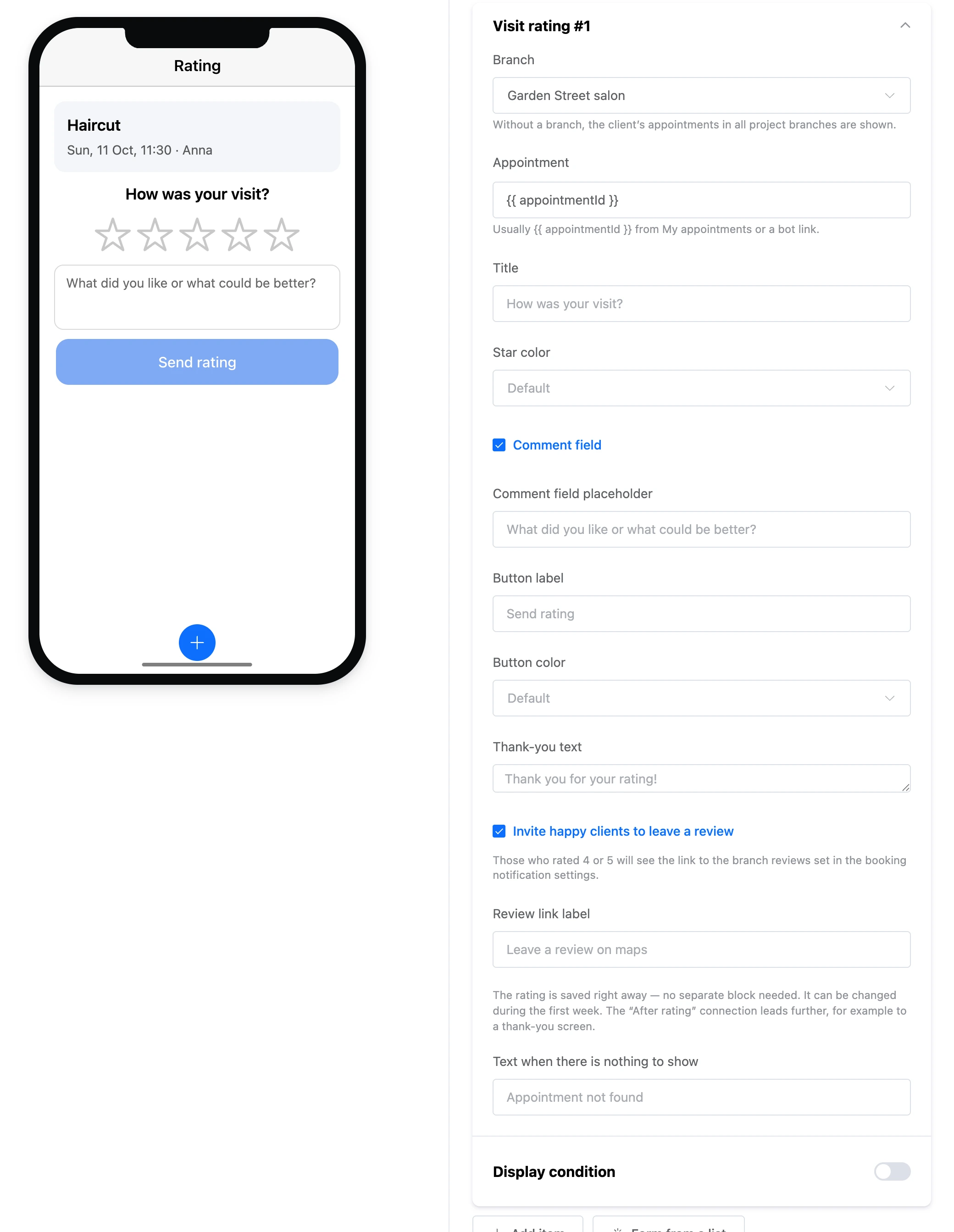
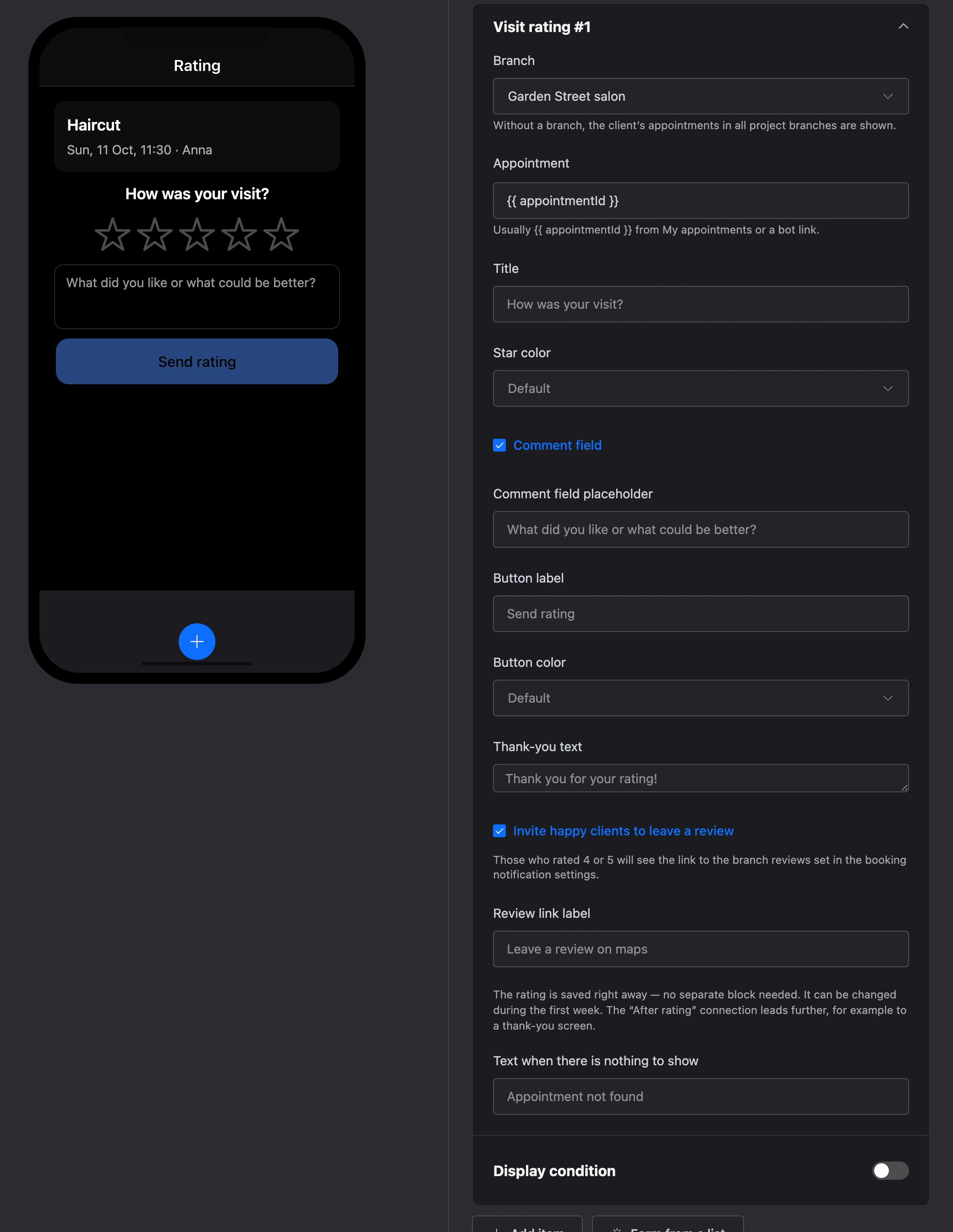
- "Appointment" — usually
{{ appointmentId }}. - "Title" ("How was your visit?" by default) and "Star color".
- "Comment field" and "Comment field placeholder".
- "Button label" ("Send rating" by default) and "Button color".
- "Thank-you text" — if empty, "Thank you for your rating!".
- "Invite happy clients to leave a review" and "Review link label" — those who gave 4 or 5 see a link to the branch's reviews. The link is set in the booking notification settings.
Before the visit, the element shows "You can rate the visit after the appointment." The "After rating" link leads further, for example to a thank-you screen.
For specialists
The elements of the "For specialists" group are screens for specialists in the same app: a specialist signs in with the code from their specialist card and sees their appointments and schedule. They do not need an account. How to give a code and what a specialist can do is on the Specialist access page.
"Specialist’s appointments", "Specialist’s appointment card" and "Specialist’s schedule" have a "Branch" setting — if empty, all branches where the person is listed as a specialist. A client who gets to a specialist screen will not see any appointments — only the "Text for those who are not specialists" (if empty, "This section is for specialists. Sign in with the code from your administrator.").
Specialist sign-in
A code field and a sign-in button. Someone already signed in sees a button leading to their appointments instead of the field.


- "Title" ("Specialist sign-in" by default) and "Explanation".
- "Button label" ("Sign in" by default) and "Color".
- "Button for a signed-in specialist" — "My appointments" by default.
- "Go on right away if the specialist is already signed in" — a signed-in specialist does not see this screen: the app immediately opens what the element's link leads to. The link must be drawn.
The "After specialist sign-in" exit leads to the specialist's screen.
Specialist’s appointments
A strip of days with the number of appointments and the appointments of the chosen day.
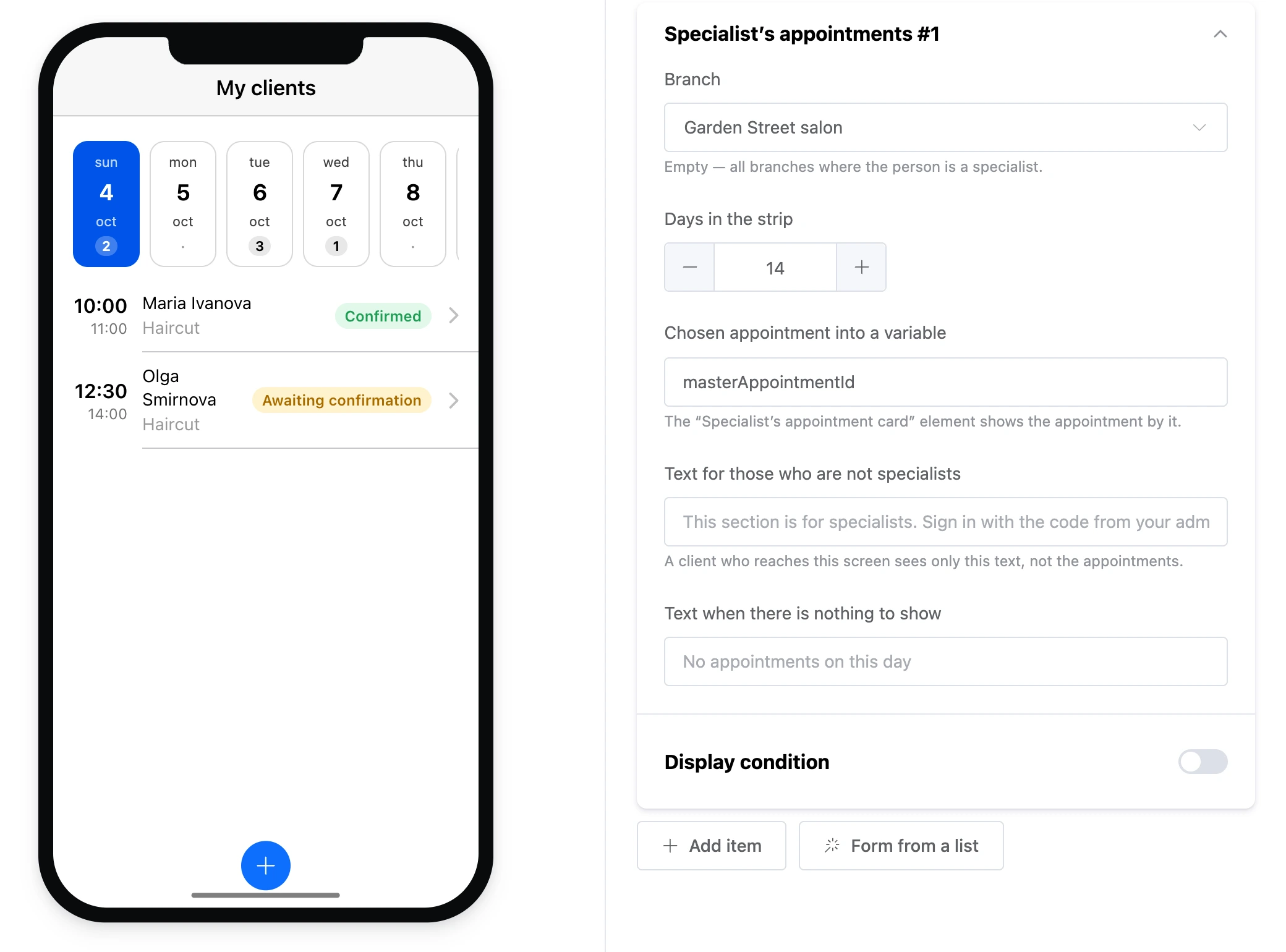

- "Days in the strip".
- "Chosen appointment into a variable" —
masterAppointmentIdby default. Through it, the "Specialist’s appointment card" shows the appointment.
The "Specialist’s appointment N" exit fires on a tap on an appointment.
Specialist’s appointment card
Services, time, the client's name and comment, mark buttons and the specialist's note.


- "Appointment" — usually
{{ masterAppointmentId }}, set by the "Specialist’s appointments" element and by the link in the bot's message. - "“Client came” and “Did not come” buttons" — available once the visit time has come. The specialist cannot cancel or reschedule an appointment.
- "Specialist’s note" — a note field for the appointment.
Specialist’s schedule
The specialist's working hours and breaks for the coming days.
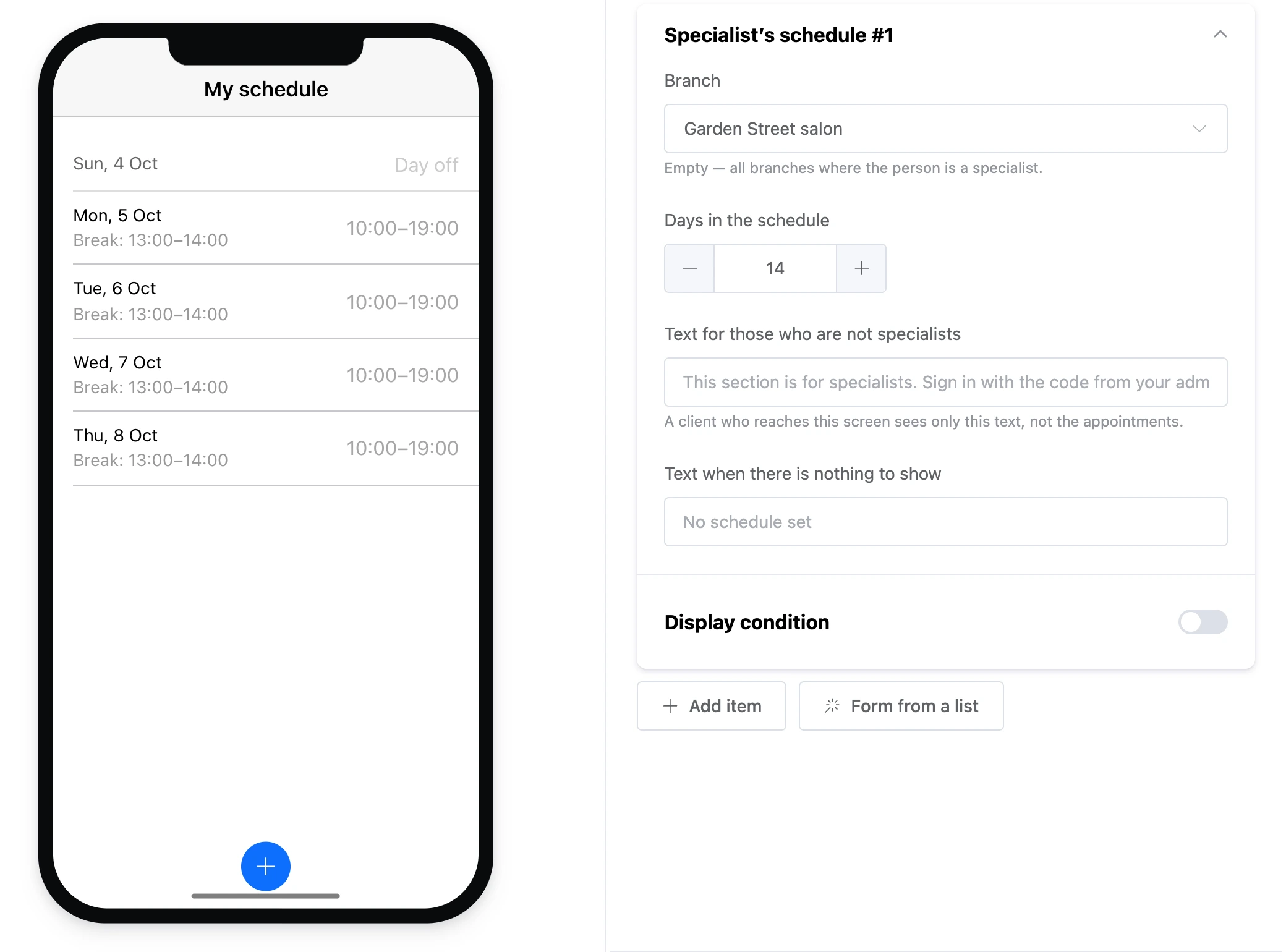
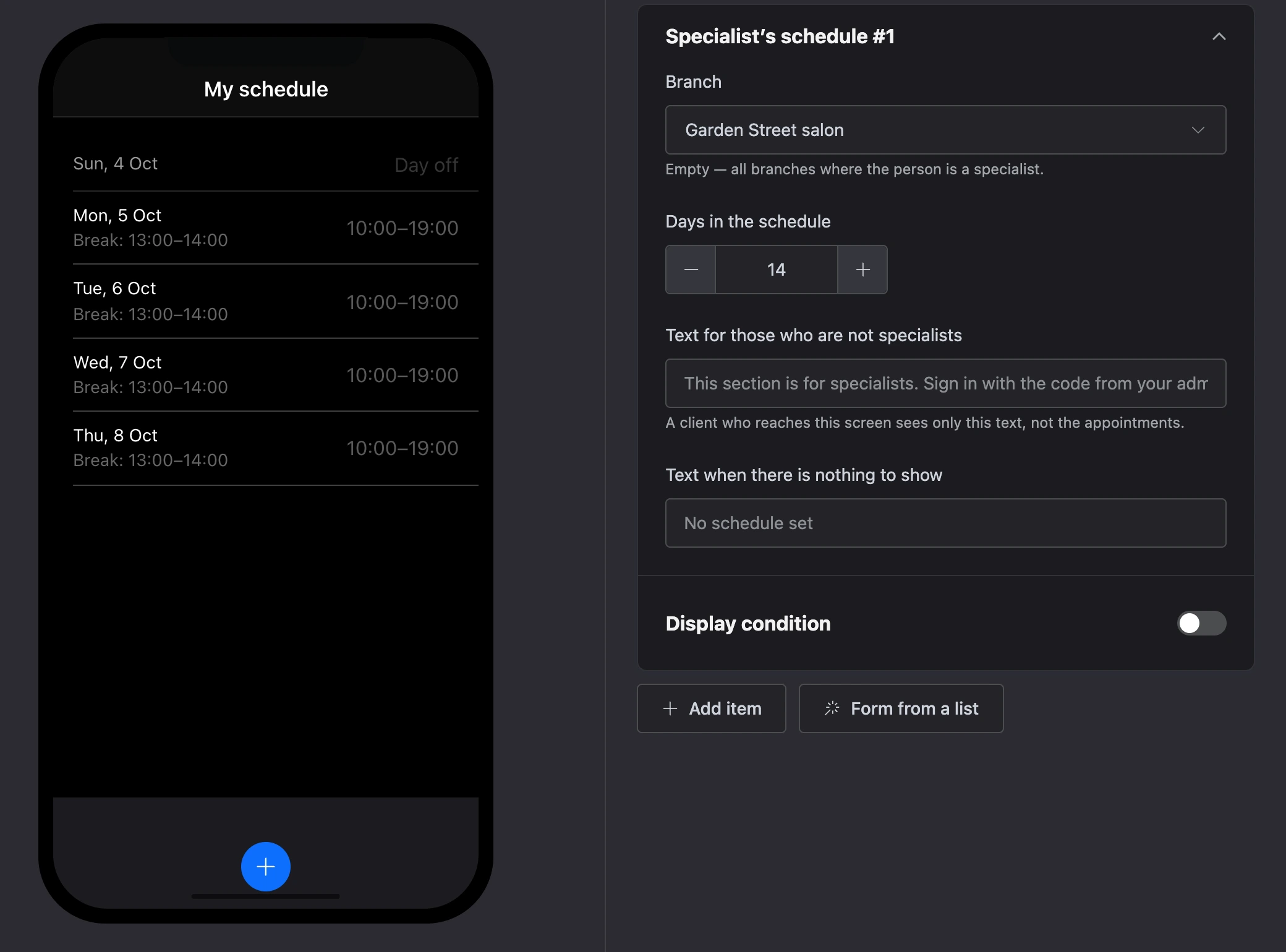
- "Days in the schedule".
- "Text when there is nothing to show" — if empty, "No schedule set".