

Appointment journal
The journal is the main screen of a branch: it shows all appointments, and from here an administrator books clients, reschedules and cancels visits, and marks who came. The journal opens first when you enter a branch.
What a team member can do in the journal depends on their permissions — they are listed on the main page of the section.
Three journal views
The switcher above the journal:
- "Day" — columns of specialists for one day. Convenient for an administrator.
- "Week" — seven days of one specialist. The specialist is chosen in the list on the right.
- "List" — appointments as rows for a period, with filters and search.
The chosen view is remembered in the browser.
In the "Day" and "Week" views, the arrows move through days or weeks, "Today" returns to the current date, and the date field opens any day. The specialist's non-working time is shaded in the grid, and the current moment is marked with a line. After an appointment, the break after the service is shown as a separate strip.
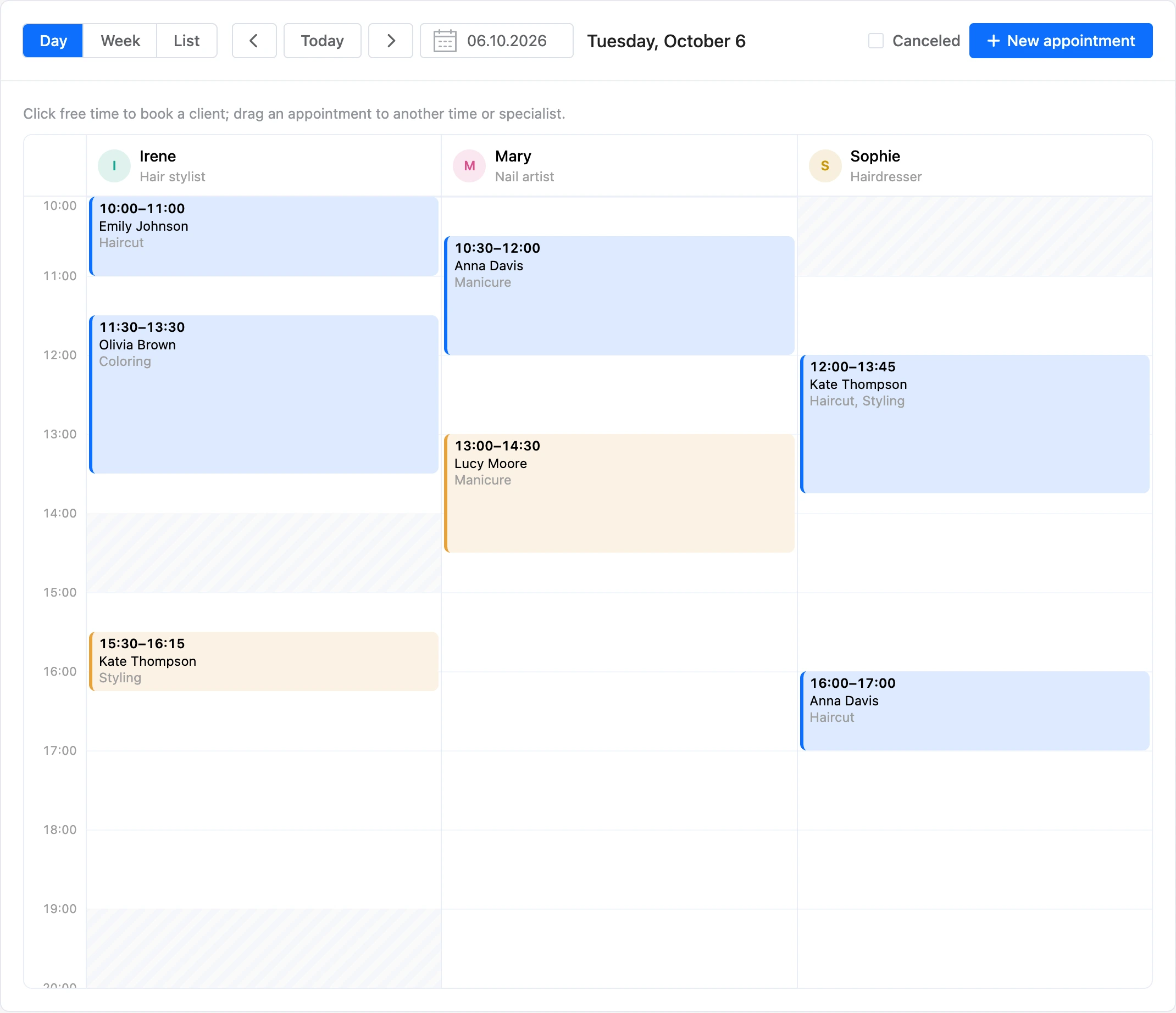
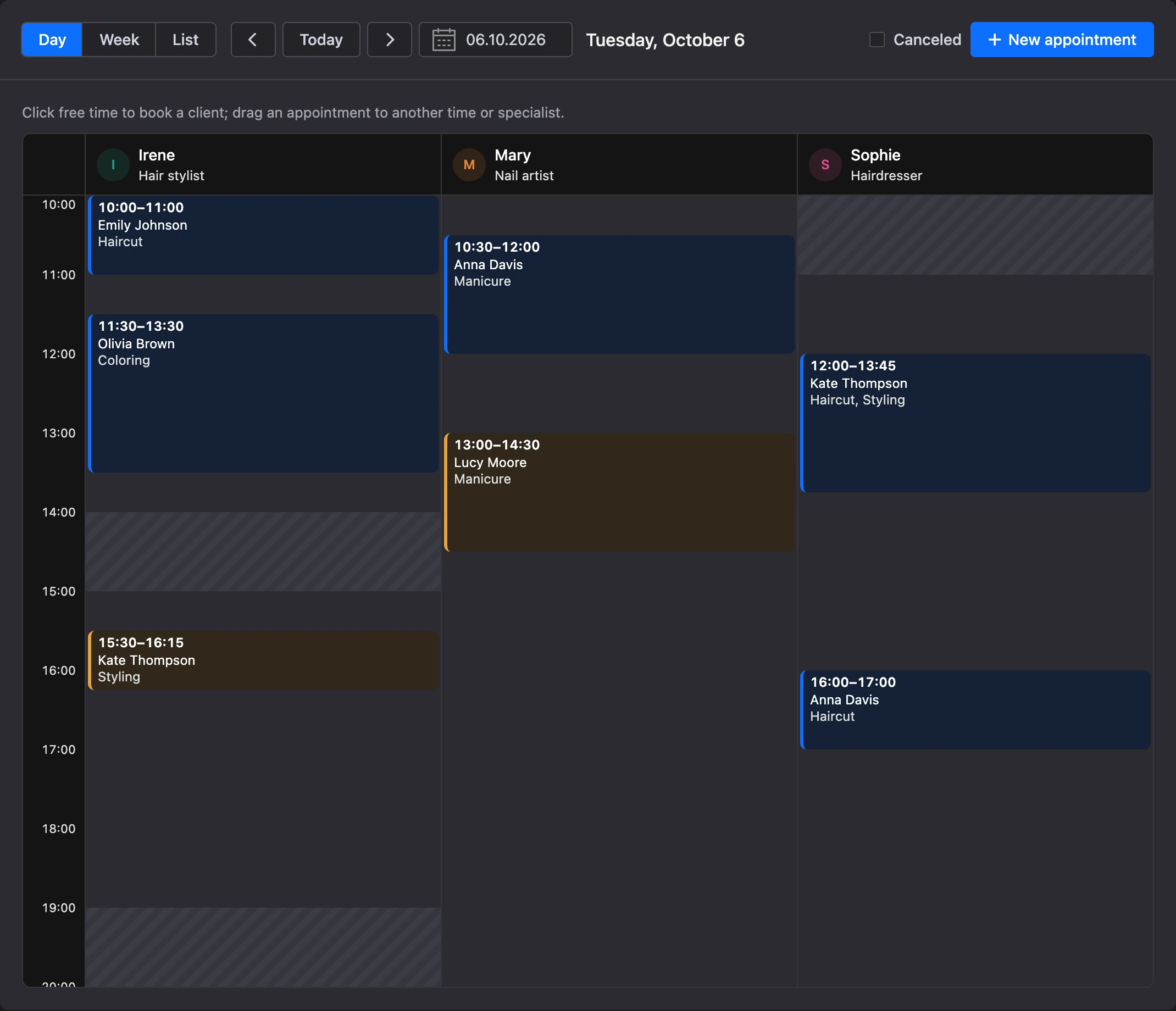
Canceled appointments are hidden. To see them in the grid, turn on "Canceled".
A specialist with "Accepting clients" turned off appears in the journal only if they have appointments on these days.
The journal refreshes itself once a minute: appointments made by clients or other team members appear without reloading the page.
Book a client
- Click "New appointment" or click free time in a specialist's column — the specialist, date and time are filled in automatically.
- In the "Client" field, start typing a name or phone. If the client is already in the base, choose them from the suggestions — the "Existing client, visits: …" mark appears. To create a new person with the same name, click "Book as a new client".
- For a new client, fill in the "Phone" and "Email" fields — the platform will recognise them by these next time, and e-mails about the appointment will go to the email address.
- Fill in the "Specialist" and "Services" fields. The list of services has only the services this specialist provides. You can choose up to 10 services per visit.
- Fill in the "Date" and "Time" fields. Below them, the duration and total of the visit appear, and the "Free:" line shows the specialist's free time on that day: click a time to fill it in.
- Optionally fill in the "Client comment" and "Administrator note" fields — only the team sees the note.
- Choose the "Status": "Confirmed" or "New".
- Click "Save".
If the chosen time is outside the specialist's working hours, the platform asks: "This time is outside the specialist’s schedule. Book anyway?" Click "Book" to confirm.
Each appointment has a number. Each branch has its own numbering.
Appointment card
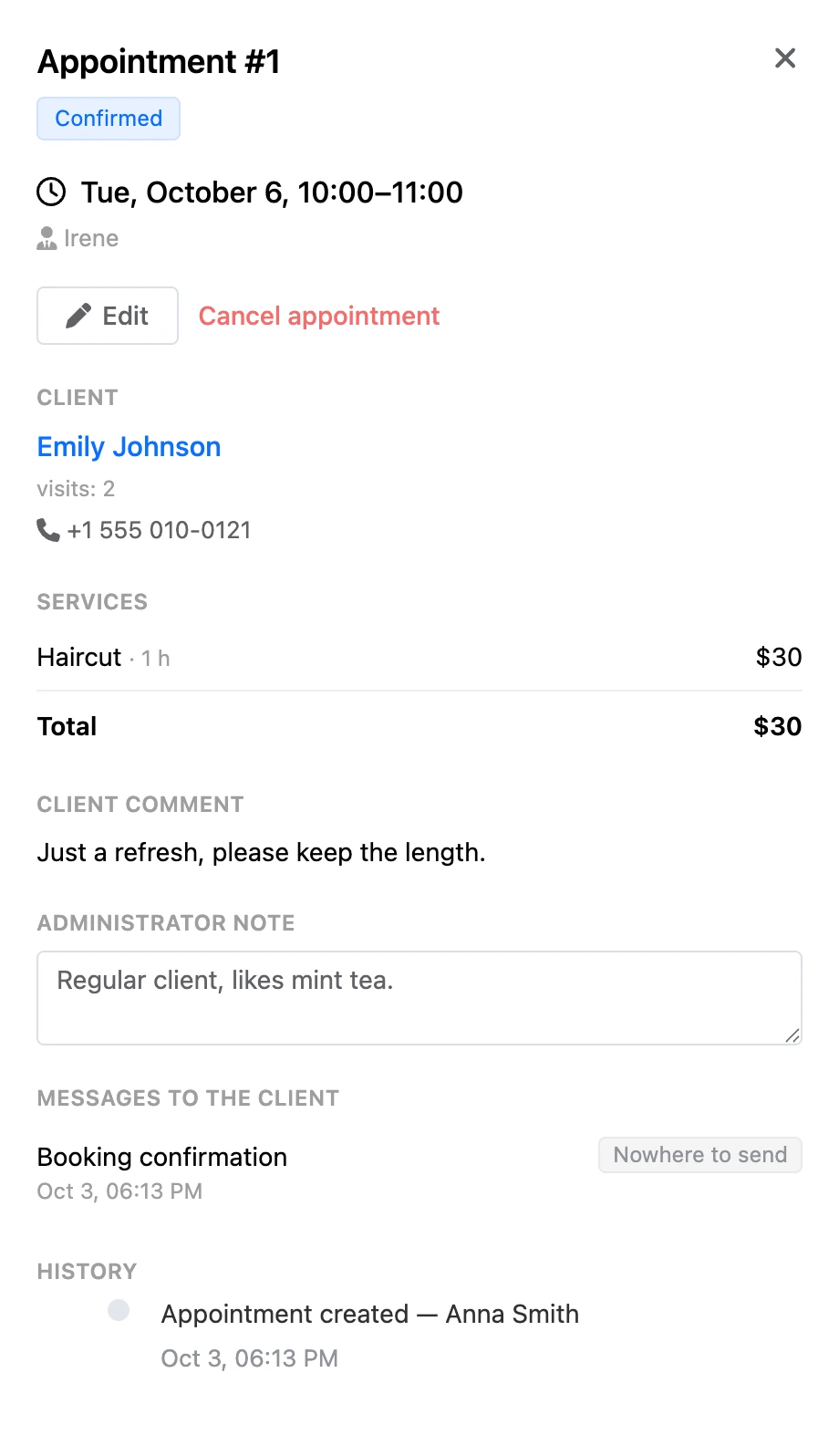
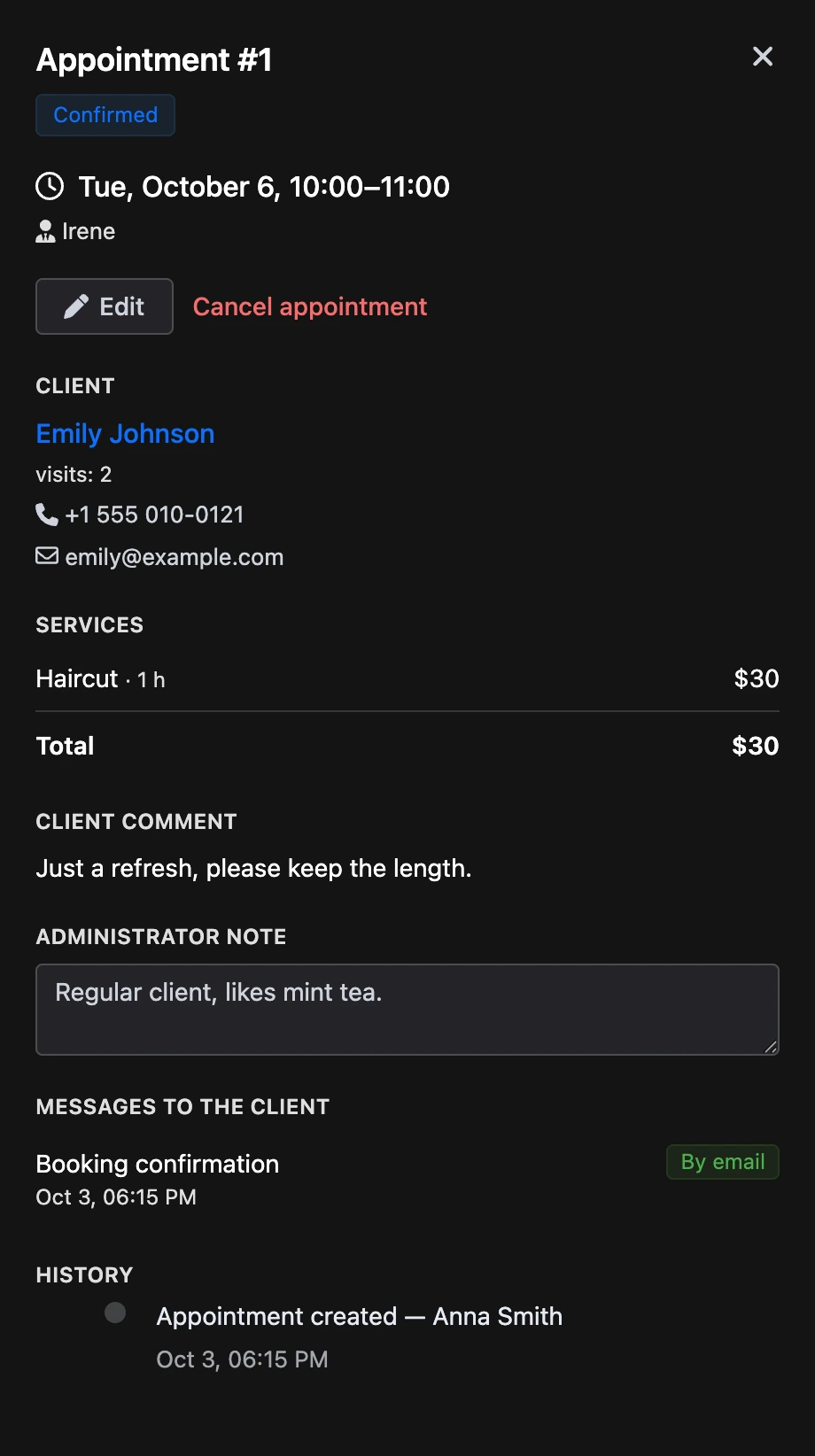
A click on an appointment opens its card. It has:
- the appointment number and status, date, time and specialist;
- "Client" — name, number of visits and no-shows, phone and email. The name leads to the client card;
- "Services" with duration and price, and "Total";
- "From the client" — a mark that the client confirmed the visit in a reminder, and their rating after the visit;
- "Client comment";
- "Administrator note" — saved automatically when you leave the field;
- "Cancellation reason" — for a canceled appointment;
- "Messages to the client" — what was sent and where. More on the Notifications and reviews page;
- "History" — who created the appointment and when, rescheduled it or changed its status.
Appointment statuses
| Status | What it means | Holds the specialist's time |
|---|---|---|
| "New" | Waiting for the administrator's confirmation | Yes |
| "Confirmed" | The client is expected | Yes |
| "Attended" | The visit took place | Yes |
| "No-show" | The client did not come | No |
| "Canceled by client" | Canceled by the client or at their request | No |
| "Canceled by branch" | The branch canceled the appointment | No |
Buttons on the card:
- "Confirm" — for a "New" appointment. The client gets a confirmation message.
- "Attended" and "No-show" — appear when the visit time has come. The mark can be switched to the opposite one. No-shows are counted on the client card.
- "Edit" — open the appointment for editing: client, specialist, services, date and time.
- "Cancel appointment" — choose "At client’s request" or "By the branch" and optionally enter a reason.
- "Restore appointment" — for a canceled appointment. It becomes "Confirmed" again if its time is still free.
Note
The client is notified about the cancellation only if "By the branch" is chosen. With "At client’s request" no message is sent: the client already knows about the cancellation.
Reschedule an appointment
You can reschedule an appointment that has not taken place yet and is not canceled.
- By dragging. In the "Day" and "Week" views, drag the appointment to another time, and in the "Day" view — also to another specialist's column.
- By editing. Open the card, click "Edit", change the specialist, date, time or services and click "Save".
If the appointment moves to another specialist, the price and duration of the services are recalculated from their card. If the specialist stays the same, the prices in the appointment do not change, even if the catalogue has changed since.
The client gets a message about the rescheduling, and the "History" block keeps the line "Moved: … → …".
List of appointments
In the "List" view, appointments are shown as rows. By default — 30 days ahead from today.
- Period — the "From" and "To" fields, no longer than 366 days.
- "All statuses" — filter by one or several statuses.
- "All specialists" — appointments of one specialist.
- The "Client, phone or number" search — by the client's name, phone, email or the appointment number.
Above the list it says "Found: …". The "Show more" button loads the next appointments. A click on a row opens the appointment card.
Notifications to the team
The platform reports on appointments in the account notifications:
- to a specialist linked to a team member — about new appointments with them, reschedules and cancellations;
- to the project owner and team members with the "View appointments and clients" or "Manage appointments" permission — about what a client did on their own: booked, rescheduled or canceled.
The person who made the change does not get a notification. A click on a notification opens the appointment in the journal.
If something does not work
- "This time is already taken for the specialist." There is another appointment at this time, or the break after the previous service falls on it. Choose a time from the "Free:" line.
- "… does not provide “…”." Check the service on the specialist's card or choose another specialist.
- "The specialist is not accepting clients now." The specialist has "Accepting clients" turned off.
- "Only an upcoming, not canceled appointment can be rescheduled." An appointment marked "Attended", "No-show" or canceled cannot be rescheduled — create a new one.
- "One of the appointment services was deleted. Choose the services again." When moving to another specialist, a service from the appointment has already been deleted from the catalogue. Click "Edit" and choose the services again.
- "The visit has not started yet." The "Attended" and "No-show" marks can only be set after the visit has started.
- "Restore appointment" does not work. The time of the canceled appointment is already taken by another one. Create a new appointment at a free time.
- There is no "New appointment" button. You do not have permission to book: you need "Manage appointments" or "Manages own appointments".