

Blocks
A bot scenario is built from blocks. Each block does one thing: sends a message, checks a condition, waits, saves data, takes a payment. Blocks are connected by arrows, and the bot guides a person along them starting from the "Start" block.
This page explains how to work with blocks on the scheme and covers the settings all blocks share. What each block does is described on the group pages at the end.
How to add a block
- From a block's output. Hover over the circle to the right of an output, hold the mouse button and drag an arrow to an empty spot. Choose the block you need in the "Select block" list — it appears already connected. This is how blocks are added in the quick start.
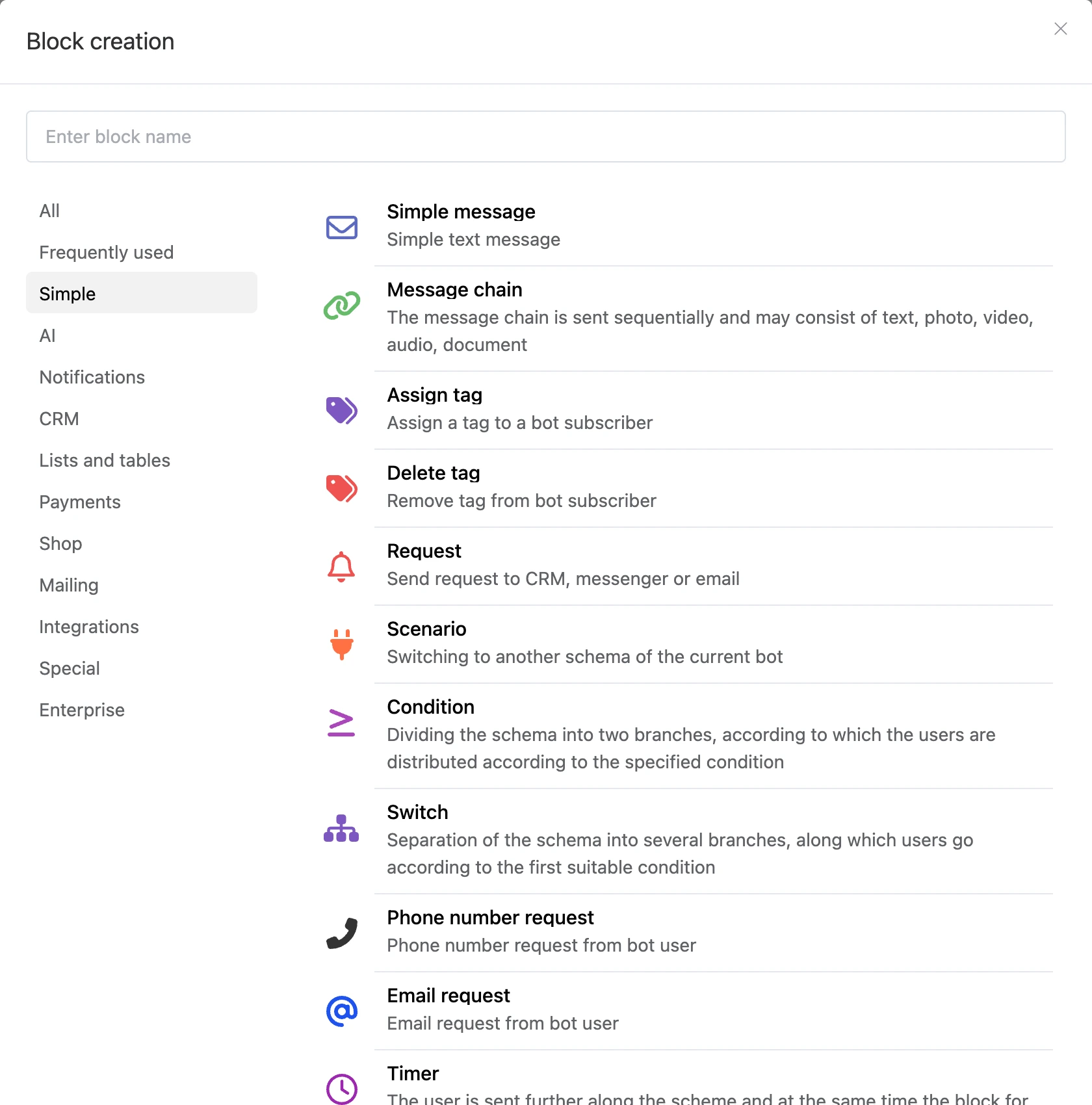
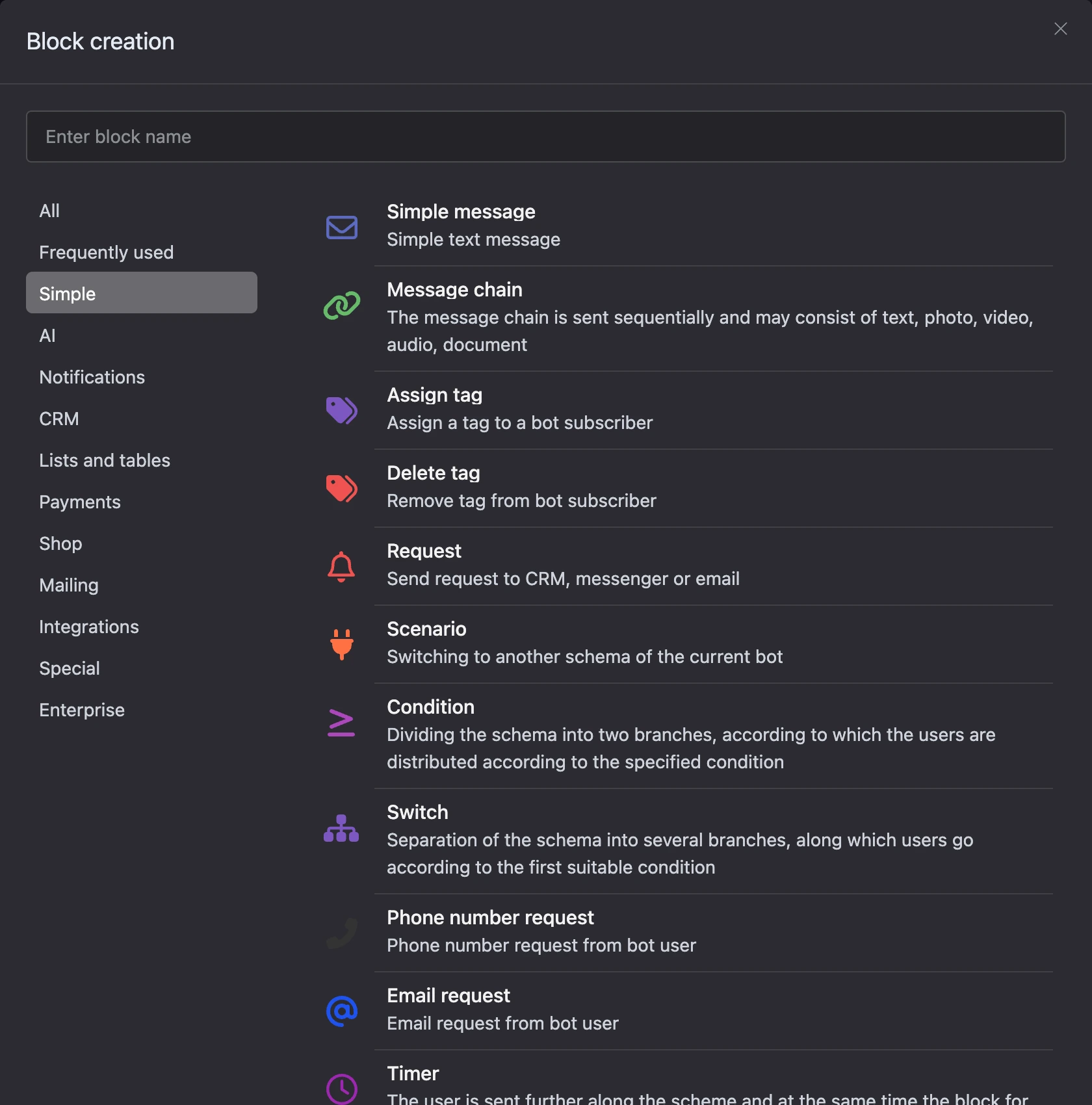
- With the "Add a block" button on the top toolbar. The "Block creation" window opens: categories on the left, search by block name at the top. The "Frequently used" category collects the blocks you add most often.
- From the context menu. Right-click an empty spot on the scheme and choose "Add block" — the block appears at that point.
Outputs and connections
The rows inside a block are its outputs. An output fires on its own event: the person pressed a button, typed something of their own, a condition was met, a payment went through. An arrow — a connection — leads from an output to the next block.
- Draw a connection — drag an arrow from the output's circle to another block.
- Delete a connection — hover over it and click the cross.
- Follow a connection — hover over the output row and click the jump icon: the scheme shows the block this output leads to.
Block actions
When you hover over a block's header, the ▶ icon and a three-dot menu appear.
- ▶ "Test from this block" — opens the bot test window and starts the scenario from this block.
- "Rename" — give the block your own name. Names make blocks easier to find on the scheme.
- "Copy" — the block goes to the clipboard. Paste it through the scheme's context menu: right-click → "Paste".
- "Duplicate" — a copy of the block appears next to it.
- "Copy link" — a link that opens the scheme right at this block.
- "Send from previous block" — send this block to those who are standing on the blocks before it. The same action is available in the settings panel and is described below.
- "Set as starting block" — the scenario will begin from this block. The item is available for the "Simple message", "Message chain" and "Start" blocks.
- "Delete" — the block is deleted for good. The start block cannot be deleted.


To copy or delete several blocks at once, tick their checkboxes: a checkbox appears in place of the icon in the block's header.
The block's ID is shown at its bottom — click it to copy. A clock icon with a number next to it shows how many contacts are waiting to be sent something at this block.
Block settings
Click a block — the "Block settings" panel opens on the right. Changes are saved automatically as soon as you leave a field: "Saved" appears at the top of the panel.
The three-dot menu in the panel header expands it to full screen or moves it to the other side: "Show on the left", "Show on the right".


At the bottom of the panel, every block has shared sections.
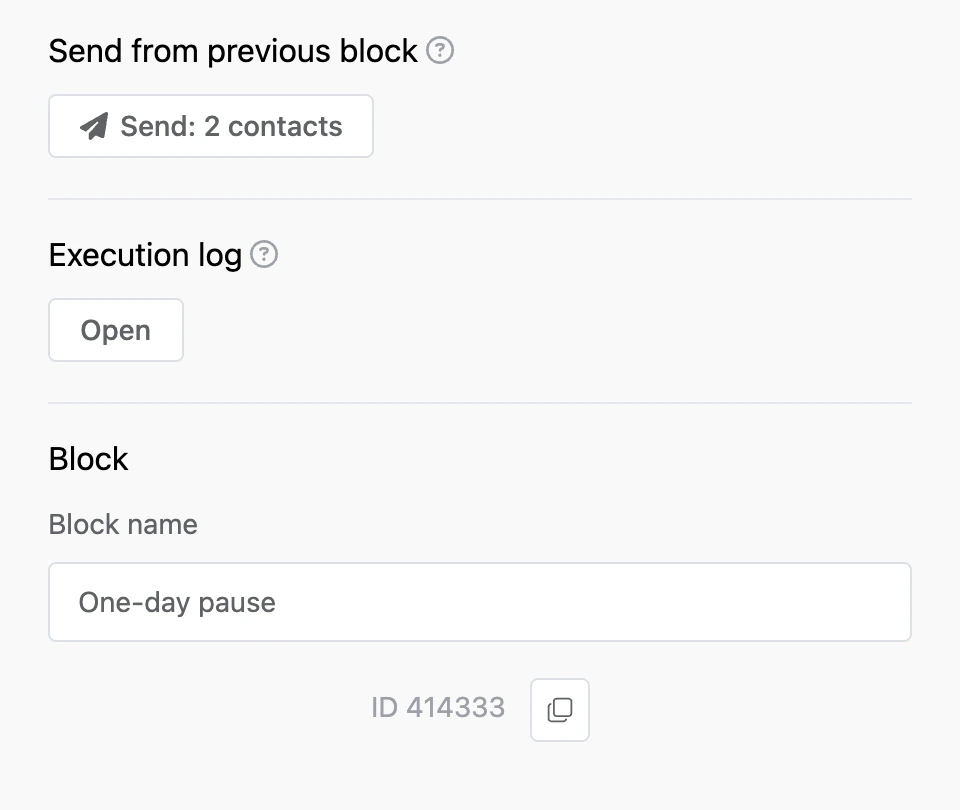
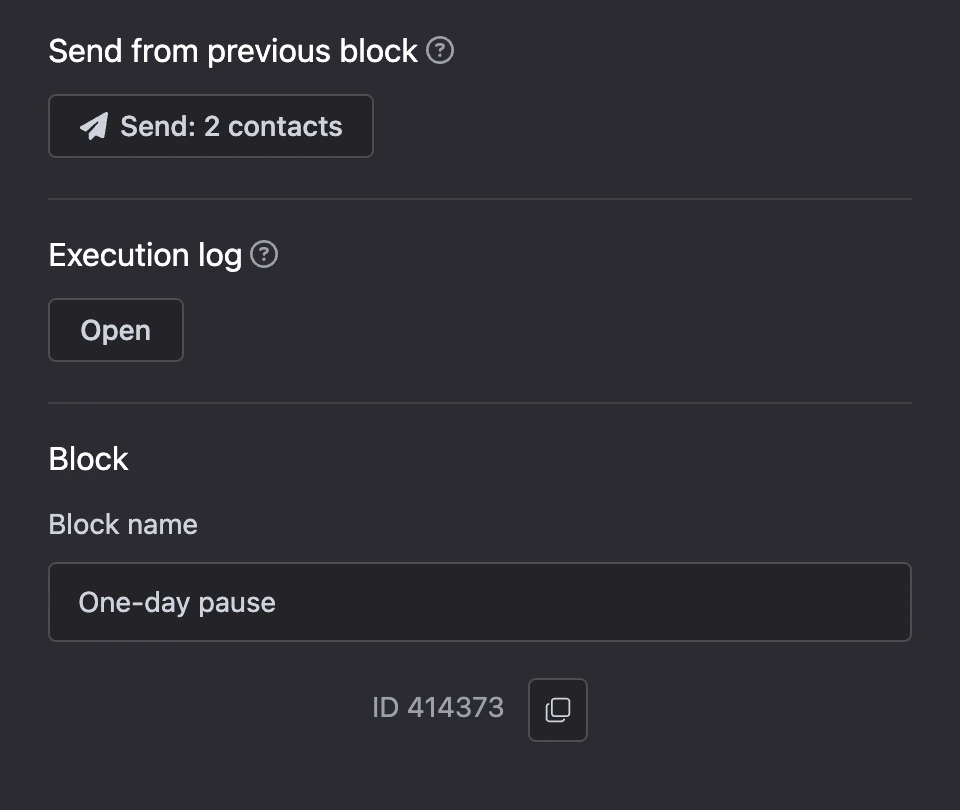
Send from previous block
The section appears when at least one connection leads into the block. It sends this block to everyone who is currently on the blocks before it. Useful when the block was connected later and people got stuck on the previous one.
The block goes out as a mailing: its progress and the stop button are in the "Mailings" section. Anyone who leaves the block on their own in time will not get it twice. Contacts unsubscribed from mailings receive the block too.
Execution log
The "Open" button shows how the block ran over the last 7 days: contact, user message, status, error, start time and duration. The log is the place to start when a block does not behave as you expected.

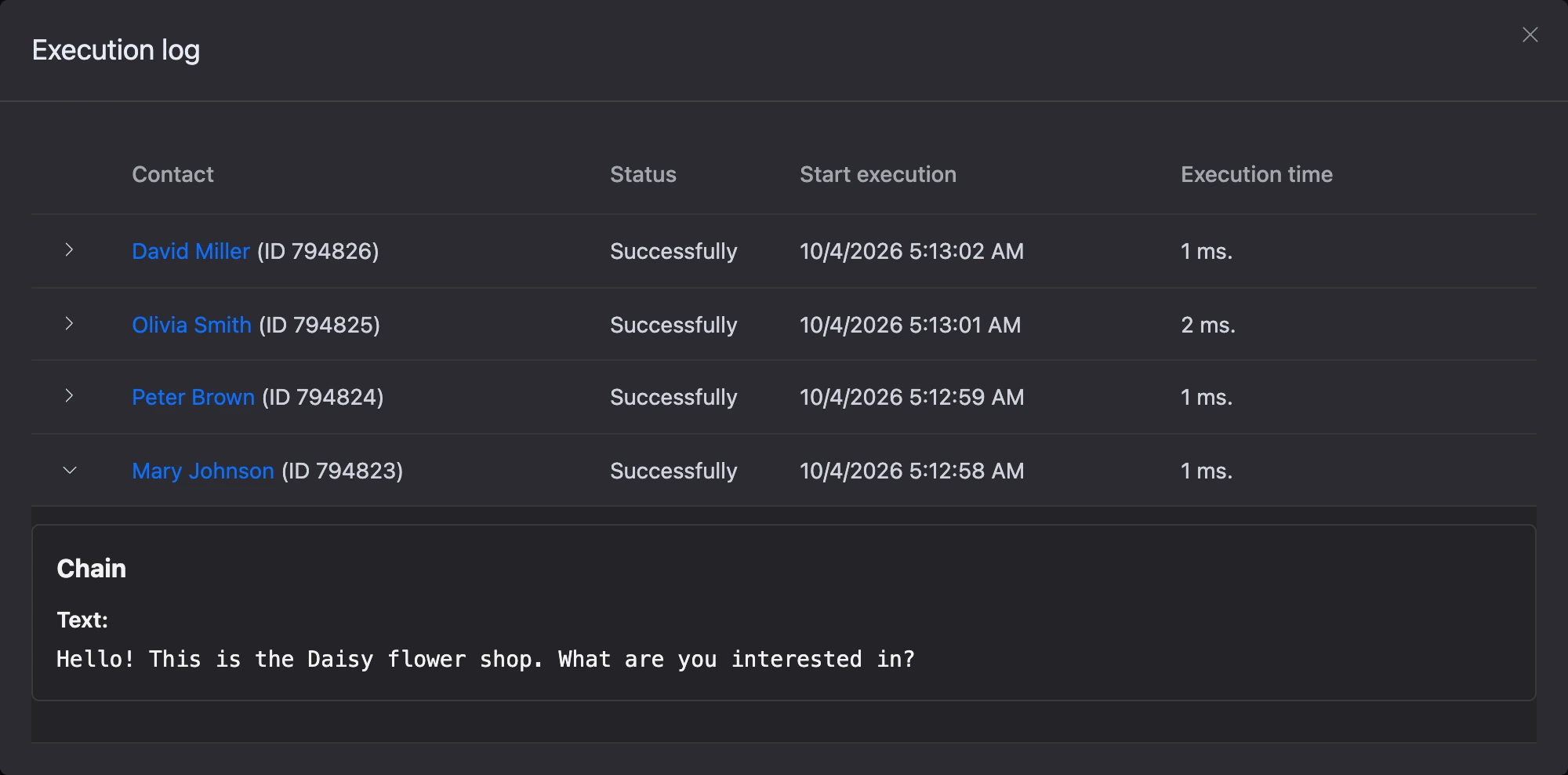
Block
Here you set the "Block name" and see the block's ID.
All blocks
The list is built from the platform itself, so it always shows the blocks available to you right now. The categories are the same as in the "Block creation" window.
Simple
| Block | What it does |
|---|---|
| Simple message | Simple text message |
| Message chain | The message chain is sent sequentially and may consist of text, photo, video, audio, document |
| Assign tag | Assign a tag to a bot subscriber |
| Delete tag | Remove tag from bot subscriber |
| Request | Send request to CRM, messenger or email |
| Scenario | Switching to another schema of the current bot |
| Condition | Dividing the schema into two branches, according to which the users are distributed according to the specified condition |
| Switch | Separation of the schema into several branches, along which users go according to the first suitable condition |
| Phone number request | Phone number request from bot user |
| Email request | Email request from bot user |
| Timer | The user is sent further along the scheme and at the same time the block for delayed sending by timer is set |
| Delay | Delay before sending next block |
| Delete variable | Remove custom variables from bot subscriber |
| Start | Start block |
| Global menu | The global menu is called when there is no match for the local menu of any block. |
AI
| Block | What it does |
|---|---|
| AI Agent | A text AI agent that can independently hold a conversation with the user, as well as route the user along the chat-bot scenario. |
Notifications
| Block | What it does |
|---|---|
| Contact Notification | Send a notification to a given bot contact |
| Send a message | Send messages from a bot user to another bot user |
| Send a quick message | Sending a message from a bot user to another bot user without opening a dialog. For example, by pressing a button, a predefined message is sent to the interlocutor. |
| Send email | Possibility for the bot user to send a letter to his Email |
CRM
| Block | What it does |
|---|---|
| Deal stage | Choosing a stage for the deal |
| Close deal | Closing the open deal of the contact |
| Deal assignee | Assigning user to the order |
Lists and tables
| Block | What it does |
|---|---|
| Read list entries | Reading entries from the list created in the Lists section |
| Read list entry | Reading an entry from the list created in the Lists section |
| Add list entry | Add an entry to the list of custom variables, constants and free text |
| Check if a list entry exists | Check the existence of an entry in the list by specified filters |
| Delete list entries | Delete list items by id |
| Delete list entry | Delete list item by id |
| Read rows from a table | Ability to display data from Tables into a bot |
Payments
| Block | What it does |
|---|---|
| T-Bank | Internet acquiring from T-Bank |
| YooKassa | Acceptance of payments using the YooKassa payment service |
| YooMoney | Acceptance of payments using the Yandex.Money payment service |
| Robokassa | Acceptance of payments using the Robokassa service |
| Cloudpayments | Acceptance of payments using the Cloudpayments service |
| Prodamus | Acceptance of payments using the Prodamus payment service |
| bePaid | Acceptance of payments using the bePaid service |
| LiqPay | Acceptance of payments using the LiqPay service |
| JustClick | Acceptance of payments using the JustClick payment service |
| Crypto Pay | Accepting payments using the Telegram payment bot @CryptoBot |
| Top up a contact's account | Replenishment of the contact's internal account, or write-off, when using a negative amount in the block settings. |
| Debit a contact's account | Replenishment of the contact's internal account, or write-off, when using a negative amount in the block settings. |
Shop
| Block | What it does |
|---|---|
| Reward the referrer | Possibility to accrue remuneration to referrers up to level 10. |
Mailing
| Block | What it does |
|---|---|
| Subscribe to mailing list | Subscribe current contact to mailing list |
| Unsubscribe from mailing list | Unsubscribe current contact from mailing list |
Integrations
| Block | What it does |
|---|---|
| GetCourse order | Specifying params for placing user's order on GetCourse |
| Write to Google Sheets | Ability to write custom variables and constants to Google Sheets |
| Update rows in Google Sheets | Ability to update records in Google Sheets by filter |
| Delete rows from Google Sheets | Ability to delete rows from Google Sheets by filter |
| Read rows from Google Sheets | Ability to search and save data from Google Sheets into variables |
| Check if a row exists in Google Sheets | Checking the existence of a record in a Google Sheet by a given filter |
| Send contact to JustClick group | An intermediate block for registering a contact in the JustClick system |
| Yclients | Create a booking on yclients via external form |
Special
| Block | What it does |
|---|---|
| Save user answer to variable | Save user answer to local or global variable |
| Variable operation | A way to write an arbitrary value to a variable with the ability to perform computation before writing. This is great for creating tests or quizzes. |
| A/B testing | Distribution of traffic by outgoing links of the block to identify the best conversion |
| Remove user from bot | Remove the current user from the bot. A removed user no longer counts towards your plan. |
| Inline Telegram bot | The rule for processing incoming messages from the inline Telegram bot |
| HTTP request | HTTP request to a third-party server to generate a response to the user |
| JavaScript interpreter | The JavaScript interpreter allows you to execute JavaScript code |
| Incoming webhook | Process any incoming http request using JavaScript. |
| Distribution by groups | The ability to distribute bot subscribers into random groups and send group messages. |
Detailed descriptions of settings and outputs are on the group pages: