

Booking through a mini app
Clients book on their own through a mini app: they choose a service, a specialist and a time, leave their name and phone — and the appointment appears in the journal. The mini app is built in the builder from ready-made booking elements.
How to create a mini app, build screens and publish it is covered in the Mini apps section. This page covers only what relates to booking.
Important
A booking mini app requires a Pro subscription. The journal, the schedule and manual booking work without it — see the What is available without Pro page for details.
What to prepare in the branch
The client sees only what can actually be booked. Before setting up the app, check that:
- the branch has services with "Available for booking" turned on;
- the services have specialists selected, and those specialists have "Accepting clients" turned on;
- the specialists have a schedule;
- the booking rules are set up the way you need.
You can check the result with the "Free time" button in the schedule.
Booking elements
In the screen builder, the elements are in the "Appointments" group.
| Element | What it shows the client |
|---|---|
| "Booking branches" | A list of branches the client chooses theirs from |
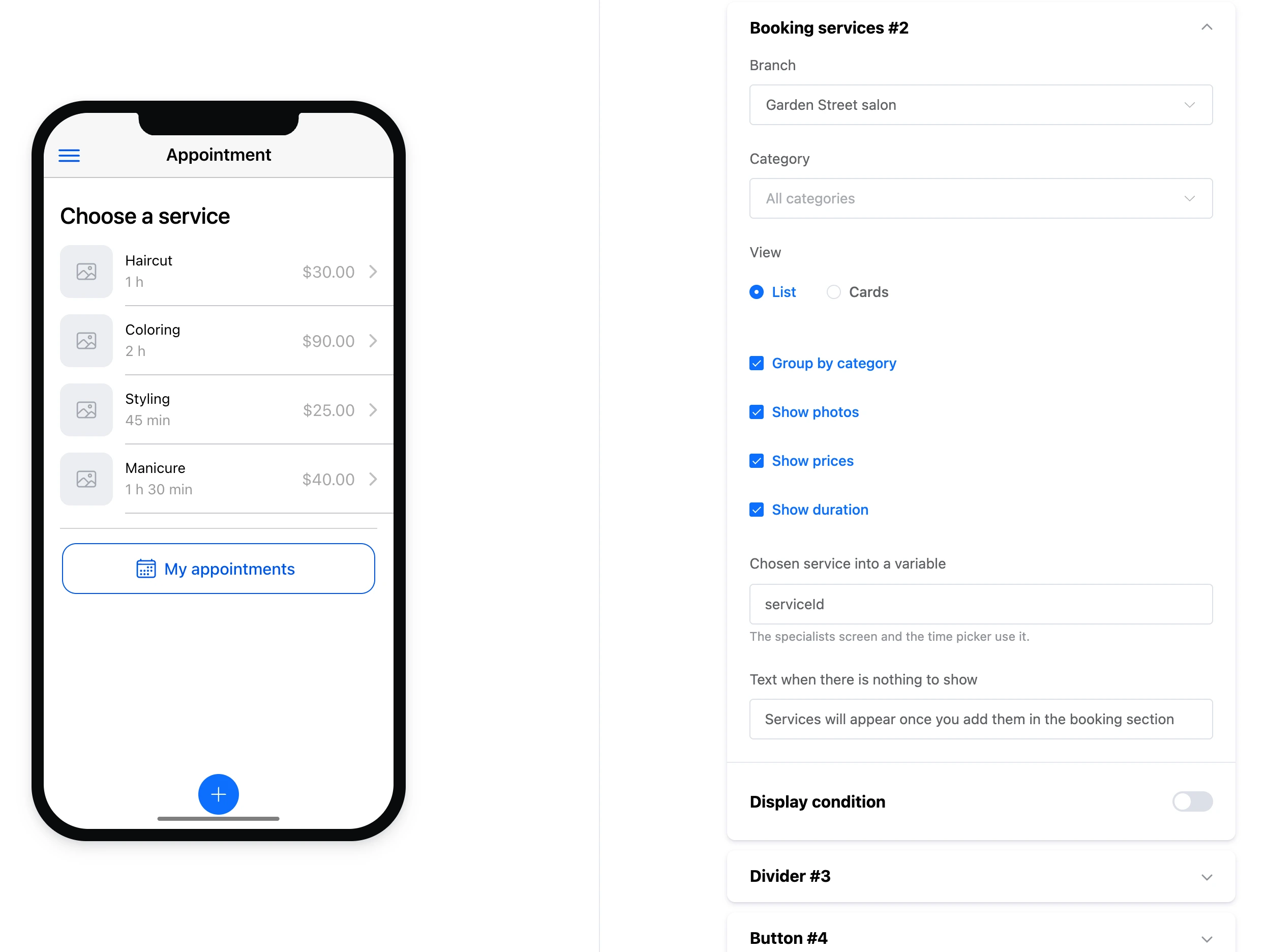
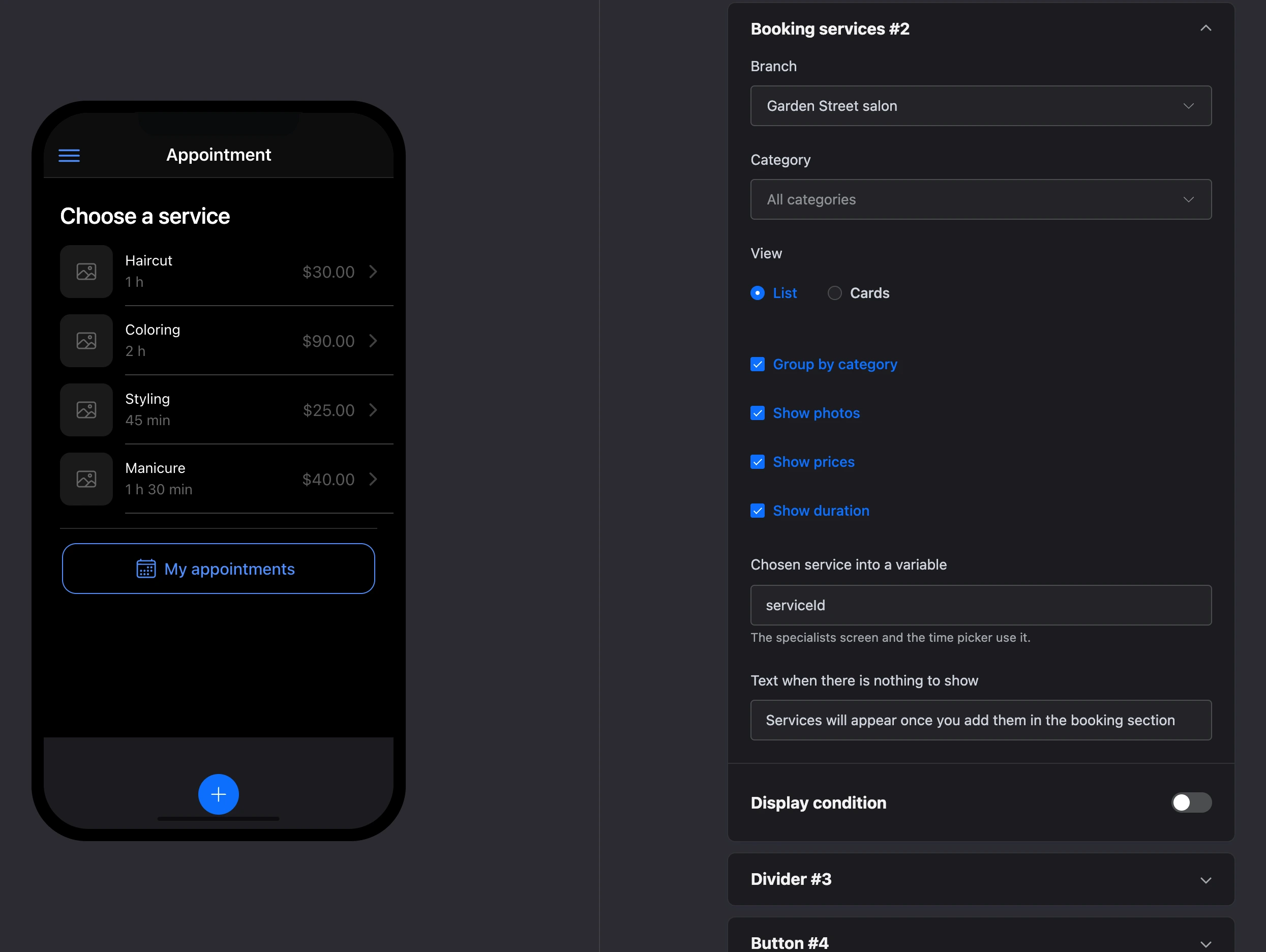
| "Booking services" | The branch's services — as a list or as cards, with photo, price and duration |
| "Booking specialists" | The specialists who provide the chosen service, and the "Any specialist" row |
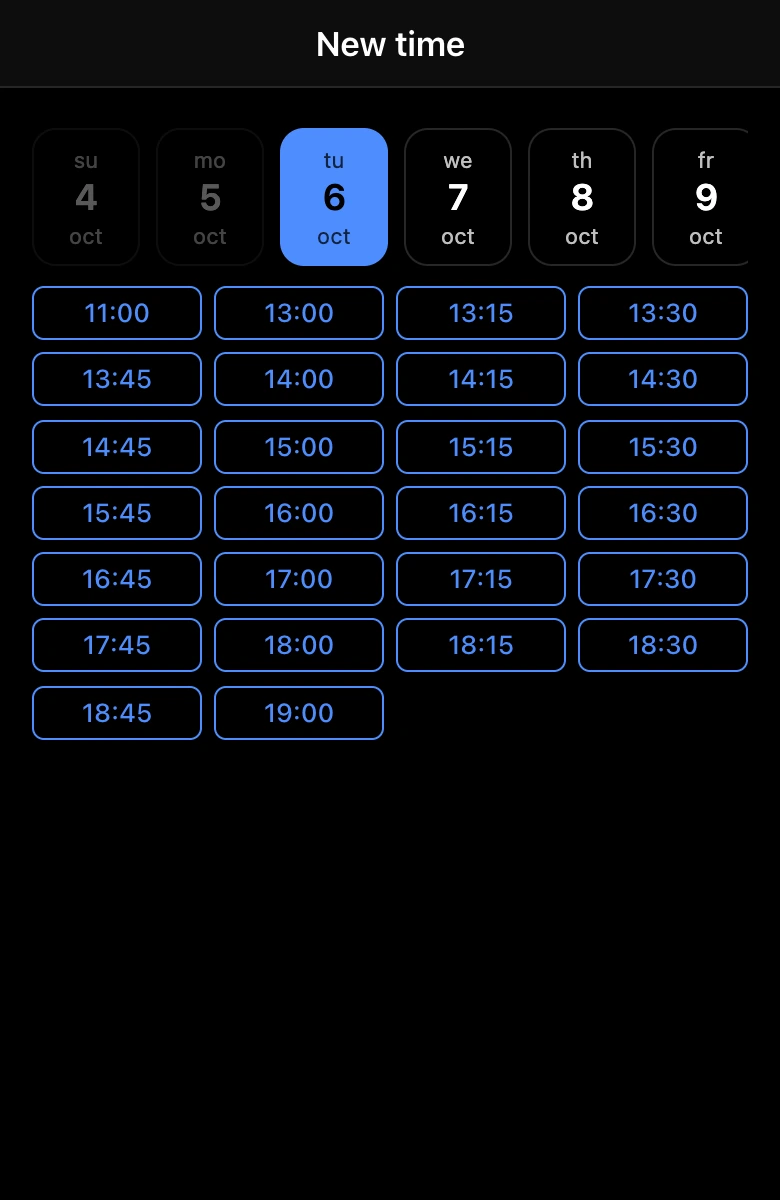
| "Booking time slots" | Free time by day |
| "Booking checkout" | A summary of the appointment, fields for name, phone, email and comment, and the "Book" button |
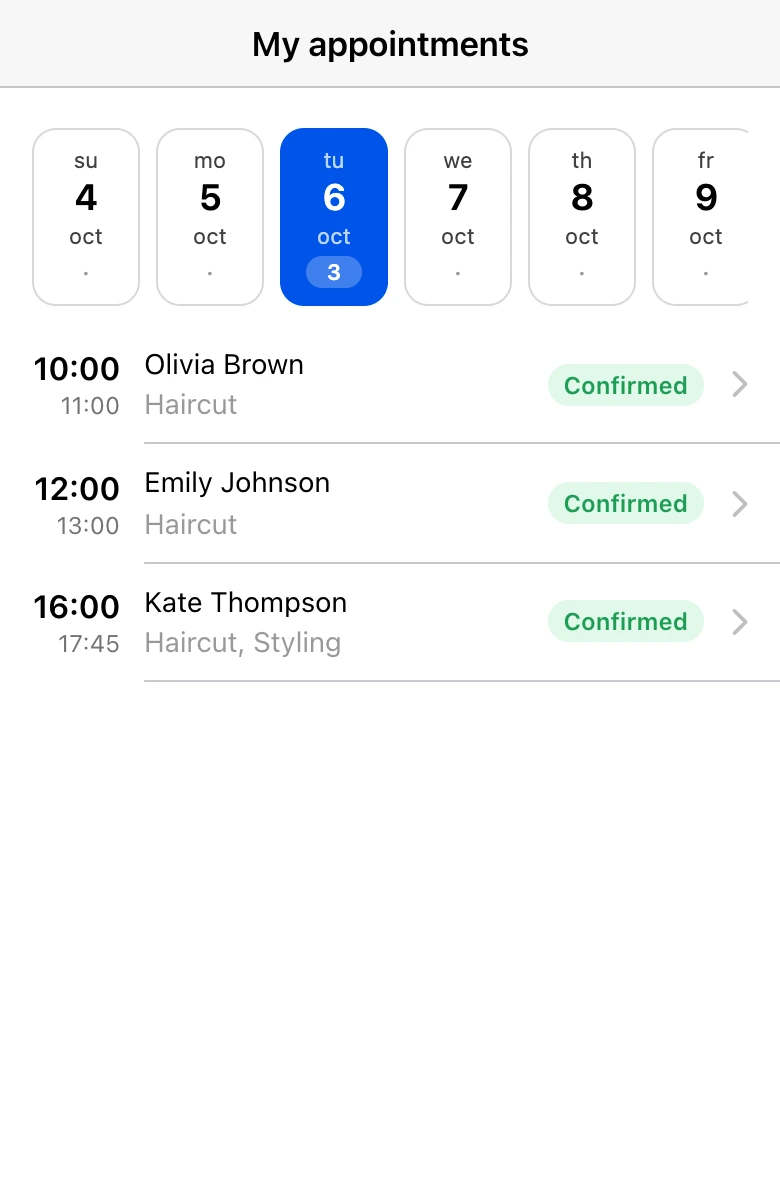
| "My appointments" | The client's appointments: upcoming ones and, optionally, past and canceled ones |
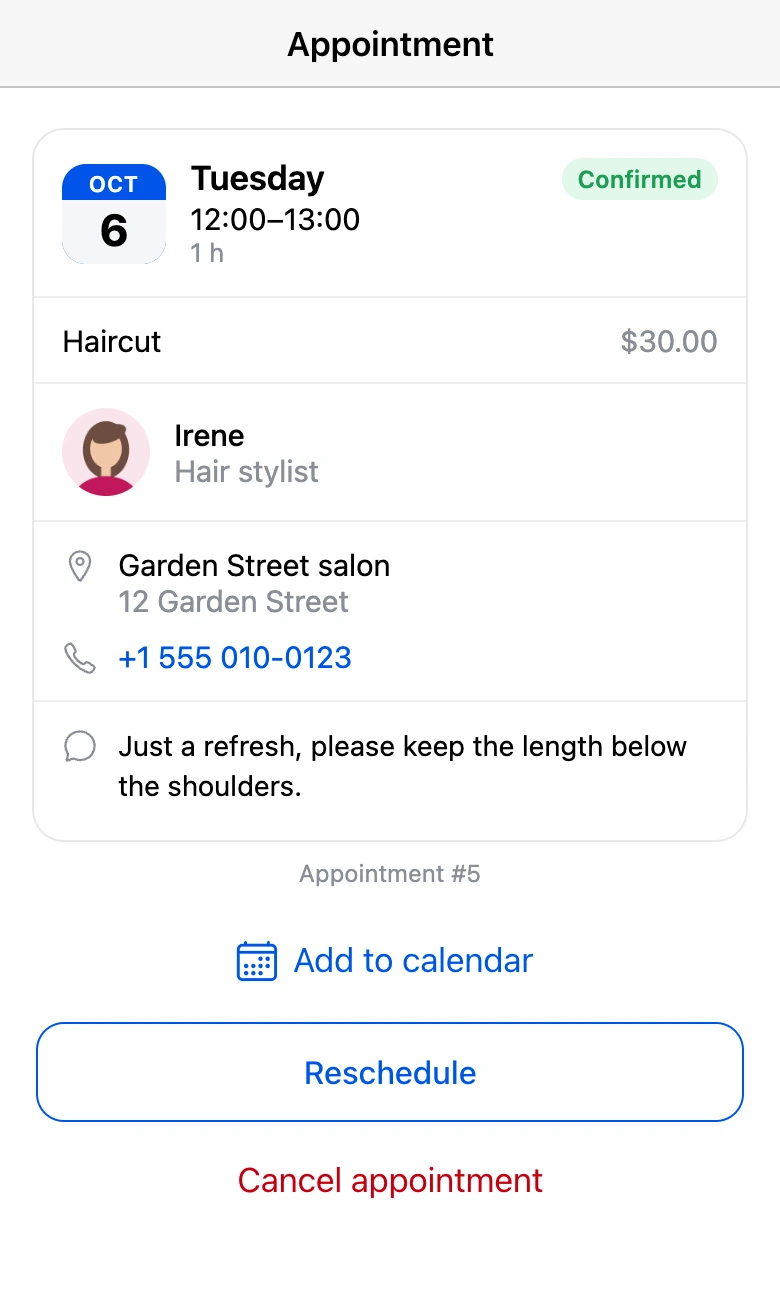
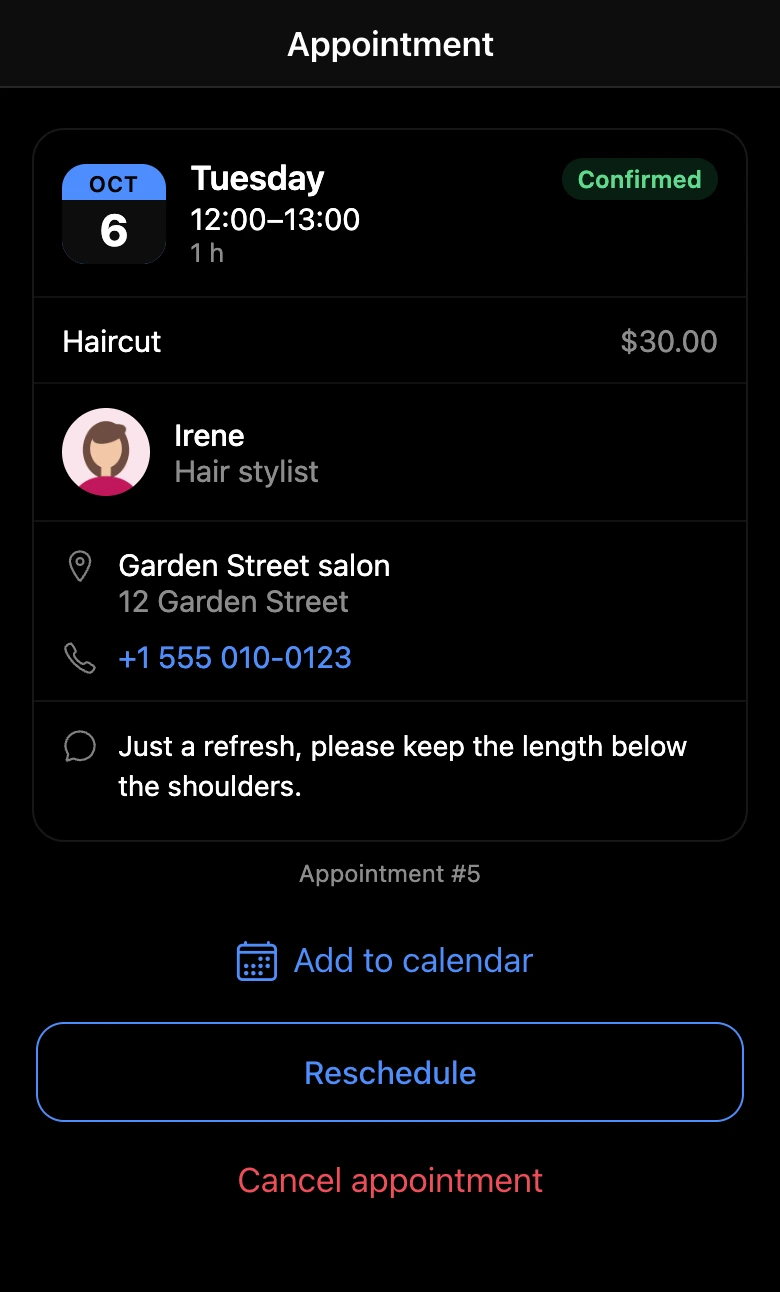
| "Appointment card" | Details of one appointment with cancel, reschedule, rating and calendar buttons |
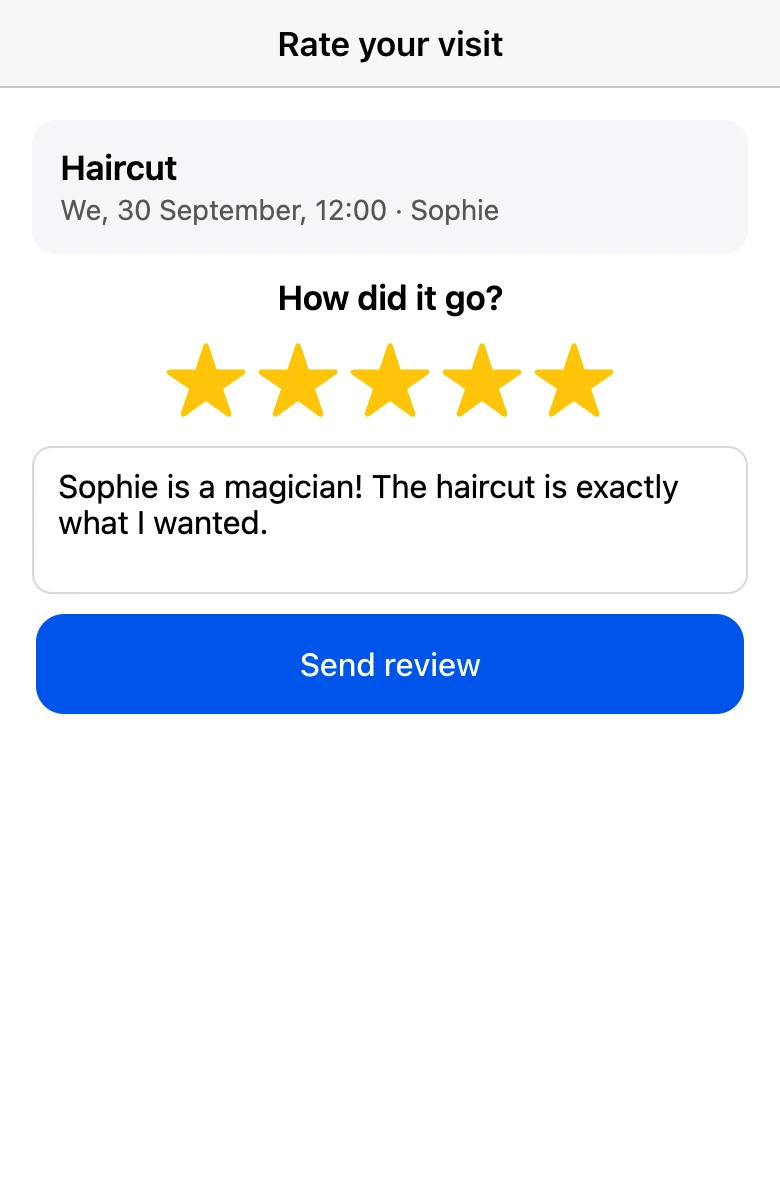
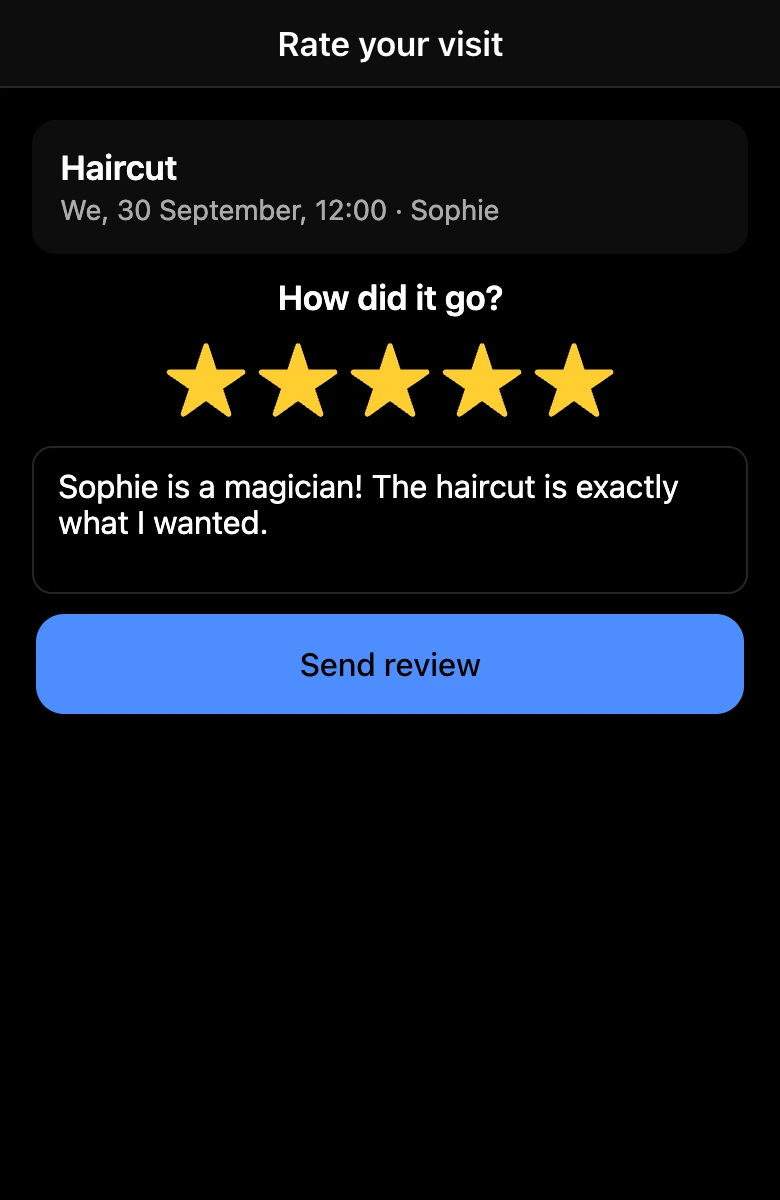
| "Visit rating" | Stars from 1 to 5 and a comment field after the visit |
Actions are performed by scenario blocks from the "Appointments" category:
| Block | What it does |
|---|---|
| "Book an appointment" | Books the client for the chosen service, specialist and time |
| "Cancel appointment" | Cancels the client's appointment if the cancellation deadline has not passed |
| "Reschedule appointment" | Moves the appointment to another free time |
| "Rate the visit" | Saves the client's rating and comment about a past visit |
How booking is put together
The client's usual path is a chain of screens:
- Service. A screen with the "Booking services" element. The chosen service is saved in a variable.
- Specialist. A screen with the "Booking specialists" element. It shows those who provide the chosen service. The "Any specialist" row gives the appointment to a free specialist who has fewer appointments that day.
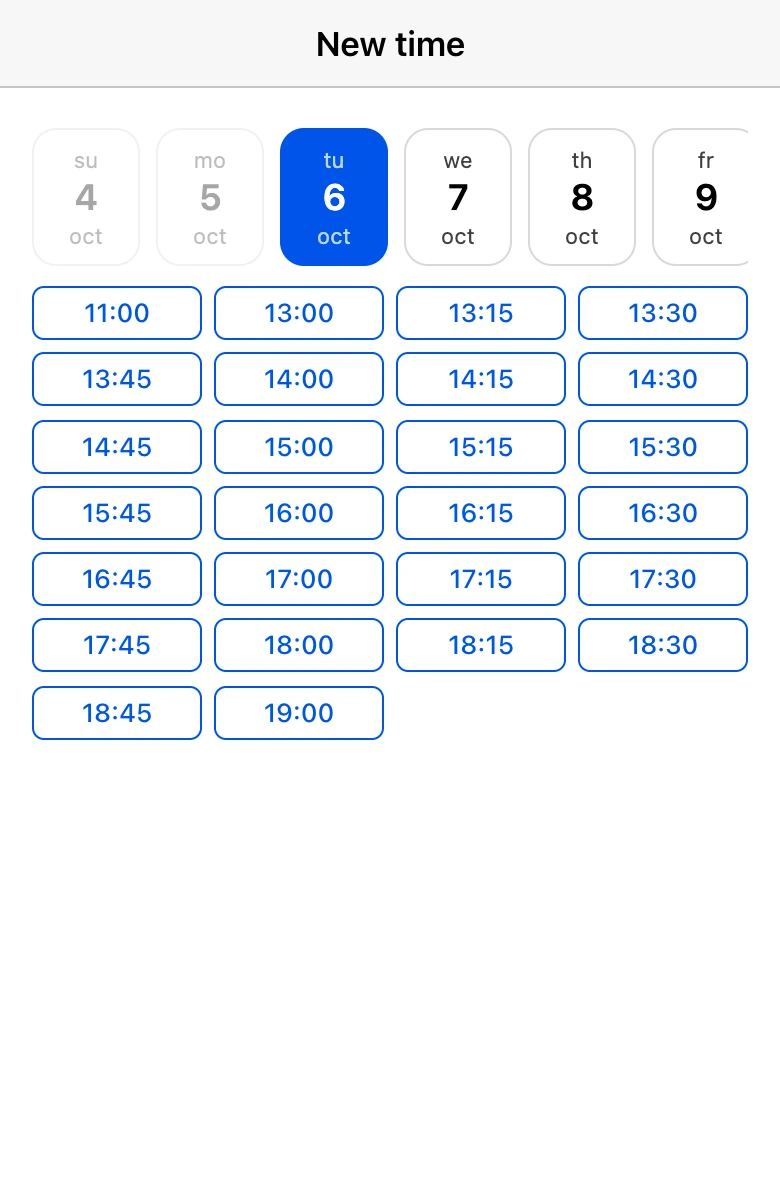
- Time. A screen with the "Booking time slots" element. How many days to show is set in the element — but no further than the branch rules allow.
- Checkout. A screen with the "Booking checkout" element. Connect the "Book" button to the "Book an appointment" block.
- Result. From the "Book an appointment" block, connect the success exit to a confirmation screen, and the failure exit to a failure screen with the reason. The block puts the reason into the variable from the "Refusal reason into a variable" setting.
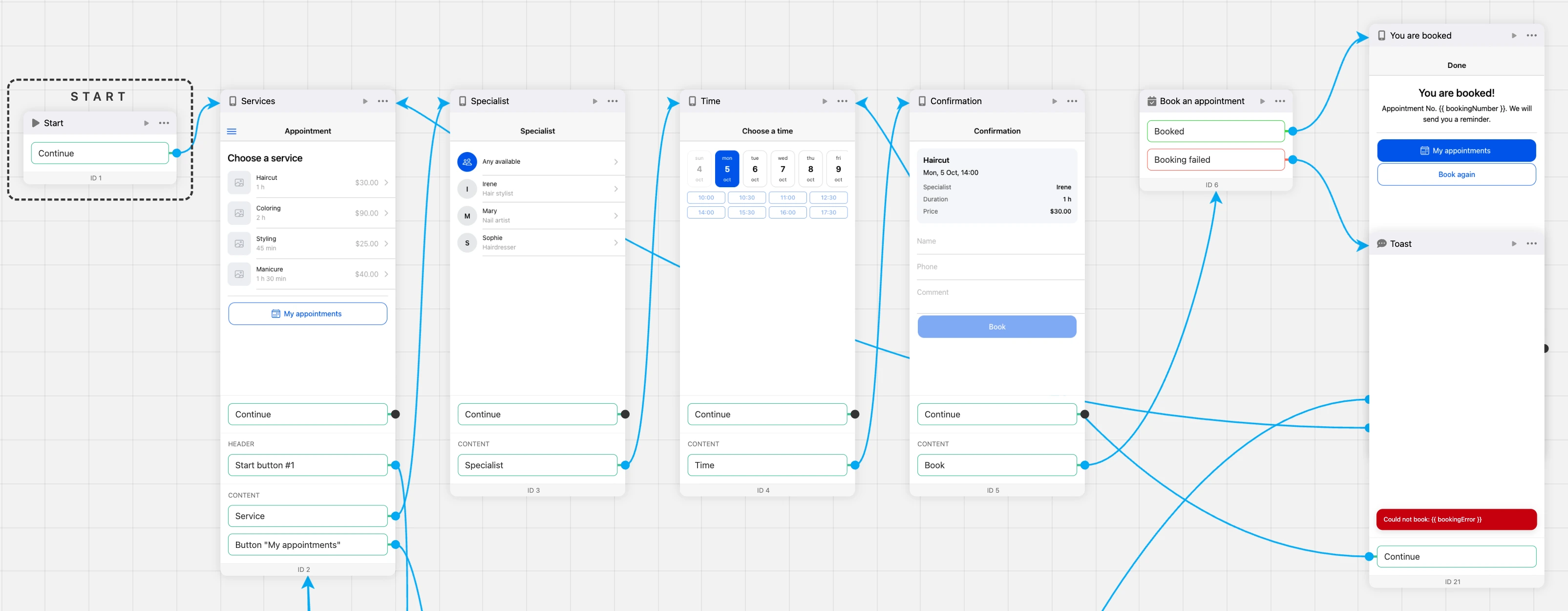
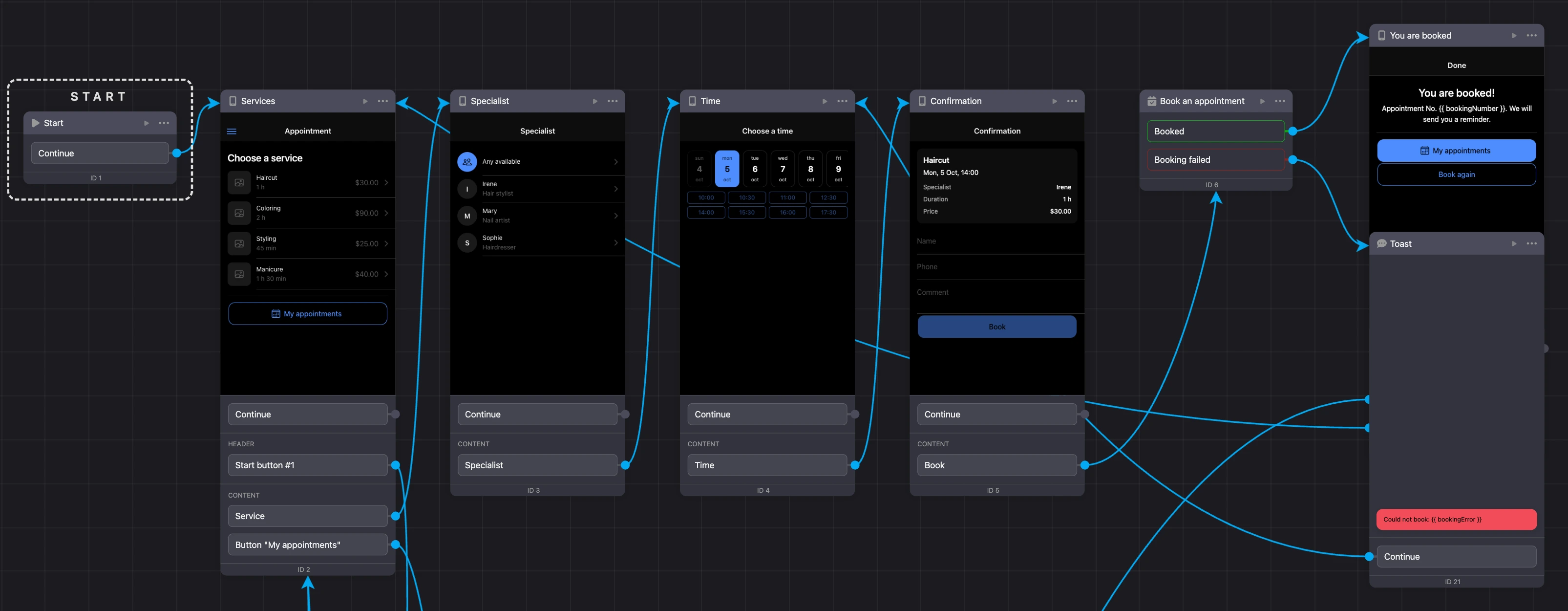
The "Book an appointment" block checks the time once more: if it was taken while the client was filling in the form, the appointment is not created.
The elements pass the choice to each other through variables. Suitable variables are already filled in in each element's settings — you only need to change them if you build your own scenario.
In one booking the client chooses one service. Several services per visit are booked by an administrator in the journal.
Branch for the elements
Each booking element needs to know which branch it works with. There are two ways.
One branch. Choose it in the "Branch" field in the settings of the elements and the "Book an appointment" block. To avoid setting the branch in every element, open the "Shop and branch" window in the builder, choose the "Booking branch" and click "Fill in" — it will be set in all screens of the version at once.
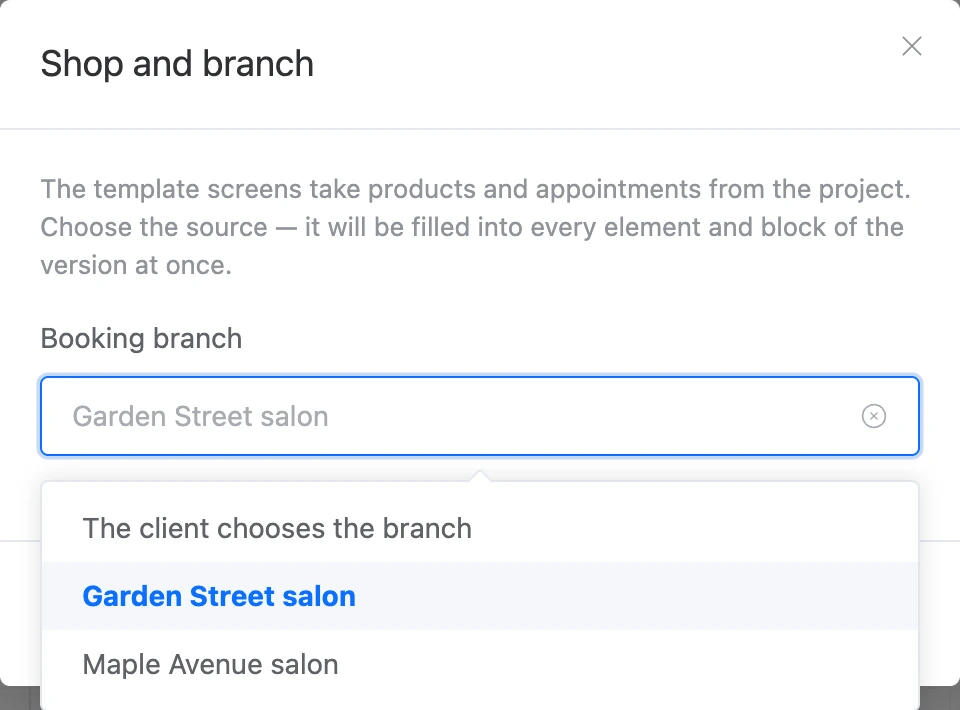
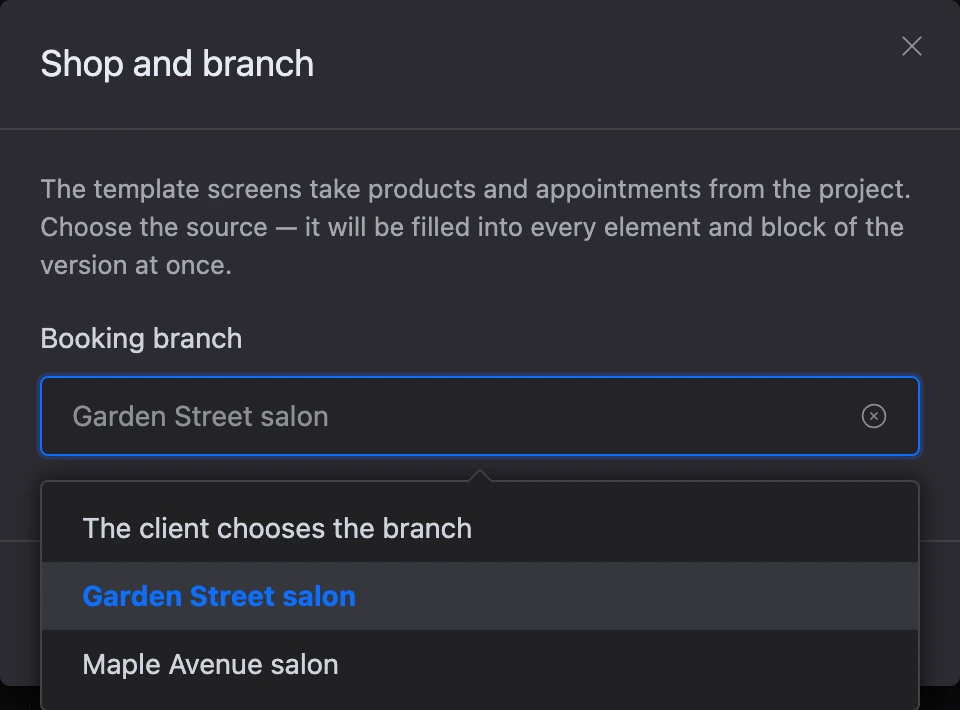
The client chooses the branch. If there are several branches:
- Add a screen with the "Booking branches" element at the start of the scenario.
- In the other booking elements and in the "Book an appointment" block, choose "The client chooses the branch" in the "Branch" field.
Settings of the "Booking branches" element:
- "Branches to show" — empty means all branches of the project;
- "Show branch icon", "Show address", "Show phone".
The list shows only branches that have at least one available service with a specialist who accepts clients.
The "My appointments", "Appointment card" and "Visit rating" elements do not need a branch: without it, they work with the client's appointments in all branches of the project.
What the client enters when booking
The fields in the "Booking checkout" element are determined by the branch rules:
- name — always required;
- phone — required if "Phone is required" is on;
- email — required if "Email is required" is on;
- comment — shown if "Client can leave a comment" is on.

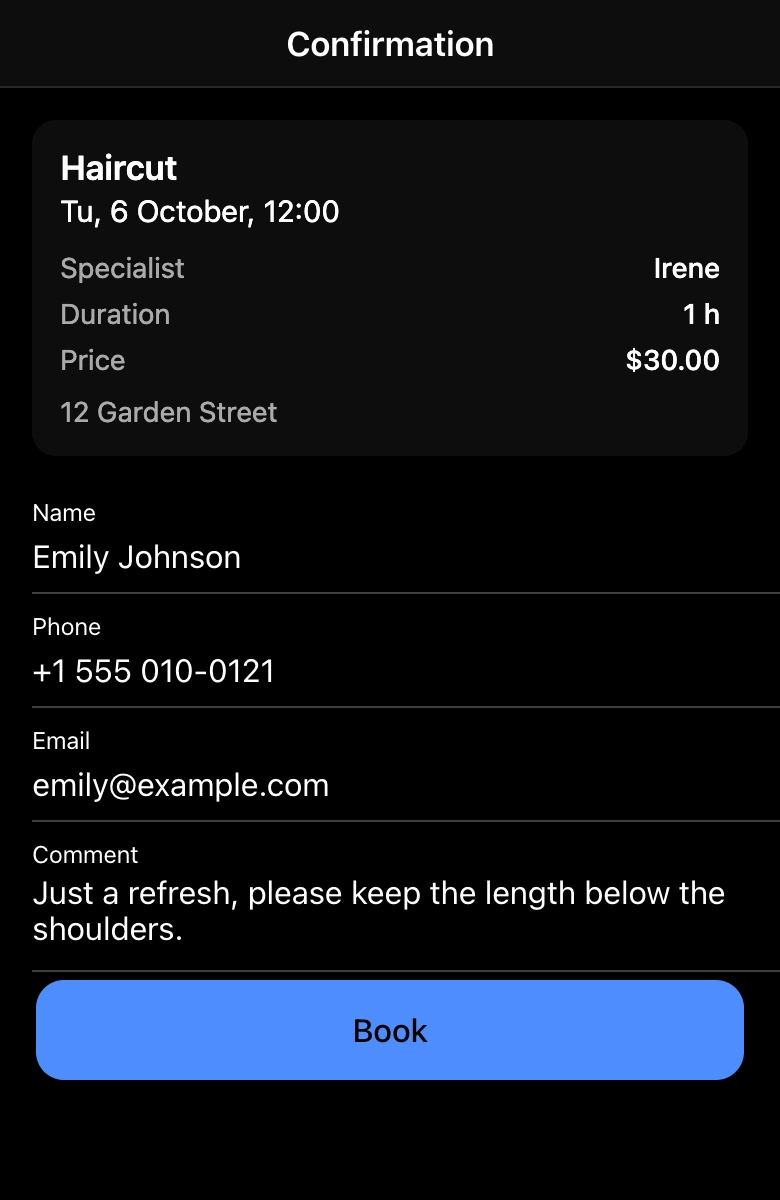
Appointment confirmation
If "Confirm appointments automatically" is on in the rules, the appointment is confirmed immediately. If it is off, the client sees the "Awaiting confirmation" status, and an administrator confirms the appointment in the journal with the "Confirm" button.
Statuses the client sees in the app: "Awaiting confirmation", "Confirmed", "Completed", "You did not come", "Canceled by you", "Canceled".


The messages the client receives about the appointment are described on the Notifications and reviews page.
Cancellation and rescheduling by the client
In the "Appointment card" element, you can turn on these buttons:
- "Cancel button" — before cancelling, the app asks the client again. Connect the button to the "Cancel appointment" block.
- "Reschedule button" — connect it to a screen with the "Booking time slots" element that has the "Rescheduling" field filled in, and from there to the "Reschedule appointment" block. The services stay the same when rescheduling.


The client can cancel or reschedule no later than the deadline from the "Cancellation deadline, hours" rule. After that, they see a message that the deadline has passed, and the branch phone, if it is set.
Add to calendar
The "Appointment card" element has the "“Add to calendar” button" setting. The button is shown for an upcoming appointment: iPhone adds the event from a calendar file, Android opens Google Calendar. An event added from the file has a reminder one hour before the visit.
Visit rating
The client can rate a visit in two ways:
- with a star in the message asking to rate the visit — it comes after the appointment;
- in the app — with the "Rate the visit" button on the appointment card, which leads to a screen with the "Visit rating" element.
A rating from the "Visit rating" element is saved immediately; no separate block is needed for it. The client can change it in the app within a week. Those who gave 4 or 5 will see a link to the branch reviews in the app, if it is set in the notification settings.
Open the appointment from a message
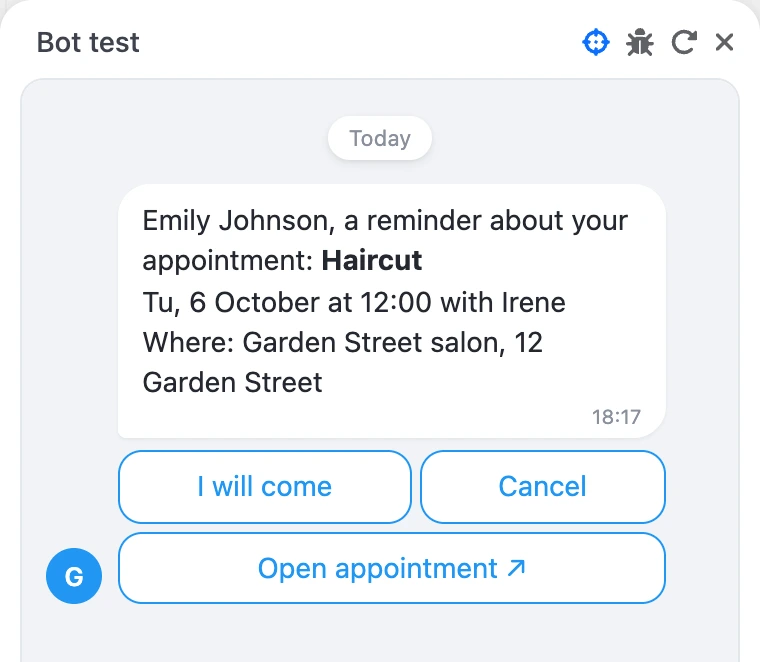
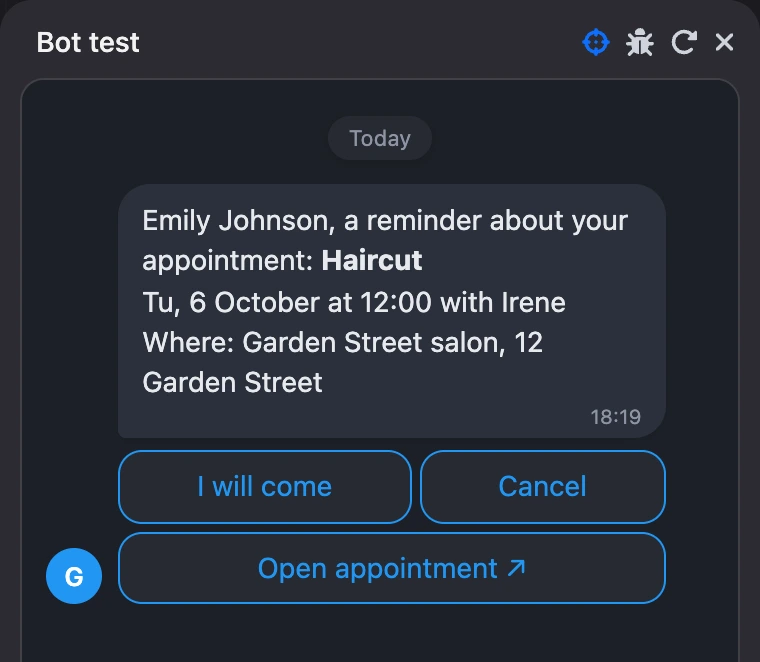
Messages about the appointment in the messenger have an "Open appointment" button under them. It opens the mini app the client booked from and passes the appointment to it: the launch parameter in the startParam variable starts with appointment_, and the appointment itself goes into the appointmentId variable.
To take the client straight to the card, put a condition on the startParam variable at the start of the scenario and lead from it to a screen with the "Appointment card" element. On a regular launch the startParam variable is empty.
Section for specialists
In the same app you can build screens for specialists: a specialist signs in with a code and sees their appointments and schedule. The elements for this are in the "For specialists" group — they are described on the Specialist access page.

If something does not work
- "Booking is not set up: no branch selected." The element or block has no branch. Choose it in the "Branch" field or through the "Shop and branch" window.
- "This time is no longer available — choose another one." The time has been taken, or it no longer fits the branch rules. The client needs to choose another time.
- "You already have 5 upcoming appointments. Cancel one of them to book again." One person can have no more than 5 upcoming appointments in all branches of the project.
- "Too many bookings in a row. Please try again later." The protection against mass bookings from one address was triggered. It does not get in the way of a regular client.
- "An appointment can be canceled or moved no later than … h before the visit." The cancellation deadline from the booking rules has passed. An administrator can cancel the appointment in the journal.
- The "Booking branches" element does not show a branch. The branch has no available service with a specialist who accepts clients, or the branch is not checked in the "Branches to show" setting.
- "Nobody provides this service right now". The service has no specialists selected, or they have "Accepting clients" turned off.
- "No free time". For the reasons, see the Booking rules and free time page.