

Bot payments and orders
Every invoice issued by a payment block is recorded in the bot's list of payments. It shows who got the invoice, for what amount and how it ended.
Where to find them
Open the bot and choose "Lists" in the side menu. Above the bot's lists there are the "Payments" and "Orders" rows. A row appears once the bot has at least one payment or order.
The lists are open to the bot owner and to a team member with the "Editing scenarios" permission. A Pro subscription is required.
The list of payments
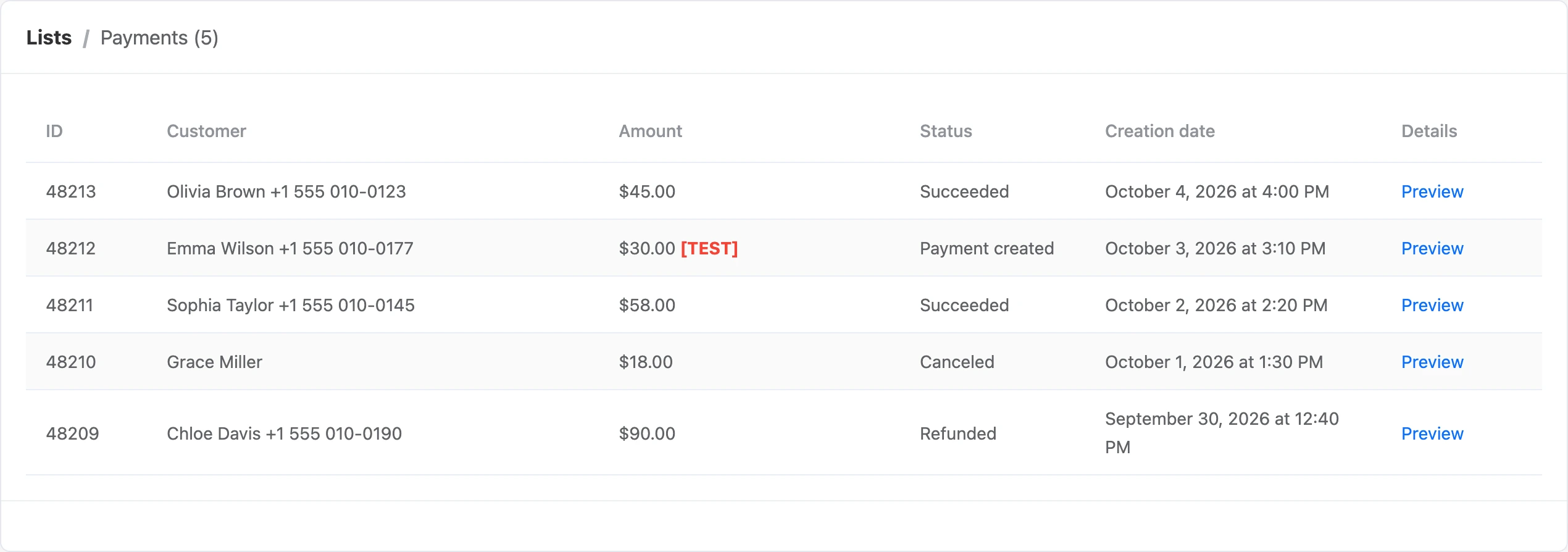
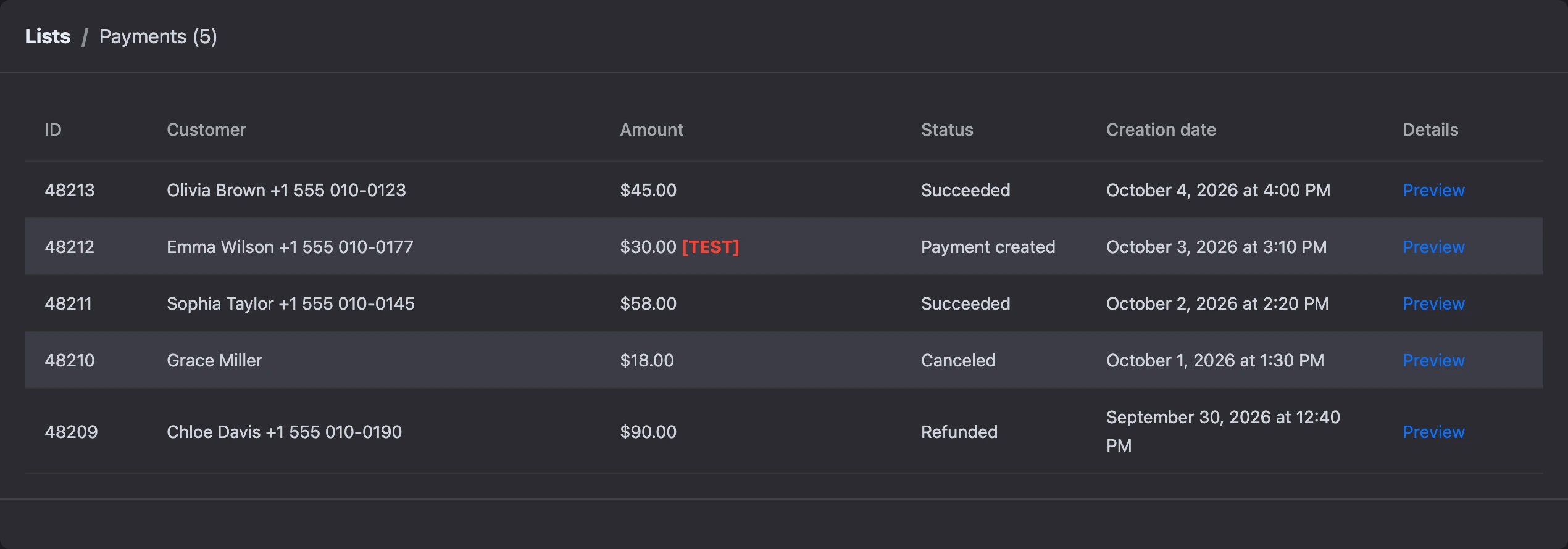
The newest payments are at the top. The table has:
| Column | What it shows |
|---|---|
| "ID" | The payment number on the platform |
| "Customer" | The contact's name and phone number, if known |
| "Amount" | The invoice amount and currency. A red "[TEST]" mark means a test payment |
| "Status" | The payment state — see below |
| "Creation date" | When the bot issued the invoice |
| "Details" | The "Preview" link opens the "Payment details" window |
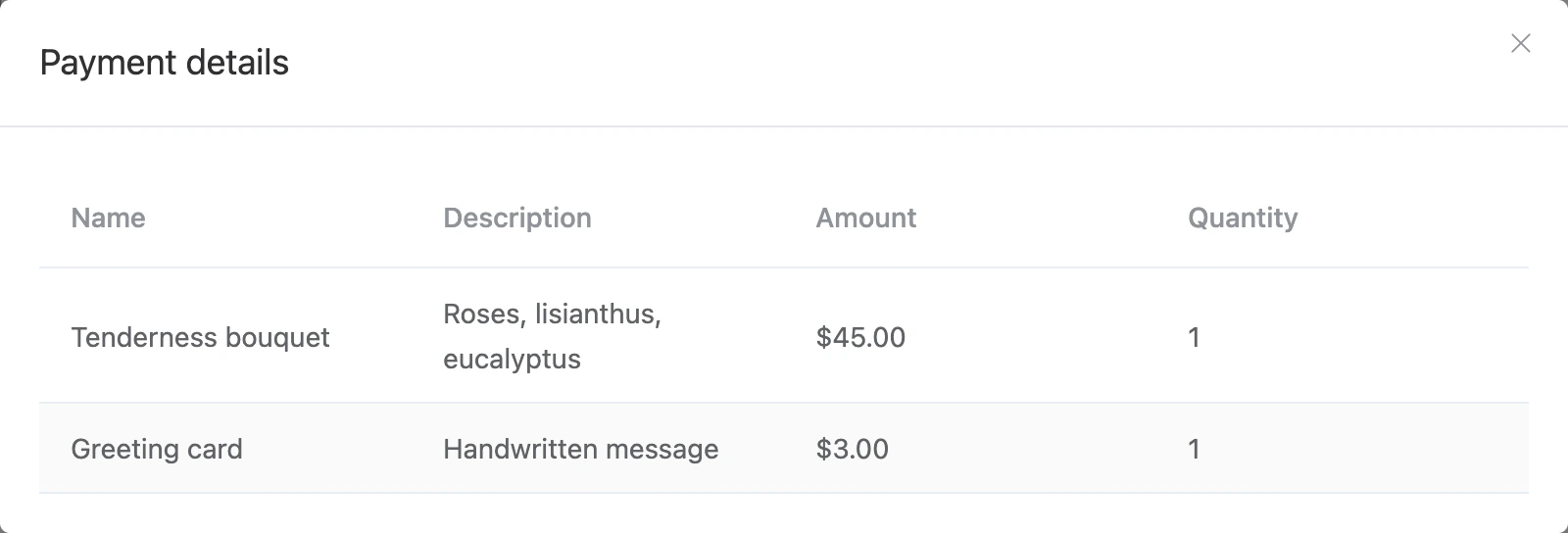
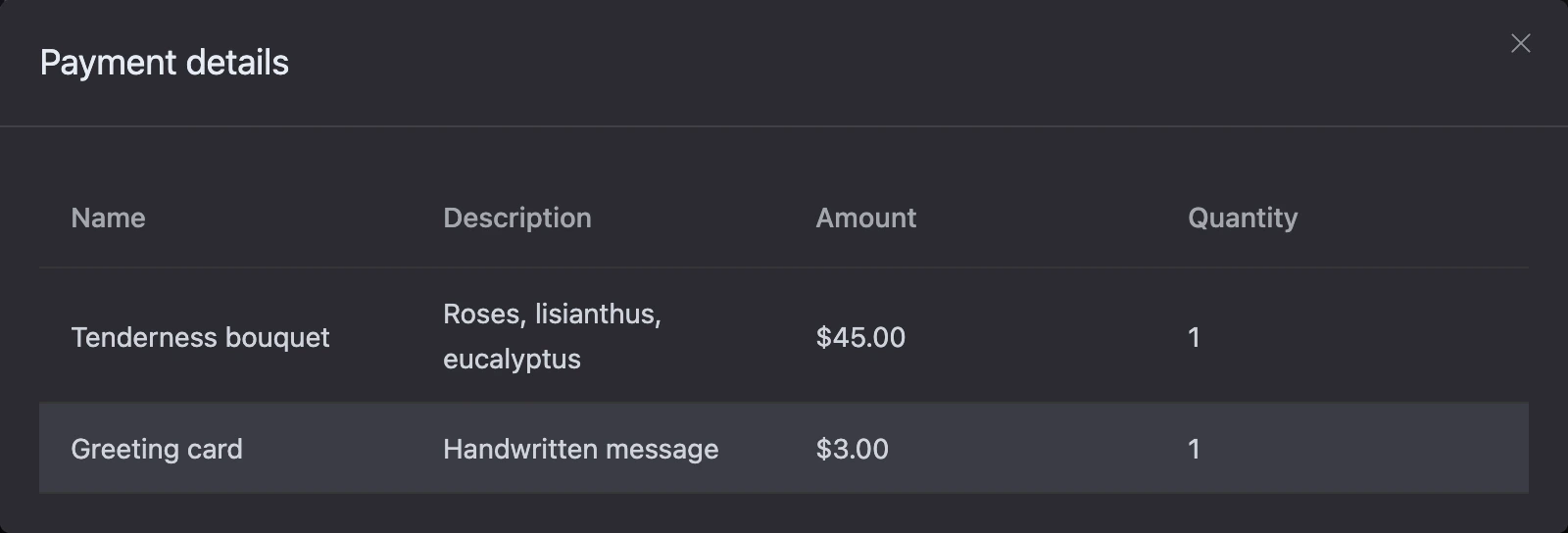
The "Payment details" window shows what the invoice is for: "Name", "Description", "Amount" and "Quantity".
This list has no search, filters or export. To work with payments in your own accounting system, set up a copy of notifications on your own server or receive payment notifications by email and in chats — they are set up in the bot on the "Notifications" tab.
Note
If the bot was transferred to you from another account, the list shows only payments created after the transfer.
Payment statuses
| Status | What it means |
|---|---|
| "Payment created" | The bot issued the invoice and sent the link. There is no money yet |
| "Succeeded" | The payment system confirmed the payment. The bot led the contact along the "Successful payment" output |
| "Canceled" | The payment system reported a decline or an expired term — or the invoice was not paid within three days and the platform closed it itself |
| "Refunded" | The payment system reported a refund for a paid invoice |
Only a payment system notification or the expiry of the term changes the status — you cannot change it manually. Which events each system reports depends on the system: not all of them report cancellations and refunds.
Warning
An invoice in the "Canceled" status can no longer be closed by a payment — bePaid is the only exception. If a person pays using the old link, the bot will not continue the scenario. Issue the invoice again — let the person go through the payment block once more.
Test payments
The "[TEST]" mark is given to payments made without real money:
- with YooKassa — when a test secret key is entered in the integration: it starts with
test; - with Cloudpayments — when the payment was made in the site's test mode.
A test payment moves the scenario forward just like a real one — handy for checking the bot before launch.
What happens after payment
When the payment system confirms the payment:
- The payment gets the "Succeeded" status.
- The bot leads the contact along the block's "Successful payment" output — even if by then the person has gone further along the scenario.
- You get a payment notification — by email and in the chats connected in the bot settings.
- If the "Transfer money to user account" switch is on in the block, the amount is credited to the contact's account.
A repeated notification about the same payment changes nothing: the bot will not run the scenario a second time or credit the money again.
The contact's account
An account is the contact's internal balance in the bot. A payment with the "Transfer money to user account" switch tops it up by the payment amount in the payment currency. If the contact had no account in this currency yet, it is created.
- In the account log, this operation is recorded with the type "Deposit via payment system".
- If the payment system reports a refund, the amount is debited from the account with the type "Debit by payment system".
- The "Debit a contact's account" block helps spend money from the account.
How to view accounts, top them up and debit them manually is on the Accounts and referrals page of the Contacts section.
The list of orders
The "Orders" row holds orders placed in the chat with the old-style cart blocks. Orders of the "Shops" section do not go here: they are managed in the shop itself — see the Shop section.
The table has "ID", "Customer" (a link to the contact card), "Amount", "Status", "Creation date" and "Update date". The "Preview" link in the "Details" column opens the order: the contact, their "Phone", "Username" and email, the amount, address, status and contents — "Product/Service", description and price with quantity.
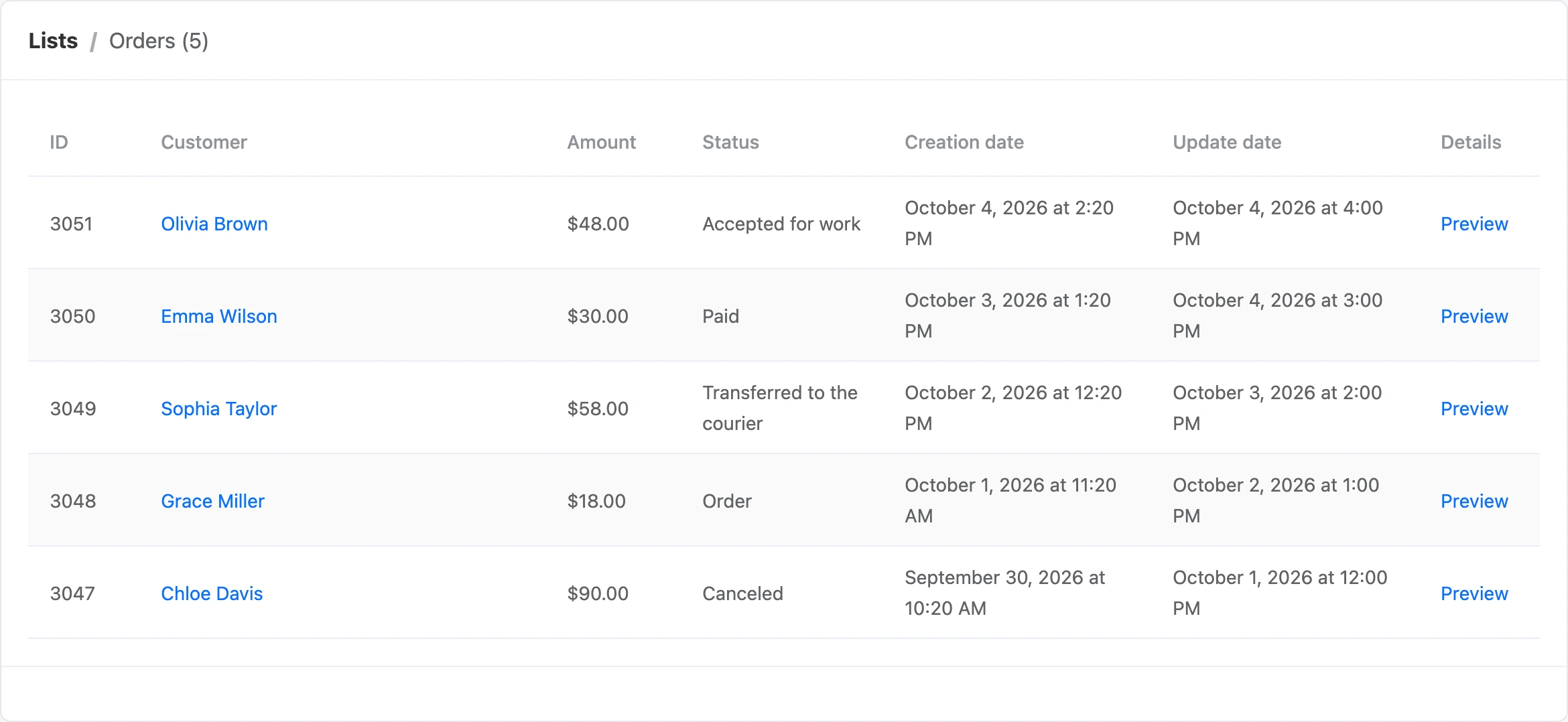
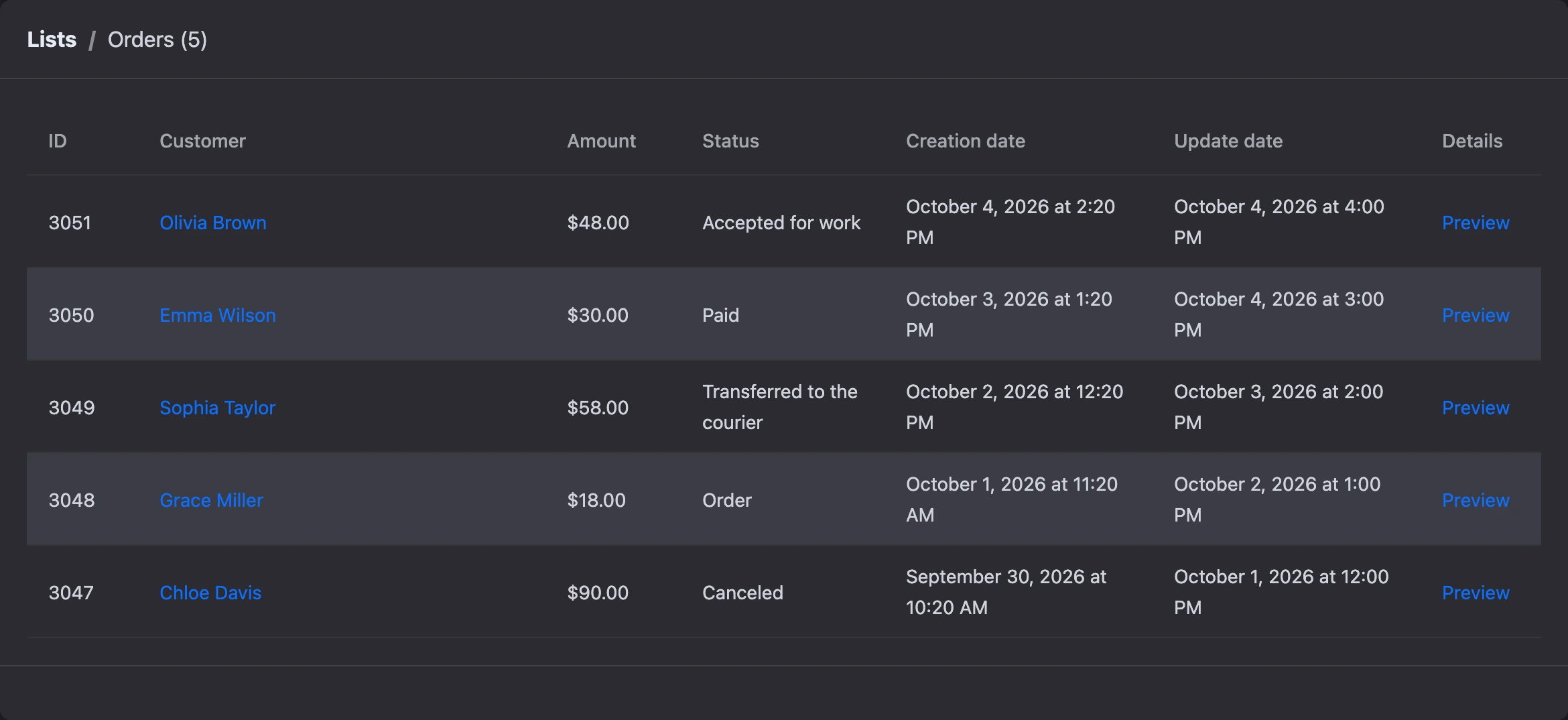
Orders from the bot preview do not get into the list.
Order statuses
The status is chosen in the order window, in the "Status" field:
| Status | When it is set |
|---|---|
| "Order" | The order was placed without payment |
| "Accepted for work" | The order was placed with payment or with payment on delivery. Can also be set manually |
| "Transferred to the courier" | Manually |
| "Delivered" | Manually |
| "Paid" | Automatically — when the payment system confirmed the order payment. Can also be set manually |
| "Canceled" | Automatically — when the payment system reported a refund. Can also be set manually |
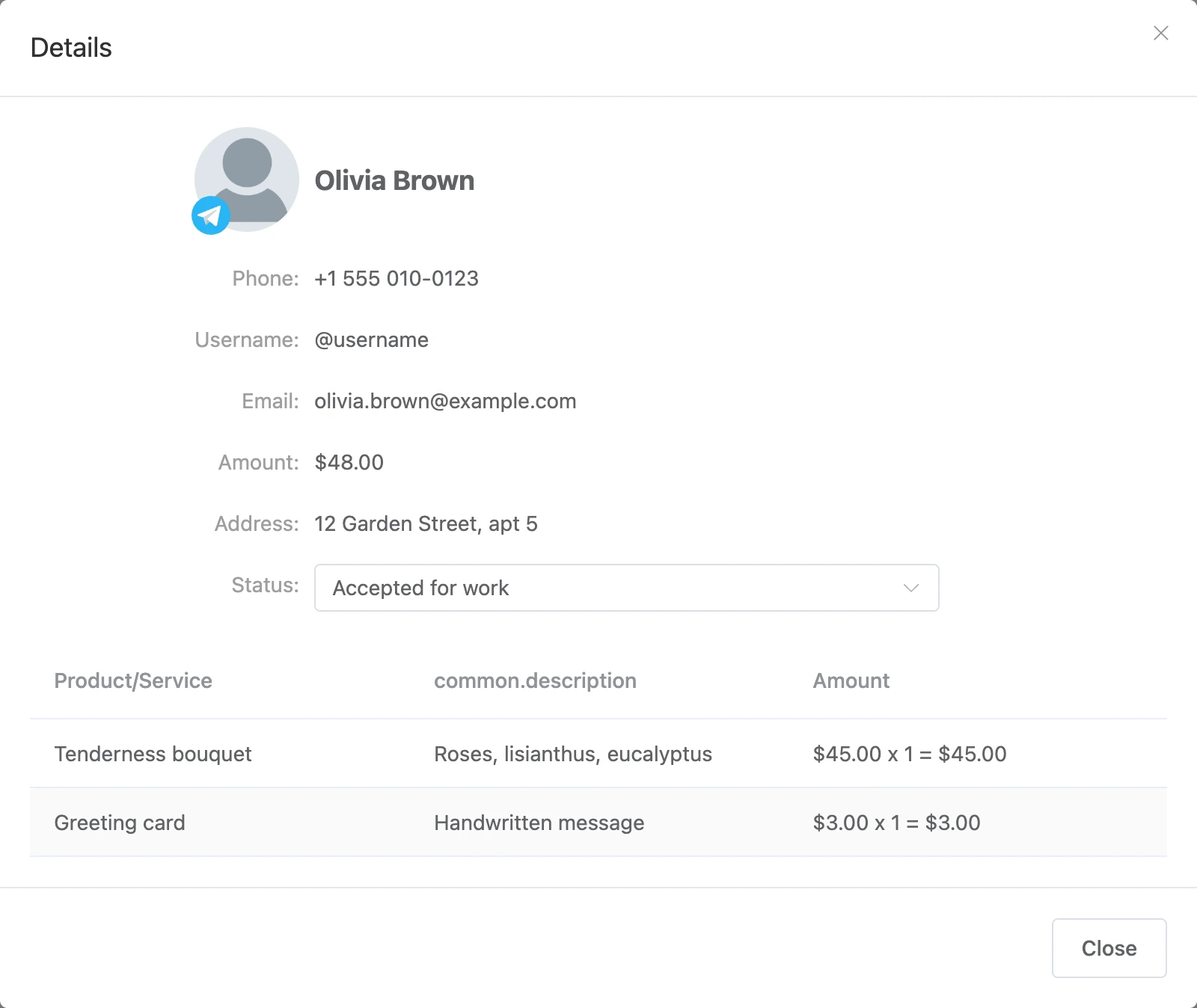
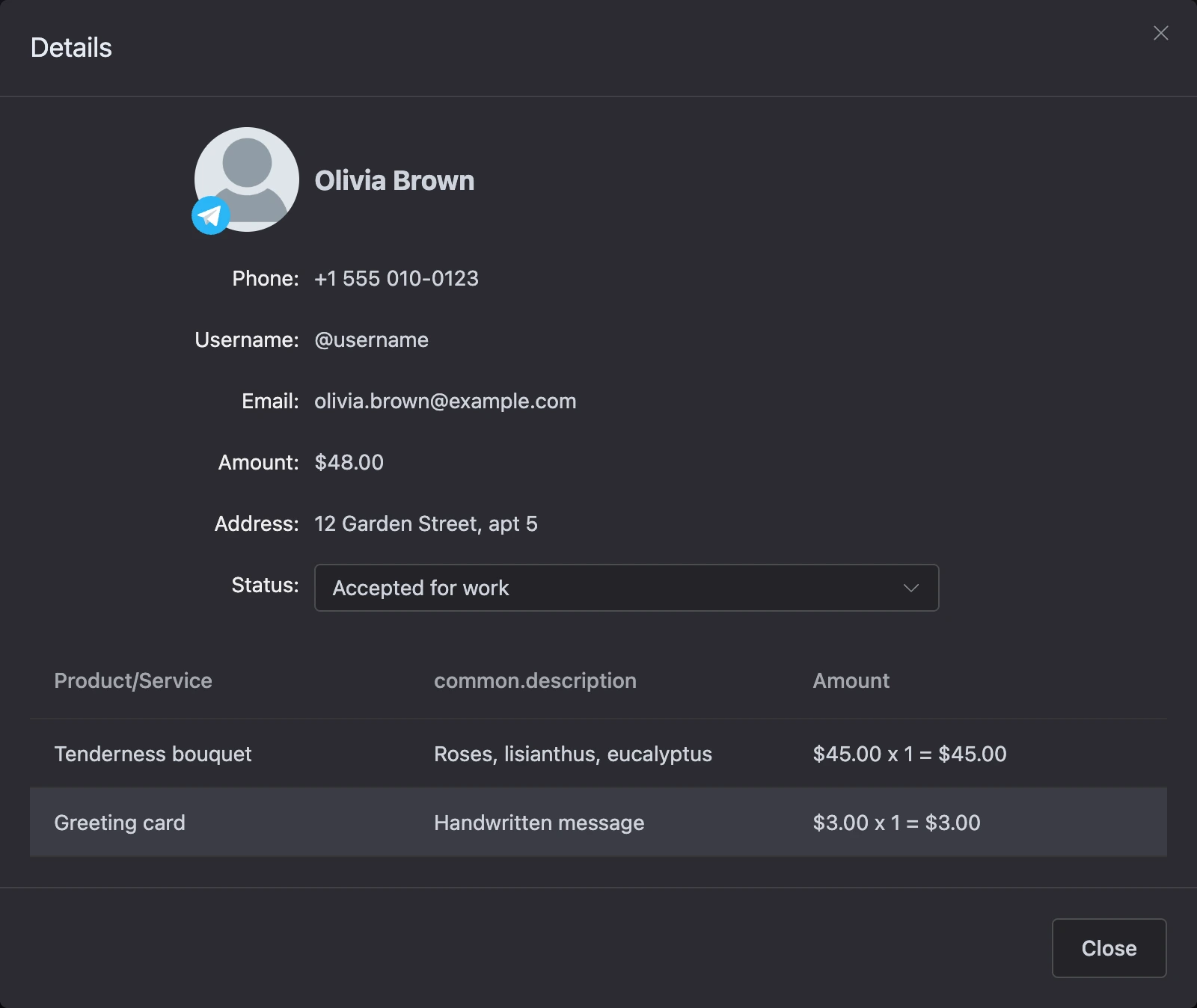
The change is saved right after you choose it.