

Connect a base to AI
The base itself does not answer anything — the model searches it. The "AI Agent" block in a bot, the AI chat and third-party services connected via MCP can search the base. Each search query uses tokens of the base plan — see the Plan and tokens page.
AI agent in a bot
In the "AI Agent" block settings, turn on the "Knowledge base search" tool and choose the base in the "Knowledge base" field. The agent searches one selected base. See the AI Agent page for details.
The agent cannot change the base — it only searches it.
AI chat
Knowledge base search
You do not need to connect anything separately. In the AI chat, the "Knowledge base search" tool is on by default and searches all the project's bases at once. The model calls it on its own when a question concerns your data, and gets up to five of the most relevant fragments. How chat tools are turned on and off is on the Tools and files in the chat page.
Knowledge base changes
You can fill the base right from the chat. Ask the model to save something to the knowledge base: "remember the delivery terms", "add this answer to the base", "save the price list from the email to the knowledge base". The model writes the text up as a separate document and adds it to the project's knowledge base. Without your request, it adds nothing to the base.
You do not need to turn anything on: when you ask to save, add or delete something in a knowledge base, the AI connects knowledge base changes by itself, just like chatbot building. A "Knowledge base changes" chip appears above the message field, and if building also works in the same chat, the chip is shared, for example "Building: bot and knowledge base". Any chat model will do.
You can also start from a base: the "AI help" item in the base's side menu opens the AI chat with knowledge base changes already on, and the model knows this base is meant. The item works if you may add documents to this base or delete them.
The changes are connected only if the project has a paid base where you may add or delete documents. Otherwise the model explains what is missing — the project has no bases, you have no permissions or no base is paid — and connects nothing.
As with building, the chip menu lets you choose the mode: "Ask first" or "Automatic". The mode decides whether the model asks before adding a document; deleting waits for confirmation in either mode. If building also works in the same chat, they share one mode. To stop the model from changing knowledge bases, choose "Turn off knowledge base changes" in the chip menu. Searching the bases is a separate item, "Knowledge base search", in the "Tools" menu, and keeps working.
- Where. If the project has one base, the model adds the document to it without asking. If there are several bases, it looks at their list and picks a suitable one or asks you.
- What. Each time it is a new text document, as with "Add document" → "Text": a name and up to 100,000 characters of text.
- When it can be found. The document is processed in the background like any other, and gets into search in about a minute. Processing uses tokens of the base plan.
In the "Ask first" mode, which is on by default, the conversation shows an "Add to the knowledge base" card before adding: the document name, the base and the start of the text. The document is added only when you click "Apply"; "Reject" cancels the adding. "Apply and don’t ask again" adds the document and switches the chat to "Automatic".
In the "Automatic" mode, the model adds the document at once, without a card.
An added document shows in the response as an "Added to “…”: “…”" step and appears in the base's "Documents" list, where you can open and edit it.
Deleting a document
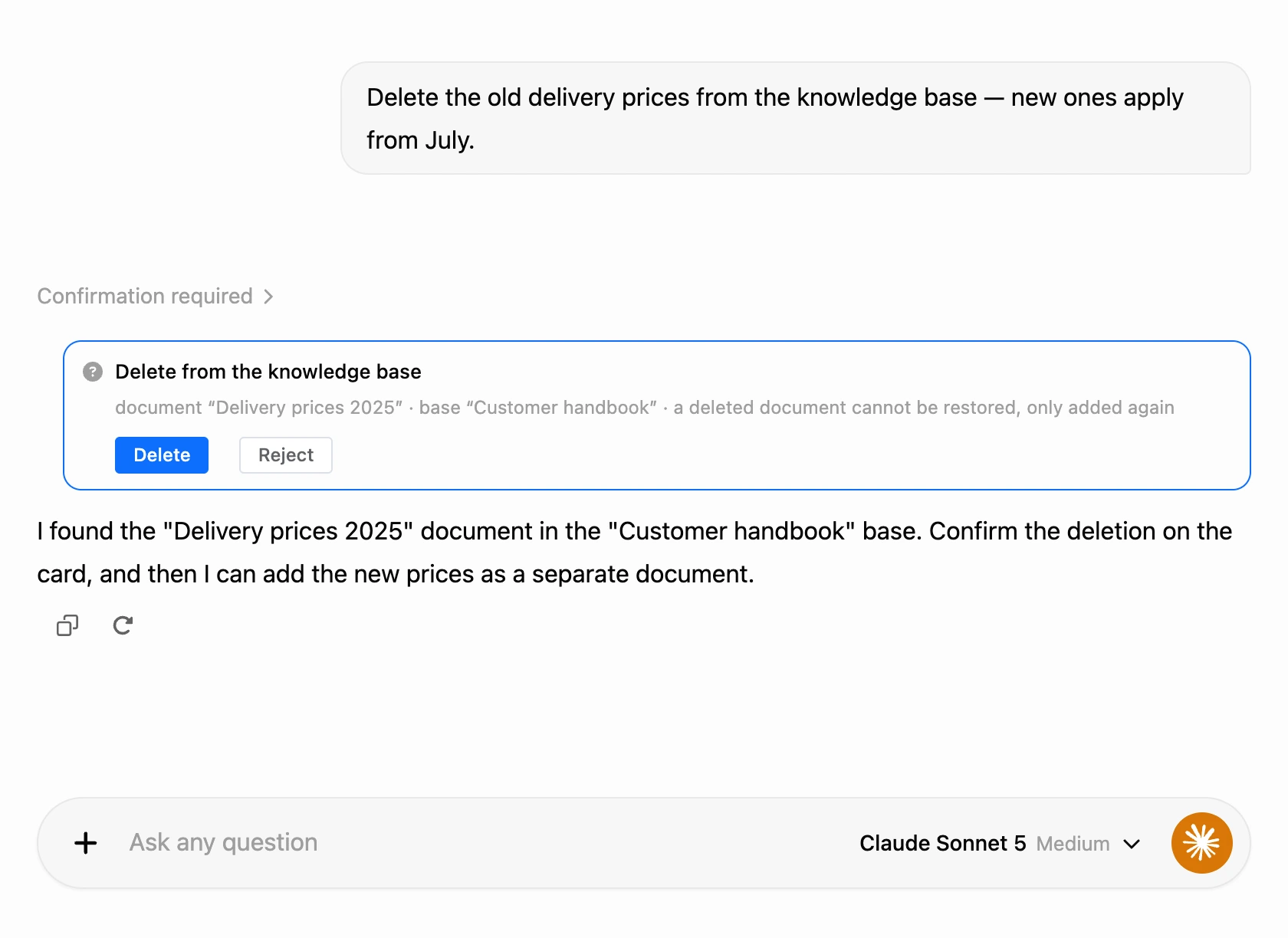
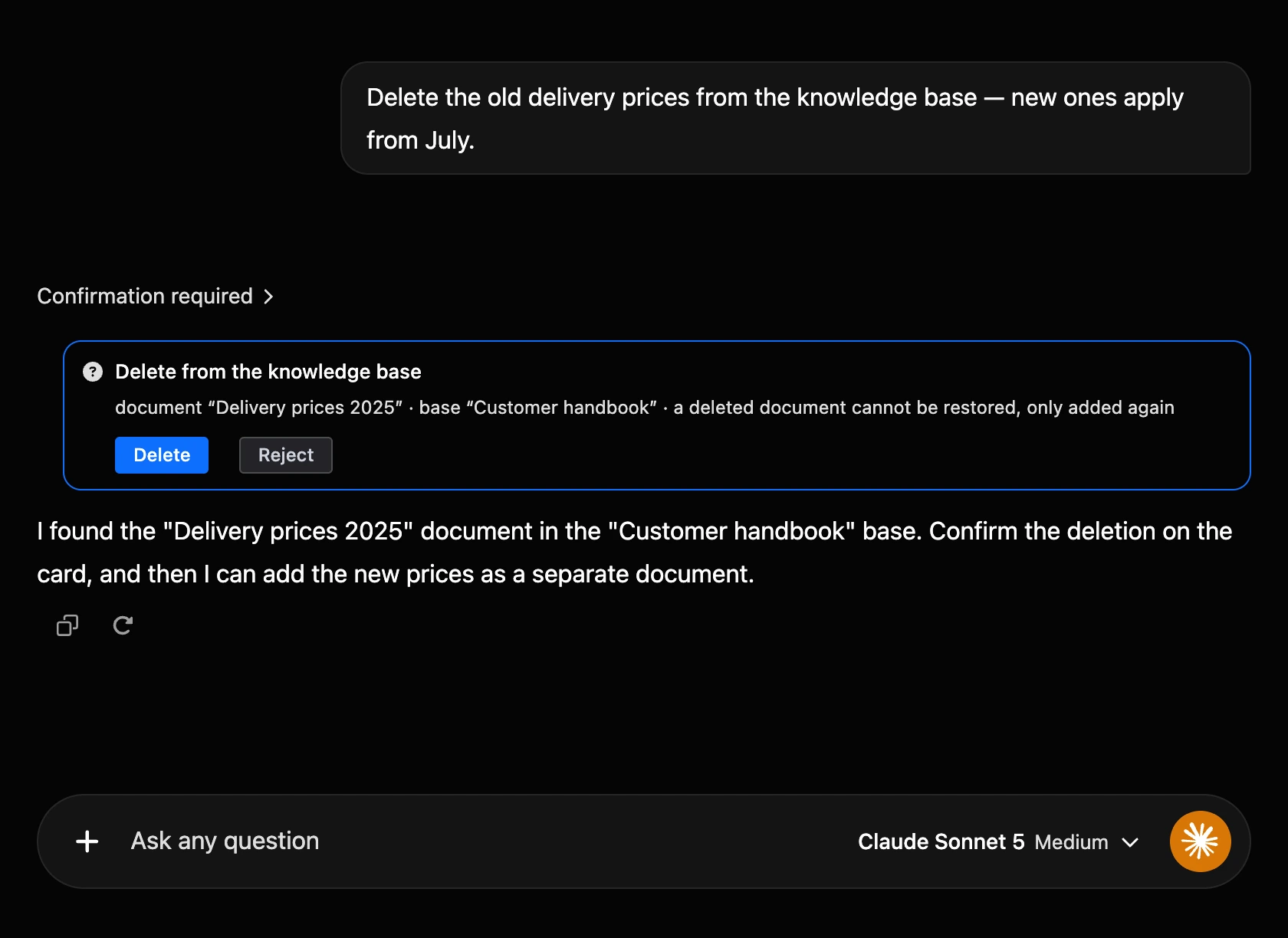
The model deletes a document only when you ask: "delete the old price list from the base", "forget about the summer promotion". It finds the document in the base's list of documents or through search.
Before deleting, the conversation always shows a "Delete from the knowledge base" card with the names of the document and the base and the note "a deleted document cannot be restored, only added again". The document is deleted only when you click "Delete"; "Reject" cancels the deletion. The card appears in the "Automatic" mode too, and it has no "Apply and don’t ask again" button.
The model does not delete a document that is still being processed, just as the "Knowledge bases" section does not. It suggests waiting until processing ends or stopping it in the section with the "Stop processing" button.
The whole document is deleted. The model cannot change part of a document: if one paragraph is outdated, it offers to delete the document and add the corrected text as a new one. You can also edit the document yourself — on the Documents page.
What you need
- A paid base. The model does not change a base whose plan has expired ("Inactive since …") and suggests renewing it in the "Knowledge bases" section.
- The same permissions as in the "Knowledge bases" section. The base author and the project owner can do everything. A team member needs the "Add documents" and "Delete documents" role permissions, and "View documents" for the model to see the base's documents. All permissions are on the Settings, list of bases and access page.
The model cannot create or delete bases themselves or change their plan and settings.
Third-party services
The "Connecting to third-party services" page gives the address of the base's MCP server. You can use it to connect the base to an external model or service that supports the MCP protocol. Authorization is by a token from the account settings (the API section) or via OAuth for supported services.
If something does not work
- AI does not answer from the documents. Check the query on the "Search testing" page: if the needed fragment is not in the results, add headings to the document or reduce the chunk size. For the AI agent, check that the base is selected in the block settings.
- The model does not search the knowledge base. Check that "Knowledge base search" is turned on in the chat and that the base has documents in the "Ready" state.
- The model does not save to the knowledge base and explains why. Knowledge base changes were not connected: check that the project has a base, its plan is paid and your role has the "Add documents" permission.
- The model said it would save, but there is no document. In the "Ask first" mode, adding waits for your decision on the "Add to the knowledge base" card: click "Apply".
- The added document is not found. Wait a minute: the document is still being processed. Its state is shown in the base's "Documents" list.
- The model does not delete a document because it is still being processed. Wait a minute or click "Stop processing" next to the document in the "Knowledge bases" section, then ask again.