

Users, analytics and error log
Users
Everyone who opens the app becomes its user. App users are not bot contacts: guests from a browser do not get into contacts and do not use up the plan limits.
| Identified | Guest | |
|---|---|---|
| Where from | Telegram, MAX, website chat | A browser or the app on the phone screen |
| What is known about them | Name, username and language from the messenger, the bot the app was opened from | Only the id issued by the platform |
| Link to a bot contact | Yes, if the person has written to the bot | No |
| How they are recognized at the next launch | By the messenger account | By the browser session. Another browser or cleared site data means a new guest |
A guest and an identified user are different users, even if they are the same person. One person in Telegram and in MAX will also be different users — with their own variables and tags.
The "Users" section
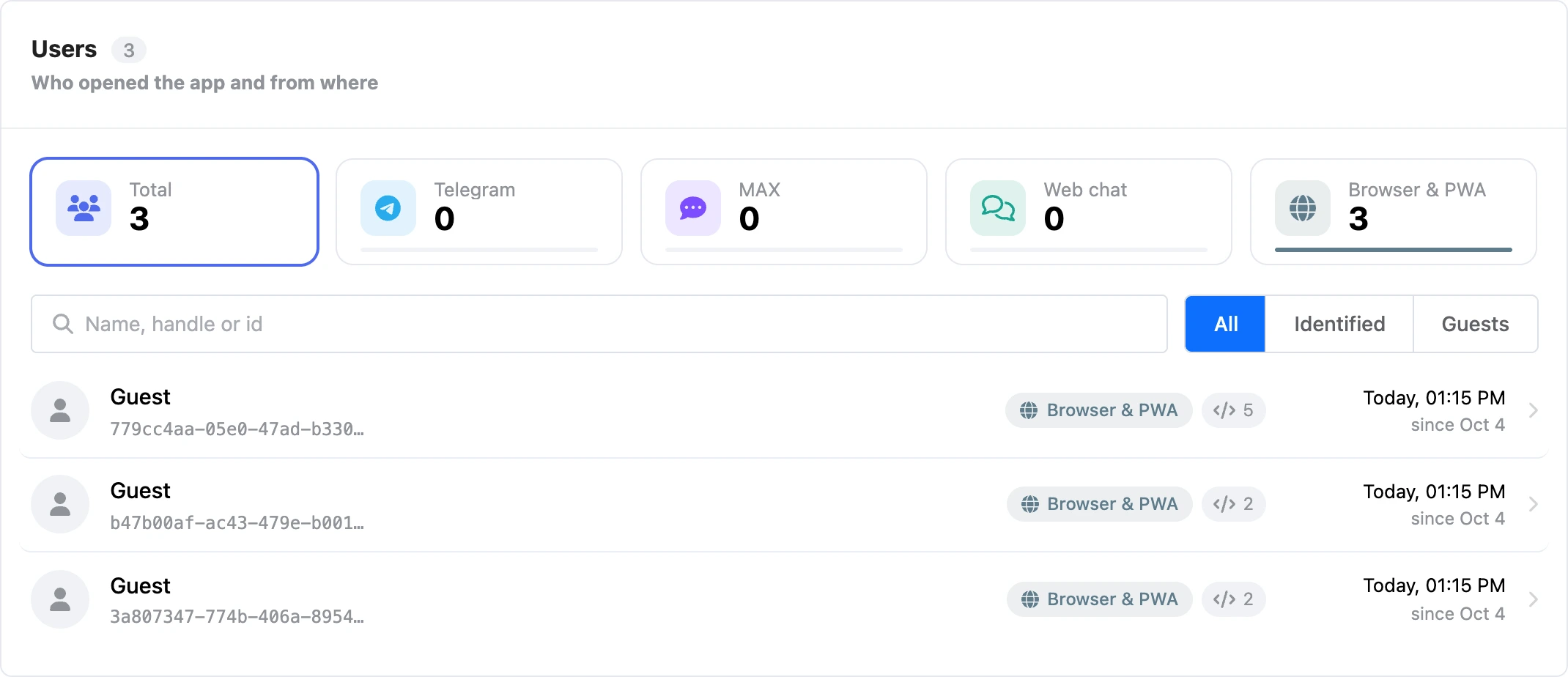
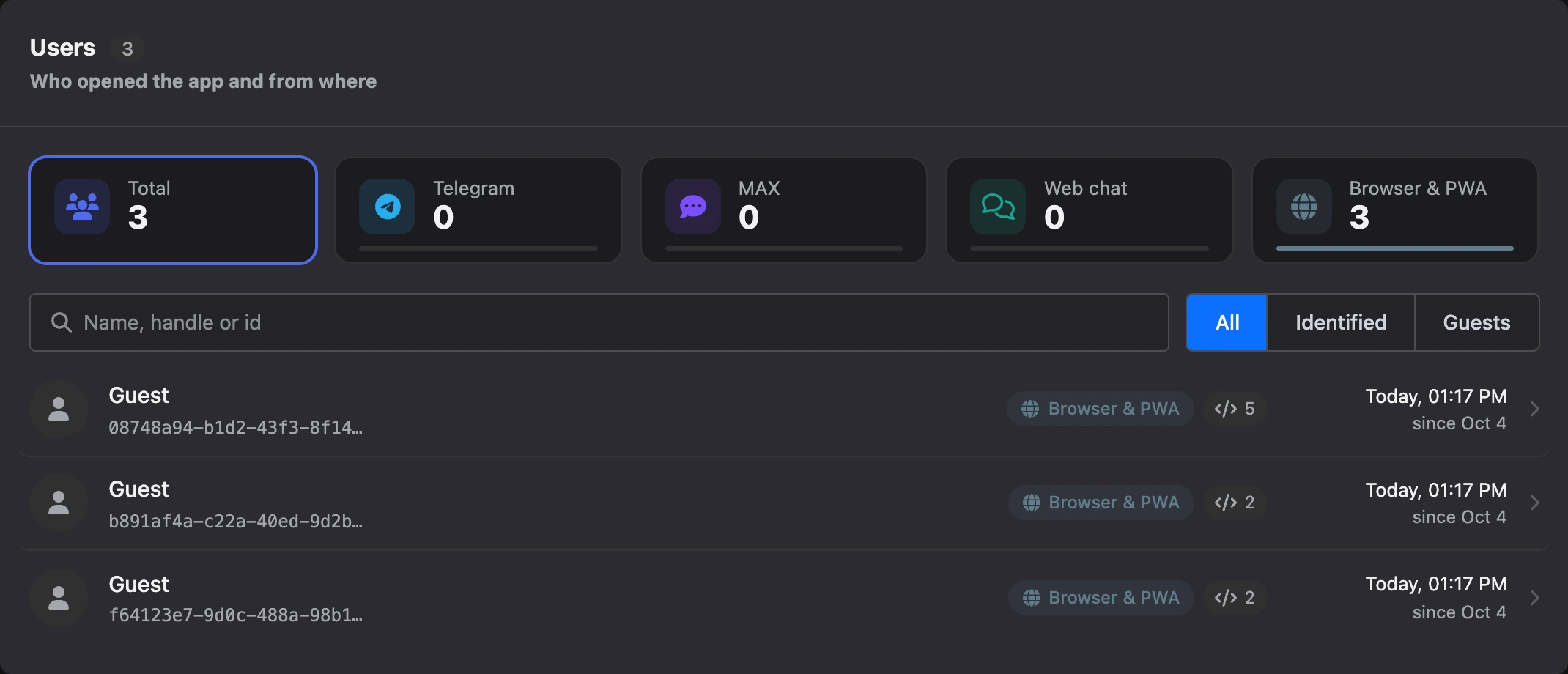
The "Users" section in the app's menu is "Who opened the app and from where".
- Source cards at the top — "Total", "Telegram", "MAX", "Web chat", "Browser & PWA" — show the number of users and their share and work as a filter.
- Search — "Name, handle or id".
- The switcher "All" / "Identified" / "Guests".
A user's row shows the name or "No name", the username, the bot, the platform, the "Linked to a bot contact" badge, the number of variables, the last visit and the date of the first launch.
User card
A click on a row opens the "User card":
- "Launch" — "Source", "Bot", "Username", "Language", "Identifier", "Contact".
- "Activity" — "First launch" and "Last seen".
- "Tags" — the app user's tags. You can add and remove them right here.
- "Variables" — the person's variables. A value is edited with a click, the "Add field" button creates a new variable, the bin icon deletes one.


If the person is linked to a bot contact, there are "Send message" and "Open contact" buttons at the top of the card — they lead to the conversation and the contact card in the bot.
Editing variables and tags here changes only the app's data. The bot contact's variables and tags are edited in the contact card.
Guest limit
Anyone can create a guest just by opening the link. To keep a script from creating guests by the thousands, the number of new guests is limited: "New guests per hour from one address" in the app's "Settings". The default is 100; you can set from 1 to 1000.
The limit does not apply to returning visitors and to those who opened the app from a messenger or a website chat. Raise it if many people open the app from one network — an office, an event, a mobile carrier. Beyond the limit, the person sees "Too many new visitors from your address, please try again later."
Guests who have not visited for 90 days are deleted automatically.
Analytics
The "Analytics" section shows how the app is used. The period is "7 days", "30 days" or "90 days".
The tiles at the top are the totals for the period:
| Metric | What it means |
|---|---|
| "Opens" | How many times the app was launched |
| "Actions" | Taps and other events in the app |
| "Screen views" | How many times screens were opened |
| "New" | New users |
| "Users in total" | All users of the app over all time |
| "Active" | Users who visited during the selected period |
Below is a table by day: "Day", "Opens", "People", "New", "Screen views", "Actions".
"Popular screens" — the ten most viewed screens for the period with the number of "Views". A screen's name is a link: it opens the builder at this screen in a new tab. There is no link if the screen is no longer in the latest version.
The preview from the builder does not get into analytics.
Error log
The "Error log" section collects what failed for people and in the preview: "HTTP requests, JavaScript, chatbot blocks and app code that failed in the last 14 days".
- Filters: "All", "HTTP requests", "JavaScript", "Chatbot", "App code" — with the number of entries for each.
- The "Hide preview" tick hides errors from the preview.
- The "Clear" button deletes all log entries.
A row shows the reason, the block with a link to the scheme, the version, the request URL or the error text, who ran into the error (a click opens their card) or the "Preview" mark, and the time. A click on the row expands the details: "Request", "Ran on", "Status code", "Duration", "Error text", "Server response", "Stack trace" — and a tip on what to check.
| Reason | What to check |
|---|---|
| "Invalid request URL" | The URL must start with http:// or https://. Check that the templates in the URL are filled |
| "The address is not allowed" | Requests to local and internal addresses are forbidden — the service needs a public address |
| "The request failed" | The server did not reply in time or the connection dropped. Check the URL, the timeout and the proxy |
| "The server responded …" | The service returned an error. Look at the server response: the reason is usually written there |
| "The request from the device failed" | Most often the service does not allow requests from other websites (CORS) or the person lost their connection |
| "JavaScript error" | Open the block and check the code. In the preview the error is also visible in the browser console |
| "The block dropped what the code wrote" | The block has "Change only what is listed" turned on, and these names are not on the list. Add the variables and tags you need to the allowed lists or turn off the restriction |
| "The person has no contact in the bot" | The app was opened from a browser or the person has not written to the chosen bot. Lead the "No contact" exit to a screen with a hint to open the bot |
| "Message without text" | The block has an empty message — fill in the text or remove the extra message from the chain |
| "Scenario not found" | The scenario is not selected, deleted or has no start block. Choose the scenario again |
| "No tags specified" | Not a single tag is specified in the tag block |
| "Sending failed" | The messenger did not accept the message. Check that the bot is connected and the person has not blocked it |
| "Error in the app code" | The app code crashed at launch or in an event handler. The stack trace will point to the line |
Entries older than 14 days are deleted automatically.