

Testing the bot
You can go through a scenario yourself without leaving the builder. The "Bot test" window is a chat in which the bot replies to you the same way it will reply to a person: it sends messages, shows buttons, waits at delays, saves variables.
Testing needs neither a Pro subscription nor a connected messenger. You can test right after creating the bot and as many times as you like.
How to open it
- Open the "Scenario" item in the bot's menu.
- Click "Test the bot" on the top toolbar.
A chat window appears on the right. The first time it is opened, the bot starts the main scenario and sends the first message. Press buttons or write in the "Write a message…" field — the bot follows the scenario.
The window does not get in the way of working with the scheme: you fix a block — and test it in the chat right away. It is closed with the cross or with another click on "Test the bot". The conversation does not disappear: open the window again and you continue from the same place.
Buttons in the window's header
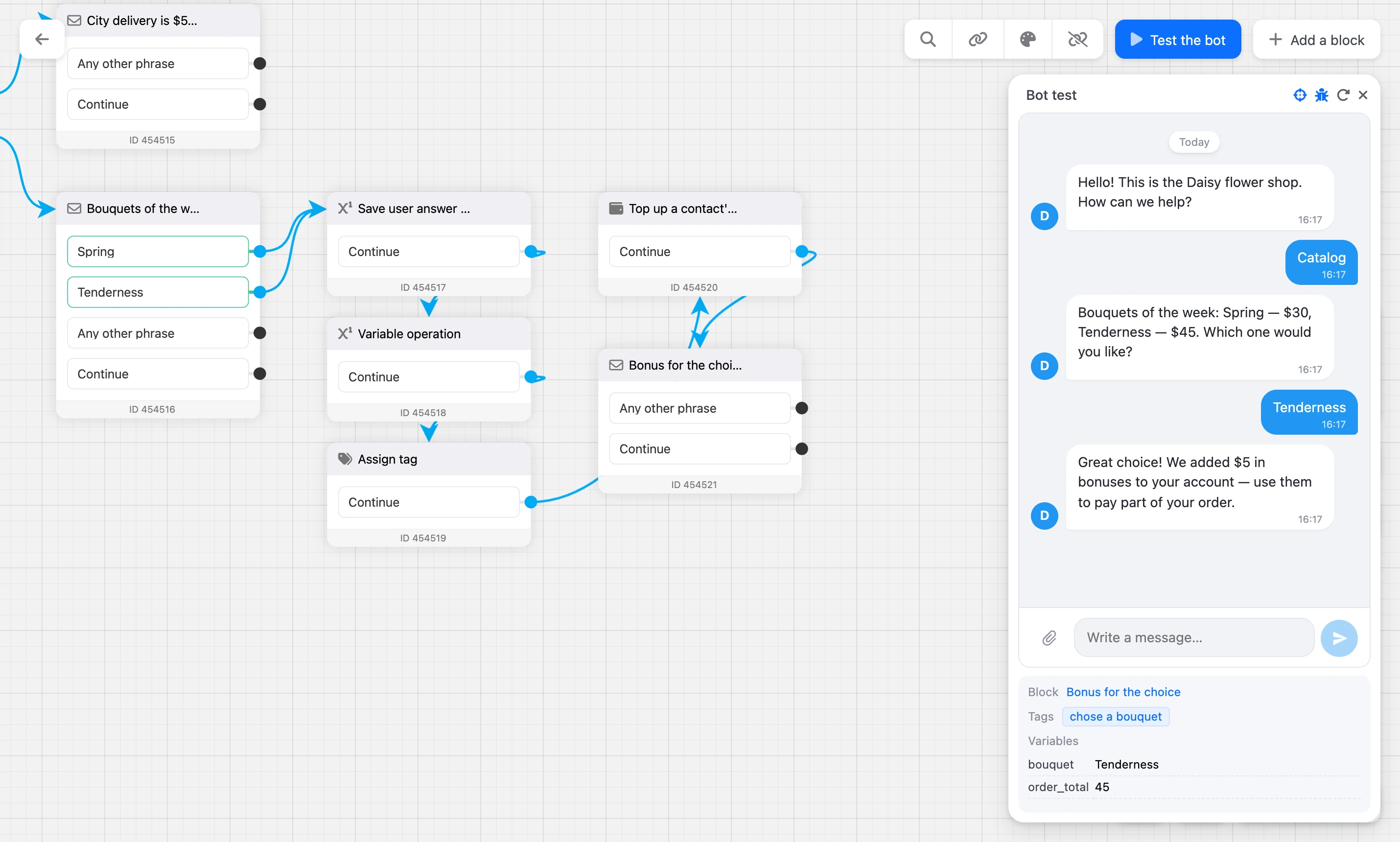
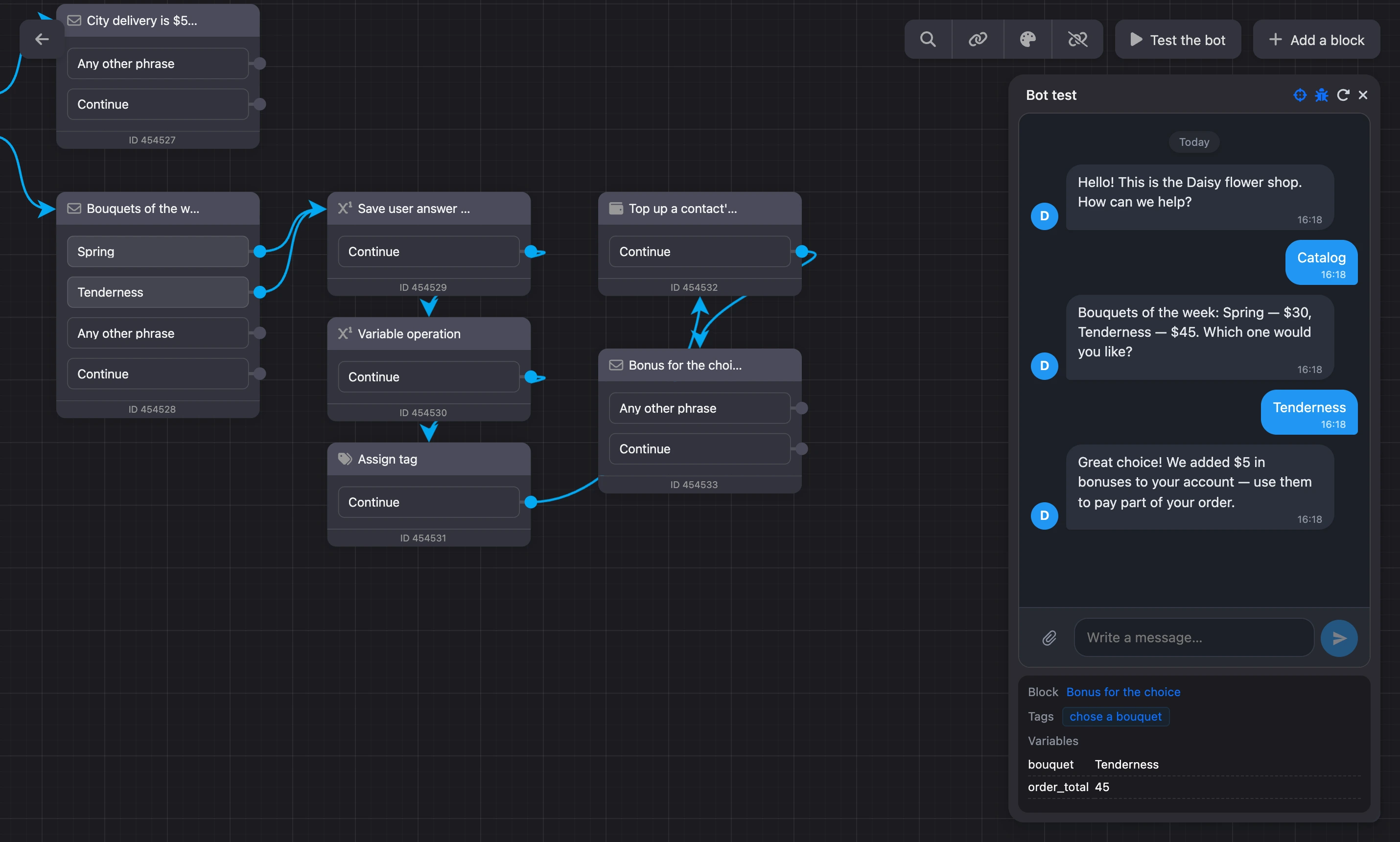
- "Follow the current block" — the scheme moves on its own to the block you are at now and highlights it. If the block is in another scenario, the builder opens that scenario. Turned on by default; turn it off if you want to look at another part of the scheme.
- "Variables and tags" — a panel under the chat, see below.
- "Start over" — erases the test contact together with the conversation, variables and tags and starts the main scenario from the beginning. This way the bot sees you as a new person.
- The cross — closes the window.
Testing from a particular block
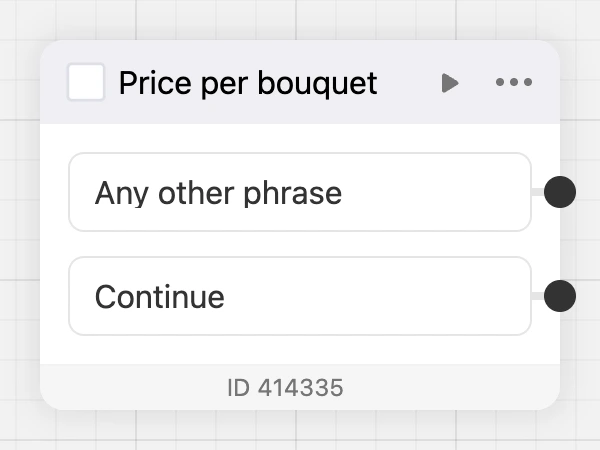
To test the middle of a scenario, you do not have to go through it from the beginning. Hover over a block and click the ▶ icon in its header — "Test from this block". The test window opens, and the bot runs this block.

The variables and tags you have accumulated over previous tests stay in place: the block may need them. If the block checks a condition or inserts a variable into the text, first get to it the usual way — or make sure in the "Variables and tags" panel that the values you need are there. The "Start over" button gives you a clean state.
Variables and tags
The button with a bug in the window's header opens a panel with three lines:
- "Block" — the block you are at now. Click the name to go to it on the scheme.
- "Tags" — the tags the bot has given you so far.
- "Variables" — the names and values of variables. Until the bot has saved anything, it says "No variables yet" here.


The panel is updated after every reply of the bot. It is handy for checking that the person's reply got into the right variable and that the "Condition" block fired on the right value.
Template errors
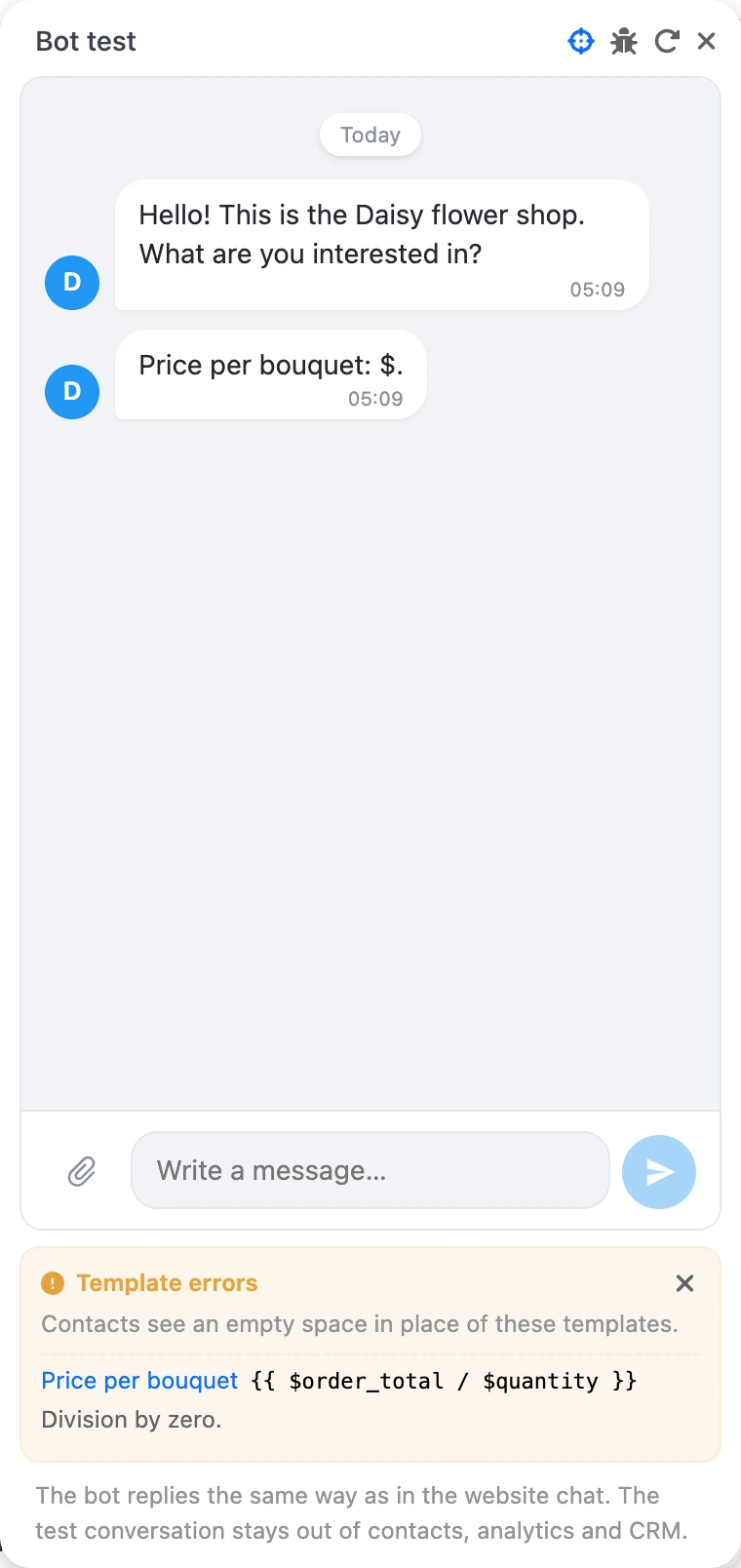
If a block's text has a template {{ … }} with an error, the person sees an empty space in its place. In the test window, the "Template errors" block appears under the chat: the block's name, the template itself and the reason for the error. Click the name — the scheme shows the block.
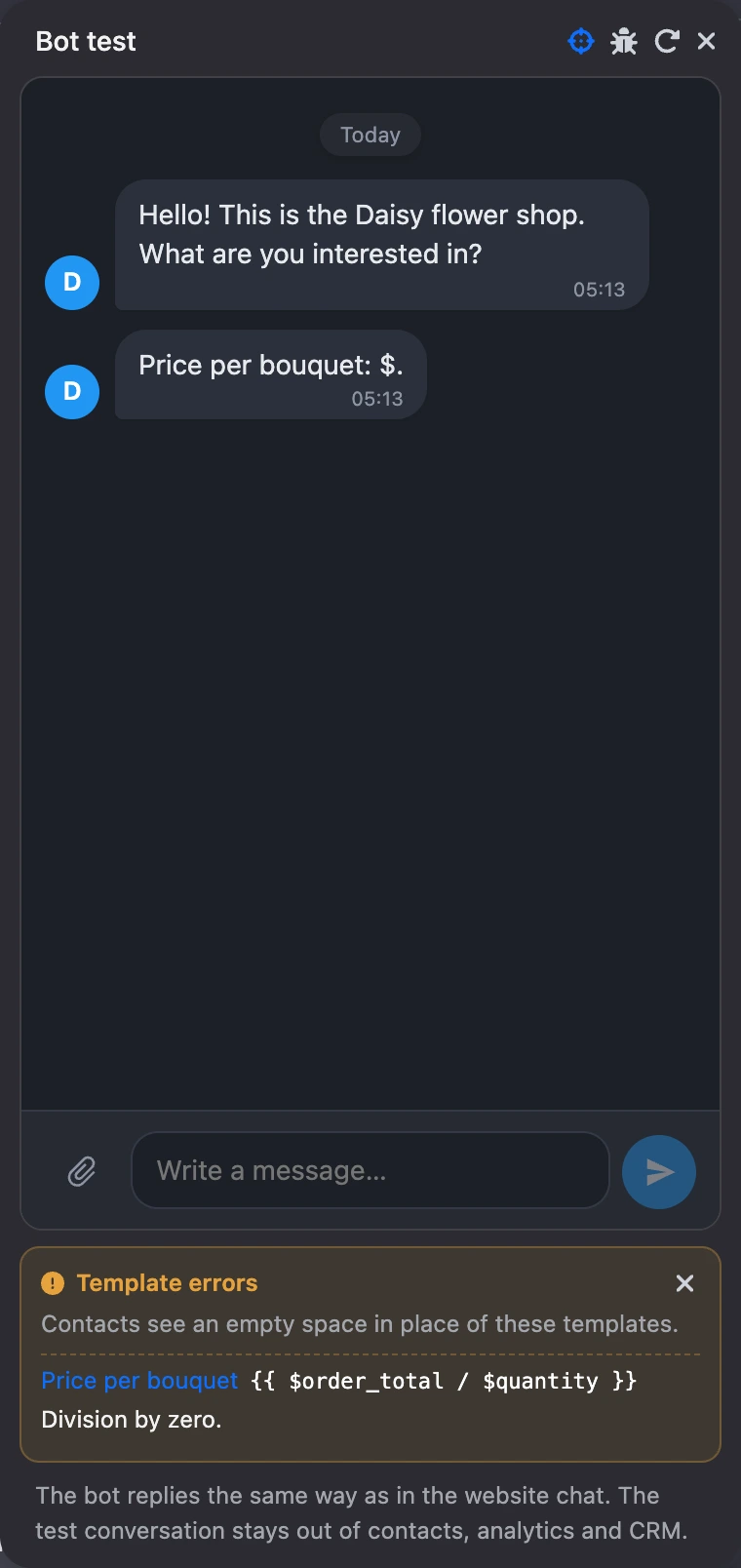
How to read such errors is on the Errors and limits page.
How testing differs from a real conversation
During testing, the bot treats you as a separate test contact named "Bot test". Every team member has their own: colleagues test the bot at the same time and do not get in each other's way.
| Test contact | Real contact | |
|---|---|---|
| Pro subscription and a connected channel | Not needed | Needed |
| The bot's contacts section | Does not appear | Appears |
| The plan's contact package | Does not use it up | Uses it up |
| Statistics and conversions on the scheme | Not counted | Counted |
| Requests and deals in the CRM | Not created | Created |
| Mailings and "Send from previous block" | Does not receive | Receives |
| The "Waiting to be sent" number on delay blocks | Not counted | Counted |
Everything else works for real during testing:
- the "Delay" and "Timer" blocks wait as long as is set in them;
- the "Request" block sends notifications by email and to a messenger;
- the "AI Agent" block calls the model, and the replies are paid for from "AI Credits";
- HTTP requests go to your server, and records in lists and tables are created and changed.
Warning
If the scenario writes to working lists or sends requests to external services, testing leaves real records there. Remove the test data manually afterwards.
What the chat looks like
The bot replies the same way as in the web chat on a website: the same messages, buttons, images, videos and files. In a messenger the look will differ — each has its own. Before the launch, go through the scenario once more in the messenger itself.
You can attach a file to a message — an image, a document, audio or video up to 10 MB in size. This is how blocks that wait for a photo or a document from the person are tested.
If something does not work
- The bot is silent in the test window. Check that the bot is turned on: "Settings" → "General" → "Enable bot". The bot is also silent if the "Turn the bot off and use the service only for messaging with customers" switch is turned on in "Settings" → "Advanced".
- The bot does not reply to a message, but the buttons work. The block's "Any other phrase" output is not connected and "Repeat question" is turned off — see How the bot chooses a reply.
- "Too many messages, please wait a moment." In testing you can send no more than 30 messages and button presses per minute. Wait a minute.
- "The file is too large". The file is larger than 10 MB.
- You changed the scenario, but the bot continues from the previous place. Testing continues from the block you stopped at. Click "Start over" or start the test from the block you need.
- The scenario works in testing but not in a messenger. Testing does not need a subscription and a channel, but a real conversation does. Make sure that the channel is connected and the Pro subscription is active.