

Building a widget in the AI chat
A widget can be built by describing it in words: "make a website widget with buttons for our Telegram bot and our VK group", "a widget for a flower shop: the title 'Any questions?', a crimson button, a link to the catalog". The AI creates the widget in the project, fills it in and shows it next to the conversation — the way visitors of your site will see it. You can fix an existing widget the same way: "change the title", "add a link to the price list", "make the button green".
You do not need a Pro subscription to build — just as for widgets themselves. You pay for the model's tokens — they are charged to "AI Credits". How they work is described on the Prices of additional services page.
Important
A widget has no draft. Everything the AI saves appears at once on the websites where the widget is already installed — just as after the "Save" button in the builder. If you are editing a widget that is already live, keep the "Ask first" mode.
How building turns on
Open the AI chat — with the "AI chat" button on the top bar of the account — and describe what you need. There is nothing to switch on: the AI connects the building tools when it sees what you are asking for, and a "Widget builder" chip appears above the message field. If a bot is being built in the same chat too, the chip names all builders at once — for example, "Building: bot and widget".
You can also start from the widget: the "AI help" item in the widget's side menu opens the AI chat about it. Building is on from the first message, and the live widget is shown on the right at once — no need to name it in the chat.
In the chip's menu you choose the mode — "Ask first" or "Automatic" — and turn building off. When there are several builders, they share one mode, but each can be turned off separately. The modes are the same as for building a bot: see the Building a bot in the AI chat page.
Building a new widget
- Describe the widget: which links it needs, what title and text, what color the button is, which website it will be on. If you need a banner, give a link to the picture.
- The AI checks whether the project already has such a widget and offers to create a new one — the "Create a widget" card.
- If the widget will have links to your bots or a chat, the AI looks at the project's bots and their links.
- Then it fills in the widget — the "Change the widget" card. The confirmation card says: "changes appear on the sites at once".
- In the "Ask first" mode, click "Apply", "Apply and don’t ask again" or "Reject" — just as when building a bot.
- At the end, the AI gives you the code for your site.
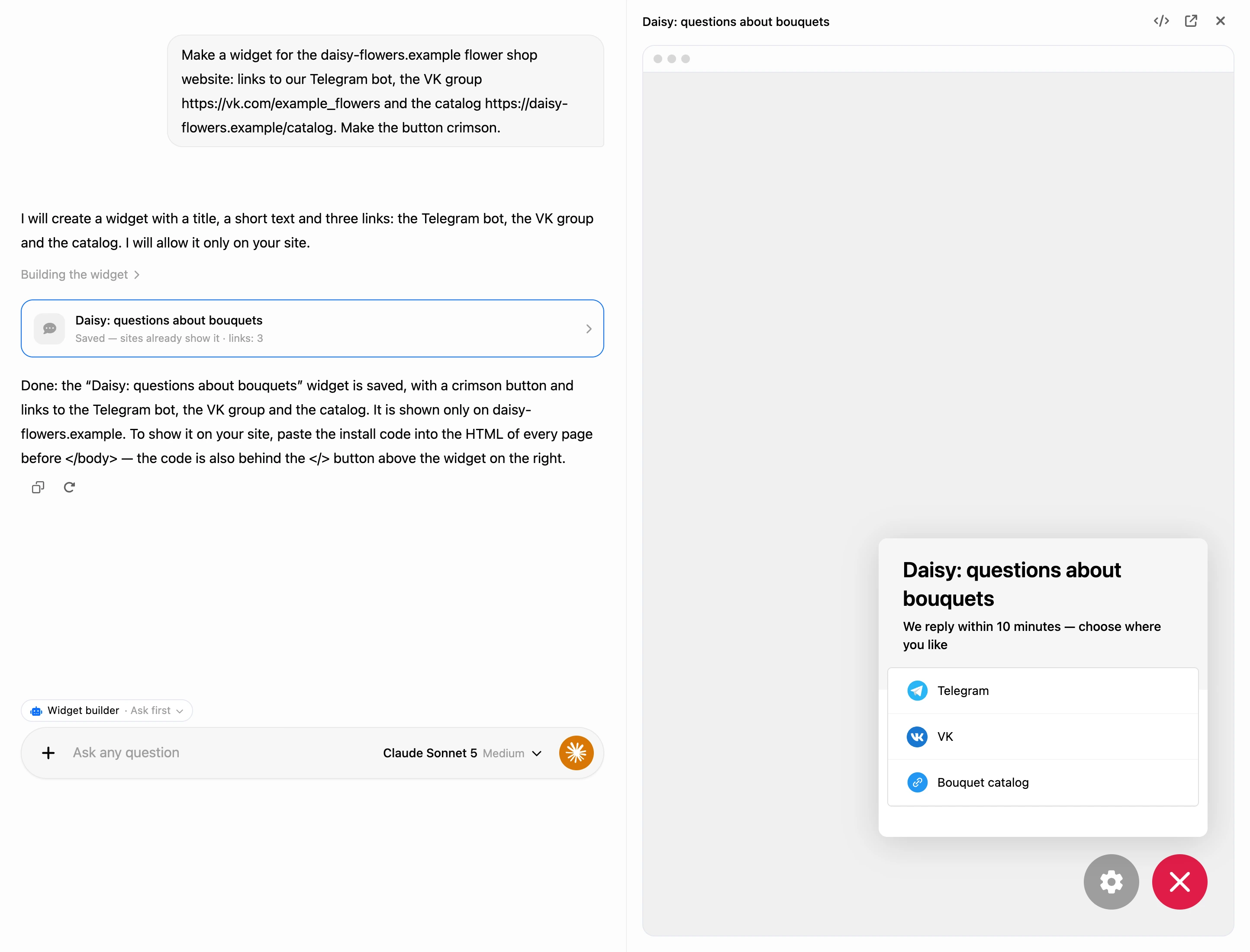
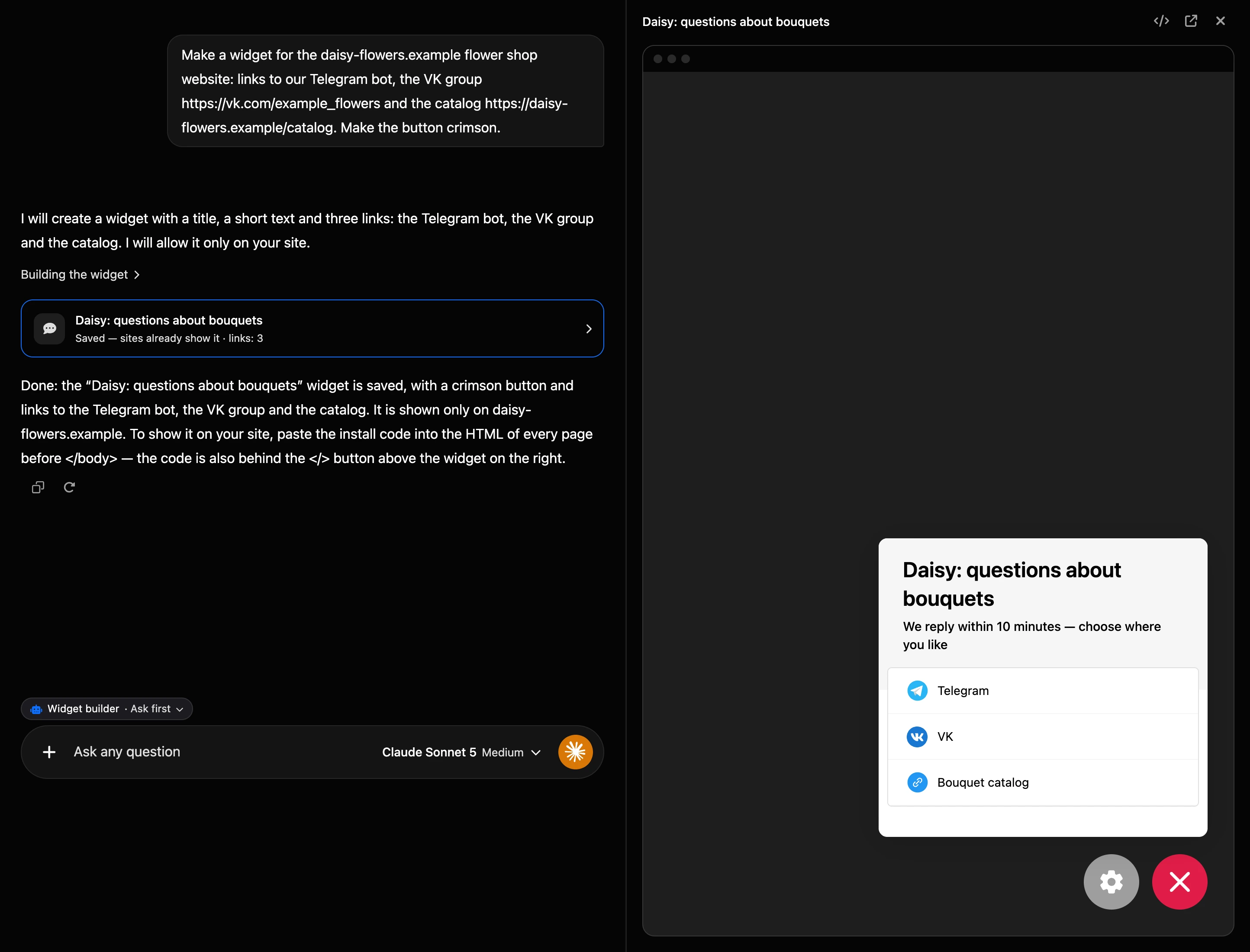
After saving, a widget card stays in the conversation: its title and a line like "Saved — sites already show it · links: 3". If the chat is on in the widget, the line says "with chat". The "not ready yet" mark means the widget does not work as it is — see below.
A click on the card opens the live widget on the right — the same one that is on your sites, in a "website page" frame the full height of the panel. You can tap the links in it and open the chat with the bot: the chat works in bot test mode, as in the widget builder. The gear next to the widget button and the arrow button in the panel header open the widget in the builder in a new tab. Defects and check notes are shown above the frame.
Fixing an existing widget
Name the widget in the chat — the AI will find it in the project — or open the widget and click "AI help" in its menu. Then describe what to change. The AI changes only what you asked for: the title, the button color or a single link. Everything else in the widget stays as it was.
If saving fails — for example, a link has a wrong address — the widget does not change at all, and the AI tells you what went wrong.
What the AI can do
- Create widgets in the current project.
- Title and description — up to 50 and up to 255 characters. The AI writes them in the language of your site.
- Colors of the round button — the background and the color of the icon on it.
- Links to Telegram, MAX, VK and Viber — the icon and name are filled in automatically — and to any page with a name of its own. The AI sets the order of the links too.
- A banner — only from a link to a picture you gave. The AI downloads it into the widget. JPG, PNG, GIF and WebP will do. If the picture could not be downloaded, the banner stays as it was, and the AI says so in its answer. The AI also sets the "Link in banner" — where a tap on the banner leads.
- Website domains — on which websites the widget may be shown. Empty — on any. All subdomains at once will do too:
*.example.com. See the Creating and setting up a widget page. - Chat with the bot — see below.
- Check the widget. Defects — things that keep the widget from working — the AI fixes itself, and if it needs something only you can do, it tells you.
The AI takes links to the project's bots from their channels and never makes them up. Links to groups, channels and profiles it adds only if you gave them.
What the AI does not do:
- It does not delete widgets and does not move them to another project.
- It does not change the icon of the widget in the list of widgets.
- It does not remove the platform label. The Pro option "No platform label" removes it — see Plans and billing.
A widget saved by the AI goes through the same check by the platform as after an edit in the builder.
Chat with the bot
The AI can turn on a chat with the bot in the widget. It tells you which bots of the project can run the chat, connects the chosen bot and turns on its "Web chat" channel if it is not connected yet. The AI also sets up:
- the chat title, the button label and the input placeholder;
- how to open the chat — as a button in the channel list or chat first;
- accepting files from visitors — the setting is shared by all widgets with this bot;
- how many new visitors per IP per hour can open the chat.
The chat needs a Pro subscription of the bot owner. Besides the widget permission, a team member needs the "Editing channels" permission for the bot — without it, the AI cannot connect the "Web chat" channel.
Code for your site
For the widget to appear on your site, paste its code once into the HTML of every page before </body>, or into the custom code field in the settings of your site builder. See the Installing on a website page.
The AI gives you the code in its answer. You can also take it in the panel on the right: the </> button in the header opens the "Code for the site" box with a "Copy" button. It is the same code as in the widget's "Add to website" section.


If the code is already on your site, you do not need to paste it again after changes: they appear on the site by themselves.
Defects and notes
Defects are things that keep the widget from working. The widget card then has the "not ready yet" mark, and the panel lists them above the widget:
- the widget has neither links nor a chat — the visitor has nothing to tap;
- a link has no address;
- the chat is not visible on sites: the bot owner has no Pro, or the bot's "Web chat" channel is off.
A note — no website domains are set: the widget can be put on any site. The AI asks for your site's address and adds it.
What you need
- No Pro subscription is needed to build a widget: it works without one. See the Website widgets page.
- Permissions. The AI changes widgets within the same limits as you. A team member needs a role with the "Widget administration" permission.
- A suitable model — the same as for building a bot. If the selected model cannot handle building, a "Model … cannot build widgets" card with a button to switch to a suitable one appears in the conversation. See the Building a bot in the AI chat page.
If something does not work
- The AI describes the widget in text but creates nothing. Building did not turn on. Ask directly: "make a website widget…". If there is a "Model … cannot build widgets" card in the conversation, click the button on it.
- The AI said it would do it, but nothing happens. In the "Ask first" mode, the change waits for your decision on the card — click "Apply".
- The widget is not on the site. Check that the code is on every page and that the site is in the list of domains. What else to check is on the Installing on a website page.
- There is no chat on the site. Look at the defects above the widget: the bot owner must have an active Pro, and the bot must have the "Web chat" channel connected.
- The widget has no banner. The link did not lead to a picture, or the picture is not available without signing in. Give another link.