

Clients
The "Clients" section gathers everyone who has booked at the project's branches. The base is shared by the project: a client who visits two of your branches has one card with a shared history.
The "Clients" item in the branch menu is visible to the project owner and team members with the "Sees client contacts" permission.
How clients get into the base
You do not need to add clients separately: a card appears with the first appointment — made by an administrator in the journal or by the client in the mini app.
With each new appointment the platform checks whether such a client already exists. It recognises a person by the first matching attribute:
- the bot contact or mini app user the appointment was made from;
- phone;
- email.
Phones are compared by digits: spaces, brackets and hyphens do not matter, and "8 000 …" and "+7 000 …" are the same number.
If the client is found, the appointment is added to their history. Empty fields of the card are filled in from the appointment, and filled-in fields are not overwritten: the appointment might have a different name or a work email.
List of clients
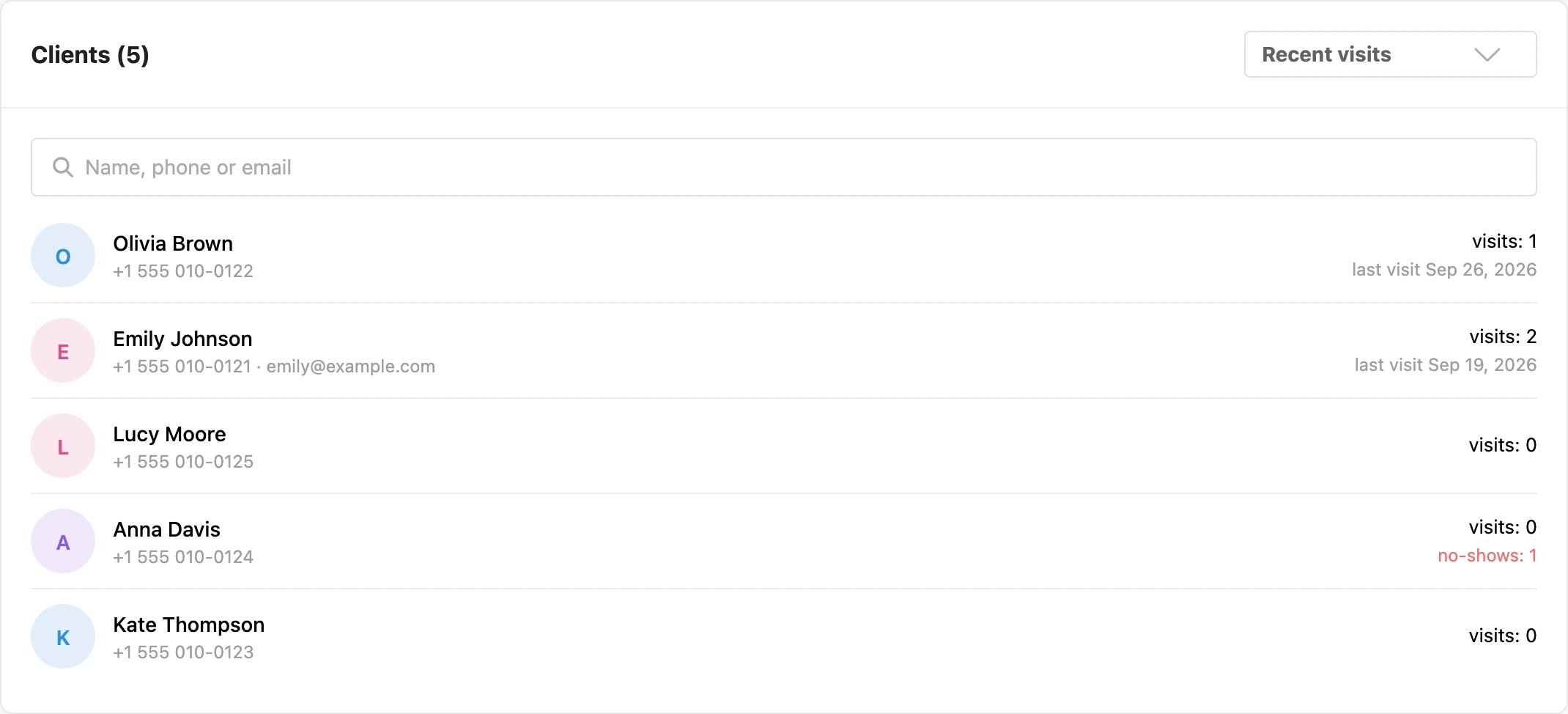
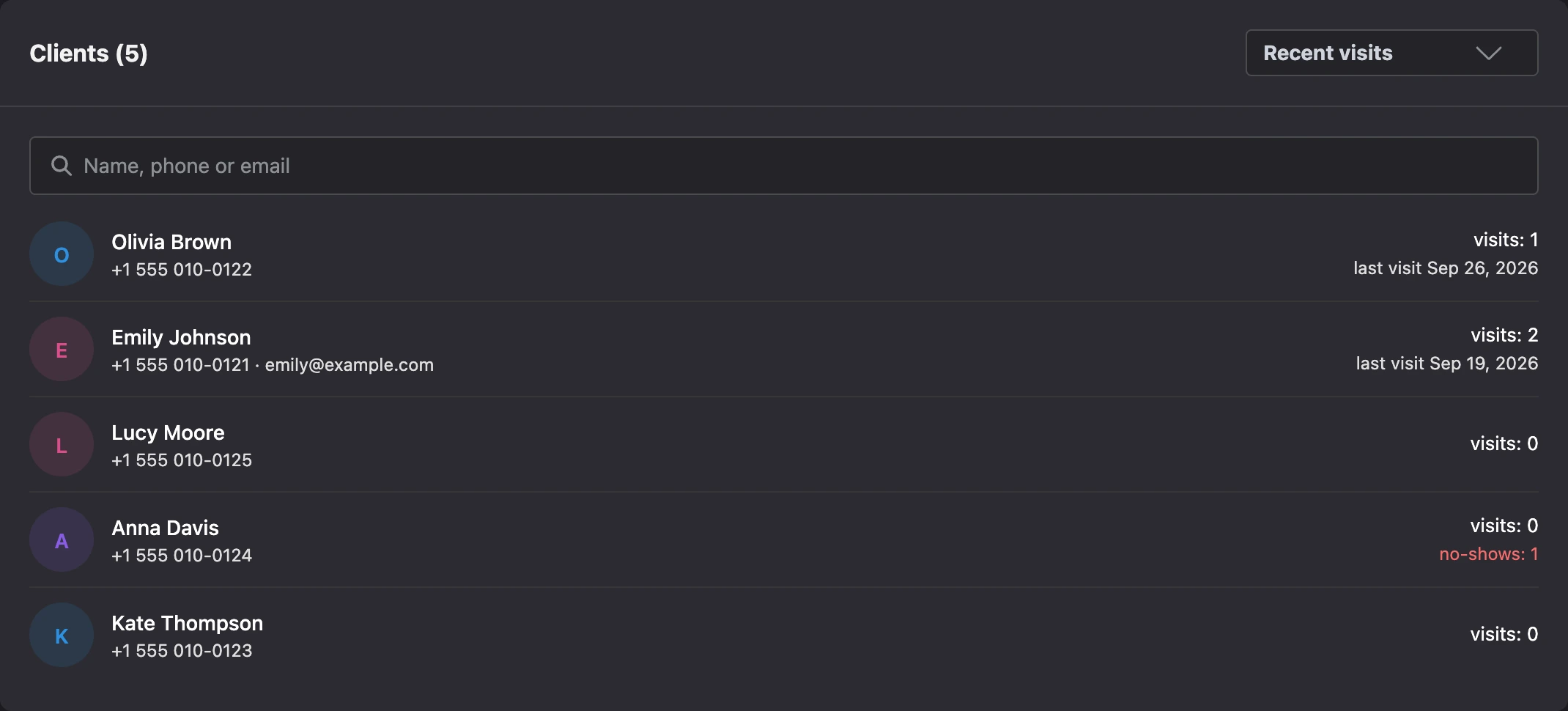
- Search — by name, phone or email.
- Sorting — "Recent visits", "By name", "New clients".
A row shows the name, phone and email, the number of visits, the date of the last visit and the number of no-shows.
Client card
A click on a row opens the card.


"Contacts" — "Name", "Phone", "Email" and "Note". The note is handy for what is important to remember at the next visit, for example "allergic to ammonia". Correct the details and click "Save".
Counters:
- "visits" — appointments marked "Attended";
- "no-shows" — appointments marked "No-show";
- "cancellations" — appointments canceled by the client.
"Visits" — the client's appointment history in all branches of the project, from newest to oldest: date and time, services, specialist, appointment number, status and total. An appointment from another branch shows that branch's name. A click on an appointment of the current branch opens it in the journal. The history shows the last 200 appointments.
The client in an appointment
The client's number of visits and no-shows is visible right on the appointment card in the journal — next to the name. This way the administrator immediately sees whether this is a regular client or someone who has already missed a visit.
When you create an appointment manually and choose a client from the suggestions, their phone and email are filled in automatically.
Link to the bot contact
If the client booked through a mini app opened from a bot, their card is linked to the bot contact. Thanks to this, confirmations and reminders reach them in the messenger, and the platform recognises their next appointment even without a phone.
A client booked manually by an administrator is not linked to the bot: messages go to them only by email, if it is given. Message channels are described on the Notifications and reviews page.
What a team member without access to contacts sees
Without the "Sees client contacts" permission, a team member does not see clients' phone and email or the "Clients" item. They can see the client's name and comment in the appointment. More on the Specialist access page.
A team member who has access only to their own appointments sees only the clients who booked with them.
If something does not work
- The same person is in the base twice. This happens if they booked with a different phone and a different email: the platform had nothing to recognise them by. Cards cannot be merged.
- The card fields cannot be edited. Clients can be edited by the project owner or a team member with the "Manage appointments" or "Manages own appointments" permission — together with the "Sees client contacts" permission.
- There is no "Clients" item in the menu. The team member's role does not have the "Sees client contacts" permission.