

Appointments
"Appointments" is an appointment journal for a salon, clinic, studio or any business where clients come to a specialist at a set time. In this section you manage services and specialists, set their schedule, book clients yourself and accept bookings through a mini app.
The section is in the project's menu — the "Appointments" item.
How the section works
The main unit is the branch: a salon, an office or a location with its own address, time zone, services, specialists and journal. A project can have several branches. The client base is shared by all branches of the project.
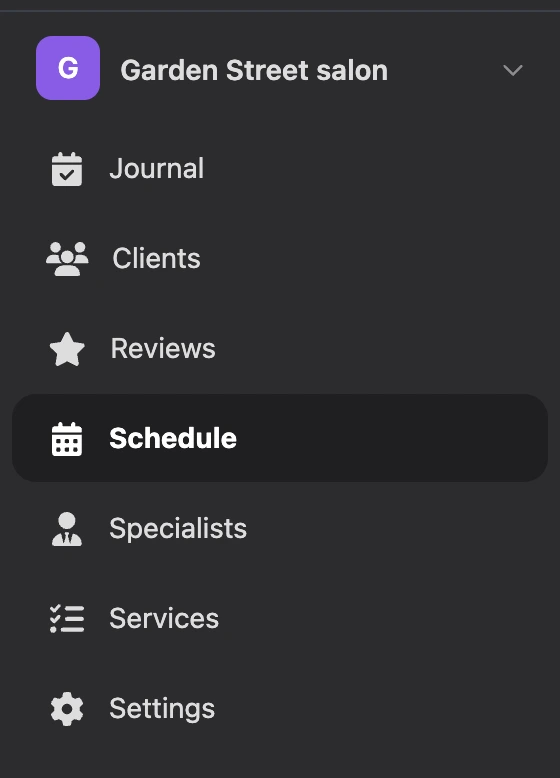
Inside a branch there is a menu:
| Item | What is in it |
|---|---|
| "Journal" | Appointments by day and week, new appointment, rescheduling, cancellation, the "Attended" and "No-show" marks |
| "Clients" | The project's client base with the history of visits |
| "Reviews" | Visit ratings and specialists' rating |
| "Schedule" | Working days and hours of specialists |
| "Specialists" | Who accepts clients and which services they provide |
| "Services" | The catalogue of services with duration and price |
| "Settings" | Address and time zone, booking rules, notifications |
| "AI help" | The AI chat about this branch — see Setting up booking in the AI chat |
What is available without Pro
- Without a subscription: branches, services and specialists, schedule, the journal with manual booking, the client base, reviews, e-mails to clients.
- With Pro: booking through a mini app and messages to clients in the messenger — confirmations, reminders, a request to rate the visit.
More about the subscription is on the What is available without Pro page.
Where to start
- Create a branch and enter its address, phone and time zone.
- Add services and specialists.
- Set the work schedule for each specialist.
- Check the booking rules: the time step, how far in advance clients can book and cancel.
- Book clients in the journal or set up booking through a mini app.
- Set up notifications and reminders.
Steps 1–4 can also be done in words — in the AI chat: see Setting up booking in the AI chat.
Pages of this section
- Branches — creating a branch, address and time zone, copy, moving to another project.
- Services and specialists — categories, duration and price of services, the specialist card.
- Work schedule — templates by weekday and in shifts, breaks, days off, single days.
- Booking rules and free time — booking settings and how the platform finds free slots.
- Appointment journal — calendar, manual booking, rescheduling, cancellation, statuses.
- Clients — the client base, the card, the history of visits.
- Booking through a mini app — booking elements, choosing a branch, cancellation and rescheduling by the client.
- Notifications and reviews — messages to clients, reminders, visit rating.
- Specialist access — the specialist's calendar in the account and in the mini app.
- Setting up booking in the AI chat — how to ask the AI to create a branch, add services and specialists, set the schedule and booking rules.
What team members can do
The project owner can do everything. A team member can do what is checked in their role in the "Appointments" block:
| Group | Permission | What it gives |
|---|---|---|
| "Administration" | "Create branches" | Create branches in the project |
| "Configure branches" | Change the name, address, time zone, booking rules and notifications, the order of branches in the list | |
| "Delete branches" | Delete branches | |
| "Appointment journal" | "View appointments and clients" | See appointments with all specialists of the branch |
| "Manage appointments" | Book, reschedule, cancel, change statuses, edit clients, hide reviews | |
| "Manages own appointments" | The same, but only with their own appointments | |
| "Sees own appointments" | See their own appointments, mark the visit and leave a note | |
| "Sees client contacts" | See clients' phone and email and the "Clients" item | |
| "Branch work" | "Services and specialists" | Edit services, categories and specialist cards |
| "Work schedule" | Change the specialists' schedule |
A team member with any of these permissions can open a branch. How to give a specialist permissions for their own appointments is on the Specialist access page. How to add a team member and set up a role is in the Account and projects section.
Limits
- A project can have no more than 100 branches, and no more than 20 can be created per day.
- A branch can have no more than 500 services, 100 categories and 100 specialists.