

Blocks and actions
A button in a mini app has no "what to do" field. The action is set by the scheme: the button's exit is linked to a block, and a tap opens or runs that block. A block without a screen does its job and leads further through its own exit — for example, a record is added → the "Thank you" screen.
List rows, taps on an image, a card or a record, form submission and other element exits work the same way.
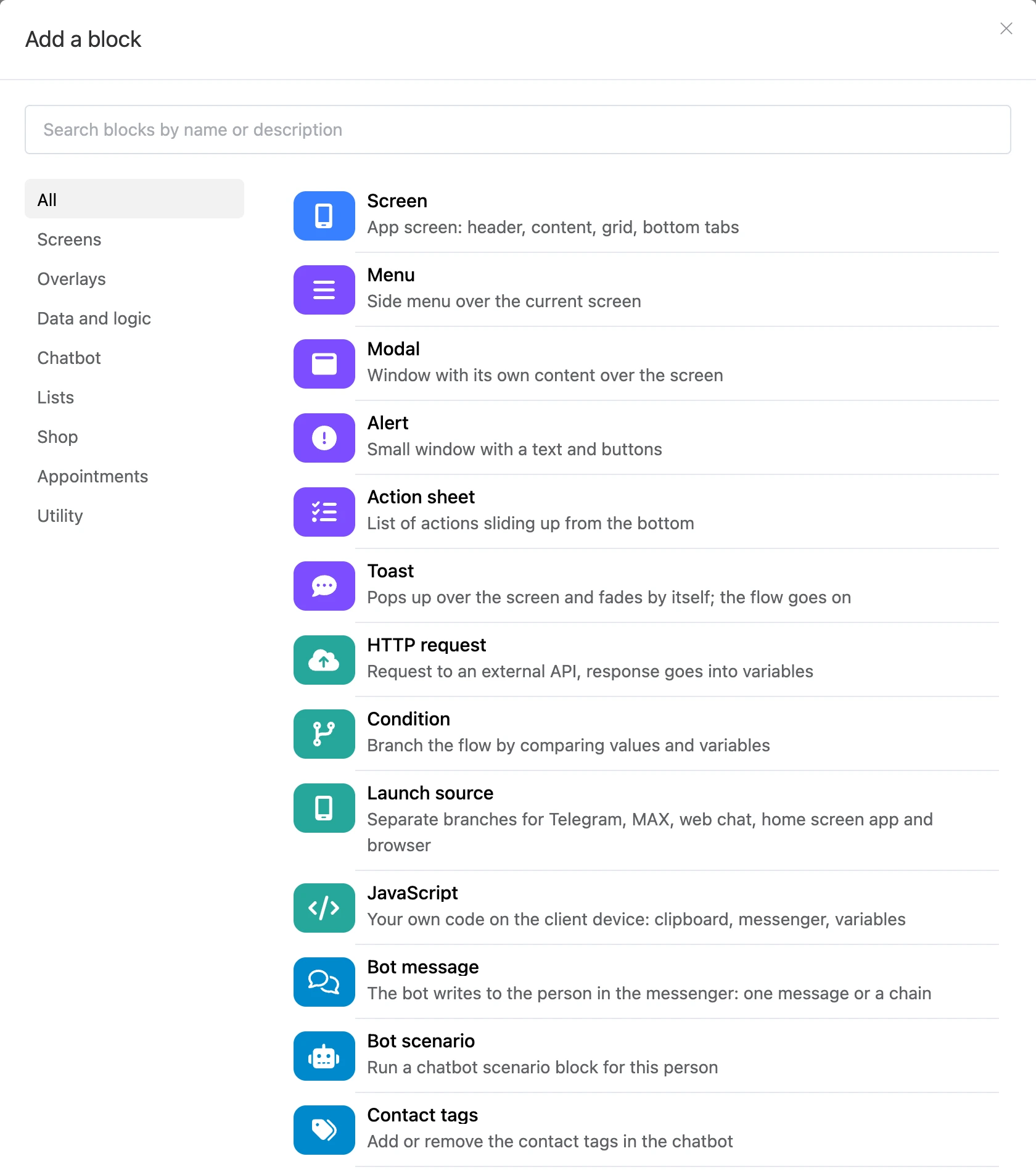
What a button can do
| You need to | Where to lead the exit |
|---|---|
| Open another screen | The "Screen" block |
| Show a window, menu or dialog over the screen | "Modal", "Menu", "Alert", "Action sheet" |
| Show a short message that fades by itself | "Toast" |
| Save, change, find or delete a list record | Blocks of the "Lists" category. For questionnaires, the "Record form" element is handier — it writes the record by itself |
| Send data to an external service or get it from there | "HTTP request" |
| Send people down different branches | "Condition" or "Launch source" |
| Write to the person on behalf of the bot, start a bot scenario, tag the contact | Blocks of the "Chatbot" category |
| Mark the person with an app tag | "User tags" |
| Open a link, copy text, share, close the app | "JavaScript" — see Code in the app |
To book a client, cancel or reschedule an appointment, or save a visit rating, use the blocks of the "Appointments" category.
If an exit is not connected to anything, nothing changes on a tap.
How blocks connect
- An exit is a row at the bottom of a block. For a screen and a window, the exits are their buttons, rows and other tappable elements. For a block without a screen, they are the outcomes of its work: "Yes" and "No", "Success" and "Error". "It worked" exits are green, "it failed" exits are red.
- A link is a line from an exit to the block that opens or runs next. How to draw and delete links is on the Builder page.
- "Continue" fires by itself as soon as the app reaches the block. This way you can open a screen and show a window or a toast over it in one step.
- A chain. Blocks without a screen run one after another until the app reaches a screen, a window or a toast — that is what it shows. If the chain ends at an exit without a link, the person stays on the current screen.
- A "Note" is not part of the chain: if a link still leads to a note, the chain stops there.
Back
You do not need a separate block to go back. Screens pile up in a stack: the system "back" button and the "back" button in Telegram and MAX return to the previous screen. A link to the screen that lies right under the current one in the stack also works as a step back. An open window closes before the screen does.
Screens and overlays
An overlay is shown over the current screen, not instead of it. An overlay cannot be the start block. A new screen closes an open overlay.
The buttons of an alert, an action sheet and a toast have a "Role": "Default", "Cancel", "Destructive". The role changes the look of the button: "Destructive" is red, "Cancel" in an action sheet stands apart at the bottom. Each button is a separate exit of the block.
Blocks without a screen and the chatbot
Chatbot blocks have a "No contact" exit: it fires when the app was not opened from the bot or the person has not written to that bot. See the Chatbot section for details.
Many blocks put their result into variables: the id of a new record, an order number, a refusal reason. How to show them on the next screen is on the App data page.
Block reference
- Screens and overlays — "Screen", "Menu", "Modal", "Alert", "Action sheet", "Toast".
- Data and logic — "HTTP request", "Condition", "Launch source", "JavaScript", "User tags".
- Lists — "Add a record", "Edit a record", "Delete a record", "Find a record".
- Chatbot — "Bot message", "Bot scenario", "Contact tags".
- Appointments — "Book an appointment", "Cancel appointment", "Reschedule appointment", "Rate the visit".
- Utility — "Start", "Note".
Limits
- One tap makes the app go through no more than 50 blocks in a row. If the chain is longer — for example, blocks are looped — it is interrupted.
- The "back" stack holds no more than 20 screens.