

Quizzes
A quiz is a set of questions checked by the platform itself: the student answers and sees the result right away. A school has three kinds of quizzes.
| Kind | Where it is created | What it is for |
|---|---|---|
| Graded | The "Quiz" block in a lesson | A check with a score and attempts. Can be required to complete the lesson |
| Practice | The "Quiz" block in a lesson | A check along the way, with no score and no limits. Does not affect lesson completion |
| Placement test | Course settings | Determines which section the student should start the course from |
How to add a quiz to a lesson
- Open the lesson in the editor and add a "Quiz" block.
- In the block that appears, click "Set up". The "Quiz" window opens.
- Fill in the settings and add questions. Everything is saved immediately; there is no separate save button.
- Click "Close" and publish the lesson.
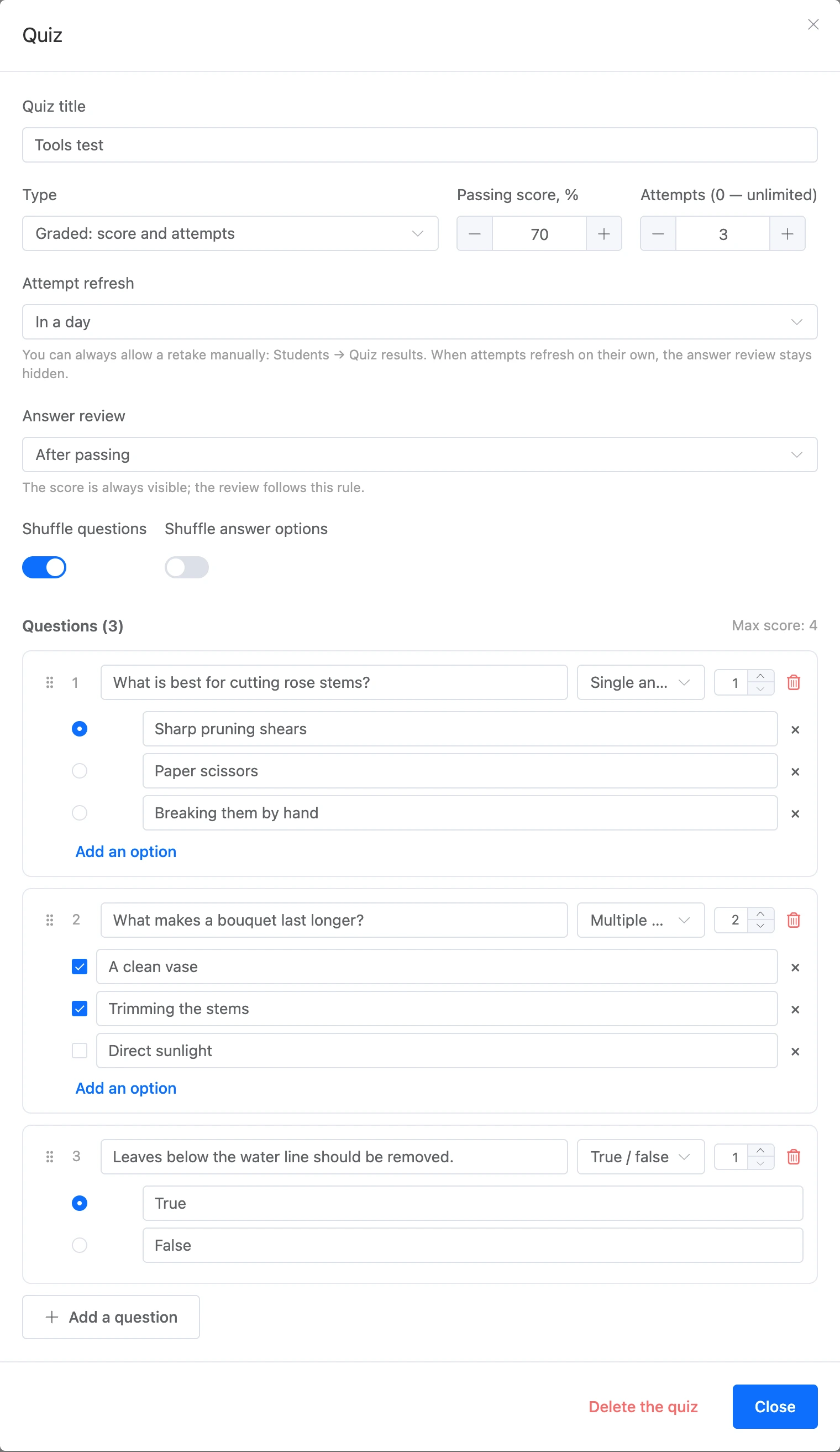

One lesson can have up to 5 quizzes, and one quiz up to 100 questions.
To delete a quiz together with its questions and student results, click "Delete the quiz" in the quiz window.
Quiz settings
| Field | What it sets |
|---|---|
| "Quiz title" | The heading the student sees |
| "Type" | "Graded: score and attempts" or "Practice: instant check in the lesson" |
| "Passing score, %" | What percentage of the maximum score is needed to pass a graded quiz. From 1 to 100 |
| "Attempts (0 — unlimited)" | How many times the student can take the quiz |
| "Attempt refresh" | After what time attempts come back on their own: "Do not refresh", "In an hour", "In 6 hours", "In a day", "In 3 days", "In a week". The field appears when the number of attempts is limited |
| "Answer review" | When the student sees the correct answers: "Never", "After passing", "After passing or when attempts run out" |
| "Shuffle questions" | Show the questions in random order each time |
| "Shuffle answer options" | Show the options in random order. The options of a "True / false" question are not shuffled |
A practice quiz has no passing score, attempts or review setting: the student can take it any number of times and always sees the correct answers.
The student always sees their own score; the answer review follows the chosen rule.
Note
If attempts refresh on their own, with "After passing or when attempts run out" the review is shown only after passing. Otherwise the student could pass the next series of attempts from memory.
Questions
Click "Add a question", enter the text and choose the question type.
| Type | How the student answers | How to set the correct answer |
|---|---|---|
| "Single answer" | Chooses one option | Mark the correct option |
| "Multiple answers" | Marks all suitable options | Mark all correct options |
| "True / false" | Chooses "True" or "False" | Mark the correct one of the two |
| "Text answer" | Types the answer themselves | Enter the acceptable answers. Several variants are treated as synonyms |
What to keep in mind:
- Questions with options can have from 2 to 10 options. A new one is added with the "Add an option" button.
- The number to the right of the question type is how many points a correct answer gives, from 1 to 100. The total is shown above the questions: "Max score: …".
- An answer is counted either in full or not at all. In a "Multiple answers" question, the student must mark all correct options and no extra ones.
- In a text answer, letter case and extra spaces do not matter, and the Russian letters "ё" and "е" count as the same letter.
- Change the order of questions by dragging.
The questions of an attempt are fixed at the moment the student starts it. If you edit the quiz later, an attempt already in progress is checked against the previous questions.
Required quizzes
Whether quizzes affect lesson completion is set in the course settings, in the "Lesson quizzes" field:
- "Must be passed" — the lesson is not counted as completed until all graded quizzes of the lesson are passed. Practice quizzes do not affect completion;
- "Optional" and "Not used" — the lesson is counted as completed without passing quizzes.
For an individual lesson, you can change the rule in the "Quizzes in the lesson" field below the lesson content.
If quizzes are required and homework is turned on in the course, the "Homework after the quiz" switch appears in the course settings: the work can be sent to the curator only after the graded quiz is passed.
Attempts and retakes
When the attempts run out, the student sees one of two things:
- the date when the next attempt opens — if attempts refresh on their own;
- the message "You are out of attempts. Ask your curator to allow a retake." — if they do not.
To allow a retake manually:
- Go to the "Students" section.
- In the student's "⋯" menu, choose "Quiz results".
- The window shows all quizzes the student has taken: the result, the best score, the attempts used. A quiz the student cannot retake has the "Cannot retake" label.
- Click "Allow retake" in the quiz row.
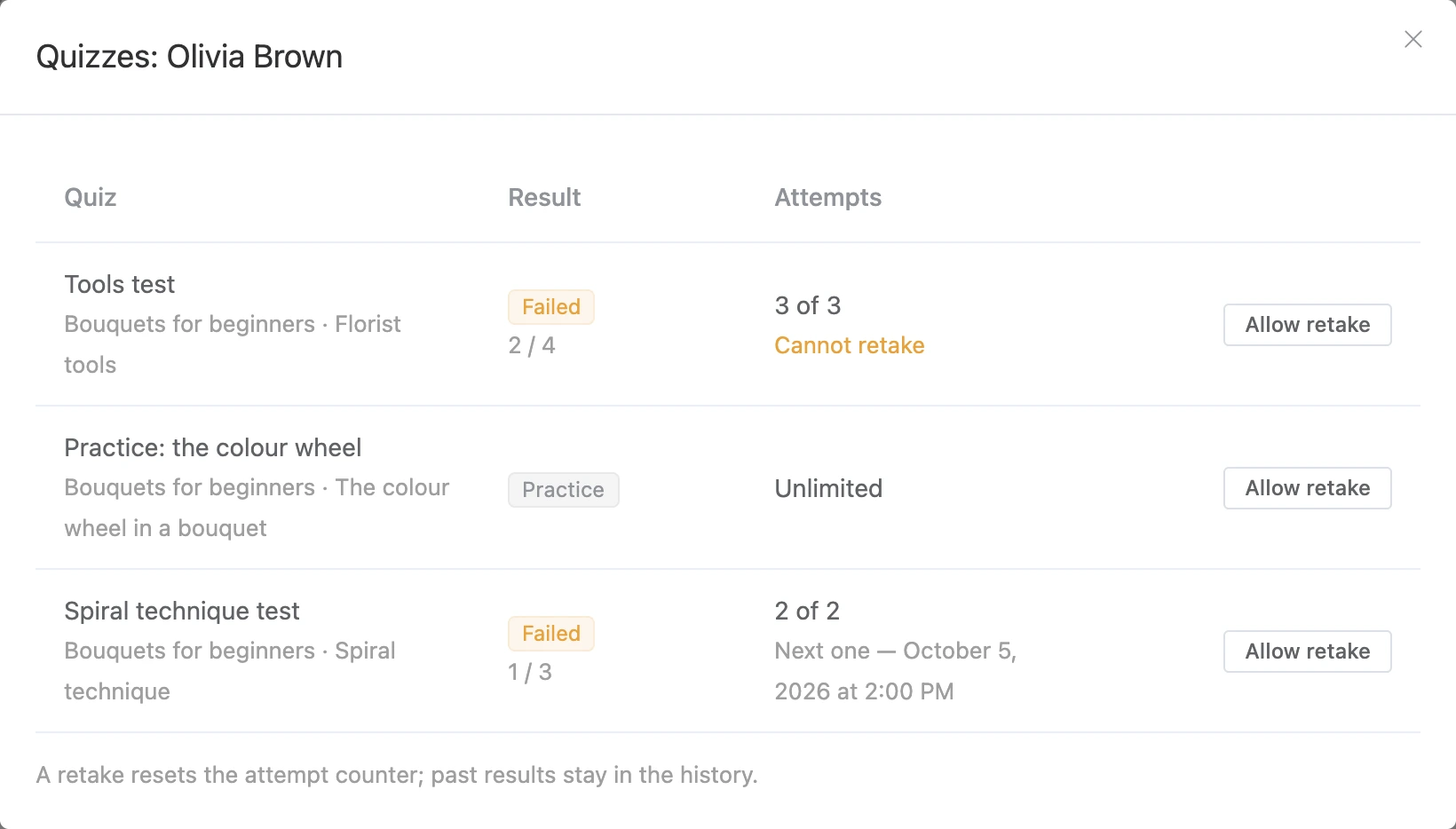
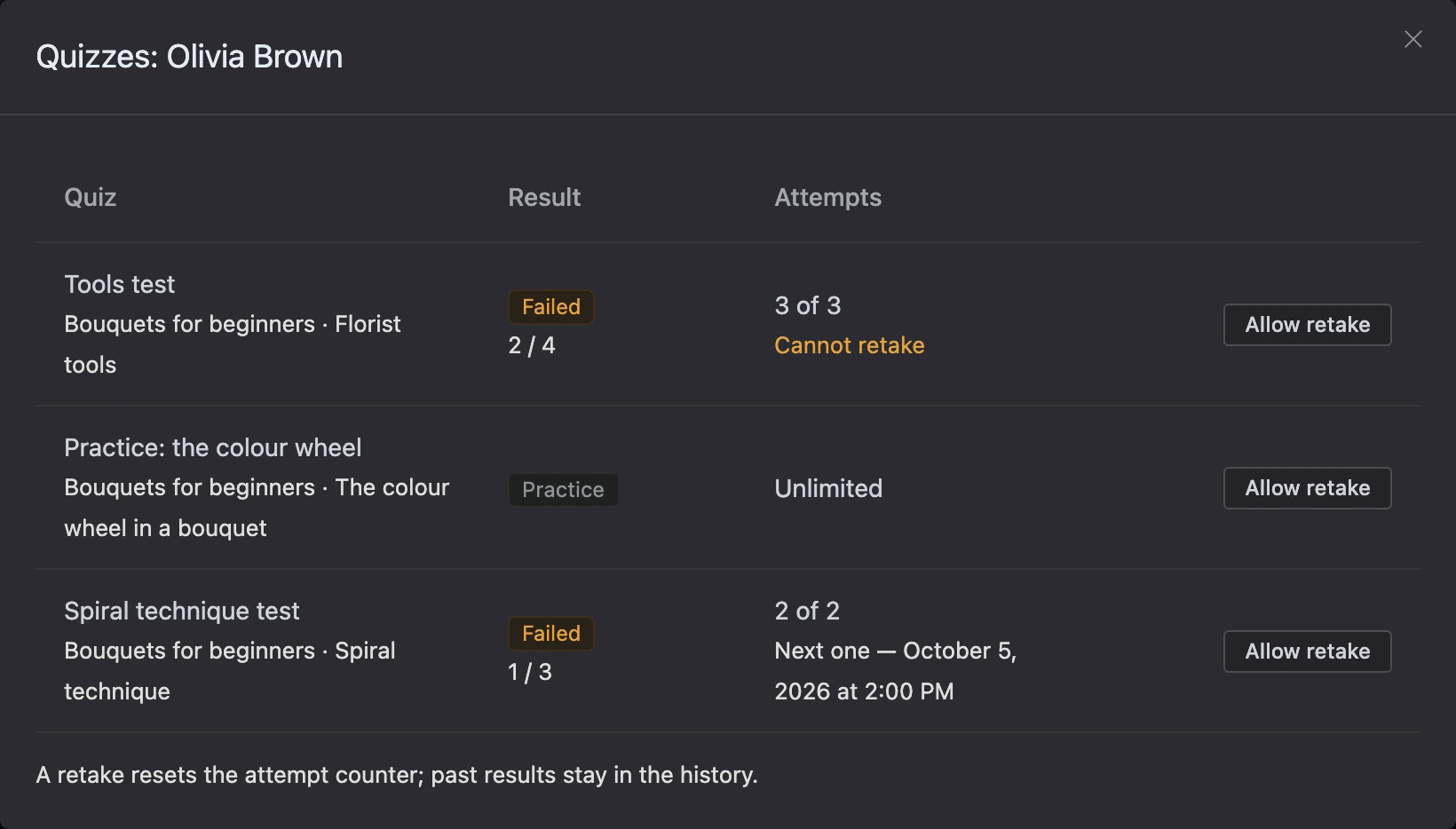
A retake resets the attempt counter. Previous results stay in the history.
The school owner and the curator of the course the quiz belongs to can allow a retake.
Placement test
A student takes the placement test before the course curriculum. Based on the result, they go straight to their section, and the lessons of the sections before it are counted as completed automatically — they stay open for reading, but the student does not need to complete them.
- Open the course "Settings" and click "Add a placement test" in the "Placement test" field.
- Add questions — the same way as in a regular quiz.
- In the "Levels" block, set the thresholds: "from … %" and the section where a student who scored this percentage starts. An empty section means "From the beginning".
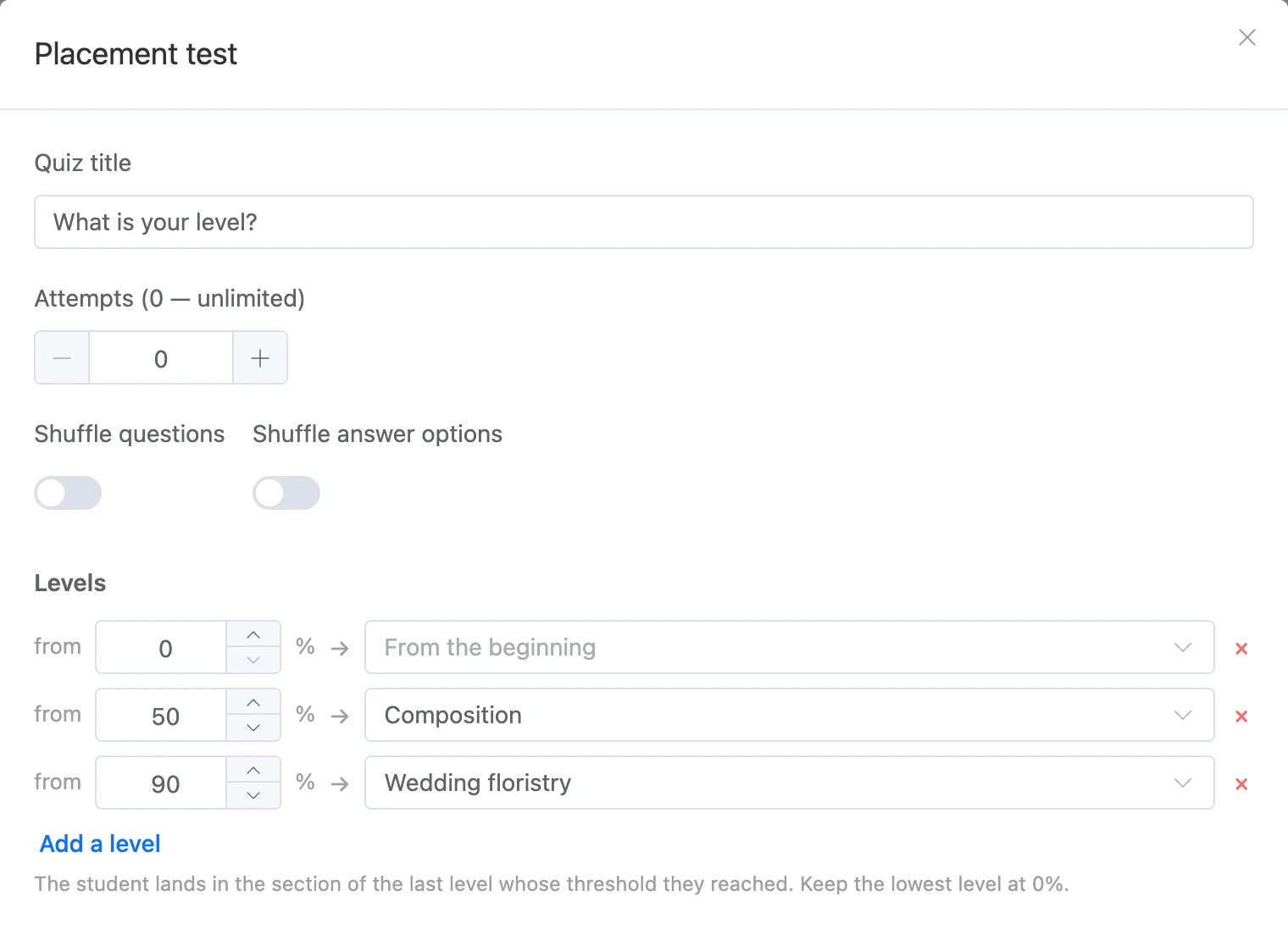
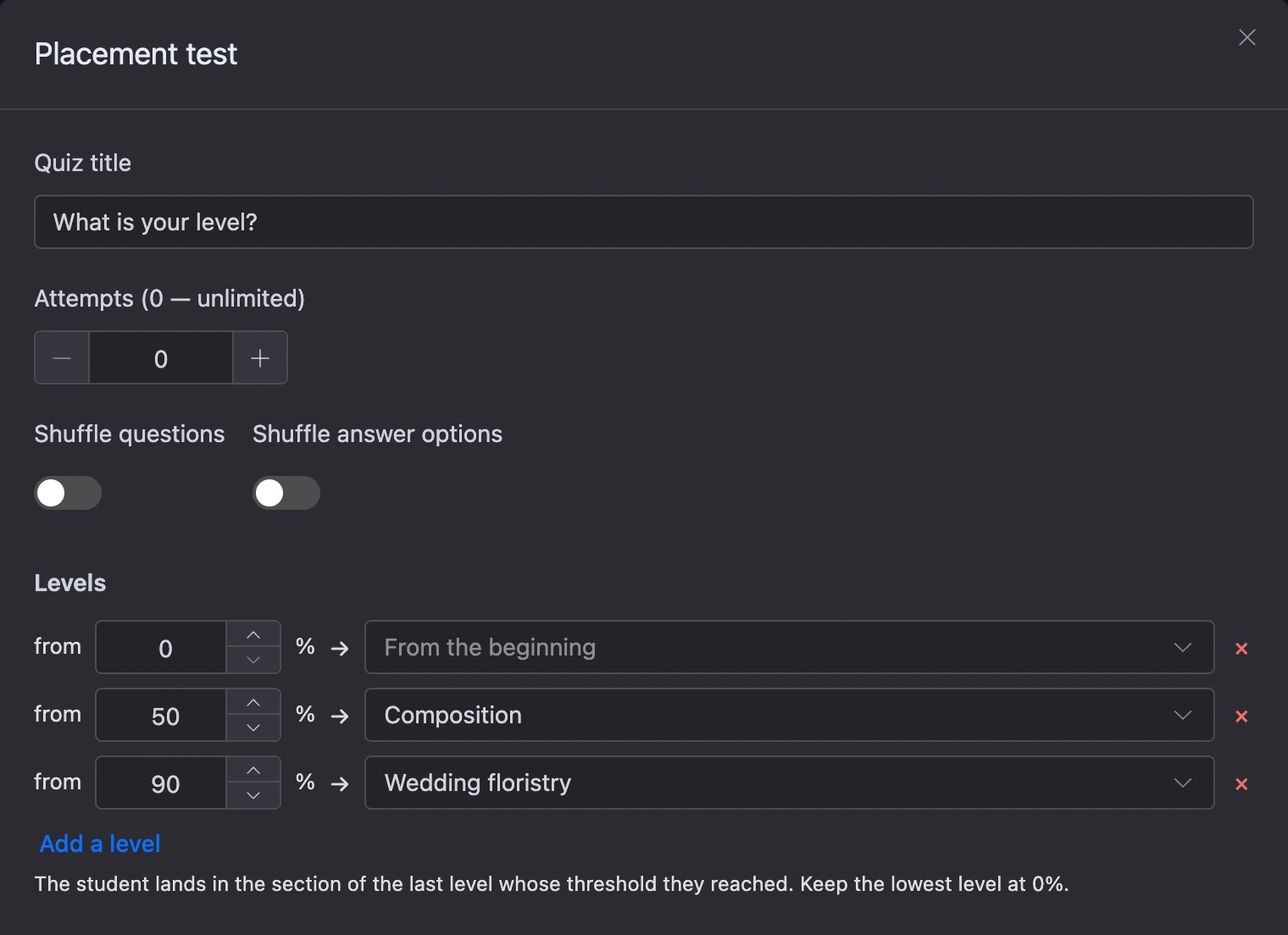
The student goes to the section of the last level whose threshold they reached. It is worth keeping the lowest level at a 0% threshold — then every result leads somewhere. There can be up to 10 levels.
Specifics:
- one placement test per course;
- it does not show an answer review;
- retaking it does not lower the level: completed lessons are not taken back.
Quiz statistics
How many attempts were made, what share of students passed the quiz, the average score and the hardest questions are in the "Analytics" section, on the "Quizzes" tab. See the Analytics page for details.
If something does not work
| Message | Cause | What to do |
|---|---|---|
| "A lesson can have at most 5 quizzes." | The lesson already has 5 quizzes | Combine the questions into one quiz or delete an extra one |
| "A quiz can have at most 100 questions." | The question limit has been reached | Split the quiz into two |
| The lesson block says "The quiz has been deleted" | The quiz was deleted in the settings window, but the block stayed in the lesson | Delete the block from the lesson |
| The student sees "Pass the lesson quiz first." | Quizzes in the lesson are required, and the graded quiz has not been passed | The student needs to pass the graded quiz; if the attempts have run out, allow a retake |