

School settings
Settings open from the "Settings" item in the school menu. On the right are the subsections:
- "General" — the student portal address and design, language, documents, chatbot;
- "Pages" — your own pages in the student portal, for example "About the school";
- "Domain" — the student portal on your own domain;
- "Accepting payments" — payment systems and receipts. This subsection is described on the Selling courses page.
The school owner and a team member with the "Edit online school" permission can change the settings. The "Accepting payments" subsection requires a separate permission — "Configure payment systems".
Link for students
At the top of the "General" subsection is the "Link for students" field. Students use this link to sign up and enter the student portal: put it on your website, in a mailing or in a bot. The "Copy" button copies the address, and "Open" opens the student portal in a new tab.


If your own domain is connected to the school, the field shows it.
General settings
| Field | What it sets |
|---|---|
| "Student portal address" | The first part of the student portal address on the shared schools domain. Latin letters, digits and hyphens, 3 to 63 characters. The address cannot start with "app-" |
| "School name" | Visible to you in the list of schools and inserted into emails to students |
| "Student portal title" | The name a student sees in the student portal. If the field is empty, the school name is used |
| "Logo" | The logo in the student portal and in the list of schools |
| "Favicon" | The student portal icon in the browser tab. A square image, recommended size 64×64 |
| "School cover" | A wide image at the top of the student portal. Recommended size 1600×500 |
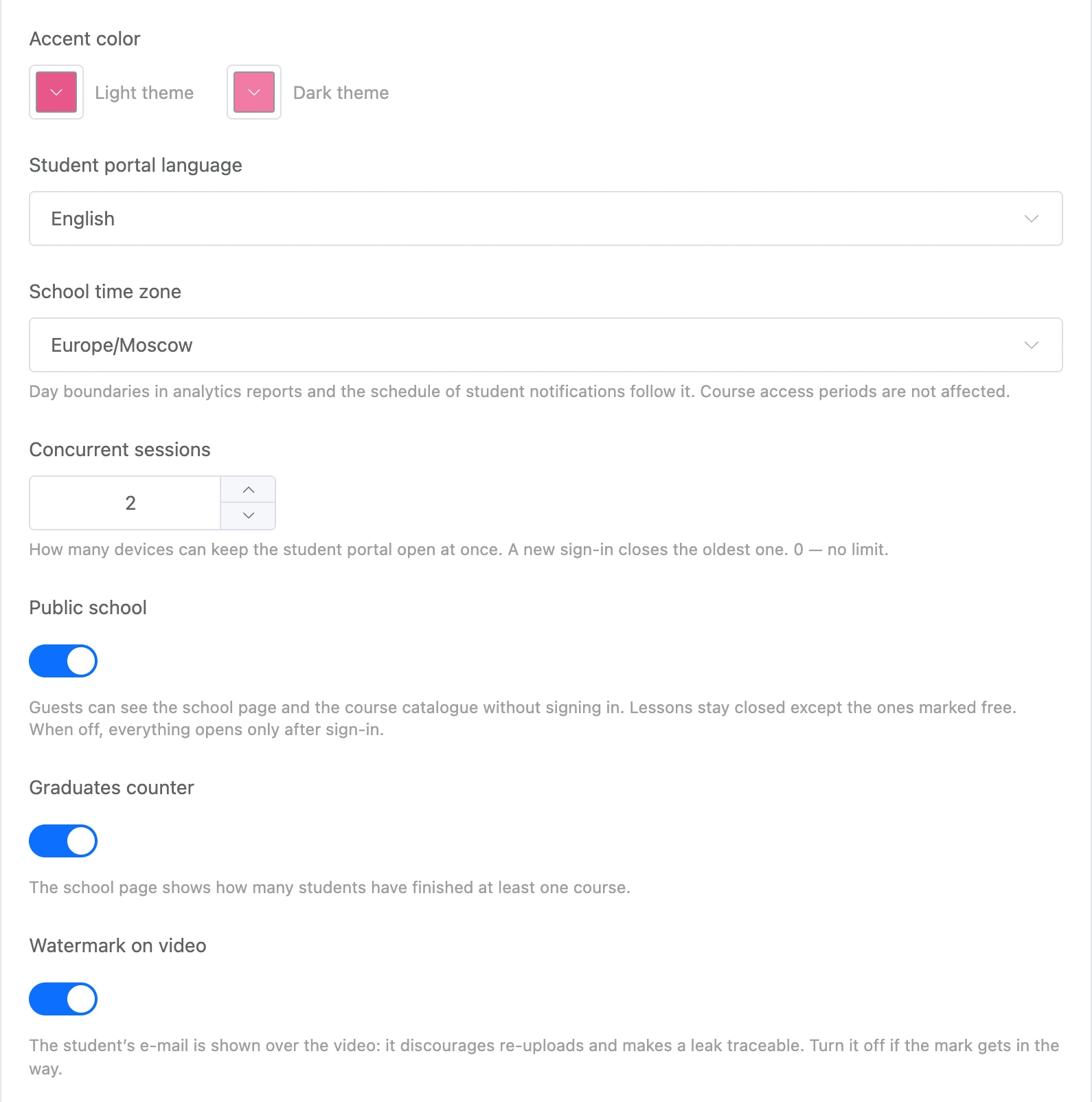
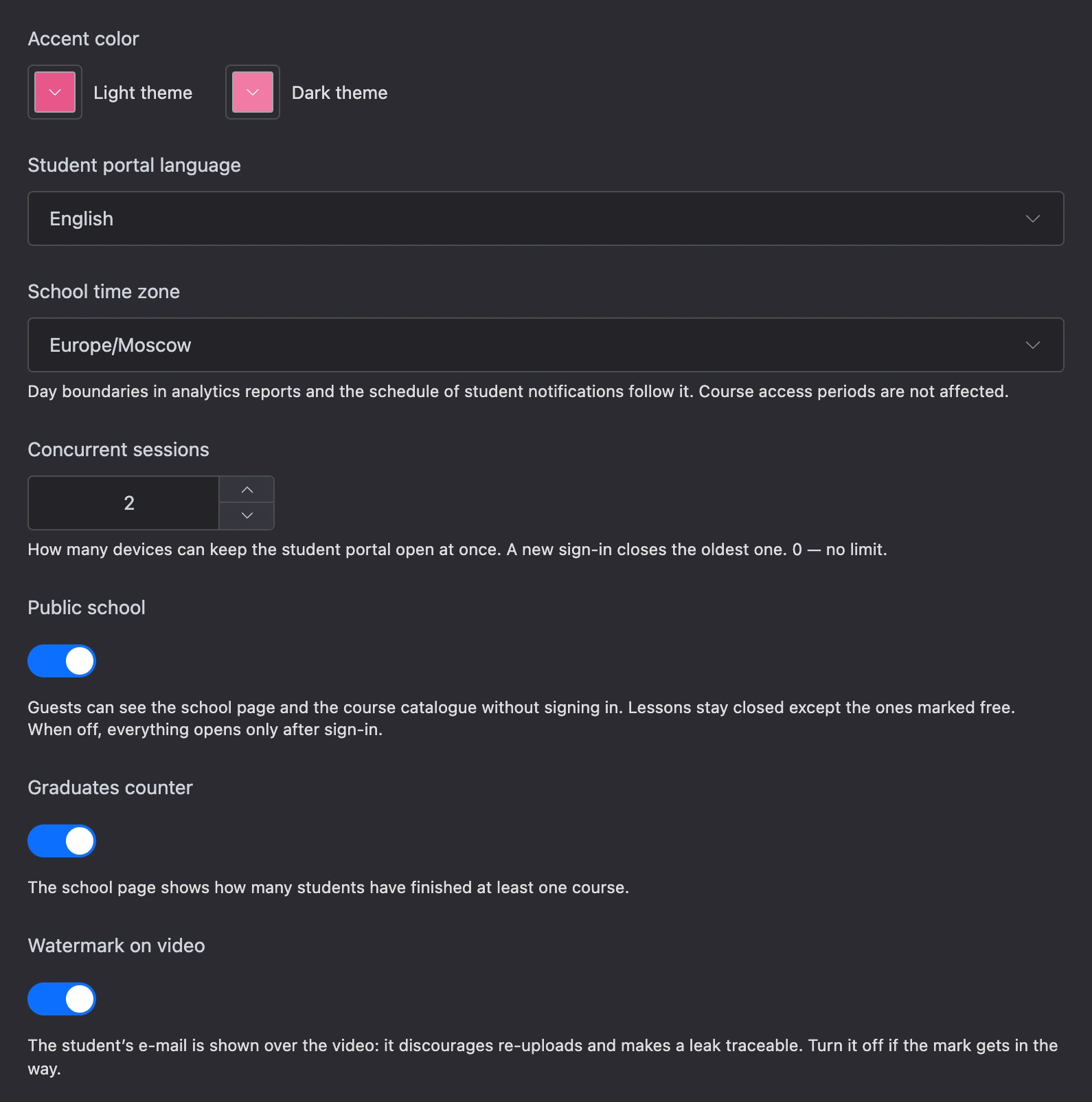
| "Accent color" | The color of buttons and links in the student portal — separately for the light and dark theme |
| "Student portal language" | The language of the student portal interface and of emails to students: Russian, English, Ukrainian or German |
| "School time zone" | Used to determine day boundaries in analytics and the schedule of notifications to students. It does not affect course access periods |
| "Concurrent sessions" | How many devices can keep the student portal open under one account. An extra sign-in closes the oldest one. 0 means no limit |
| "Public school" | Guests see the school page and the course catalogue without signing in. Lessons stay closed, except those marked as free. If turned off, all content opens only after signing in |
| "Graduates counter" | The school page shows how many students have finished at least one course |
| "Watermark on video" | The student's email is shown over the video. This discourages re-uploading. On by default |
| "Sign in with Watbot" | A student can enter the student portal with their platform account, without a separate password. If they do not have an account in the school yet, it is created on the first sign-in |
Images can be in JPG, PNG, GIF, WebP and AVIF formats.
Warning
Change the "Student portal address" with care: after the change, the old link stops working, and you will have to send the new one to your students again.
Changes are applied after you click "Save" at the bottom of the page.
Legal documents
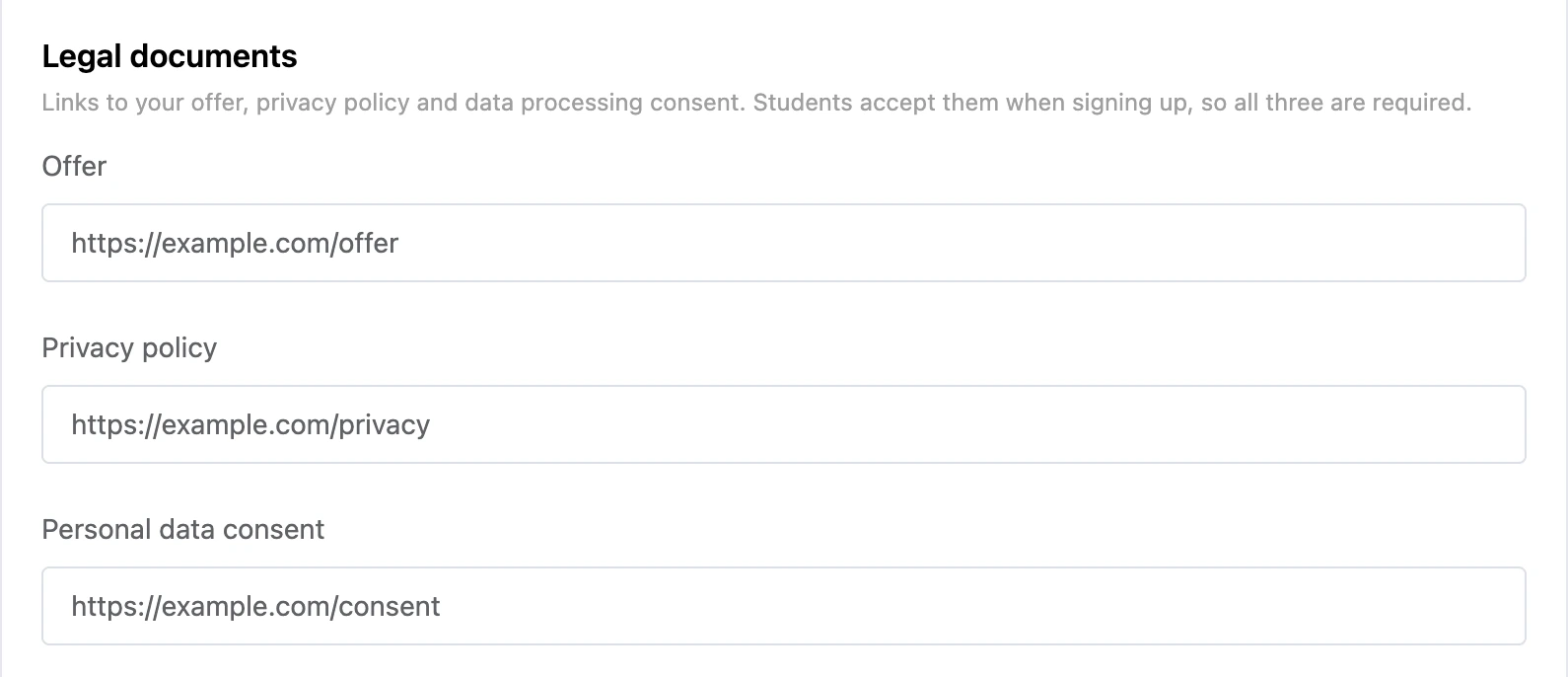
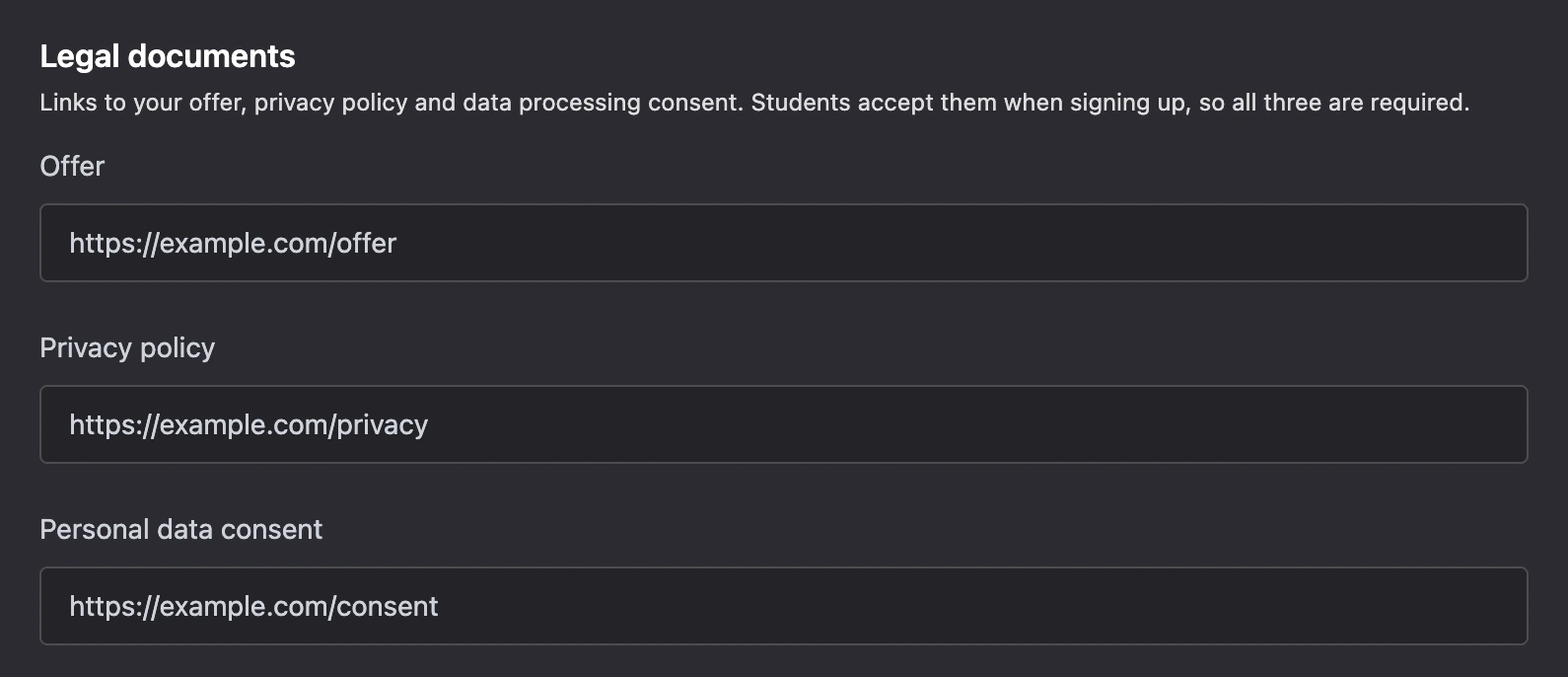
The "Legal documents" block has three link fields: "Offer", "Privacy policy" and "Personal data consent". Host the documents themselves on your website or anywhere accessible by a link.
A student accepts the documents when signing up, and the platform records which links they accepted and when. That is why all three links are required: without them the settings will not save.
School chatbot
In the "Chatbot" block, you choose the project bot through which students receive notifications and open the student portal right in the messenger. The list contains only project bots with Telegram or MAX connected. A school can have one bot.
Once you choose a bot, the mini app address and the list of notifications appear. How to set all this up is on the Students page.
Emails to students
In the "Support e-mail" field, enter the address at which students can write to the school. It is shown in the student portal and used as the reply-to address in emails from the school.


The school sends students emails: email confirmation, password recovery, homework review results, answers to questions.
School pages
In the "Pages" subsection, you create your own pages — "About the school", "Contacts", "Teachers". In the student portal, they become tabs next to the courses.
- Click "Create a page".
- Enter a name. It is shown on the tab, so shorter reads better; the length is up to 60 characters.
- Open the page and fill it in the editor: headings, text, lists, images, quotes, links. Changes are saved automatically.
A page has an "Address" field — the last part of the /pages/… link. Change it with care: the old link will stop working.
In the list, a page has a status:
- "Visible" — the page is shown as a tab in the student portal;
- "Empty" — the page has no content and no tab;
- "Not shown" — the page has been hidden by the platform after review. The reason comes in a notification; see Team members and content review for details.
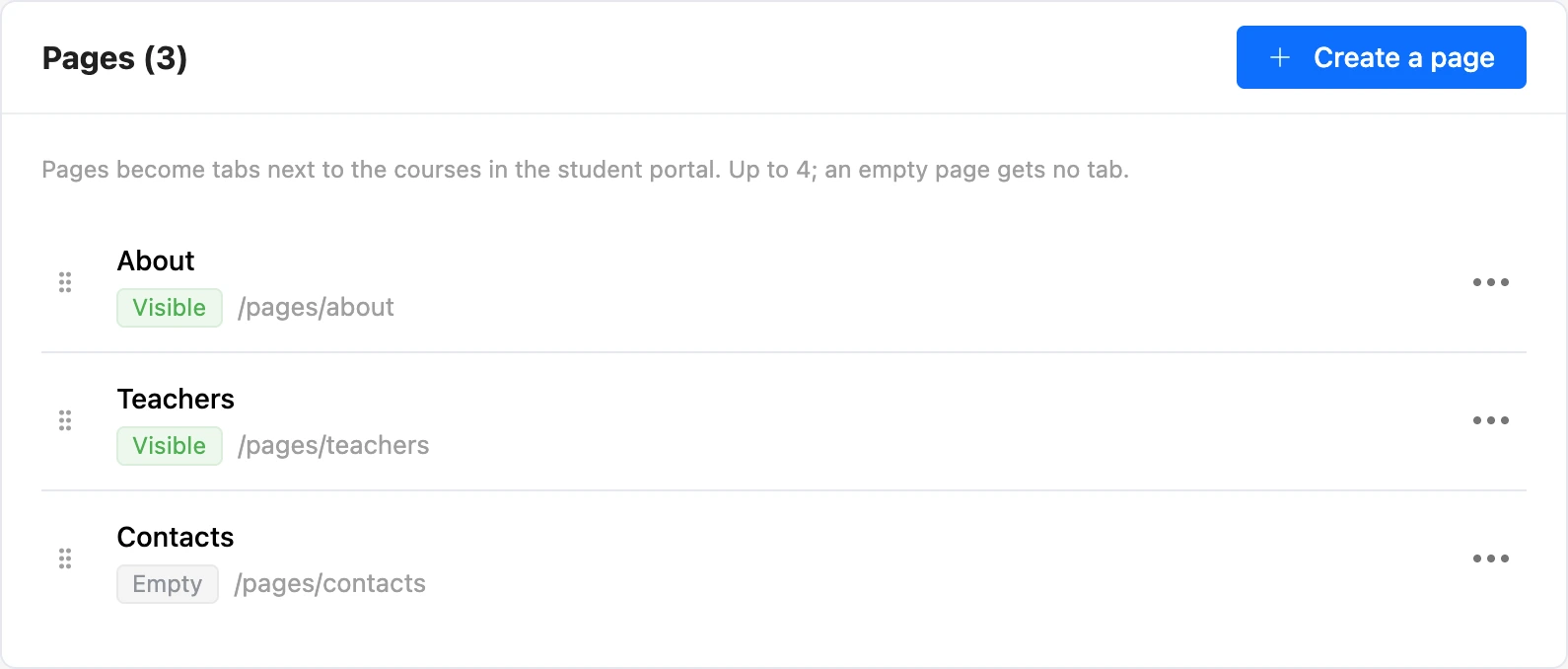
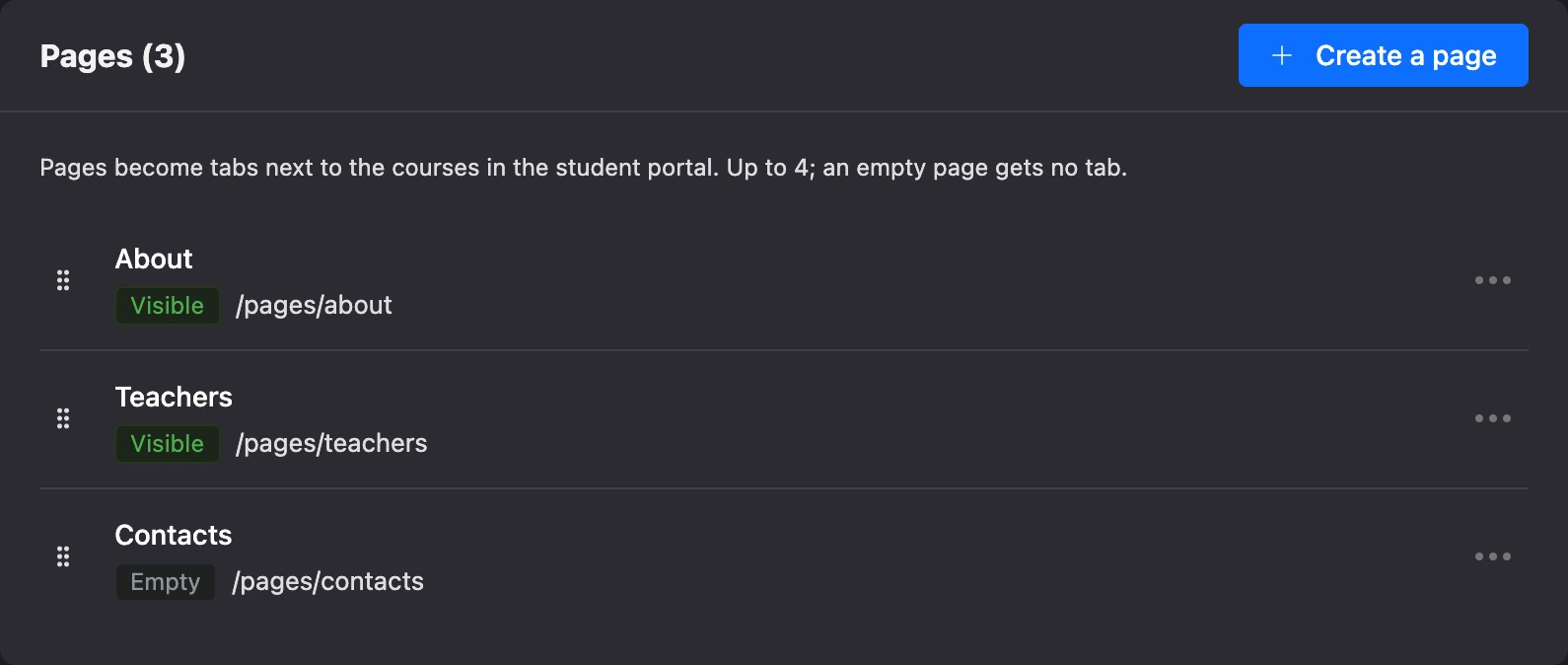
Change the order of the tabs by dragging. A school can have no more than 4 pages.
Your own domain
By default, the student portal runs on the shared schools domain. In the "Domain" subsection, you can open it on your own domain — for example, school.example.com. The shared address keeps working, and old links will not break.
You will need access to the domain's DNS settings.
- Enter the domain and click "Connect".
- The platform shows two DNS records: one points the domain to the platform (CNAME, or A for a second-level domain), and the other confirms that the domain is yours (TXT). Add both at your registrar. Copy the values with the button next to them.
- Wait for the check. The platform checks the records every 5 minutes; DNS usually updates within 15–30 minutes. To skip the wait, click "Check".
- When the domain has the "Live" status, open it in a browser. The first visit takes up to half a minute — this is when the security certificate is issued. If the browser shows an error, refresh the page after 30 seconds.
The connection progress is shown in steps: "Domain added", "DNS records", "Student portal opens".
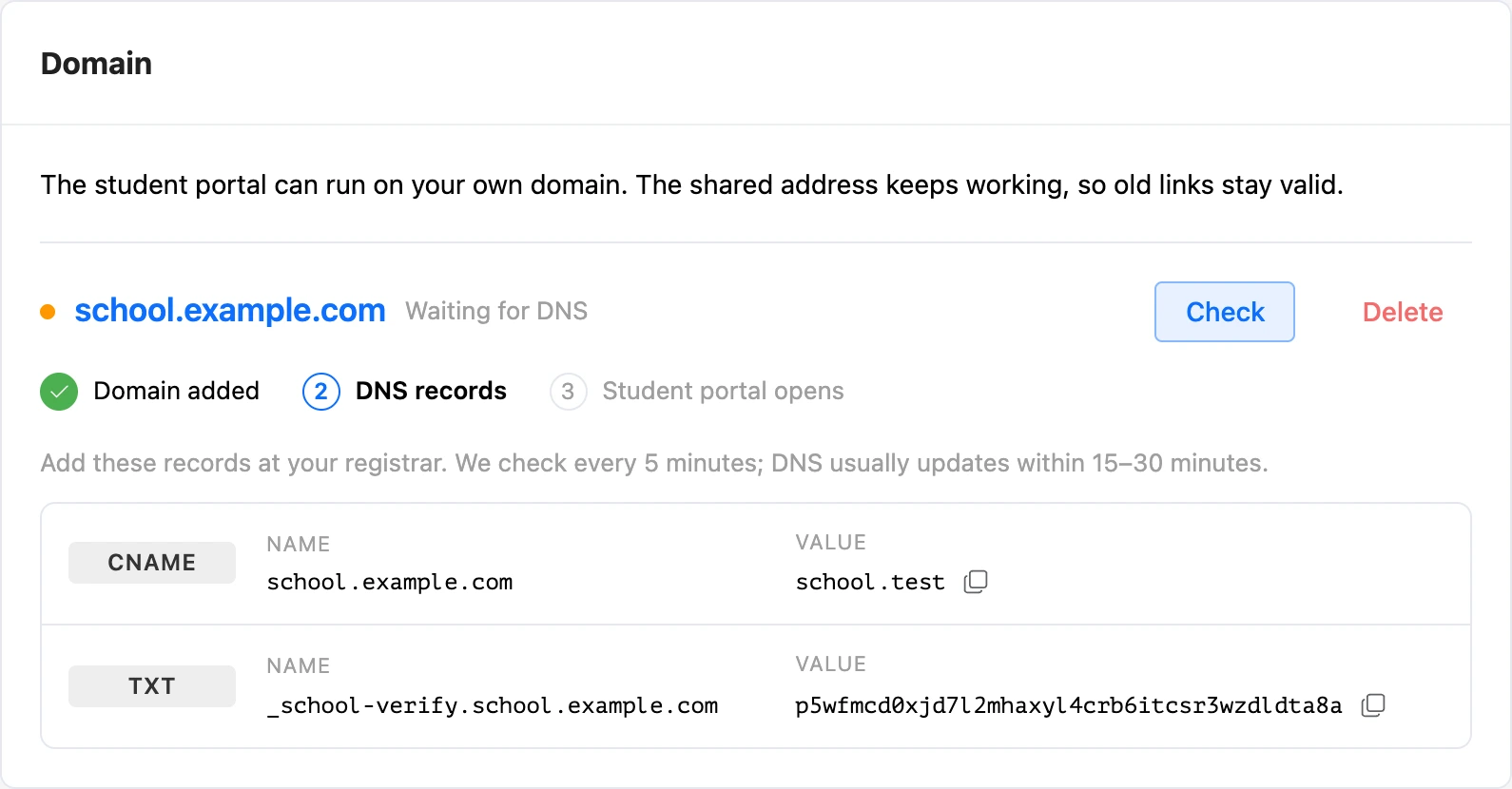
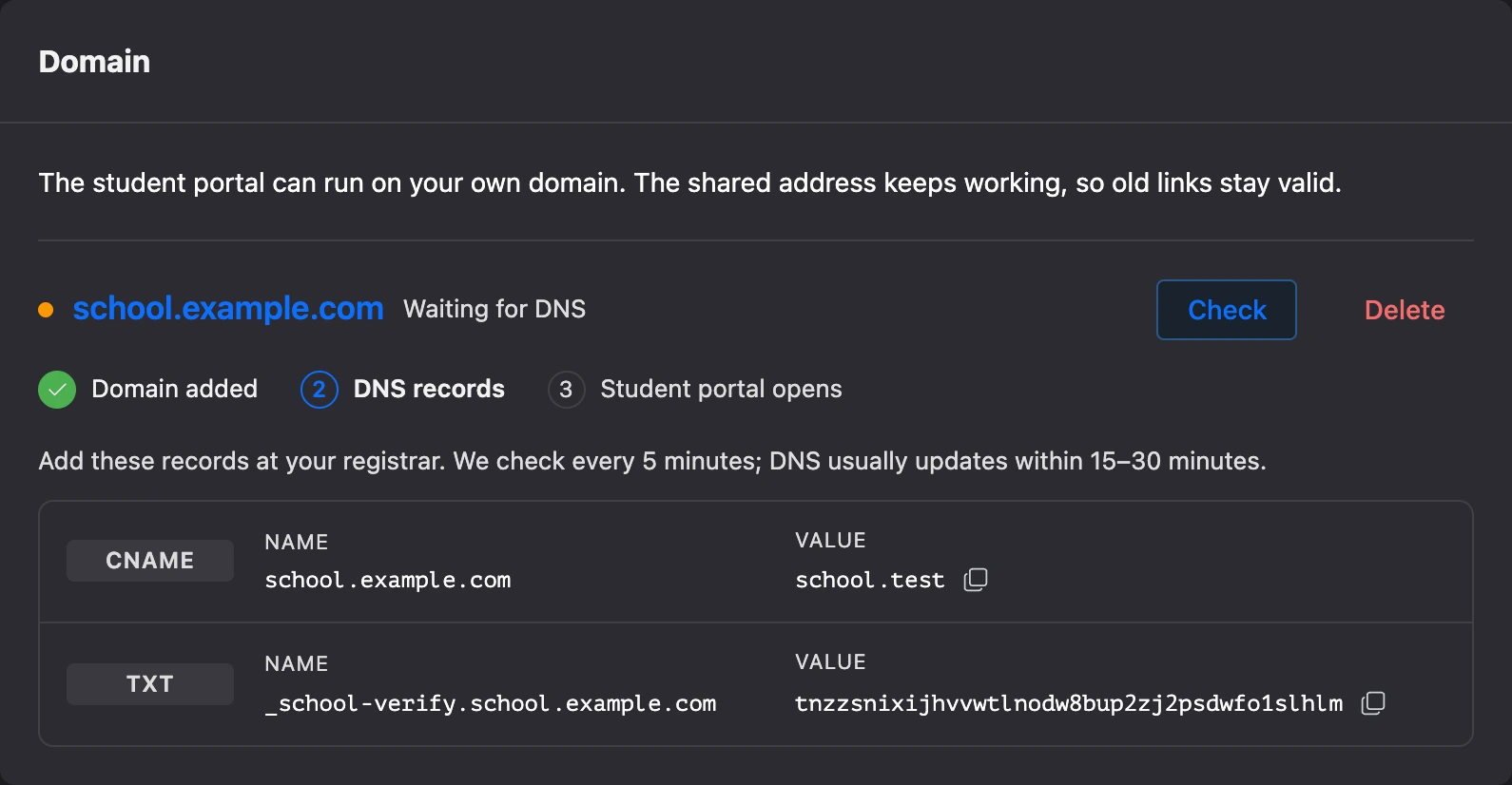
After connecting, the "Link for students" in the general settings leads to your domain. One domain can be connected to a school; to change it, delete the current one and add a new one.
Note
The mini app address for the chatbot always stays on the shared schools domain, even when your own domain is connected.
If something does not work
| Message | Cause | What to do |
|---|---|---|
| "This address is already taken, choose another one." | Another school already has this student portal address, or it is reserved by the platform | Choose a different address |
| "Addresses starting with “app-” are reserved for mini apps, choose another one." | The "app-" prefix is reserved for mini apps | Choose a different address |
| "Please upload an image in JPG, PNG, GIF, WebP or AVIF format." | An image in another format was uploaded | Save the image in a supported format |
| "This does not look like a domain name." | Something other than a domain was entered in the domain field — for example, a full link | Enter a domain like school.example.com |
| "This domain belongs to the platform." | The platform's own domain was entered | Enter your own domain |
| "The domain is already connected to another school." | The domain is connected in another school | Disconnect it there or choose a different one |
| "The TXT record … with your token is not visible yet." | The verification record has not appeared in DNS yet | Check the record at your registrar and wait: DNS can take up to several hours to update |
| "The domain does not point to us yet. Check the CNAME to …" | The record pointing the domain to the platform has not been added or has not updated yet | Check the record at your registrar |
| "This address is already used by another page of the school." | Two pages of the school have the same address | Give the page a different address |
| "A school can have at most 4 pages." | The page limit has been reached | Delete a page you do not need |