

Table editor
The editor opens with a click on a table in the project's "Tables" section or right after a table is created. It takes up the whole screen: there is no account menu in it.
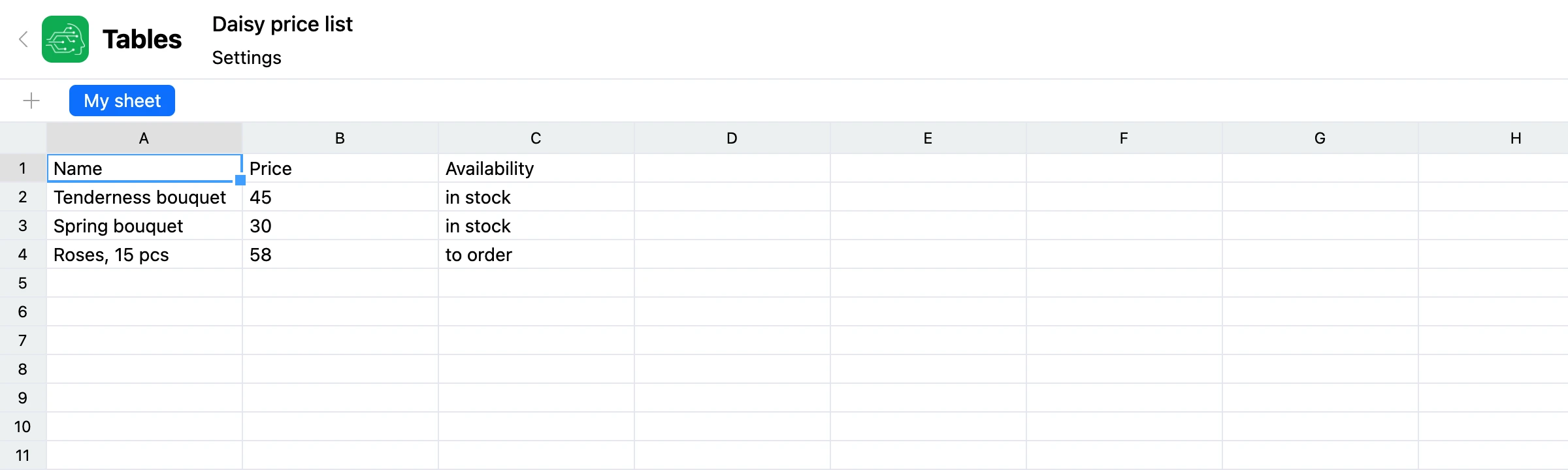
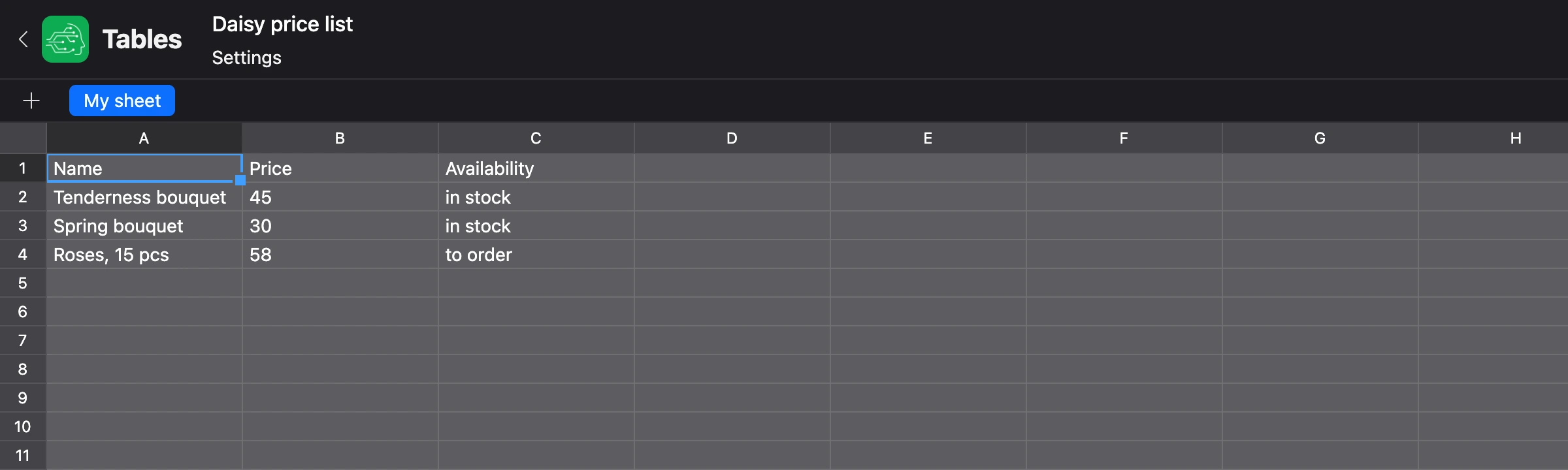
What is on the screen
- The "Tables" link at the top left — takes you back to the project's list of tables.
- The table name — the field next to the link. Click the name, change it and press Enter. An empty name is not saved.
- The "Saving..." label next to the name — visible while changes are being sent to the server.
- The sheet bar under the header: the "+" button and the sheet tabs.
- The grid — columns are labelled with the letters A, B, C…, rows with numbers.
There is no separate save button: every change is saved automatically.
Sheets
A new table has one sheet — "My sheet".
- Add a sheet — the "+" button to the left of the tabs. A new sheet is called "Sheet" with a number: "Sheet 2", "Sheet 3".
- Open a sheet — a click on the tab.
- Rename a sheet — double-click the tab, enter a name and press Enter. Sheet names within one table do not repeat: on a match, the message "This name already exists" appears.


If the tabs do not fit in the width, scroll arrows appear on the right.
A new sheet has 26 columns (from A to Z) and 1000 rows.
Note
A sheet cannot be deleted. If you no longer need a sheet, clear it or leave it empty.
Entering values
Select a cell with a click and start entering in one of these ways:
- double-click the cell or press Enter — the cell's text opens, and you can add to it;
- just start typing — the new text replaces the old one.


To finish entering:
| Key | What happens |
|---|---|
| Enter | The value is saved, the selection moves to the cell below |
| Shift + Enter | A new line inside the cell |
| Esc or Tab | The value is saved, the selection stays on this cell |
Warning
Esc does not cancel the edit: the entered text is saved.
Tip
Finish entering with a key, not with a click on another cell: this way the value is sure to reach the server. The "Saving..." label in the header shows that it is being sent.
A cell stores only text — up to 4000 characters. There are no formulas, and numbers and dates are not separate types: "100" and "01.09" are text too. When the text does not fit in the row, the row height increases by itself.
Moving around the table
When a cell is selected but entering has not started:
| Key | Where the selection moves |
|---|---|
| Arrows | To the neighbouring cell |
| Tab | Right |
| Shift + Tab | Left |
Deleting values
- One cell — select it and press Delete or Backspace.
- Several cells — hold down the mouse button on the first cell, drag to the last one and press Delete or Backspace. The whole selected rectangle is cleared.
Only values are deleted. Rows and columns stay in place: you cannot remove a row or a column from a sheet.
Adding rows and columns
- Rows — under the grid, at the very bottom of the sheet: enter a number next to the "Add" button (labelled "rows") and click the button. The default is 1000.
- Columns — to the right of the grid: enter a number next to the "Add" button (labelled "columns") and click the button. The default is 26.

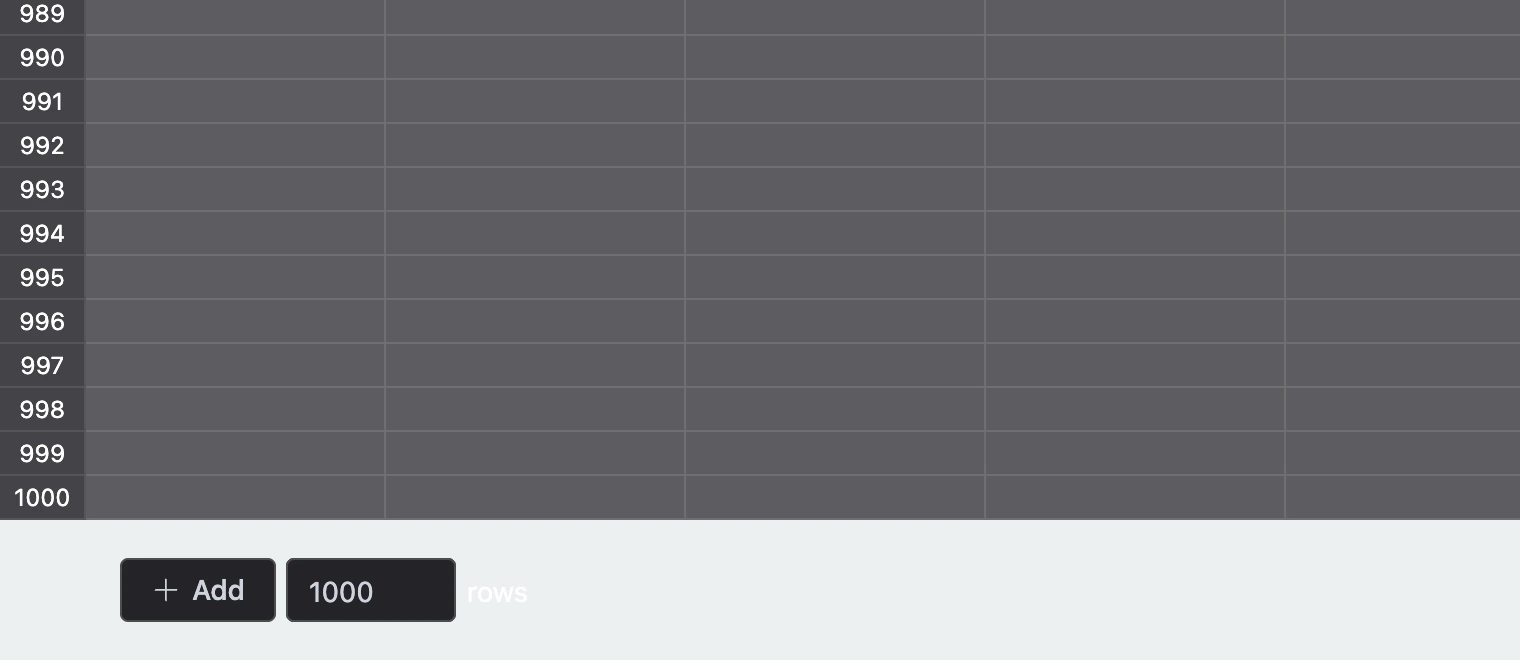


New rows are added at the end of the sheet, new columns on the right. You cannot insert a row or a column in the middle.
Limits
| What | How many |
|---|---|
| Columns per sheet | up to 1000 |
| Cells per sheet (rows × columns) | up to 500,000 |
| Cells in the whole table | up to 5,000,000 |
| Characters in a cell | up to 4000 |
| Table name and sheet name | up to 255 characters |
All cells of the sheet count, not only the filled ones: a sheet of 26 columns and 1000 rows is 26,000 cells.
What the editor does not have
- formulas and calculations;
- formatting: colour, font, alignment, changing column width;
- deleting sheets, rows and columns;
- loading from a file and exporting to a file.
If you need data types, Excel import and export or writing from the bot, use lists.
If something does not work
- The "This feature is available on Pro" window opened instead of the table. The editor is available only with a Pro subscription.
- "As a result of this operation, the number of columns will exceed 1000, this is the maximum number per sheet." A sheet cannot have more than 1000 columns — add fewer.
- "As a result of this operation, the number of cells will exceed 500000, this is the maximum number per sheet." The sheet is too large. Add fewer rows or columns, or create another sheet.
- "As a result of this operation, the number of cells will exceed 5000000, this is the maximum number per table." The limit of the whole table has been reached: a new sheet, rows and columns can no longer be added. Create another table.
- "This name already exists". The table already has a sheet with this name — choose another one.