

Services and specialists
A branch catalogue consists of the services clients book and the specialists who provide them. The catalogue can be edited by the project owner or a team member with the "Services and specialists" permission.

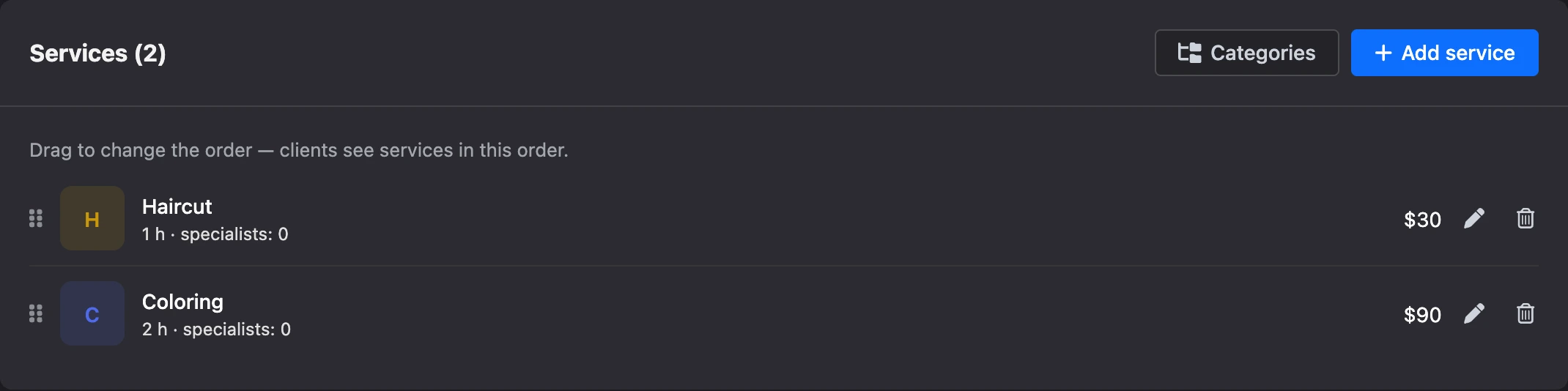
Services
In the branch menu, open "Services".
Add a service
- Click "Add service".
- Fill in the fields and click "Save".
| Field | What to enter |
|---|---|
| "Name" | How the client will see the service — for example, "Haircut" |
| "Category" | A group of services. You can leave "No category" |
| "Duration" | How long the service takes: from 5 minutes to 24 hours |
| "Break after the service" | Time for cleanup and preparation: the next client cannot book it. By default — "No break" |
| "Price" | The price in the branch currency |
| "Price “from”" | Turn it on if the total depends on the work: the client will see "from" before the price |
| "Description" | An explanation for the client |
| "Photo" | A picture of the service: JPG, PNG, GIF or WebP |
| "Provided by" | The specialists clients can book for this service. A new service has all of them selected — remove the ones you do not need |
| "Available for booking" | Turn it off to temporarily remove the service from booking without deleting it |
Tip
Choose service durations that divide evenly by the time step from the booking rules — then no short gaps that nobody can book are left in the schedule.
List of services
A service row shows the category, duration, break, number of specialists and price. A turned-off service is marked "Hidden".
- Order. Drag a service by the icon on the left. Clients see services in this order. While a category filter is on, the order cannot be changed.
- Filter. Above the list there is a category choice: "All categories", "No category" or one of yours.
- Edit. Click the row or the pencil.
- Delete. Click the bin and confirm. Past appointments keep the name and price of the service.
Categories
Categories group services for clients. Click "Categories" above the list of services:
- to add one, enter a name in the "New category name" field and click "Add";
- to rename one, click the pencil, correct the name and press Enter;
- to change the order, drag a category;
- to delete one, click the bin. The services stay — without a category.
Specialists
A specialist is the person clients book: a hairdresser, a doctor, a trainer. In the branch menu, open "Specialists".
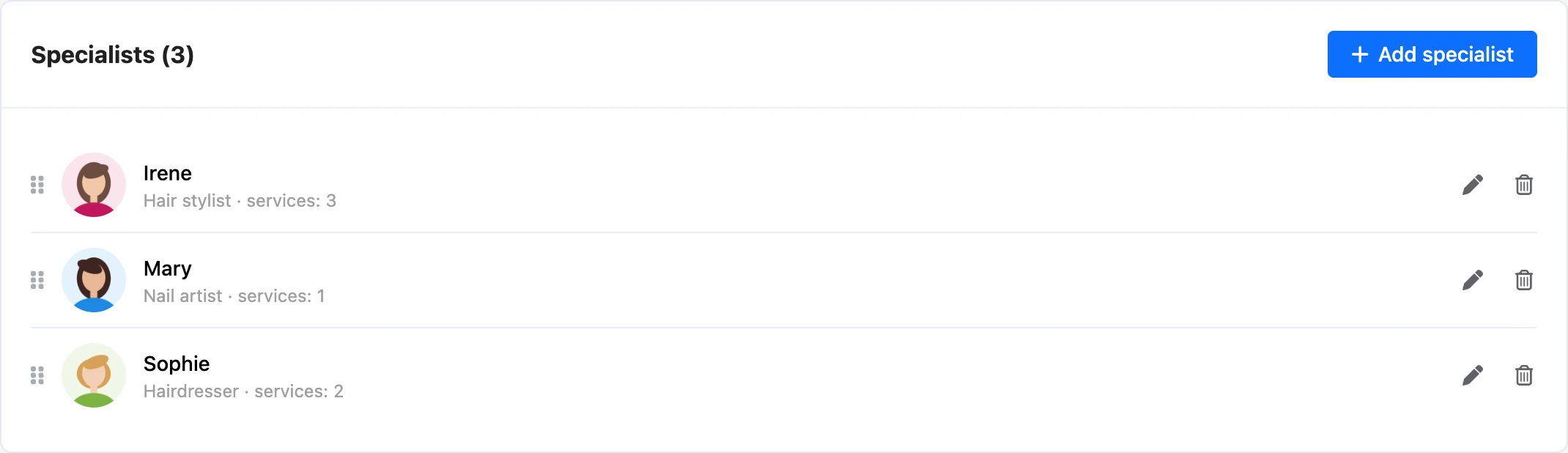
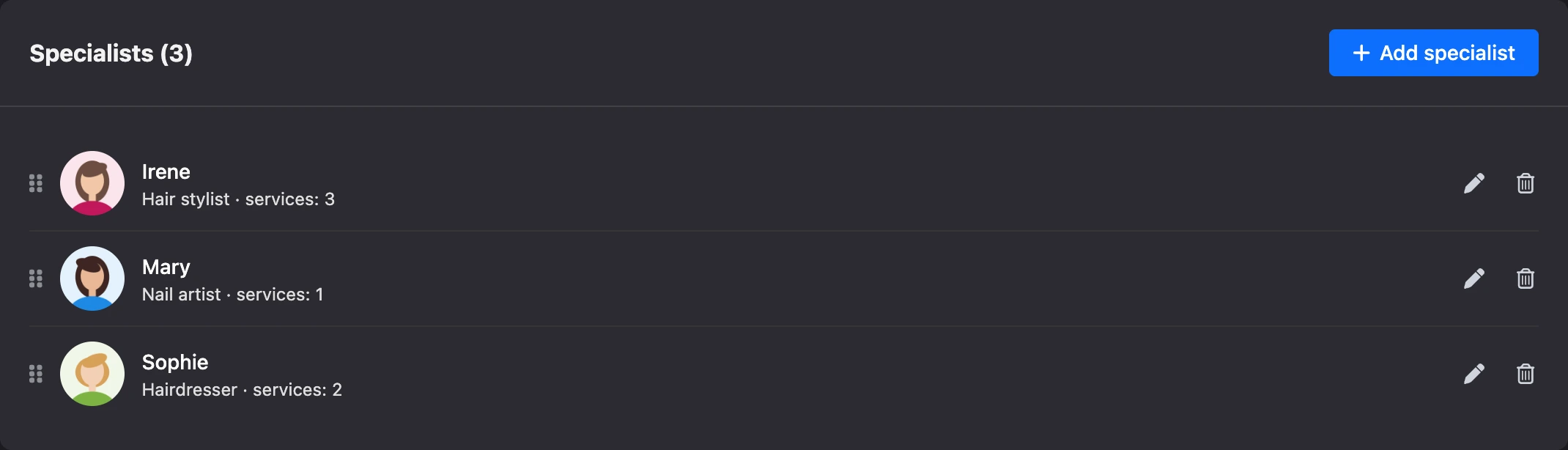
Add a specialist
- Click "Add specialist".
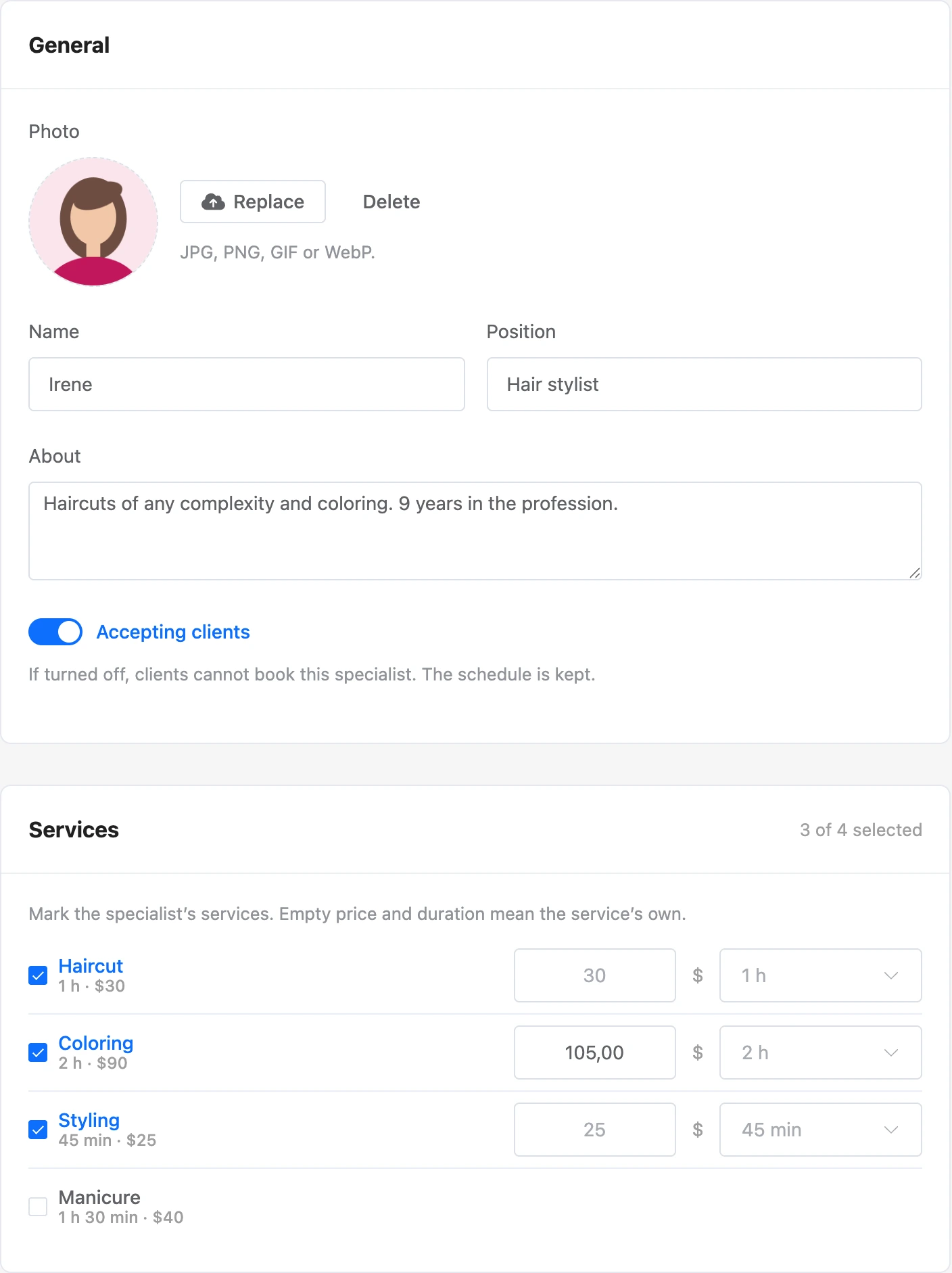
- In the "General" block, enter the "Name". Optionally add a "Photo", the "Position" and the "About" text — clients will see them.
- In the "Services" block, check the services the specialist provides. A new specialist has all of them checked.
- Click "Save".
After saving, click "Schedule" to set the specialist's working days: without a schedule, nobody can book them.
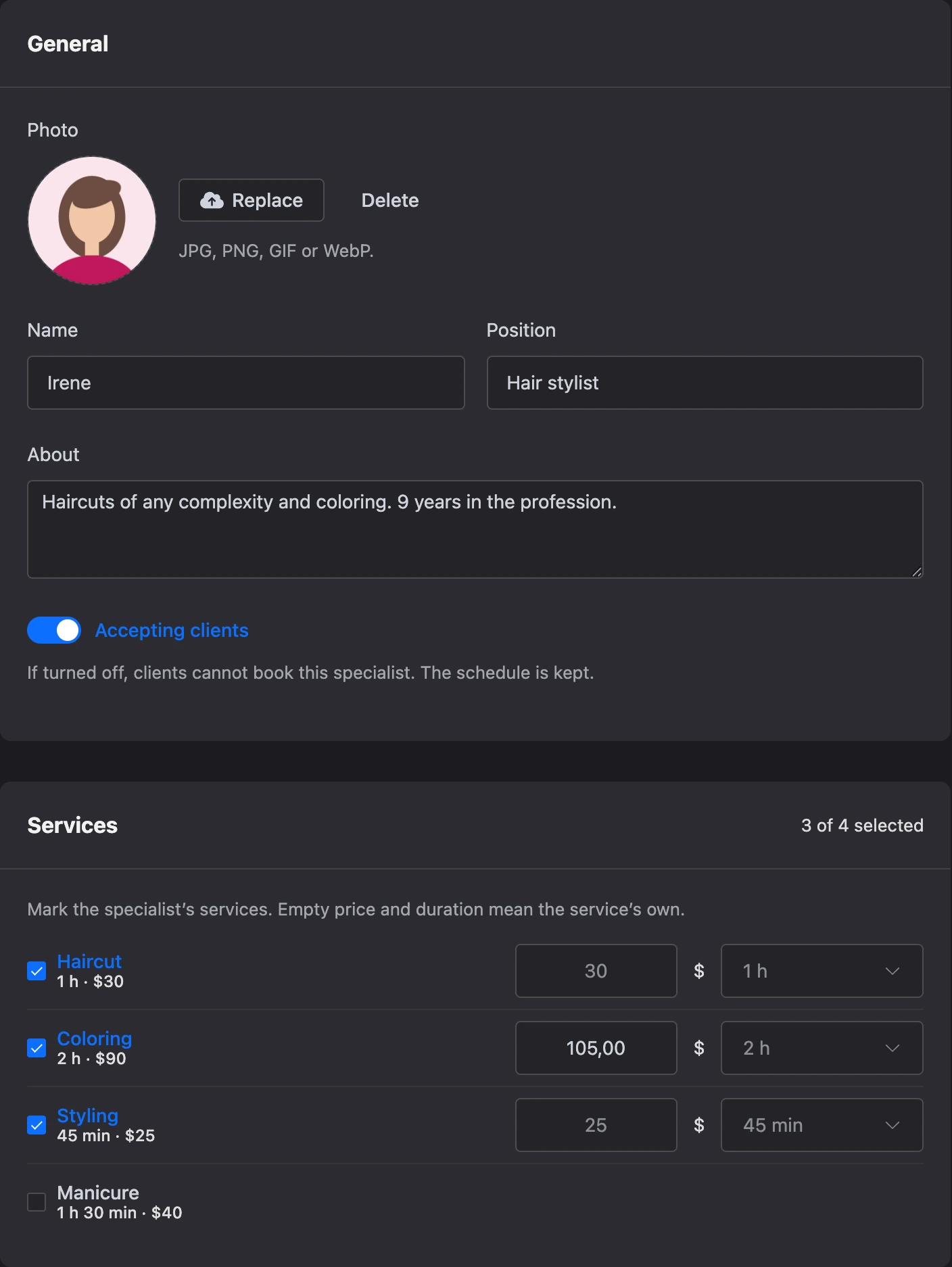
Own price and duration
Next to a checked service there are two fields: "Own price" and "Own duration". Fill them in if this specialist takes longer or charges more than the service says. Empty fields mean "same as the service".
The own duration is used when free time is calculated, the own price — in the appointment total.
Not accepting clients
The "Accepting clients" switch on the card closes booking with the specialist without deleting them. The schedule is kept. In the list, such a specialist is marked "Not accepting".
Other blocks of the card
- "Team member account" — links the specialist to a member of the project team, so the specialist sees their appointments in the account.
- "Specialist’s mini app" — a code that lets the specialist see their appointments in the mini app without an account.
- "Client rating" — the average rating and the number of reviews. Ratings appear after visits.
The first two are described on the Specialist access page, ratings — on the Notifications and reviews page.
Order and deletion
The order of specialists is changed by dragging. To delete a specialist, click the bin in their row: they are deleted together with their schedule. Past appointments keep their name.
If something does not work
- "The specialist has upcoming appointments. Reschedule or cancel them, then delete the specialist." Open the journal, move the appointments to another specialist or cancel them. If the specialist has simply stopped working, turn off "Accepting clients".
- "You can only link a member of the project team." In the "Team member account" block you can choose only the project owner or a member of their team.
- "The photo must be a JPG, PNG, GIF or WebP file." Save the picture in one of these formats.
- The client does not see a service when booking. Check that "Available for booking" is on for the service and that the "Provided by" field has at least one specialist who accepts clients.
- The "Add service" or "Add specialist" button is disabled. The branch limit is reached: 500 services, 100 categories, 100 specialists.