

Work schedule
The schedule shows on which days and at which hours a specialist accepts clients. The platform uses it to calculate free time for booking. The schedule is set for each specialist separately: there is no common schedule for the branch.
In the branch menu, open "Schedule". The schedule can be changed by the project owner or a team member with the "Work schedule" permission; for everyone else the table is read-only.
Schedule table
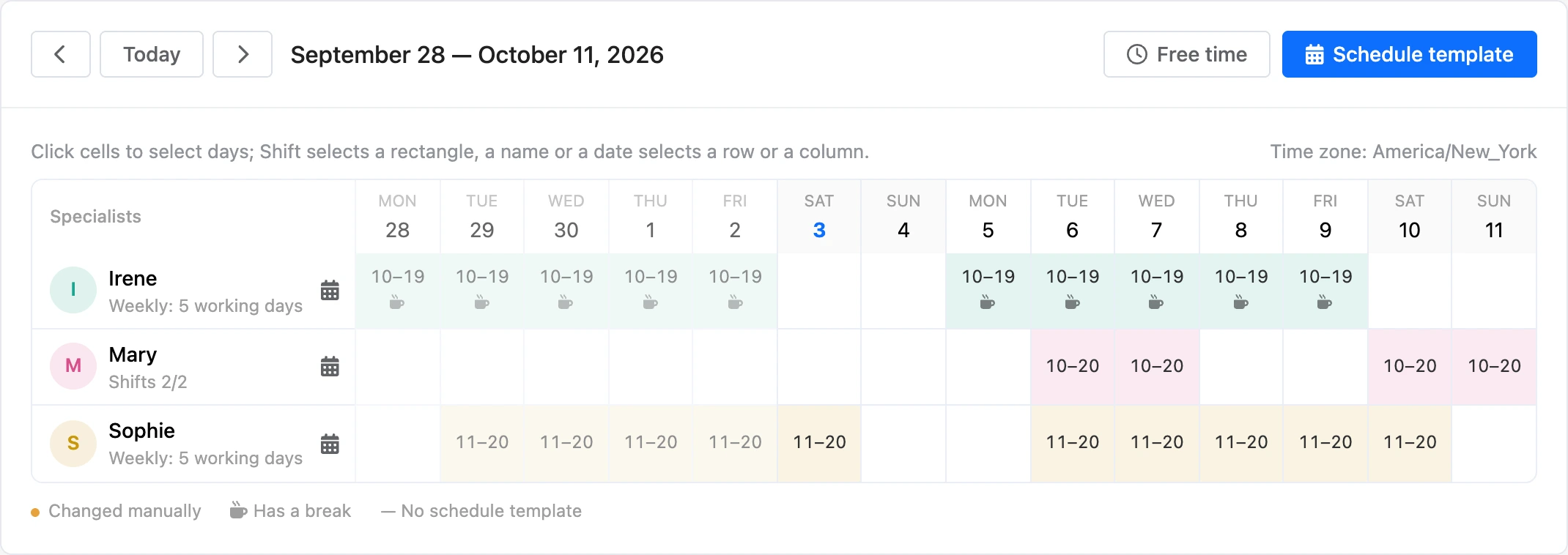
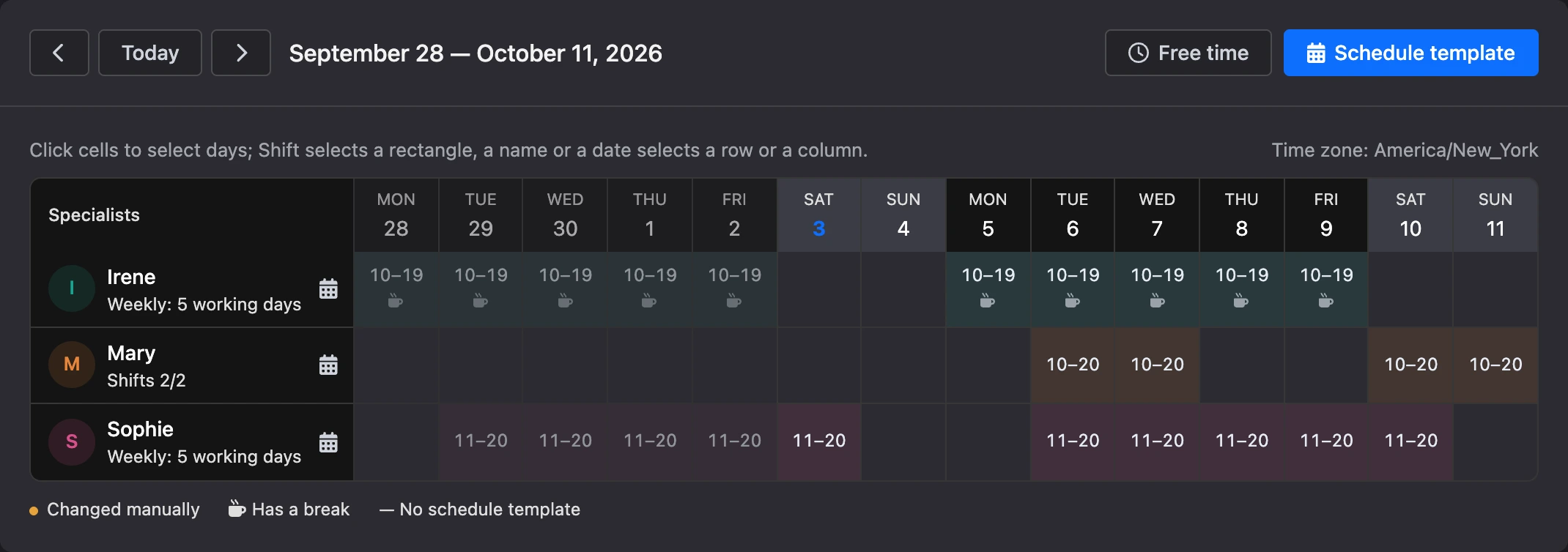
In the table, rows are specialists and columns are 14 days, starting from Monday of the current week. Dates and "today" follow the branch's time zone — it is shown above the table.
The arrows move the table by two weeks, and the "Today" button brings you back to the current week.
What a cell means:
| In the cell | Meaning |
|---|---|
| Hours, for example "10–19" | A working day |
| A cup icon | There is a break on this day |
| Empty | A day off by the template |
| "off" | A day off set manually |
| "—" | The specialist has no schedule template |
| A dot in the corner | The day was changed manually |
Under the specialist's name it says which template they work by: "Weekly: 5 working days", "Shifts 2/2" or "No template".
Schedule template
A template is the specialist's recurring schedule. Set it once, and the table fills in by itself.
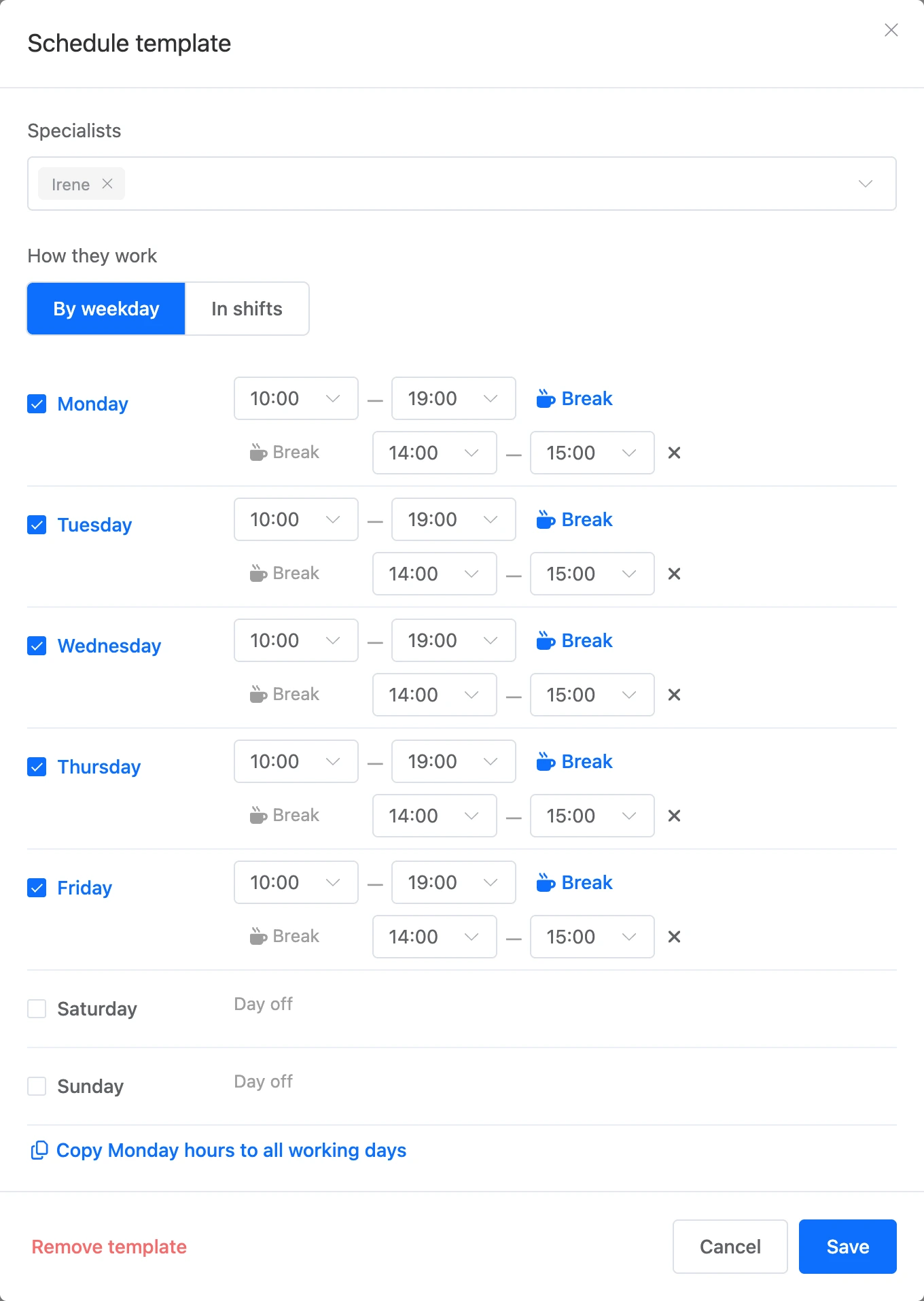
- Click "Schedule template" above the table or the calendar icon in the specialist's row.
- In the "Specialists" field, choose who the template is for. You can choose several at once.
- Choose "How they work": "By weekday" or "In shifts".
- Fill in the hours and click "Save".
By weekday
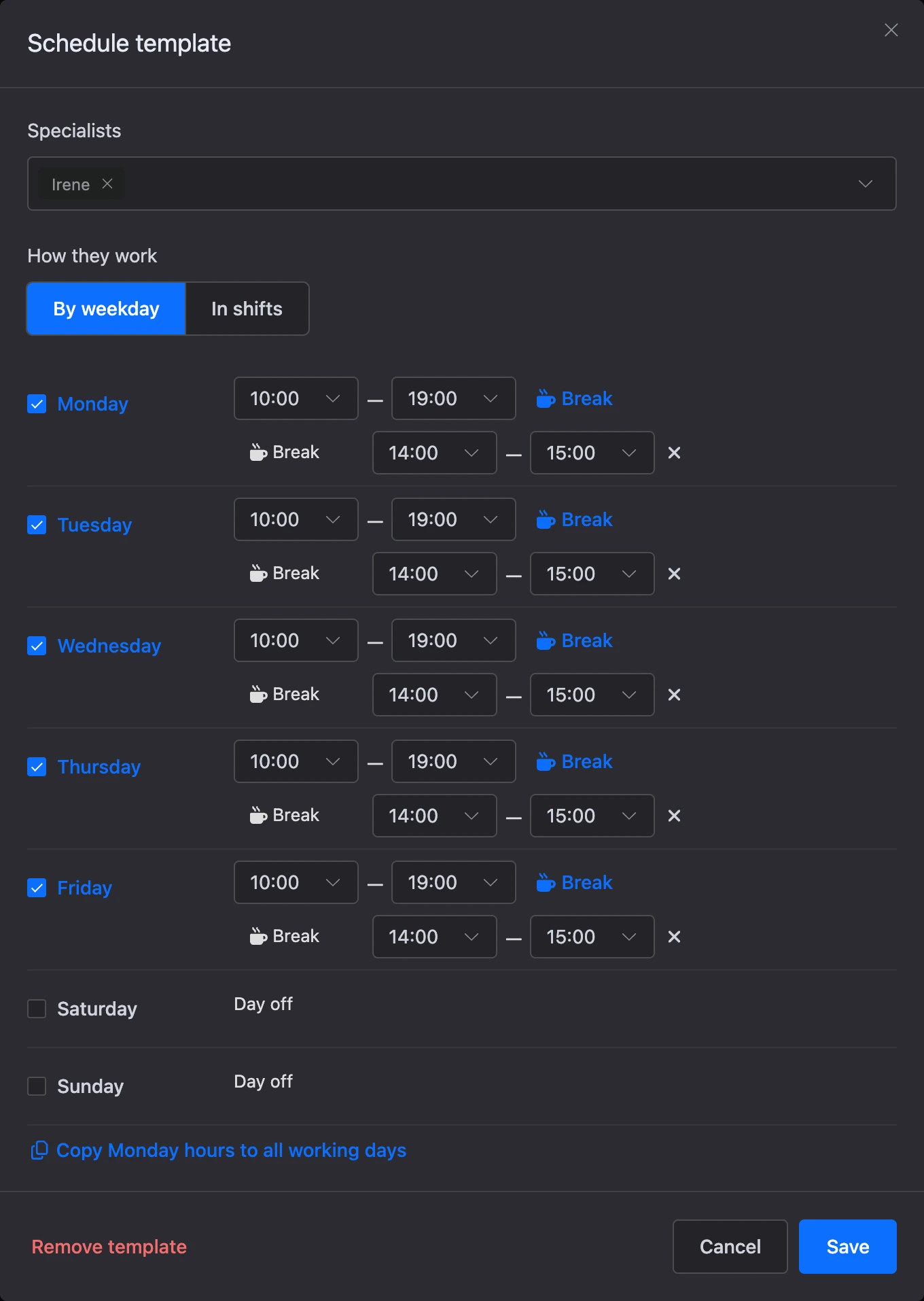
Check the working days and set the start and end for each one. A new template has working days from Monday to Friday, 10:00 to 19:00. To avoid filling in every day, set Monday's hours and click "Copy Monday hours to all working days".
In shifts
For "two on, two off" and similar schedules:
- "Working days" and "Days off" — how many days in a row the specialist works and rests. The whole cycle is from 2 to 28 days.
- "First working day" — the date the cycle counts from. Before it, the template does not apply.
- "Hours on a working day" — the same for all working days of the cycle.
Breaks
You can add up to five breaks to a working day: click "Break" next to the hours and set the time. Clients are not booked during a break.
Time is set with five-minute precision. A working day can end at 24:00 but cannot go past midnight: set a night shift as two days.
Replace or remove a template
A new template replaces the old one. Manually changed days stay as they are.
To remove a template completely, open it and click "Remove template". Only manually changed days will remain.
Single days
Vacation, sick leave, a short day before a holiday — all this is set right in the table. A manually changed day takes priority over the template.
- Select cells:
- a click on a cell selects one day;
- a click with the Shift key selects a rectangle from the previous cell;
- a click on a specialist's name selects the whole row, on a date — the whole column.
- The "Days selected: …" panel appears under the table. Click the button you need:
- "Working hours" — set custom hours and breaks for the selected days;
- "Day off" — close booking on these days;
- "As in template" — undo manual changes;
- "Clear selection" — remove the selection.
You can change days no earlier than 31 days before today and no later than 365 days ahead.
Warning
A day off does not cancel appointments that already exist on that day. Reschedule or cancel them in the journal.
Check free time
The "Free time" button shows what time clients will see with the current schedule and branch rules.
- Click "Free time".
- Choose the "Visit services", the "Specialist" — a specific one or "Any specialist" — and a date in the "From date" field.
Free time for seven days opens. Hover over a time to see which specialists are free at that moment. If a day says "No free time", look for the reason on the Booking rules and free time page.
If something does not work
- "The start must be earlier than the end". A working day or a break ends before it starts. For a night shift, set two days: until 24:00 and from 00:00.
- "A break must be within the working day". The break goes beyond the start or end of the day.
- "Breaks overlap". Separate the breaks in time or merge them into one.
- The specialist has "—" in the table. They have no template: they can be booked only on days with manually set hours.
- Cells cannot be selected. You do not have the "Work schedule" permission.