

Account notifications
The platform tells you about things that matter for your account: an upcoming charge and a low balance, a landing page or widget taken down, invitations to projects, new orders and appointments. Notifications come to your account and, if you choose, to Telegram.
Notifications about requests from a chatbot to a work chat are set up separately, in the bot itself — see the bot's Notifications page.
Notifications in your account
The number of unread notifications is shown on your avatar in the corner of the account.
- Click your avatar.
- In the account menu, choose "Notifications".


Each notification has text, a time and a dot if it is unread. Clicking a notification marks it as read. Some notifications have buttons: for example, a project invitation has "Accept" and "Decline".
The "⋯" menu of a notification: "Mark as read" or "Mark as unread", "Delete". The "⋯" menu in the list header: "Mark all as read" and "Delete all".
Notifications older than a year are deleted automatically.
Notifications in Telegram
You can receive important account notifications in Telegram — from the platform's notification bot.
Connecting
- Open "Settings" → "Notifications".
- In the "Telegram notifications" card, click "Connect Telegram".
- In the chat with the bot that opens, tap "Start".
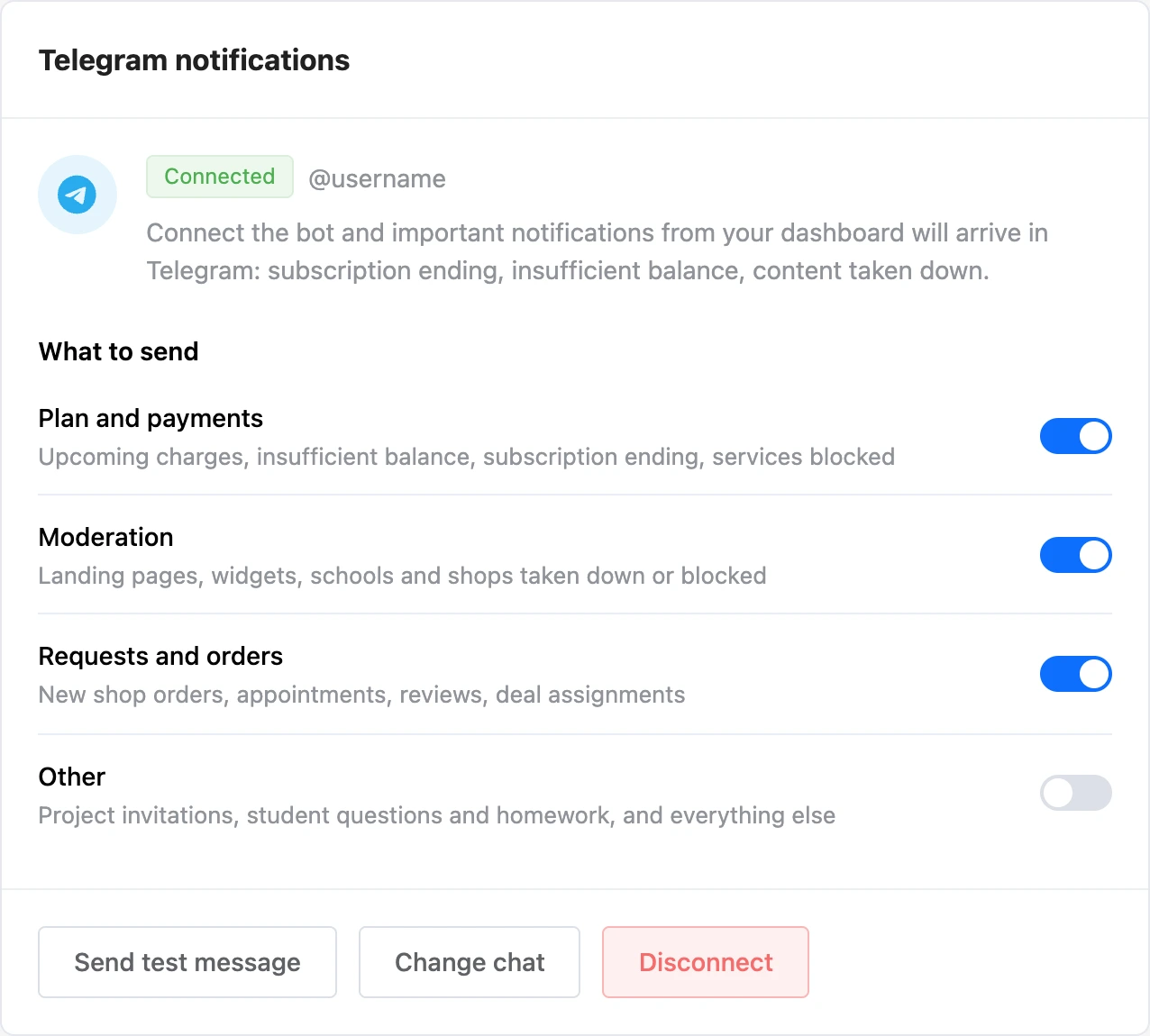
- Go back to your account: the connection appears by itself, and the card shows the "Connected" mark and the Telegram account name.
The connection link is single-use and valid for a short time. If the bot replied "This link has expired…", click "Connect Telegram" again. If the chat did not open, click "Open the bot again".
Note
The bot chat receives account details: your email address, balance, connected services and their renewal dates. Telegram is a third-party service and processes messages under its own rules.
What to send
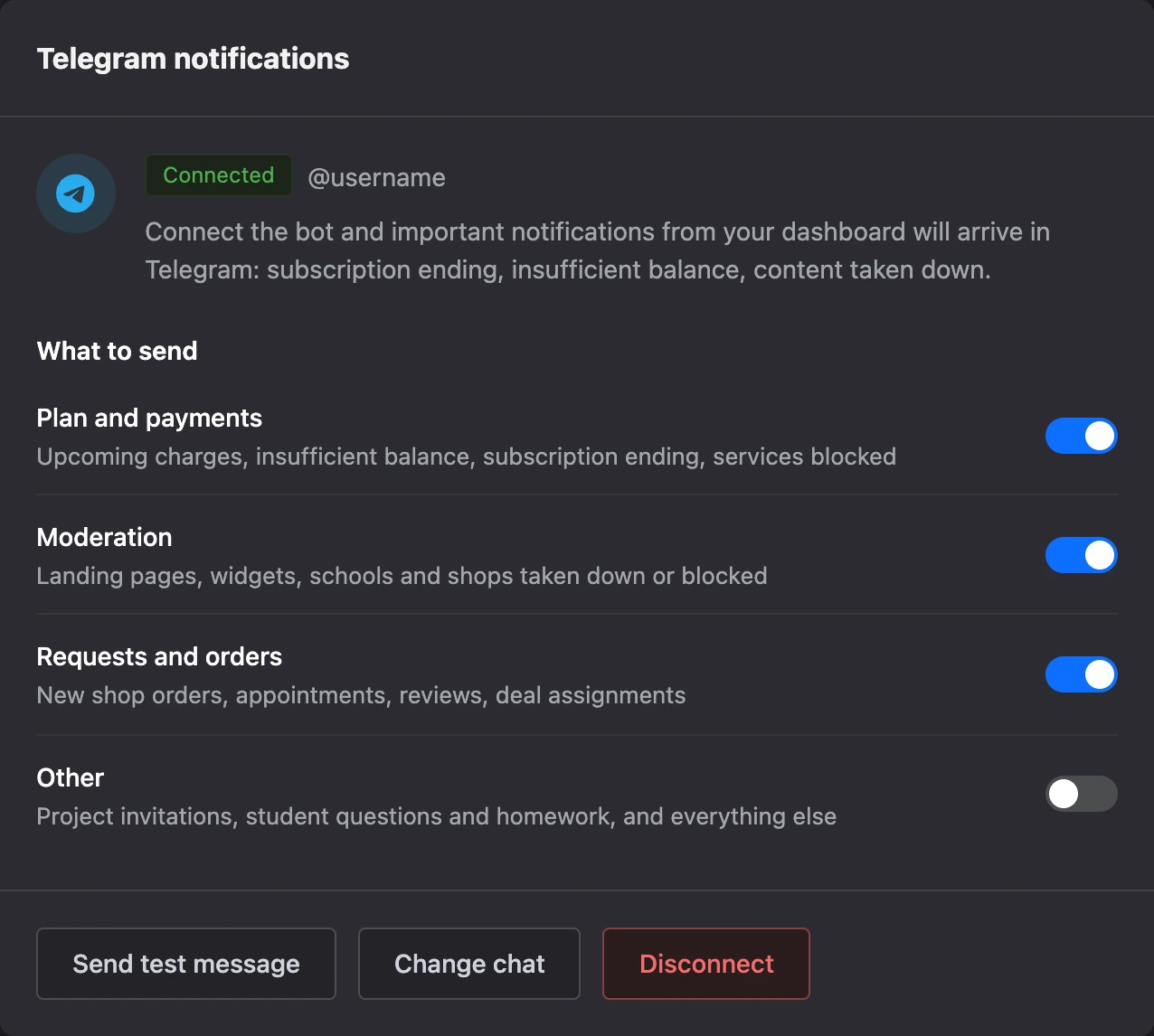
Once Telegram is connected, the card shows the "What to send" block. Turn categories on and off with the switches:
| Category | What it includes |
|---|---|
| "Plan and payments" | Upcoming charges, insufficient balance, subscription ending, services blocked |
| "Moderation" | Landing pages, widgets, schools and shops taken down or blocked |
| "Requests and orders" | New shop orders, appointments, reviews, deal assignments |
| "Other" | Project invitations, student questions and homework, and everything else |
When you connect, "Plan and payments" and "Moderation" are on — the things that can make bots and projects stop.
Bot commands
/services— connected services and renewal dates;/balance— balance and bonuses;/stop— turn off notifications.
Managing
- "Send test message" — the bot sends a test message.
- "Change chat" — connect another Telegram account. One chat is linked to an account.
- "Disconnect" — notifications stop coming.
If you blocked the bot or deleted the chat, the card shows "Bot is blocked". Click "Connect again".
Email notifications
Emails about payments, account security and requests always come to the account's email. For example:
- reminders about an upcoming charge — see below;
- invitations to projects and bots;
- turning two-factor authentication on and off, signing in with a recovery code;
- changing the email and linking a phone;
- invoices issued for companies.
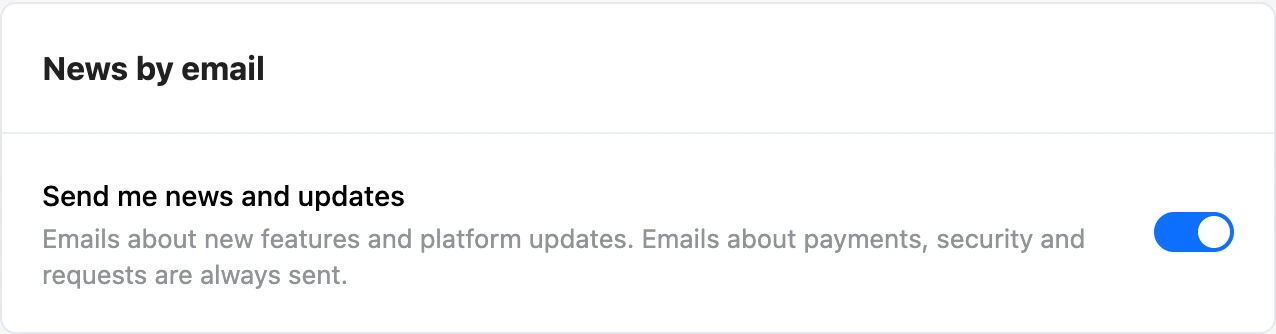
The "Notifications" tab also has the "News by email" card. The "Send me news and updates" switch turns on emails about new platform features. News comes only to a confirmed email.
Payment reminders
The platform warns you about charges for the Pro subscription and paid services that have auto-renewal on:
| When | To whom |
|---|---|
| 7 days before the charge | Everyone |
| 1 day before and on the day of the charge | Only if the balance does not have enough money |
The reminder comes to your account and by email, and with the "Plan and payments" category on — also to Telegram. Reminders do not come before 10:00 your time. The platform determines your time zone by the region in your profile — see Profile.
If auto-renewal is off, there are no charge reminders. The platform will tell you if a service could not be renewed or has ended.
How to top up the balance and turn off auto-renewal is on the Account billing page.
If something does not work
- The connection does not appear in your account. Tap "Start" in the chat with the bot. If the bot replied that the link has expired, click "Connect" in your account again.
- "Could not send: the bot is blocked in Telegram". Unblock the bot in Telegram or click "Connect again".
- Order notifications do not come to Telegram. Turn on the "Requests and orders" category — it is off by default.
- News does not come. Check that the account's email is confirmed.