

Import and export
Both commands are in the "⋯" menu on the right above the list of contacts: "Export contacts" and "Import contacts".
Exporting contacts
The export collects all the bot's contacts into an Excel file. The list's filters do not affect it.
- In the list of contacts, click "⋯" and choose "Export contacts". The "Download bot data" page opens with the "Contacts" item ticked.
- Click "Create archive". You get to the "Downloadable bot data" list.
- Wait for the "Done" status and click "Get link", then "Download".


An archive takes from a few seconds to a few hours to build — the more contacts, the longer. The status in the list changes on its own: "Processing", "Creating archive" with the percentage done, "Done" or "Error". You can close the page and come back later: the list of archives is also opened with the "Download bot data" button in the bot settings, on the "Advanced" tab.
What is in the file
A ZIP archive is downloaded, with the contacts.xlsx spreadsheet inside. One row is one contact.
| Column | What is in it |
|---|---|
| ID | The contact's number on the platform |
| Name | The contact's name |
| Messenger | The contact's channel |
| Username | The username in Telegram or MAX, for VK — the page number |
| Phone, Email, Address | Data the bot has saved or you have entered |
| First message | The text the person started the conversation with |
| Date of creation | When the contact appeared in the bot |
| Telegram ID, Max ID | The user's number in the messenger |
| Referrer ID | The ID of the contact who invited this person |
| Tags | The contact's tags separated by commas |
| Variables | One column for every variable from the "User variable hints" list |
The column headers are written in the bot's language.
Note
A variable gets into the file only if its name is in the hint list. If you have deleted a name from the list, there will be no column with this variable in the export, although the contacts keep their values.
Limits
- No more than 10 archives per bot can be created per day.
- A team member needs the "Download contacts" permission to export contacts.
On the same "Download bot data" page you can tick "Dialogs" and "Requests" — then the archive will also include the conversations and requests. These exports are covered on the Data export page.
Uploading contacts from Excel
The upload moves a base of Telegram subscribers from your spreadsheet into the bot: every person needs their Telegram ID. Along the way you can give the contacts tags and variables.
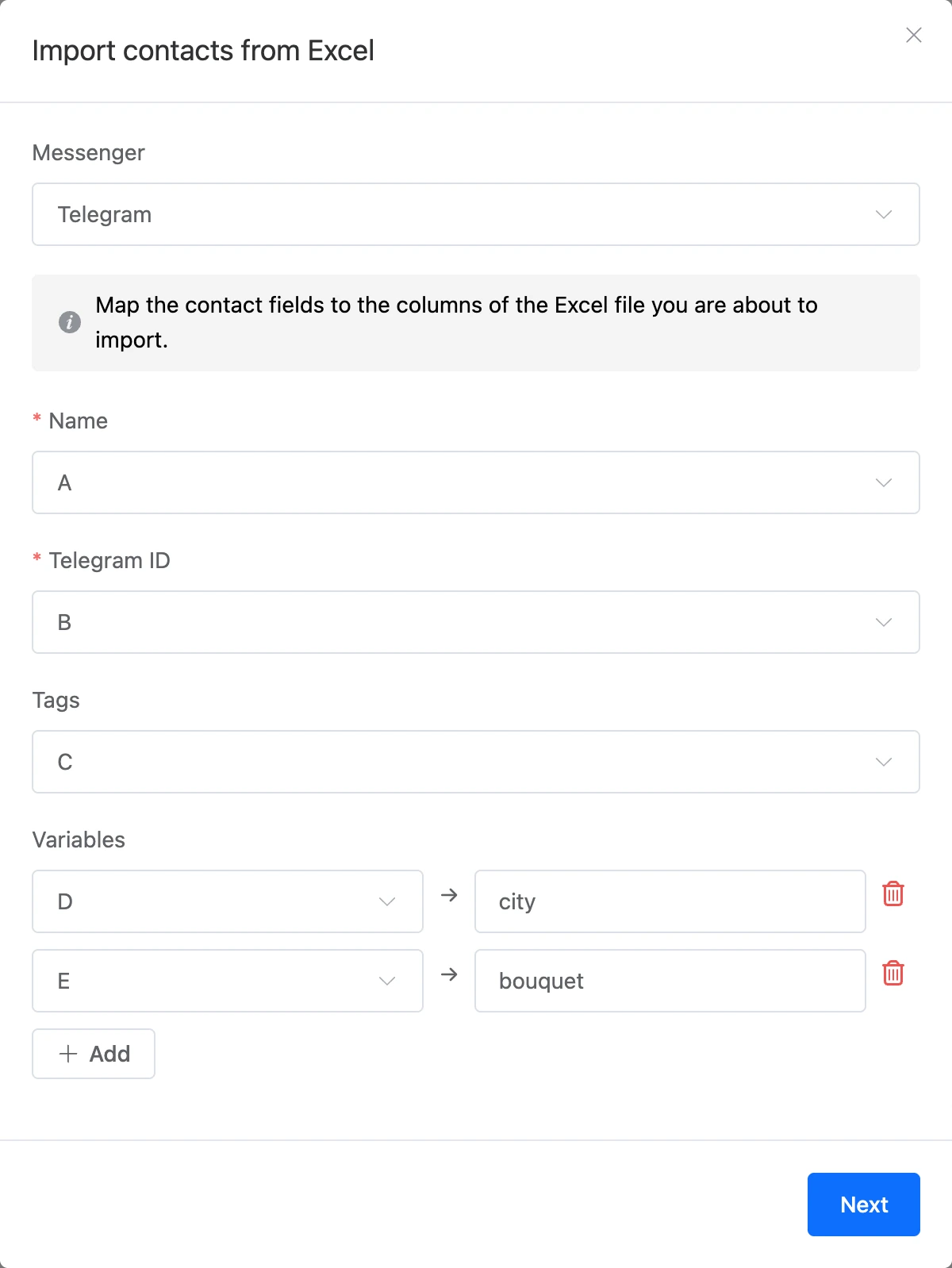
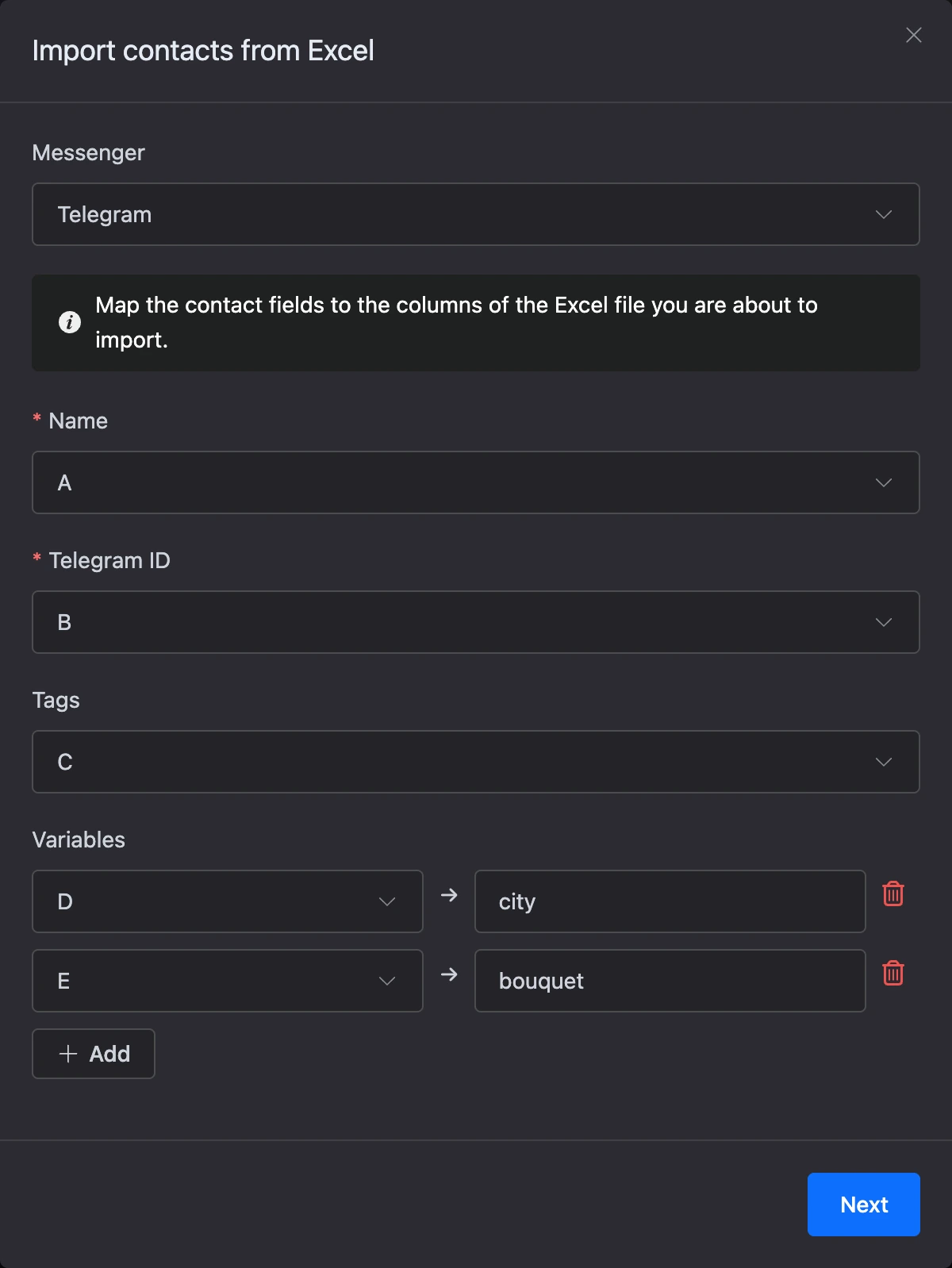
- In the list of contacts, click "⋯" and choose "Import contacts". The "Import contacts from Excel" window opens.
- Leave Telegram in the "Messenger" field.
- Specify which columns of the file hold the data. Columns are chosen by letters, as in Excel: A, B, C…
- "Name" — the column with the contact's name;
- "Telegram ID" — the column with the user's number in Telegram;
- "Tags" — click "Add" and choose the column with tags. In a cell, tags are listed separated by commas;
- "Variables" — click "Add", choose the column and type the name of the variable the value will go to. You can add several rows.
- Click "Next", upload the Excel file and click "Next" again.
The import runs in the background. The window shows how many rows have been processed: "Rows processed", "Rejected rows", "Updated records", "New records". When the import finishes, the "Import completed" line with a date appears. The "Import new file" button returns to the column setup.
How rows are processed
- Only the first sheet of the file is read, up to the first row in which all the chosen columns are empty.
- If a Telegram contact with this ID is already in the bot, it is updated: the name is replaced, tags from the file are added to the existing ones, variables are written anew. If there is no such contact, it is created.
- A row without a Telegram ID or with an ID that is not all digits is rejected. The reason with the cell number appears in the "Errors" list. The header row ends up among the rejected ones too — this does not affect the other rows.
- If the name in a row is empty, the Telegram ID is written instead.
- New contacts are included in the bot's number of contacts, which the subscription package depends on.
If something does not work
- "You cannot create more than 10 archives per day." Today's export limit is used up. Download one of the ready archives or create a new one later.
- "Select at least one data type for downloading." No item is ticked on the "Download bot data" page.
- The "Get link" button is inactive. The archive is still being built. Wait for the "Done" status.
- "A new import cannot be started while the previous process is in progress". Wait until the current import finishes.
- "Processing was stopped: too many errors." The file has accumulated more than 1000 rejected rows. Check that the columns are chosen correctly and start the import again.