

Copying, moving and deleting
All three actions are in the bot's "⋯" menu in the list of bots.
A copy of a bot
A copy is needed to try out changes without touching the working bot, or to build a similar bot for another task.
Click "Duplicate" in the bot's menu. The copy appears in the same project with a name like "My bot (copy)".
A small bot is copied right away. If the bot has more than 100 blocks, copying runs in the background: the message "The bot is being copied and will appear in your account soon" appears, and the copy takes its place in the list by itself when it is ready.


What goes into a copy
| Copied | Not copied |
|---|---|
| The bot's settings and language | Contacts and conversations |
| All scenarios and scenario folders, blocks with settings, buttons and connections | Connected messengers and links to the bot |
| Notes on the scheme | The bot's integrations |
| Global variables, the bot's sets of tags and variables | Statistics |
| The policy text, the bot's avatar and description | "From previous block" mailings |
| Recipients of notifications about requests | |
| Mailings — as drafts |
Good to know:
- Mailings. Every mailing is copied as a draft with the same settings and scenario — it has to be started again in the copy. For a mailing by days of the week, one mailing with the latest settings is copied.
- Lists. Lists belong to the project, and the copy stays in the same project. So lists are not duplicated: both bots work with the same lists and records.
- Messengers. The copy is not connected to anything. Channels are connected anew — in the Connecting channels section.
Note
A copy counts as a separate bot and is included in the limit on the number of bots in a project.
Moving to another project
Moving changes the project the bot lives in. The bot itself stays the same: contacts, conversations, connected messengers, mailings and statistics move together with it.
Only the bot's owner can move it, and only between their own projects.
- Choose "Move to ..." in the bot's menu.
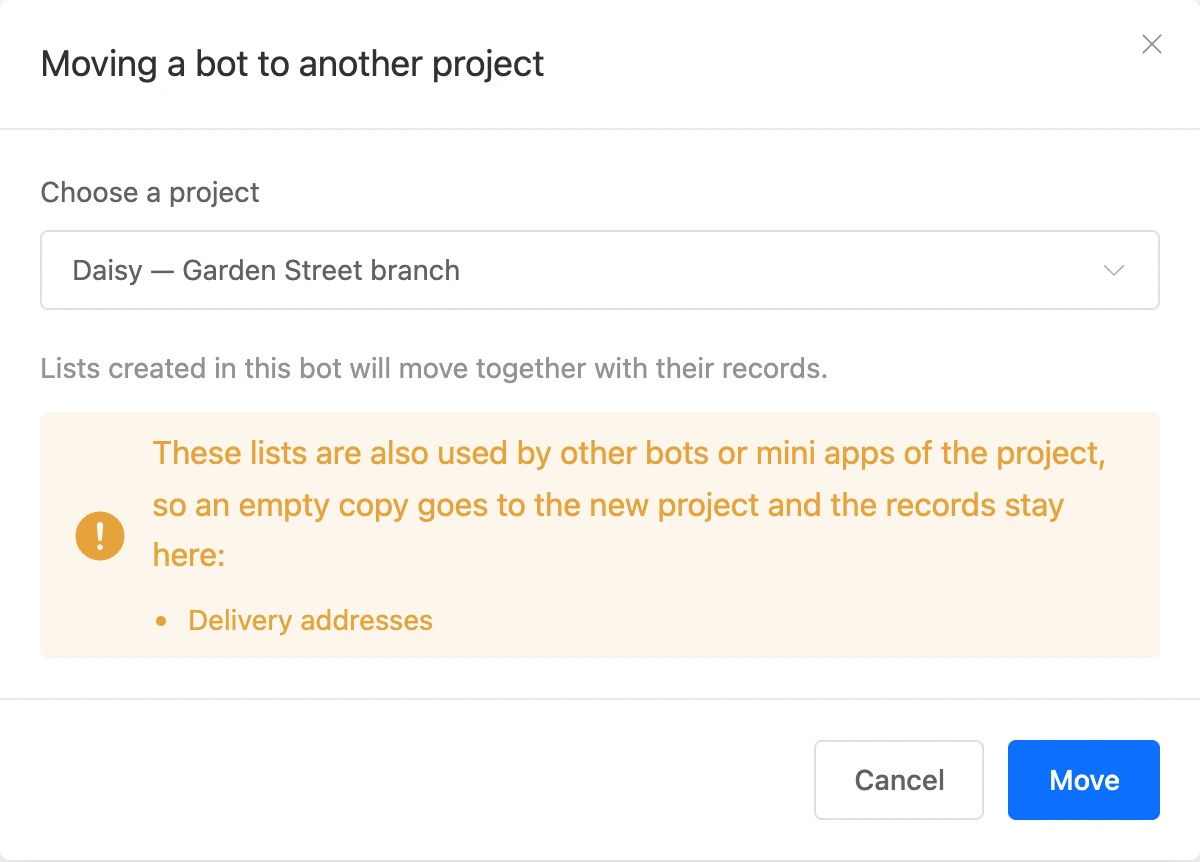
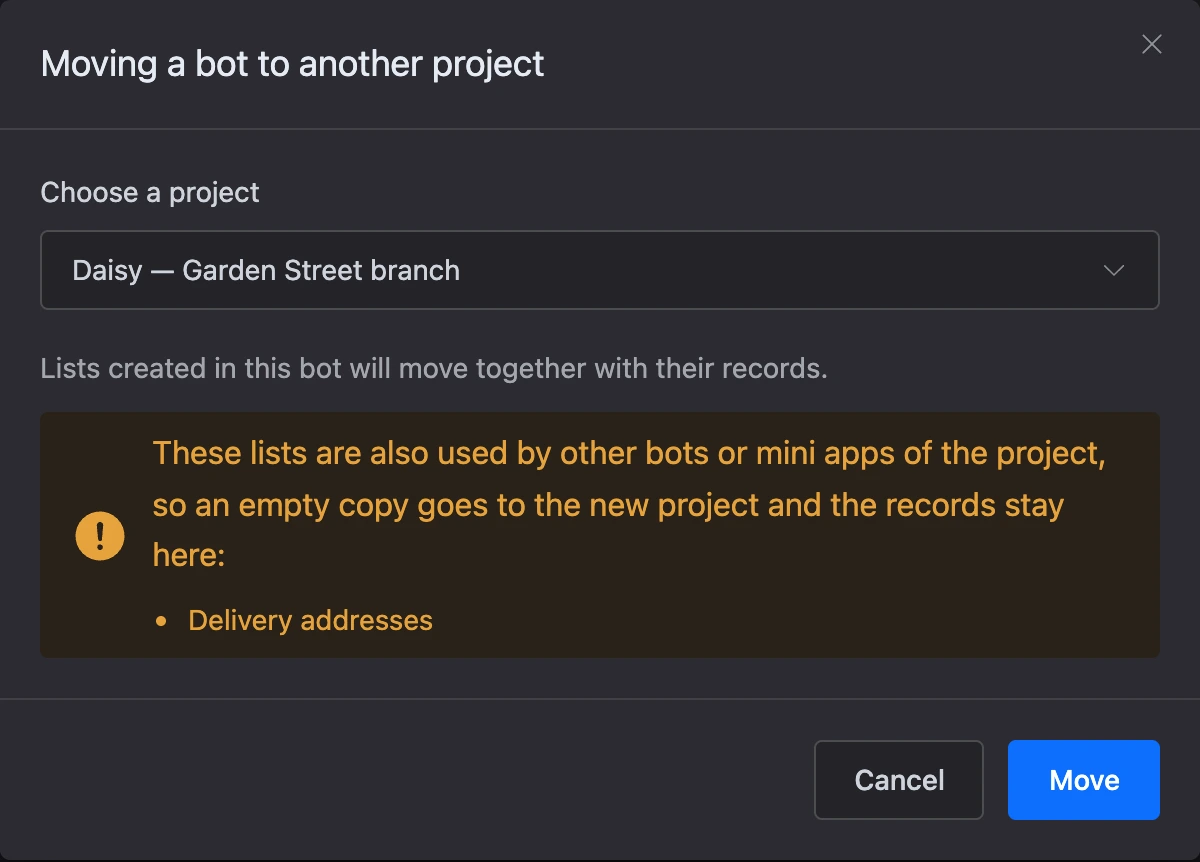
- In the "Moving a bot to another project" window, choose the project.
- Click "Move".
The bot disappears from the current list and takes the first place in the new project's list.
What happens to lists
Lists belong to the project, so on a move the platform decides for each of the bot's lists separately:
- The list is needed only by this bot — it was created in it, and no other bots or mini apps of the old project use it. It moves together with the bot, with all its records. The blocks keep working with it as before.
- Others use the list too — other bots or mini apps of the old project, or it is another bot's list that the blocks work with. It stays where it is. A list with the same structure — name and fields — is created in the new project, and the bot's blocks are switched to it. It will have no records.
If there are such lists, the move window lists them before you click "Move": "These lists are also used by other bots or mini apps of the project…".
Warning
If the bot reads a catalogue or price list from an empty copy, fill it after the move — for example, with Excel export and import.
Deleting a bot
- Choose "Delete" in the bot's menu.
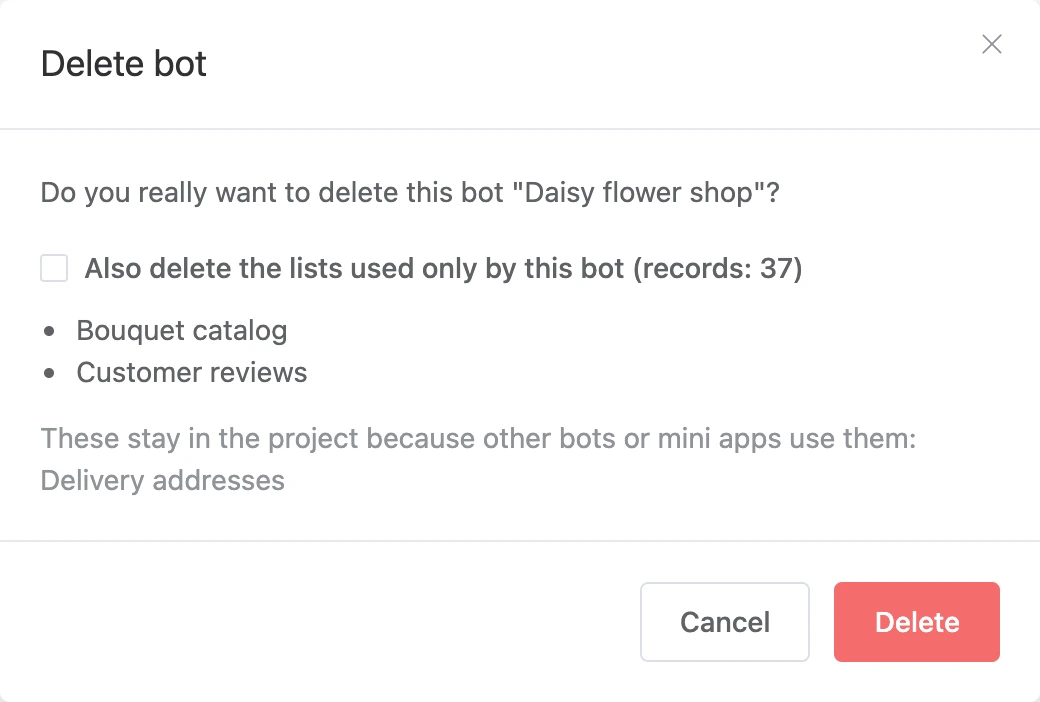
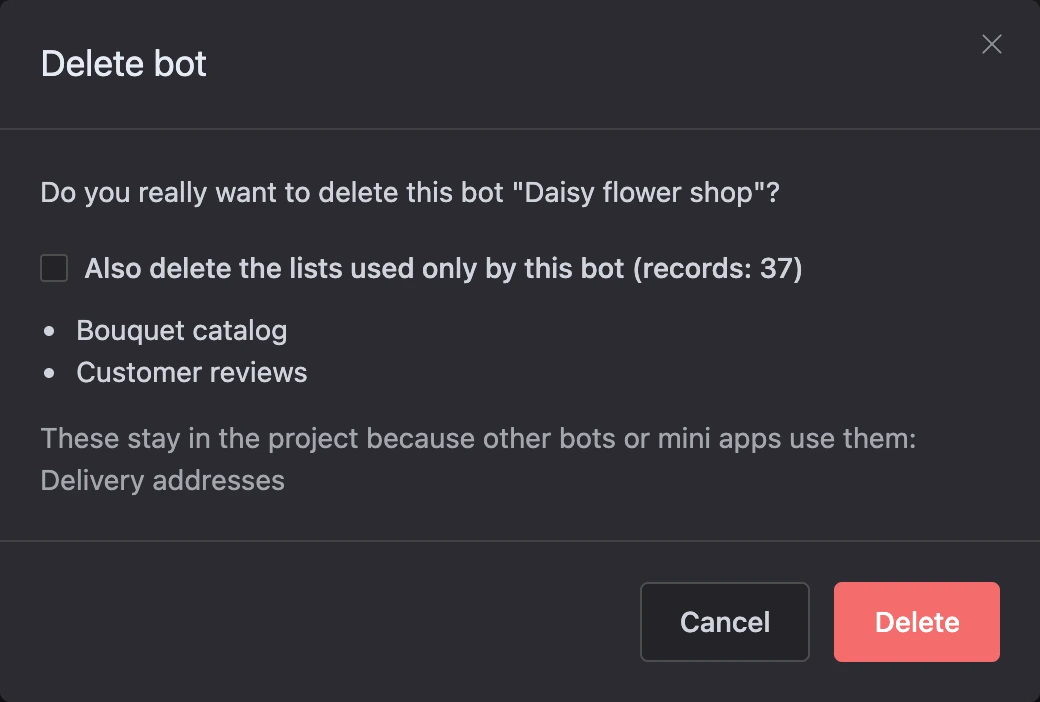
- In the "Delete bot" window, decide whether to delete the bot's lists — see below.
- Click "Delete".
What happens on deletion:
- the bot disappears from the list, and its scheme, contacts and conversations become unavailable;
- the Telegram, VK, Viber and website chat connections are deleted together with the links to the bot;
- mailings that were being sent at that moment stop;
- the bot's contacts are no longer counted in the account's total number of contacts;
- if the bot was being transferred to another account at that time, the transfer does not take place.
Templates published from this bot stay in the catalogue: a template is a separate copy.
Warning
A deleted bot cannot be restored from your account. If the bot may be useful, make a copy first or simply turn it off in the settings.
The bot's lists
Lists belong to the project and are not deleted together with the bot by themselves. If lists were created in the bot that nobody else in the project needs, the delete window has the option "Also delete the lists used only by this bot" — with the names of these lists under it and the total number of records in brackets.
- The option is off (the default) — the lists stay in the project with their records. In the project's "Lists" section they will be labelled "created in deleted bot “…”".
- The option is on — the lists are deleted together with the bot.
Lists used by other bots or mini apps of the project are never deleted — the window lists them separately.
An employee can delete lists together with the bot only with the "Deleting lists" permission. Without it the bot is deleted and the lists stay.
If something does not work
- The project's "Lists" section has unfamiliar lists labelled "created in a deleted bot". These are lists of bots deleted earlier: deleting a bot does not erase its lists, and before they were visible only inside their own bot. If you do not need them, delete them via "⋯" → "Delete".
- The "Duplicate" item is unavailable. The project already has 100 bots — one project cannot have more.
- "You cannot create more than 50 bots per day. Please try again later." The account's daily limit is used up; copies count toward it. Try again later.
- There are no "Move to ..." and "Transfer to another account" items. They are visible only to the project owner.
- "You cannot create more than 100 bots in one project." on a move. The chosen project has no room. Choose another project.
- "The bot is being transferred to another account…". The recipient has already accepted the transfer. Until it is completed or cancelled, the bot's project cannot be changed.