

Add list entry
Adds a new entry to a list from variables, contact data and text. It can update an existing entry instead of adding one.
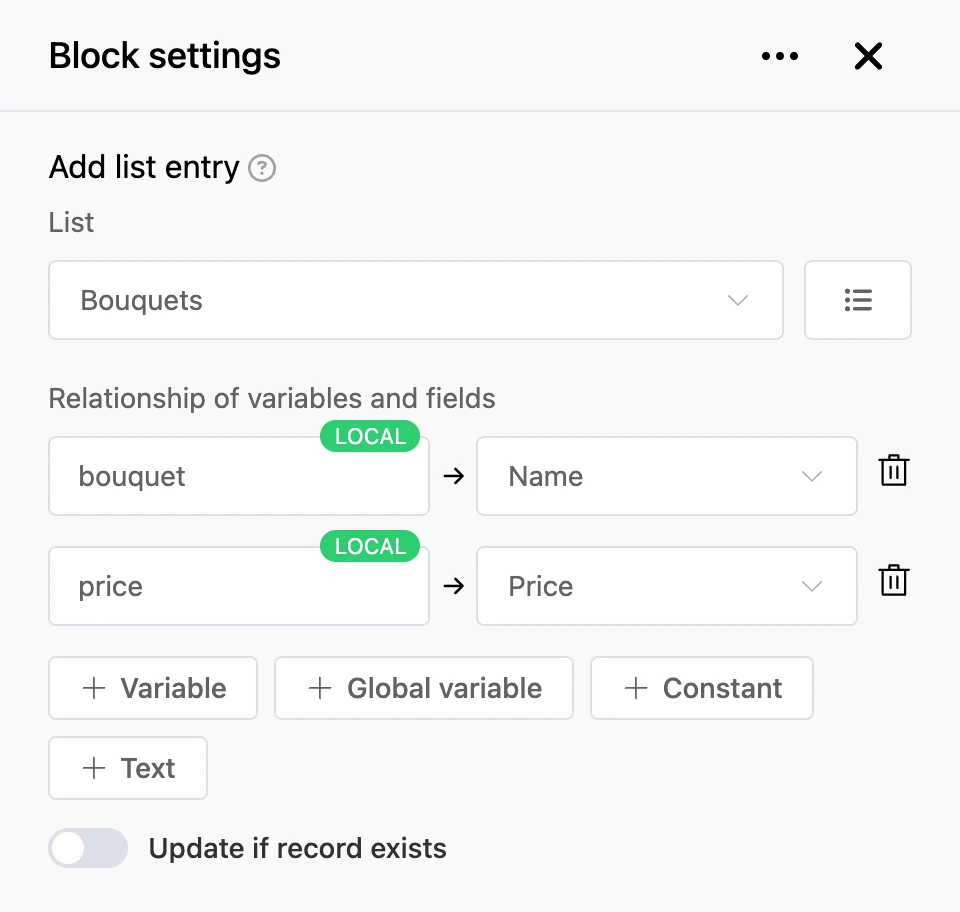
Settings
- "List" — where to write.
- "Relationship of variables and fields" — what to write to which field. The value is on the left, the list field on the right. A value is added with one of the buttons:
- "Variable" — a contact variable; enter its name;
- "Global variable" — a global variable of the bot;
- "Constant" — contact data: "ID", "Messenger ID", "Bot ID", "Username", "Name", "Phone", "Email", "Address", "The current date", "Referrer ID";
- "Text" — free text; templates work in it.
- "Update if record exists" — do not add a second entry, update the one found instead.
- "Fields to check for record existence" — appears when updating is on. It sets which fields are used to find "the same" entry: the bot looks for an entry in which all the listed fields equal the given values. If it finds one, it updates the fields from "Relationship of variables and fields" in it and leaves the other fields alone. If not, it adds a new one.
Into a photo or file field, write the variable to which the person sent a picture or a file. For a checkbox field, the values "yes", "true", "1" or any non-empty variable will do.
Outputs
- "Continue" — the entry has been added or updated.
Good to know
Values are checked against the types of the list fields. If a value does not fit — for example, text in a number field — the bot sends the person the error text and goes no further. The same happens if no list is chosen or the field mapping is empty.