

Tags and variables
The bot stores two kinds of its own data about a contact: tags and variables. The bot itself also has global variables — shared by all contacts.
| What | Whose | What it stores | Example |
|---|---|---|---|
| Tag | The contact's | A mark: the contact either has it or not | "placed an order" |
| Contact variable | The contact's | A name and a value, different for every contact | city = Leeds |
| Global variable | The bot's | A name and a value, the same for everyone | shop_address = 1 Garden Street |
Tags
A tag is a short mark on a contact. Tags are used to pick contacts and to branch the scenario.
How to assign a tag
You do not need to create tags in advance: a tag appears when it is assigned for the first time.
- With the scenario. The "Assign tag" block sets tags, the "Delete tag" block removes them.
- Manually. In the list of contacts or in the contact card, click "Add", type the tag's name and press Enter. The cross on a tag removes it.
- When uploading from Excel — from the column with tags. See the Import and export page.
A tag's name in the account is up to 60 characters. The same tag is not added to a contact a second time.
Where tags are used
- in the filters of the list of contacts — "Contact contains tags";
- in the filters of a mailing's recipients — "Contains tags" and "Does not contain tags";
- in the "Condition" block — "Contact contains tags" and "Contact does not contain tags".
Tag hints
When you type a tag, the platform suggests names that have already been used in this bot. The list of these names is the "Tag hints" list: open "Lists" in the bot's menu and click the "Tag hints" row.
A name gets into the list when you first type the tag in the account. You cannot create or rename tags here — the list is needed to remove what is unnecessary from the hints: typos and tags you no longer use.
- To delete one name, click the bin icon in the row.
- To delete several, tick them with the checkboxes and click "Delete …".
Note
Deleting a tag from the list does not affect contacts' tags. Those who already have the tag keep it — only the hint disappears.
Contact variables
A variable is a name and a value that the bot stores for a contact: an answer to a question, a chosen product, an order amount. Every contact has their own values.
Where variables come from
- From the scenario. The "Save user answer to variable" and "Variable operation" blocks write values, the "Delete variable" block deletes them.
- From the link the person came by. The link's parameters are saved to the new contact's variables. Variables whose names start with
utm_are shown in the list of contacts in the UTM column. Links are covered in the Links to chatbot section. - Manually — in the "Contact data" section of the card.
- When uploading from Excel — from the chosen columns of the file.
How to use them
In a message's text, a contact variable is written in double curly braces with the $ sign: {{ $city }}. All the notations, functions and expressions are in the Templates section.
You can pick contacts by a variable's value with the "Contact contains variables" filter in the list of contacts, and check it in the scenario with the "Condition" block.
User variable hints
A list of the variable names that have occurred in the bot. Open "Lists" and click the row with this name.
Using the list, the platform suggests names when you type a variable in the contact card, in filters and when uploading from Excel. The contact export depends on it too: a column in the file is created for every variable from the list.
Names are deleted the same way as tags: with the bin in the row, or with the checkboxes and the "Delete …" button.
Note
Deleting a variable from the list does not affect contacts' variables: the values stay. But there will be no more hints for this name and no column in the export.
Global variables
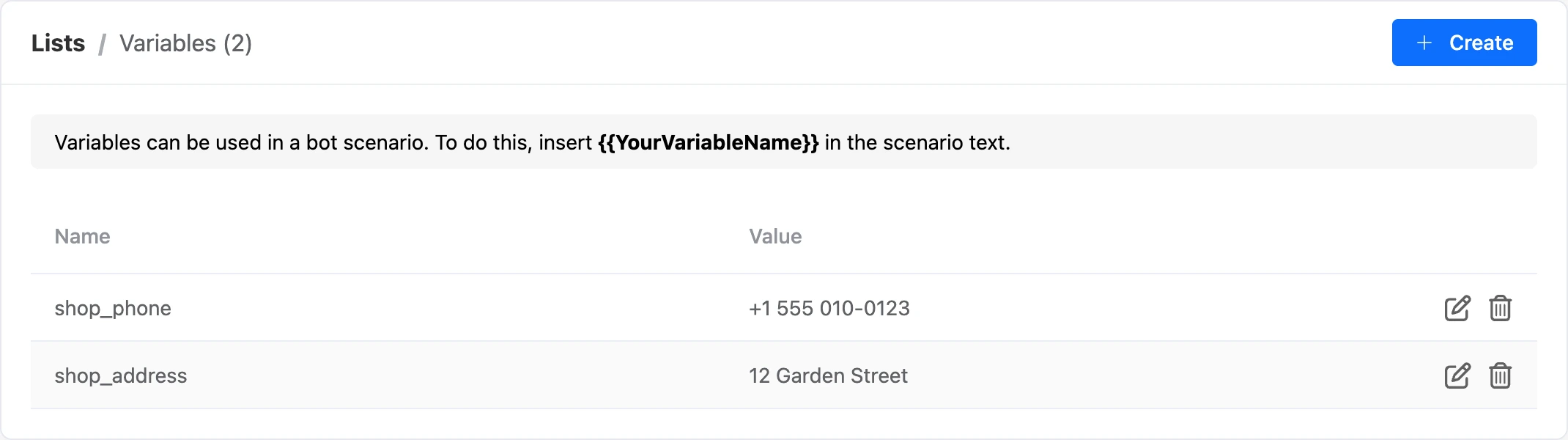
A global variable belongs to the bot and is the same for all contacts: the shop's address, the support phone number, a counter of promotion participants. You change the value in one place — and it changes in all the messages where the variable is inserted.
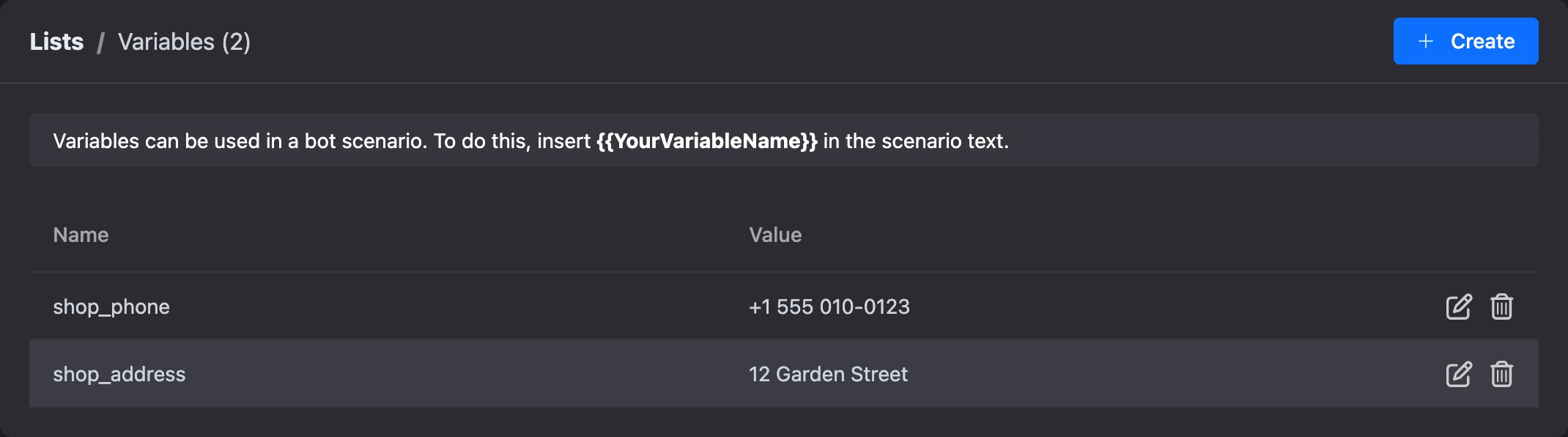
Open "Lists" and click the "Global variables" row. The "Variables" page opens.
Creating a variable
- Click "Create".
- In the "Create variable" window, fill in "Name" and "Value".
- Click "Create".
The name is up to 255 characters, the value — up to 1000. One bot can have no more than 5000 global variables.
Tip
Name variables without spaces:
shop_address,support_phone. Such a name is easier to insert into text.
Changing and deleting
- The pencil icon opens the "Edit variable" window. Only the value can be changed — the name stays the same.
- The bin icon deletes the variable. Before deleting, check that it is not used in the scenario's messages.
The scenario can change global variables too — with the "Save user answer to variable" and "Variable operation" blocks.
How to use them
In a message's text, a global variable is written in double curly braces without the $ sign: {{ shop_address }}. How to write a name with spaces and how to use a variable in expressions is on the Data you can insert page.
If something does not work
- "This variable already exists." A global variable with this name has already been created. Open it with the pencil and change the value.
- "You cannot create more than 5000 global variables for one bot." The limit on the number of global variables is reached. Delete the ones you do not need.
- A variable is missing from the contact export. Its name is not in the "User variable hints" list. Add a variable with this name through "Add field" in the card of a contact who does not have it yet — the name returns to the list.
- A tag is deleted from the hints, but contacts with it are still found. This is how it should be: the list does not change contacts' tags. To remove a tag, take it off in the card or with the "Delete tag" block.