

Request
The block reports a request: it sends a notification by email and to a messenger and creates a deal in the built-in CRM. The person going through the scenario sees nothing — the block passes them on right away.

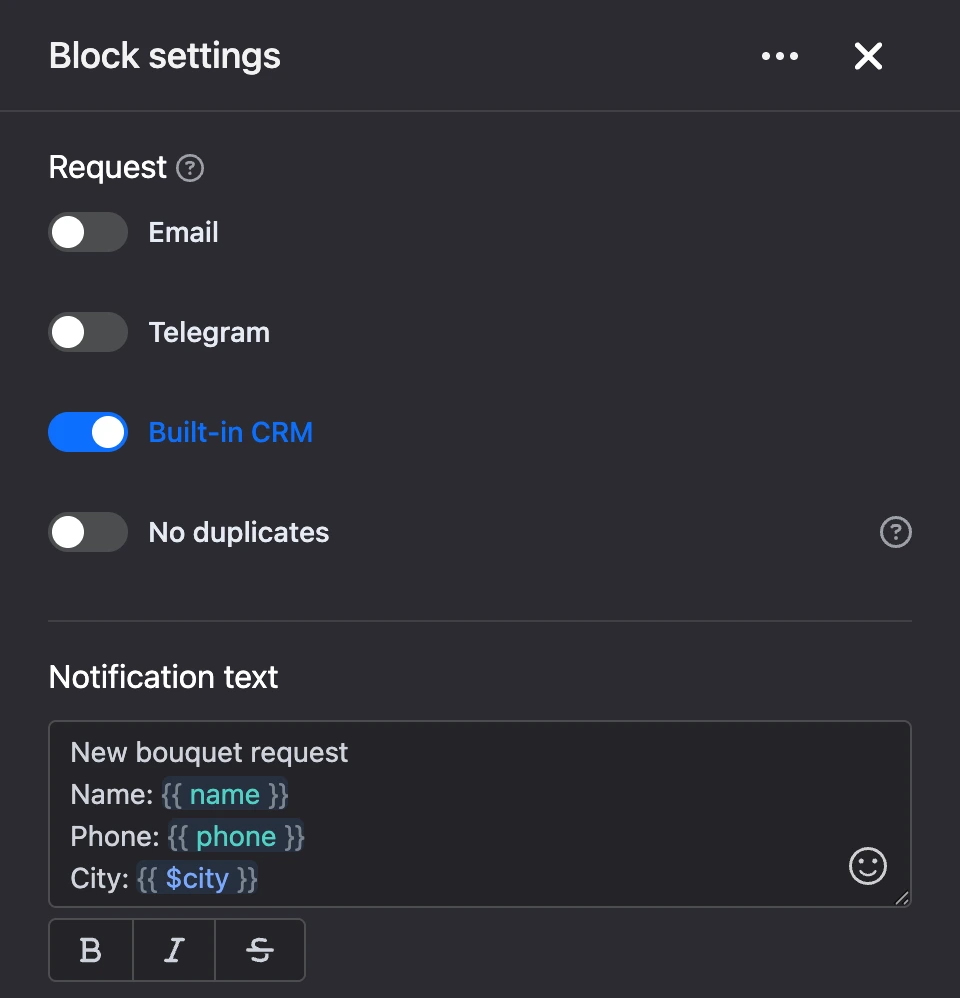
Place the block right after the bot has collected the data it needs: name, phone, answers to questions.
Settings
- "Email" — send the request by email. When the switch is on, the "Email list" field appears: choose the recipients' addresses in it.
- "Telegram" — send the request as a Telegram message. When the switch is on, the "Telegram Account List" field appears: choose the recipients in it.
- "AmoCRM" — pass the request to amoCRM. The switch is visible only if the amoCRM integration is connected to the bot.
- "Bitrix24" — pass the request to Bitrix24. The switch is visible only if the Bitrix24 integration is connected to the bot.
- "Built-in CRM" — create a deal in the bot's "CRM" section. On by default: this channel needs nothing to be connected.
- "No duplicates" — do not create a second deal while the contact has an open one. Once the previous deal is closed, the next request creates a new one. The switch does not affect email and messenger notifications — they are sent with every request.
- "Notification text" — your text at the beginning of the notification, up to 255 characters. It is seen by the recipients of the request, not by the contact. You can leave the field empty — then the standard notification is sent. Templates work in the text; of the functions, simple ones only.
Recipients in the "Email list" and "Telegram Account List" fields are chosen from those added in the bot's "Notifications" section. The "Add account" button under the field opens that section. Up to 50 recipients can be chosen in each field.


Important
The "Email" or "Telegram" channel does not work without chosen recipients. If only such channels are on, the block sends nothing.
What goes into a request
The email and messenger notification is put together automatically:
- the title — by default "New request for … bot" in the messenger and "New request in …" in the email subject;
- your "Notification text", if it is filled in;
- the contact's ID and name;
- a link to the contact in their messenger, or their ID in that messenger;
- the contact's phone and email, if known;
- all the contact's variables — one "name: value" line each.
Your own title is set in the bot settings — the "Use a custom request title in notifications" switch.
What is created in the built-in CRM
- A deal named "New request" at the first stage of the bot's pipeline.
- The contact's tags and variables are copied into the deal — as they were at the moment of the request.
- If the bot has no pipeline yet, it is created automatically and gets the bot's name. If the pipeline has no stages, the "Not processed" stage is created.
Outputs
- "Continue" — fires right after the request is sent.
Good to know
- After the request, variables that have "Remove variable after sending notification" turned on in the "Save user answer to variable" block are deleted. They will not get into the next request.
- In the "Bot test" window, deals and requests are not created in the CRM. Email and messenger notifications are sent during a check.