

Building a landing page in the AI chat
A mini landing page can be built by describing it in words: "a landing page for a yoga studio with sign-up for a trial class", "a business card for a nail artist with buttons for Telegram and VK", "a promo page with a request form". The AI creates the landing page, writes the page from blocks and shows the draft in a phone frame next to the conversation. You can fix an existing landing page the same way: "add a form to the site", "change the headline", "make the buttons green".
You do not need a Pro subscription to build — just as in the builder. You pay for the model's tokens — they are charged to "AI Credits". How they work is described on the Prices of additional services page.
How building turns on
Open the AI chat — with the "AI chat" button on the top bar of the account — and describe what you need. There is nothing to switch on: the AI connects the building tools when it sees what you are asking for, and a "Mini-landing builder" chip appears above the message field. If a bot is being built in the same chat too, the chip names all builders at once — for example, "Building: bot and mini-landing".
You can also start from the editor: the "AI help" button next to "Publish" opens the AI chat about this landing page and the open page. Building is on from the first message, and the page preview is shown on the right at once — no need to name the landing page in the chat.
A new landing page can also be started from the creation form: above it is the "Build a landing page with AI" block. Click "Build", describe the task or pick an example and click "Build with AI" — the AI chat opens, and the description is sent to it as the first message.
In the chip's menu you choose the mode — "Ask first" or "Automatic" — and turn building off. When there are several builders, they share one mode, but each can be turned off separately. The modes are the same as for building a bot: see the Building a bot in the AI chat page.
Building a new landing page
- Describe the page: what you do, who the page is for, what a visitor should do — write to the bot, go to a website, leave a request. If you need a picture, give a link to it.
- The AI checks whether the project already has such a landing page and offers to create a new one — the "Create a mini-landing" card. The landing page is created with an empty home page.
- If the page will have buttons to a bot or a form, the AI looks at the project's bots and their links.
- Then it writes the page — the "Write the page" card. If more pages are needed, "Add a page" cards appear.
- In the "Ask first" mode, click "Apply", "Apply and don’t ask again" or "Reject" — just as when building a bot.
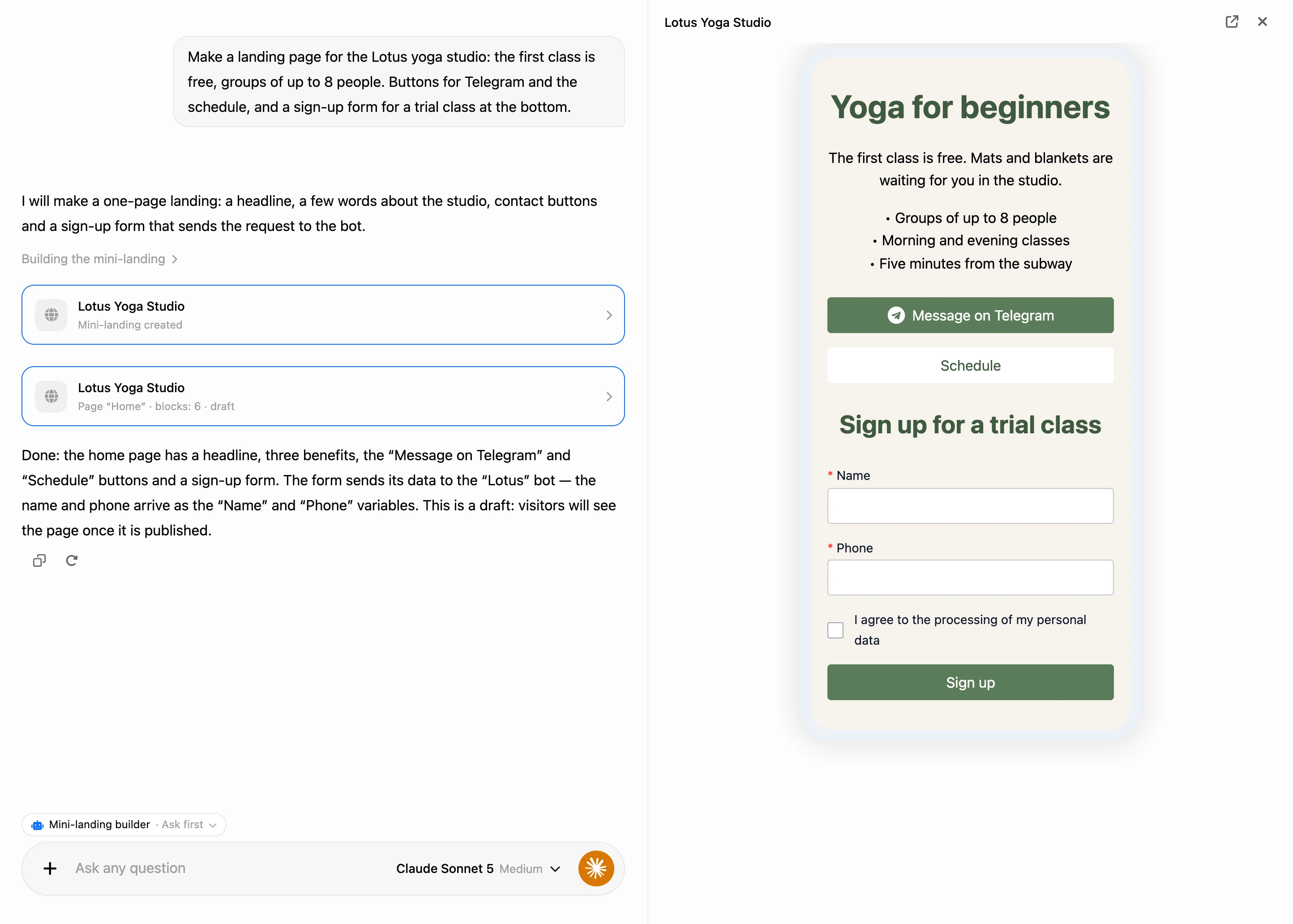
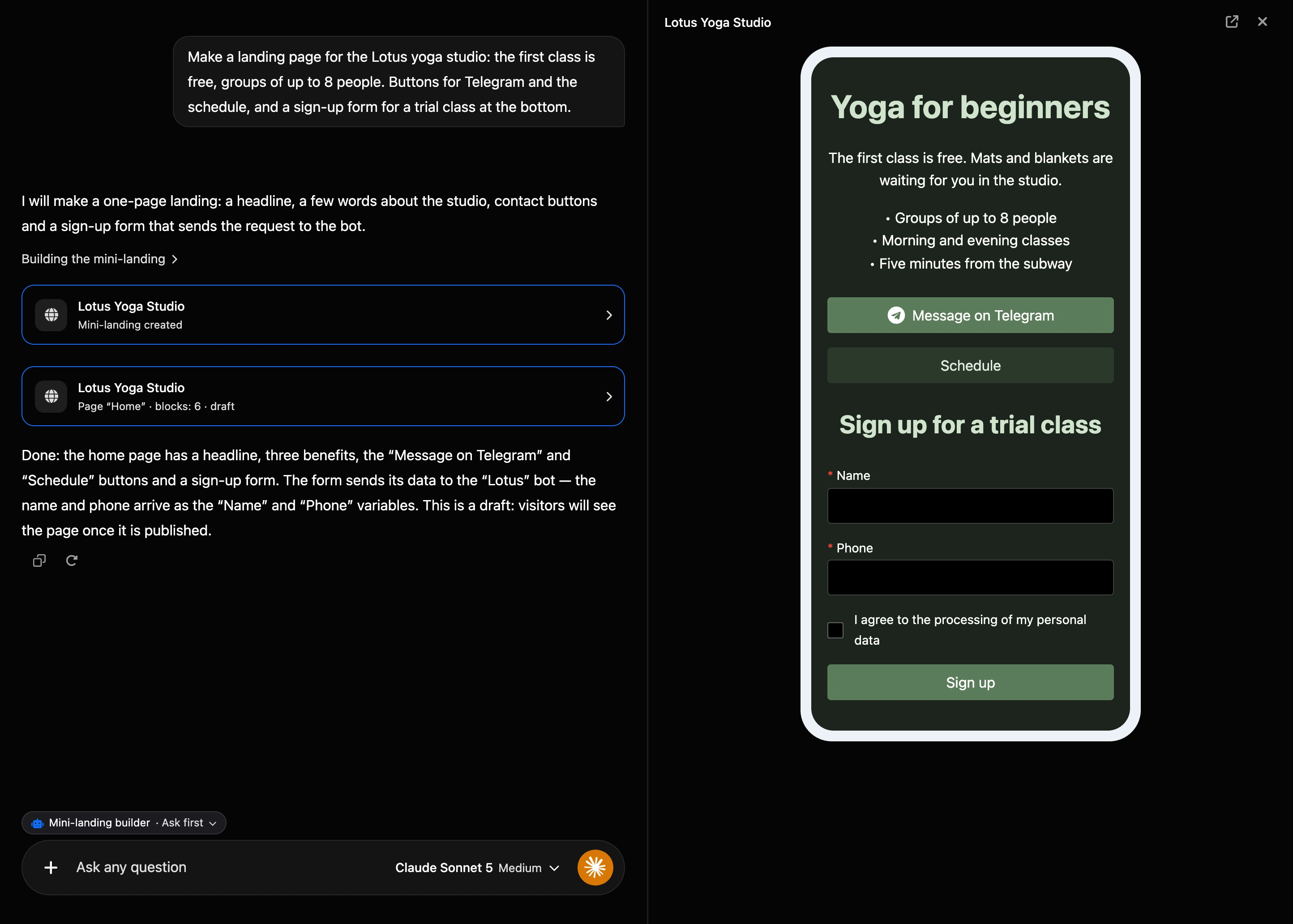
After a write, a landing page card stays in the conversation: the name and a line like "Page “Home” · blocks: 6 · draft". The "not ready yet" mark means the page has something that does not work — for example, a button without a link.
A click on the card opens a preview of the draft in a phone frame on the right — drawn the same way as in the builder: form fields, buttons and HTML blocks there are the same. If there are several pages, page tabs appear above the frame, and above them — the problems and remarks found by the check. The button in the panel's header opens the page in the builder.
Fixing an existing landing page
Name the landing page in the chat — the AI finds it in the project — or open the page in the builder and click "AI help". Then describe what to change. Small changes go into separate blocks: the AI adds, changes, deletes and moves them — the "Change the page" card. If the page has to be redone, it rewrites the whole page — the "Write the page" card.
Blocks you styled by hand in the builder — borders, shadows, gradients — keep their design when the AI edits them.
What the AI can do
- Create mini landing pages in the current project and add pages to them.
- Write a whole page or edit separate blocks.
- Set up the page: SEO title and description, background, font and padding.
- Text and headings: alignment, color, size, weight and font.
- Pictures — only from a link you gave. The AI uploads the file to the landing page. The picture shape is as is, full width, square or circle; you can set the rounding and the size. The AI never invents picture links: a page without a picture is better than one with a broken picture.
- Buttons: links to websites and bots, phone calls (
tel:) and emails (mailto:), Telegram, Viber, VK, MAX and YouTube icons, text color and background. Buttons go in a column, as wide as the text or in a row. - A form: "phone", "email", "text", "number", "multi-line text", "date", "time", "date and time" fields, a checkbox, a text and the submit button.
- Your own HTML — a map, a video, a widget, if regular blocks cannot do it.
- Check the page. Problems — a button without a link, a form without a bot link, a page without blocks — the AI fixes itself, and if a link only you can give is needed, it tells you so. It also warns you if the form does not lead to a bot, if there is an empty picture block or an empty text, or if there is no SEO title.
The AI does not invent facts about your business — prices, addresses, phone numbers, reviews: it asks or leaves a clearly visible placeholder for you to replace.
What the AI does not do:
- It does not publish the landing page without you. It can publish only with your consent — see below.
- It does not delete landing pages or pages.
- It does not change the address, domain, icon or code of the landing page (the "Scripts" tab) and does not rename it.
- It does not use pictures from chat files. The AI adds a picture only from a link to it on the internet.
The form and the bot
The form on a mini landing page sends what the visitor entered to a chatbot — by the link to the bot's channel in Telegram, MAX or VK. A person fills in the fields, presses the button and gets into the bot, and the bot already knows what they entered. How it works is on the Page builder page.
The AI takes the links from the channels of the project's bots and never invents them. In the bot, the values arrive as variables named after the field: a field by its label, a checkbox by its name. The AI tells you which variables will appear.
If no bot in the project has a channel link yet, the AI still adds the form — with a button without a link — and tells you what to do: connect a messenger to the bot and put its link on the form button (or ask the AI to).
A new form takes the colors of the page: labels in the color of the main text, the button in the color and rounding of the first button on the page. If you need other colors for the fields, labels or button, ask for them explicitly.
Publishing
The AI writes a draft. Visitors see the page only after it is published.
You can publish the landing page in the builder — with the "Publish" button, as usual. The AI can offer to publish too, but does it only with your consent: a "Publish the mini-landing" card with the "Publish" and "Reject" buttons appears in the conversation. The card appears every time, even in the "Automatic" mode, and it has no "Apply and don’t ask again" button.
All pages of the landing page that changed since the last time are published. Publishing runs in the background — from a few seconds to a few minutes — and after it the page opens at the landing page's address. Publishing needs a Pro subscription. A moderator of the platform may review published pages — see the Publishing and your own domain page.
What you need
- No Pro subscription to build a landing page. You need it to publish one — as in the builder. See the Mini landing pages page for details.
- Permissions. The AI changes landing pages within the same limits as you. A team member needs a role with the "Mini landing pages administration" permission.
- A suitable model — the same as for building a bot. If the selected model cannot handle building, a "Model … cannot build mini-landings" card appears in the conversation with a button to switch to a suitable one. See the Building a bot in the AI chat page for details.
If something does not work
- The AI describes the page in text but creates nothing. Building did not turn on. Ask directly: "make a mini landing page…". If there is a "Model … cannot build mini-landings" card in the conversation, click the button on it.
- The AI said it would do something, but nothing happens. In the "Ask first" mode, the change is waiting for your decision on the card — click "Apply".
- Visitors do not see the changes. The AI works in a draft: publish the landing page.
- Form data does not reach the bot. Look above the preview frame for "The form button has no bot link — the data goes nowhere" or "The form does not lead to a bot — the data will not arrive". Connect a messenger to the bot and ask the AI to put its link on the form button.
- There is no picture on the page. The link did not lead to a picture, or the picture is not available without signing in. The AI tells you about it in the reply — give another link.