

Documents
Open the base — you will land on the "Documents" page. Click "Add document", set the "Document name" and choose the "Source type".
| Type | What it is | Specifics |
|---|---|---|
| "Text" | Text pasted right into the form | Up to 100,000 characters |
| "Web page (URL)" | A page or a file by link | You can turn on "Scheduled auto-update" |
| "File" | A file from your computer | Drag it into the form or choose it |


Supported file and link formats:
- documents — PDF, DOC, DOCX, PPT, PPTX, XLS, XLSX, ODT, ODP, ODS, RTF, EPUB;
- text and data — TXT, Markdown, HTML, CSV, JSON, XML;
- images — JPG, PNG, WebP, BMP, TIFF, GIF, HEIC.
You can also add documents from the AI chat — see the Connect a base to AI page.
Additional parameters
- "Image processing parameters" — for files and links. Text in pictures and scans is recognized automatically; choose the "Text language in images".
- "CSV processing parameters" — whether the first row contains headers and which delimiter is used. By default, the delimiter is detected automatically.
- "Chunking parameters" — what fragments (chunks) the document is split into:
- "Chunk size (characters)" — from 50 to 2048, 512 by default;
- "Overlap (characters)" — from 0 to 512, 50 by default.
The smaller the fragment, the more precise the search, but the less context the model gets. If a document has headings, it is first split into sections by them — such documents are searched better than continuous text. Details are in the "More about chunking" hint in the same form.
Tip
Start with the default values. Change them only if the search returns the wrong fragments — you can see this on the "Search testing" page.
Processing
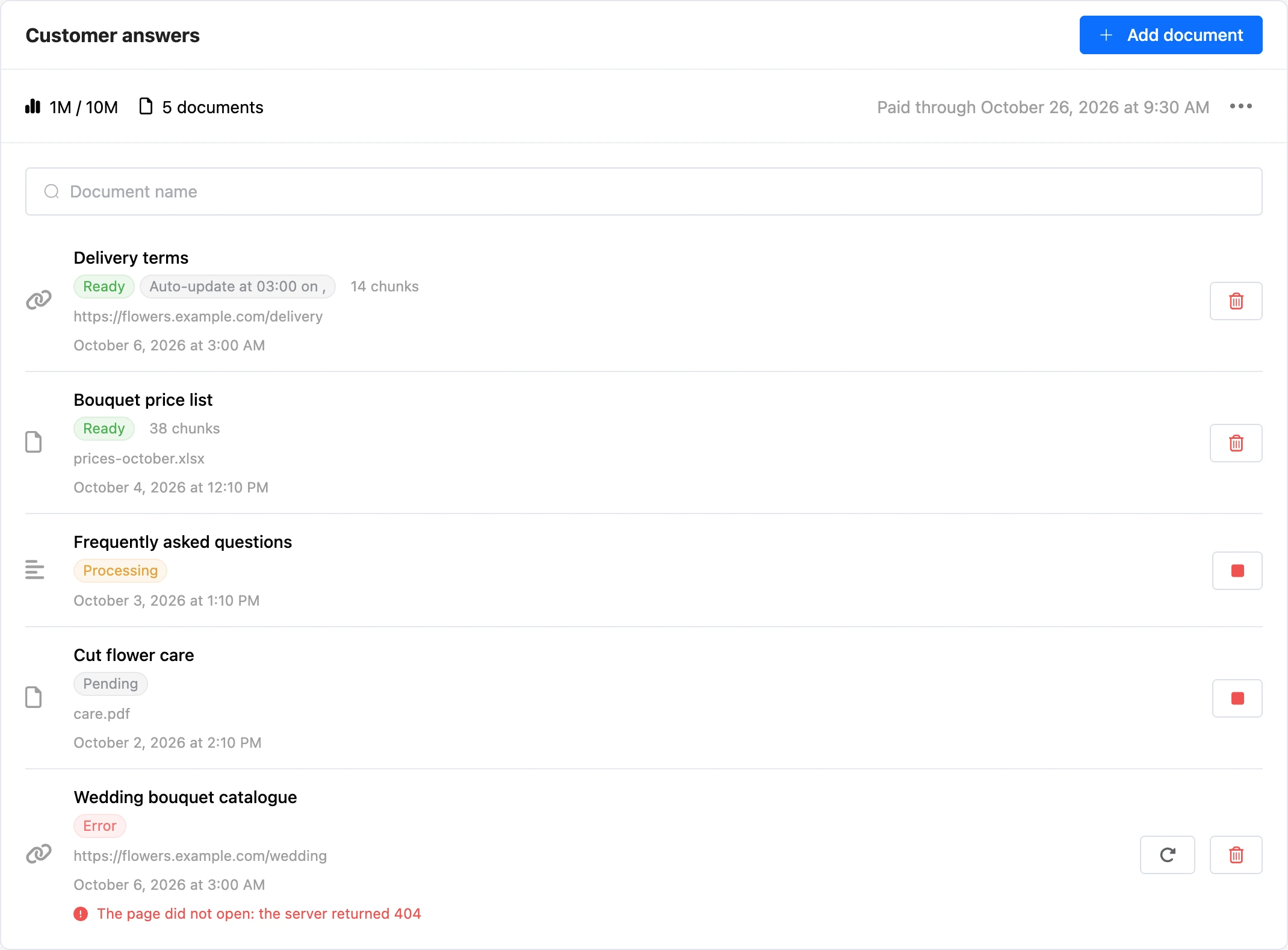
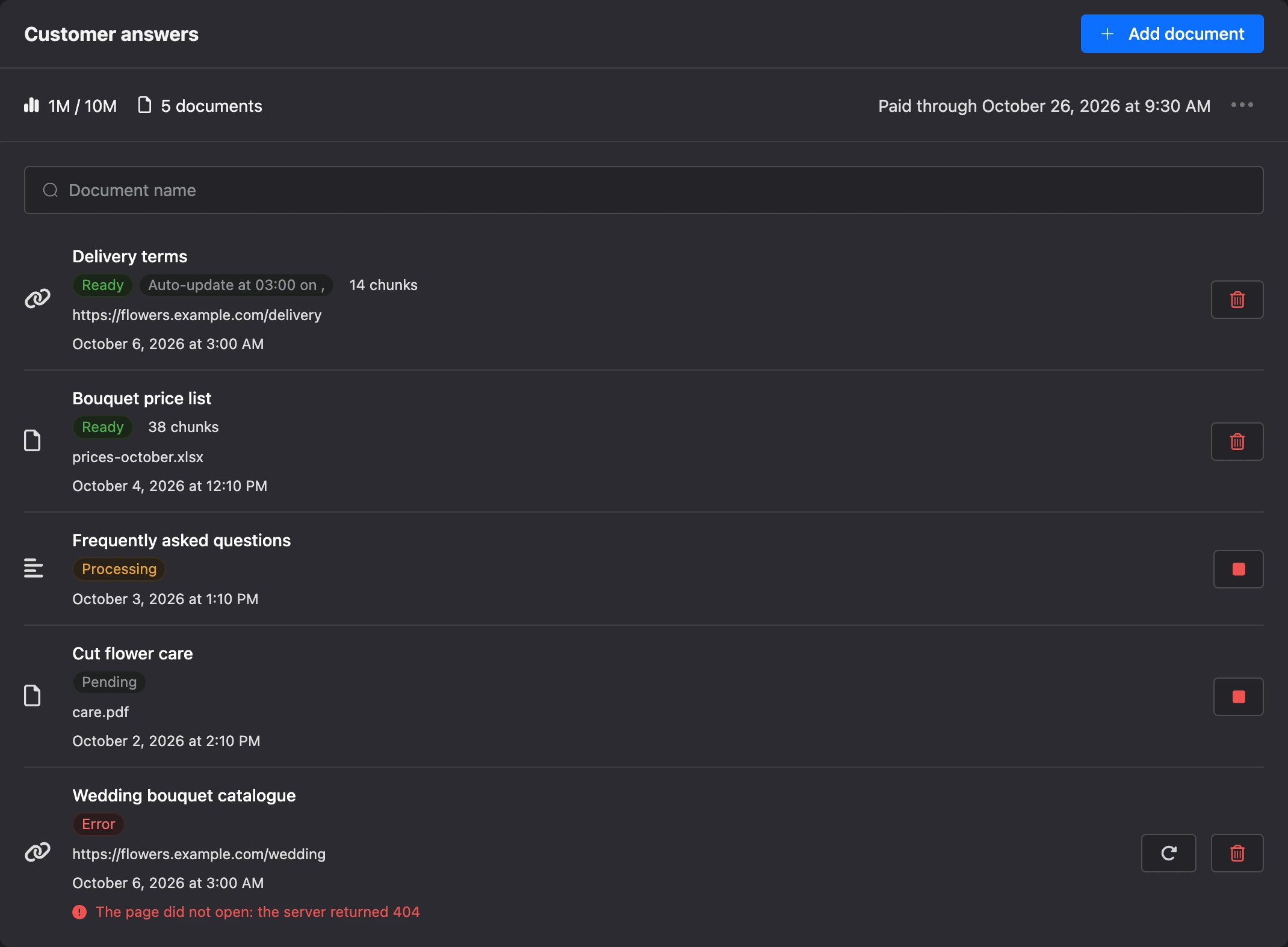
After it is added, the document is processed in the background. Its state is shown in the list:
| State | What is happening |
|---|---|
| "Pending" | The document is in the queue |
| "Processing" | Text is extracted from the document and split into fragments |
| "Awaiting vectorization", "Vectorization" | The fragments are being prepared for search by meaning |
| "Ready" | The document takes part in search. The number of fragments is shown next to it |
| "Error" | Processing failed; the reason is shown under the name |
| "Canceled" | Processing was stopped |
Buttons in the document row:
- "Stop processing" — while the document is being processed;
- "Retry" — for a document in the "Error" or "Canceled" state;
- "Delete" — for a ready, canceled or failed document.
Above the list is a search by document name. Clicking a ready document opens it for editing. If you change the text, the link or the processing parameters, the document will be indexed again — the platform will warn you that this uses tokens. What else tokens are spent on is on the Plan and tokens page.
Scheduled auto-update
A document from a link can update itself. Turn on "Scheduled auto-update" in the document form, and set the days of the week and the time in the base settings.
The document is re-indexed only if the content at the link has changed — this way tokens are not wasted. Auto-update can be turned on for no more than 12 documents in one base.
Until a schedule is set in the base settings, the document has the "Schedule not configured" label.
If something does not work
- The document shows "Error" and a message about the quota. The monthly token volume is used up. Switch to a bigger plan or wait for the renewal, then click "Retry". See the Plan and tokens page for details.
- "In one knowledge base, scheduled auto-update is available for a maximum of 12 documents at the same time." Turn off auto-update for a document that does not need it.
- There is no "Add document" button, and the header says "Inactive since …". The base plan has ended. Click "Renew".