

Read rows from Google Sheets
Looks for rows in a Google spreadsheet, saves values to variables and shows the rows to the person.
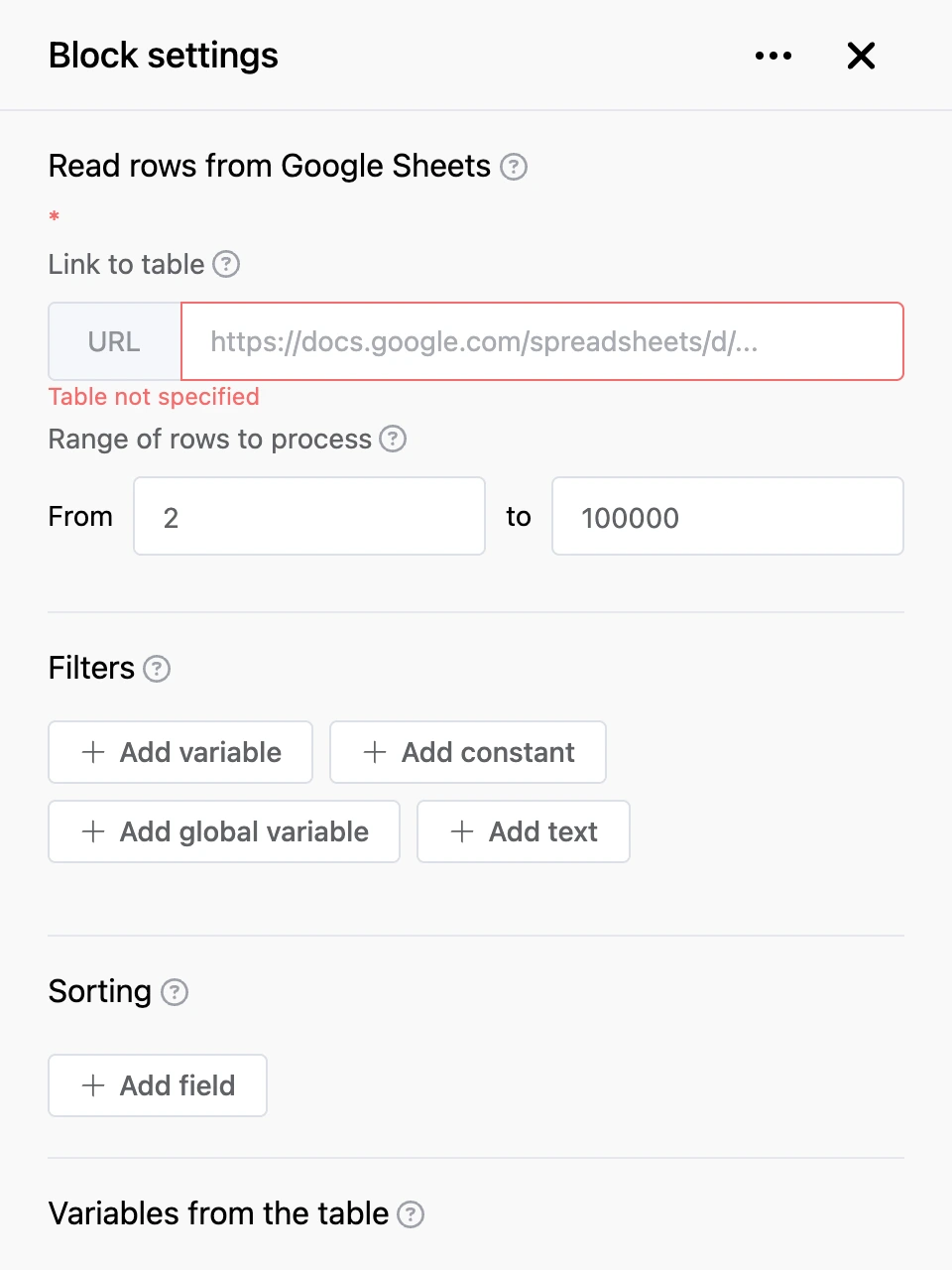
Settings
"Link to table", "Sheet", "Range of rows to process" and "Filters" — as in the common settings.
- "Sorting" — the column and the order: "Asc" or "Desc".
- "Variables from the table" — which variable to save which column's value to. The "Add variable" and "Add global variable" buttons choose where to write: to a contact variable or to a global variable of the bot. The value from the first row found is saved.
- "Messages chain template" — what to send to the person for each row:
- "Template" — text. A cell value is inserted by its column letter:
{{ A }},{{ B }}; - "Photo" and "File" — the letter of the column whose cell holds a direct link to a picture or a file.
- "Template" — text. A cell value is inserted by its column letter:
- "Number of records in a message" — how many rows to show, from 1 to 100.
- "Process table using JavaScript" — turns on the "JavaScript for table processing" field. In the code, the rows found are available as
sheet.data— an array of rows, each row being an array of cells. Which columns to load for the code is set by callingsetColumnRange("A:Z"). See Built-in variables for details. - "Menu" — the block's buttons.
The saved values are then used like regular variables: {{ $price }} — see Data you can insert for details. You can leave the template empty if you only need the variables.
Outputs
- "No records found" — the range has no rows that match the filters. The variables are not changed in this case.
- Buttons from "Menu" — the person pressed a button.
- "Any other phrase" — the person wrote something else.
- "Continue" — right after the variables are saved and the rows are sent.
Note
If "Continue" is not connected to anything and "Any other phrase" is connected, the bot follows "Any other phrase" right after showing the rows, without waiting for a reply.