

Two-factor authentication and sessions
Both settings are in "Settings" → "Security".
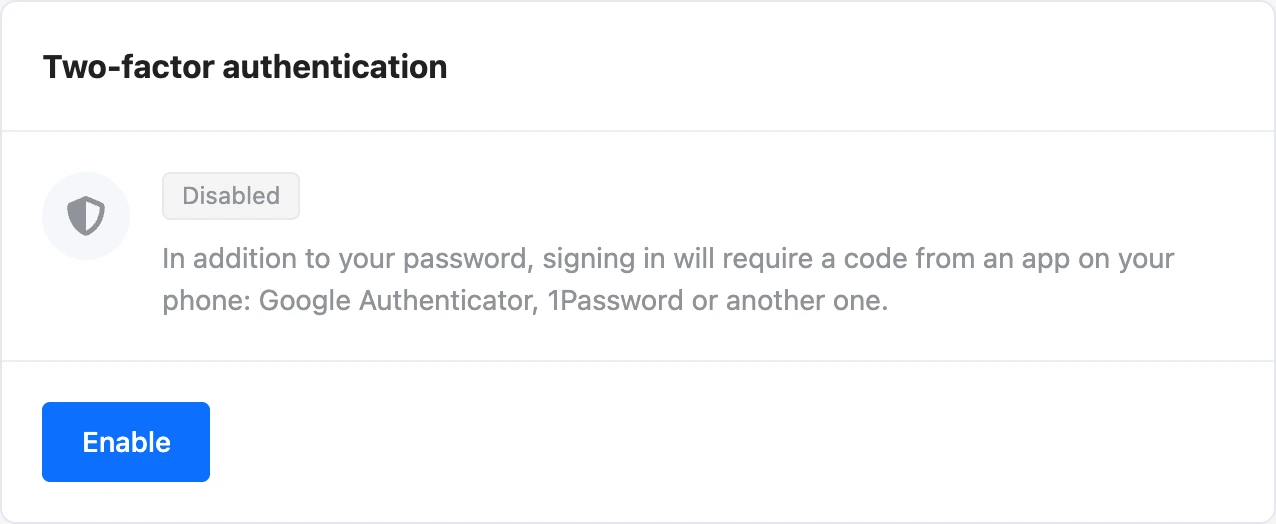
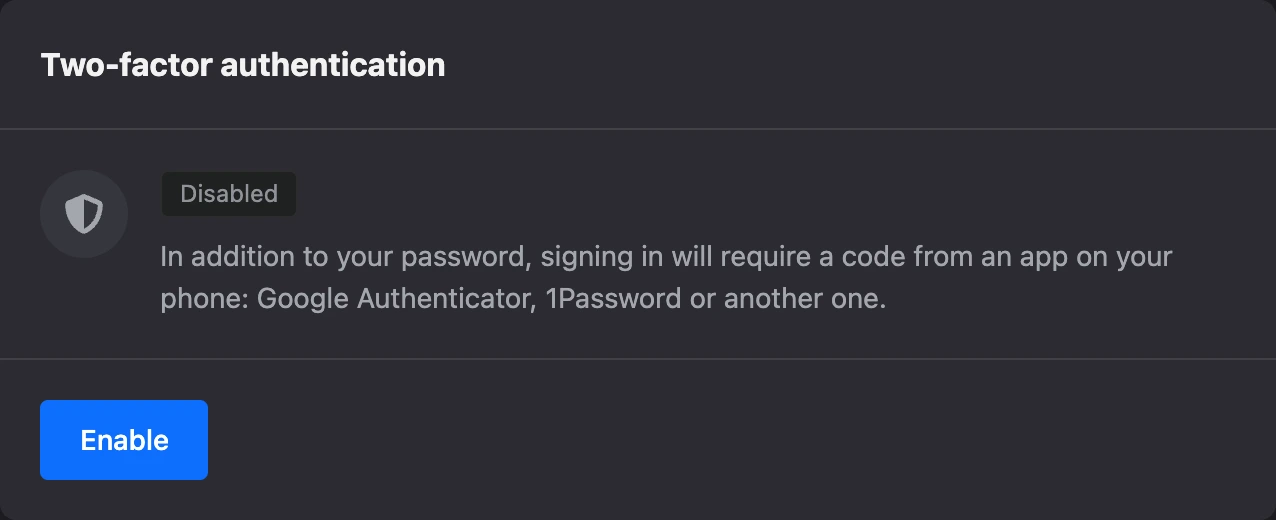
Two-factor authentication
With two-factor authentication, signing in requires a code from an app on your phone in addition to the password. Someone who has learned your password cannot get into the account without your phone.
The code is issued by an authenticator app: Google Authenticator, Microsoft Authenticator, Yandex Key, 1Password or any other. There are no codes by text message.
When you need it
- Optionally — to protect the account. You can turn it on at any time.
- Mandatory — to transfer a bot to another account. And you have to turn it on in advance: if it was set up recently, the transfer window shows the date from which a transfer is possible. More in the Managing bots section.
How to turn it on
- Open "Settings" → "Security". In the "Two-factor authentication" card, click "Enable".
- Enter the account password and click "Continue".
- Install an authenticator app on your phone if you don't have one yet.
- In the app, tap "+" and scan the QR code from the screen. The regular phone camera won't work — you have to scan from the app. If it doesn't scan, click "Can't scan it? Enter the key manually" and copy the key into the app. On a phone, instead of scanning you can tap "Open in the app".
- Enter the 6-digit code from the app and click "Confirm".
- Save the recovery codes: "Copy" or "Download". Tick "I have saved the recovery codes" and click "Done".
You have 15 minutes for the setup. If the time runs out, you see the message "The setup has expired. Please start again." and a "Start over" button.
After it is turned on:
- the card shows the "Enabled" mark with the date;
- all other sessions of the account end — on other devices you need to sign in again, now with a code;
- you get the "Two-factor authentication enabled" email.
Note
If you sign in with Google or Yandex and don't know your password, there is a "Set a password" link under the password field — it leads to password recovery.
Recovery codes
When you turn it on, the platform issues 10 recovery codes. A recovery code replaces the code from the app if your phone is not at hand.
- Each code works once.
- The codes are shown only when they are issued. You cannot view them later — only issue new ones.
- The card shows how many codes are left: "Recovery codes left: …".
Important
Keep the recovery codes separately from your phone: in a password manager or on paper. If you lose both the phone and the codes, you will not be able to sign in to the account on your own.
To issue new codes, click "New recovery codes", enter your password and a code from the app or one of the recovery codes. The old codes stop working after that.
Signing in with a code
After the password, the "Confirm sign-in" screen opens. Enter the 6-digit code from the app and click "Confirm". You have 5 minutes to enter the code — if you run out of time, sign in again.
Signing in with Google and Yandex works the same way: after you choose the social network account, the platform asks for the code.
Setting it up again or turning it off
- "Set up again" — link another phone or another app. You need your password and a code from the old app or a recovery code. After the new setup, new recovery codes are issued.
- "Disable" — you need your password and a code from the app or a recovery code. You get the "Two-factor authentication disabled" email.
Warning
Setting it up again counts as turning it on anew: the countdown after which a bot can be transferred starts over.
If you lost your phone
- On the "Confirm sign-in" screen, click "Sign in with a recovery code".
- Enter one of the saved codes and click "Confirm".
- The platform tells you how many codes are left and sends the "Sign-in with a recovery code" email.
- In "Settings" → "Security", click "Set up again" and link the new phone. You will need one more recovery code to confirm.
If you have no recovery codes either, contact the platform's support. When two-factor authentication is reset, all sessions end and you get the "Two-factor authentication reset" email. After that, sign in with your password and set it up again.
Protection against guessing
Wrong codes are counted. After 10 wrong attempts in 15 minutes or 50 in a day, code checking is temporarily blocked and you get the "Too many invalid two-factor codes" email. Such an email means that your password is most likely known to someone else — change it.
Sessions
A session is a sign-in to the account from one device and browser. Below the two-factor authentication card you see:
- "Current session" — the device, system, browser and IP address you are working from now;
- "Active sessions" — the other devices where you are signed in: the time of last activity or the "Online" mark.
What you can do:
- "End session" next to a session — sign out on that device;
- "End all other sessions" — sign out on all devices except the current one.
If the list has a device you don't recognise, end that session and change your password.
Sessions also end by themselves: the other ones — when you change the password and when you turn on two-factor authentication, all of them — when you reset the password and when an email change is canceled.
If something does not work
- "Invalid code. Make sure the time on your phone is correct." The code depends on the time. Turn on automatic date and time on your phone and enter a fresh code.
- "The time to enter the code has expired. Please sign in again." Go back to the sign-in page and enter your password again.
- "Too many login attempts. Please try again in … seconds." The protection against guessing has kicked in. Wait for the specified time.