

Additional links
An additional link opens the bot and right away starts the scenario you have chosen for it. This is handy for:
- taking people from different ads to different scenarios;
- comparing ad platforms: every link has its own counter of clicks and visits;
- printing a QR code that takes a person, for example, straight to the booking scenario or to the catalog.
Links are created separately for every messenger: a Telegram link leads only to Telegram, a VK link — only to VK.
Creating a link
- Open "Links to chatbot" in the bot's menu and choose a messenger on the right.
- In the "Additional links" block, click "Add link".
- Fill in the "Create link" window and click "Save".
The window's fields:
| Field | What to enter |
|---|---|
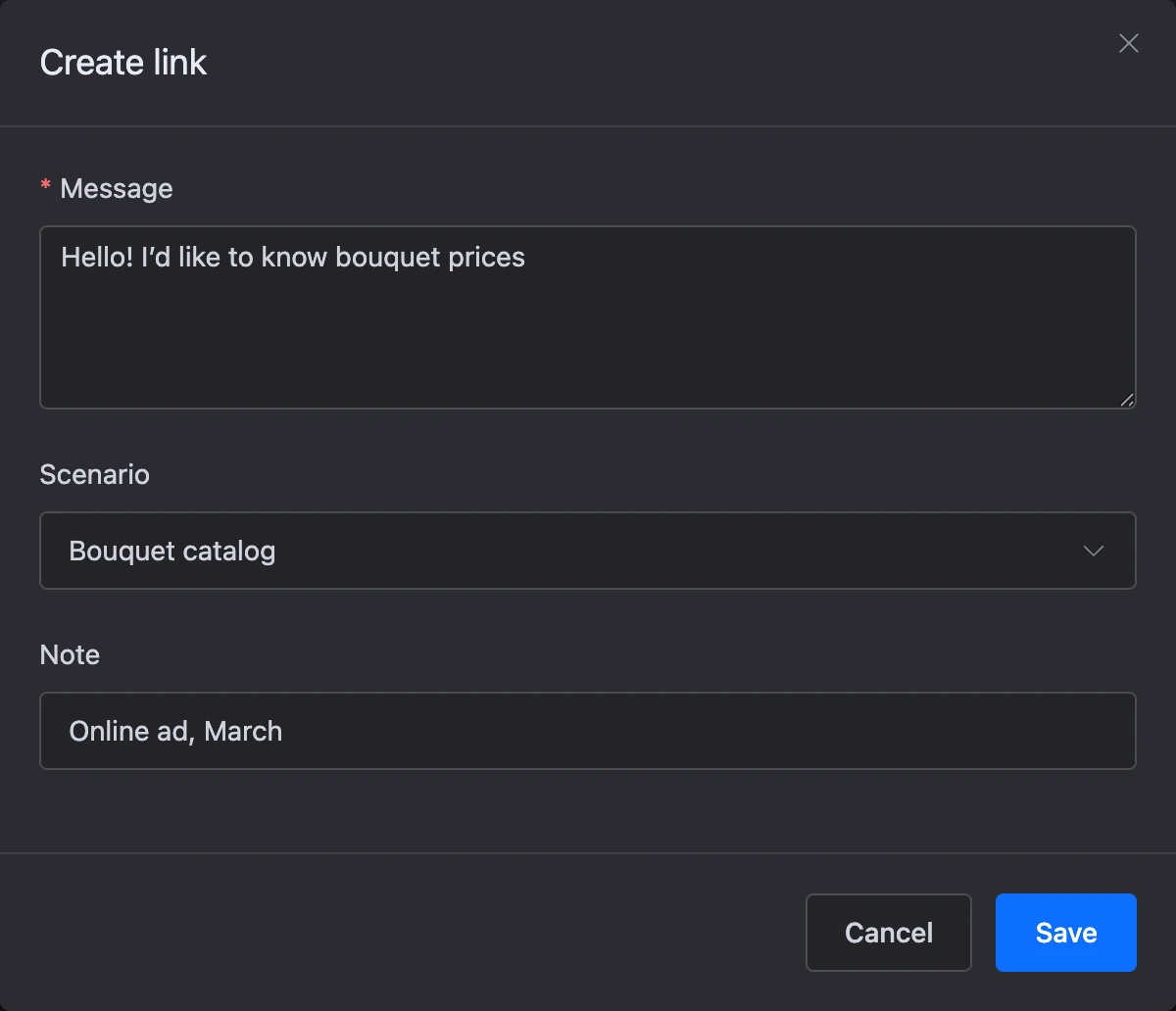
| "Scenario" | The scenario the link will start. Scenarios are shown with their nesting. If you choose nothing, the link starts the "Main scenario" |
| "Note" | A remark for yourself, up to 255 characters: where the link leads from, which campaign it is for. A person who follows the link does not see it |
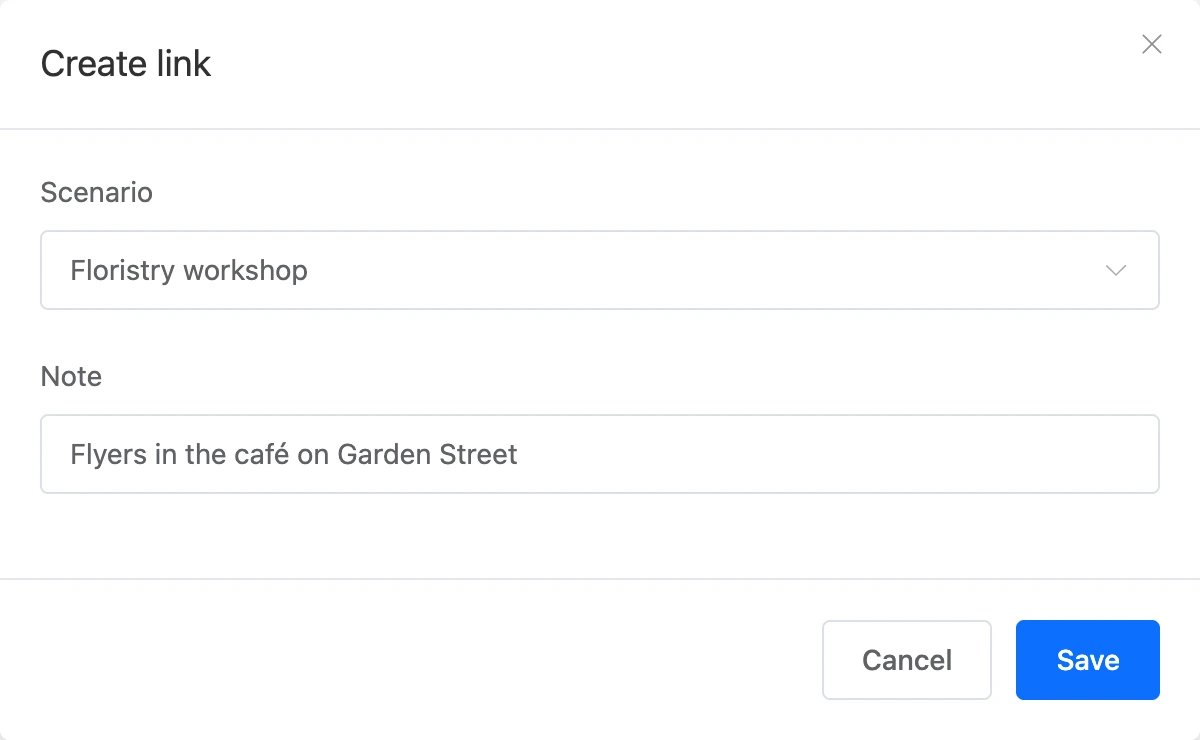

A new link appears first in the list. The platform issues the link's address itself, it cannot be changed.
Important
Following an additional link starts its scenario from the beginning, even if the person has already talked to the bot and stopped in the middle of another branch.
How scenarios work is in the Scenario builder section.
The list of links
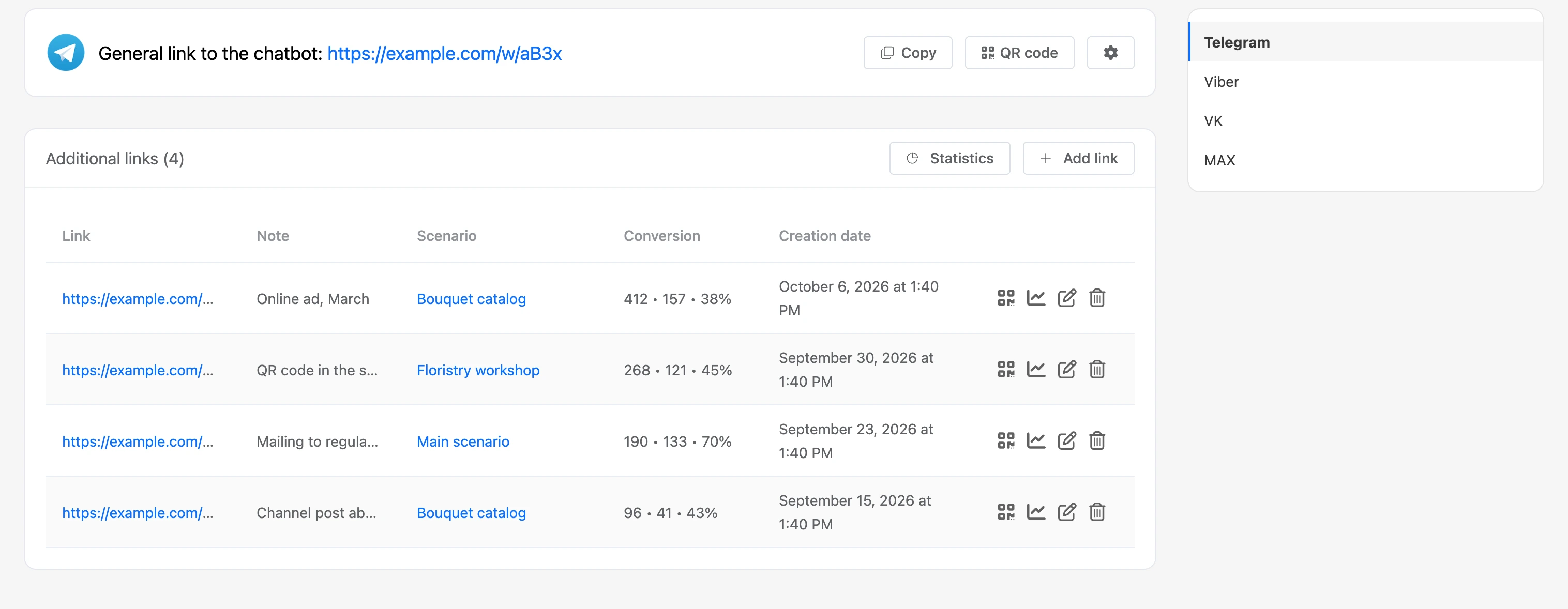
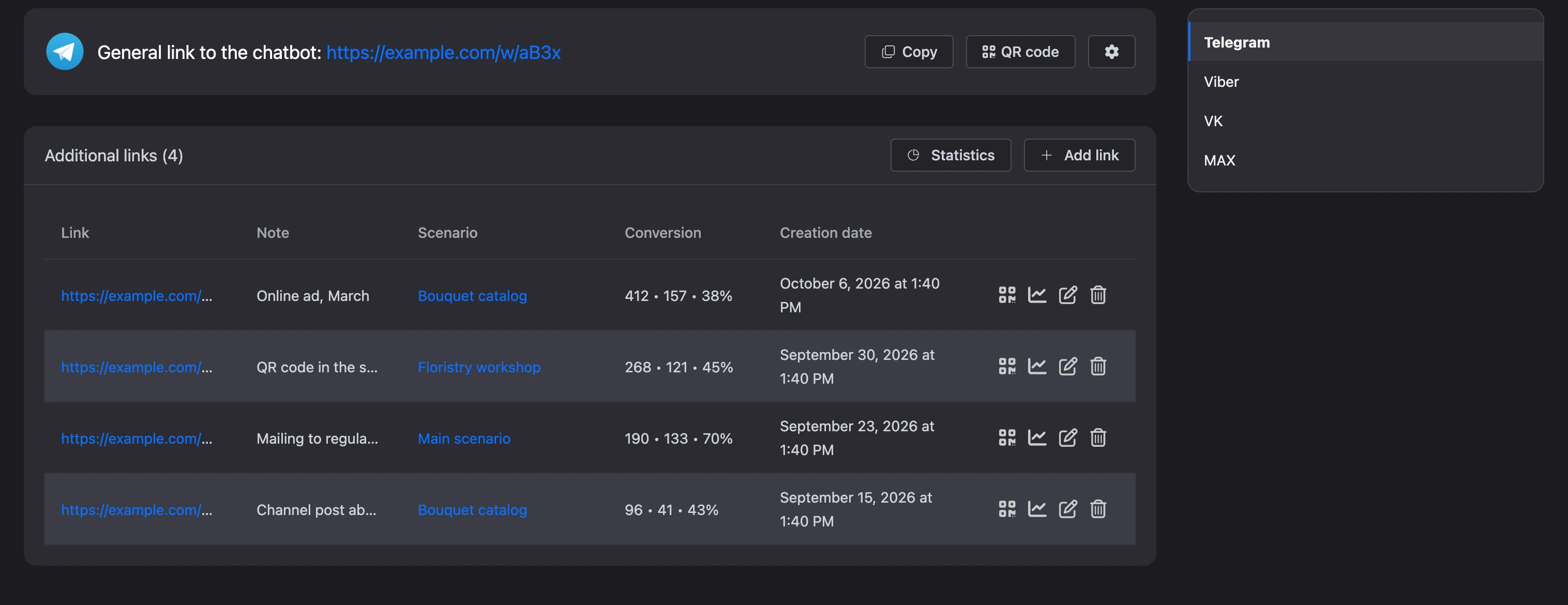
In the table, every link has:
- "Link" — the address; a click opens it in a new tab;
- "Note";
- "Scenario" — the scenario's name; a click opens its scheme;
- "Conversion" — three numbers separated by dots: clicks, visits and conversion;
- "Creation date".
What the three numbers mean:
| Number | What it counts |
|---|---|
| Clicks | How many people opened the link. Unique clicks of all time are counted |
| Visits | How many people reached the bot in the messenger after the click. Also unique, of all time |
| Conversion | The share of visits out of clicks, as a percentage |
On the right of the row are the actions:
- the QR code icon — a window with the QR code of this link;
- the chart icon — clicks and visits by the link on a chart, with a choice of period;
- the pencil icon — the "Edit link" window: you can change the scenario and the note, the address stays the same;
- the bin icon — delete the link.
The actions are visible to those who have the "Editing channels" permission.
The "Statistics" button above the table opens the link statistics of this messenger: the same links, but with numbers for the chosen period.
How links of different messengers differ
| Telegram | MAX | VK | Viber | |
|---|---|---|---|---|
| How it opens | The bot right away | The bot right away | A page with a button | A page with a button |
| What is entered besides the scenario | A note | A note | A note | A message and a note |
| When a visit is counted | Every time a person starts the bot by the link | Every time a person starts the bot by the link | Only when a new contact comes by the link and a scenario is chosen for the link | When a new contact sends the link's phrase as their first message |
A Viber link
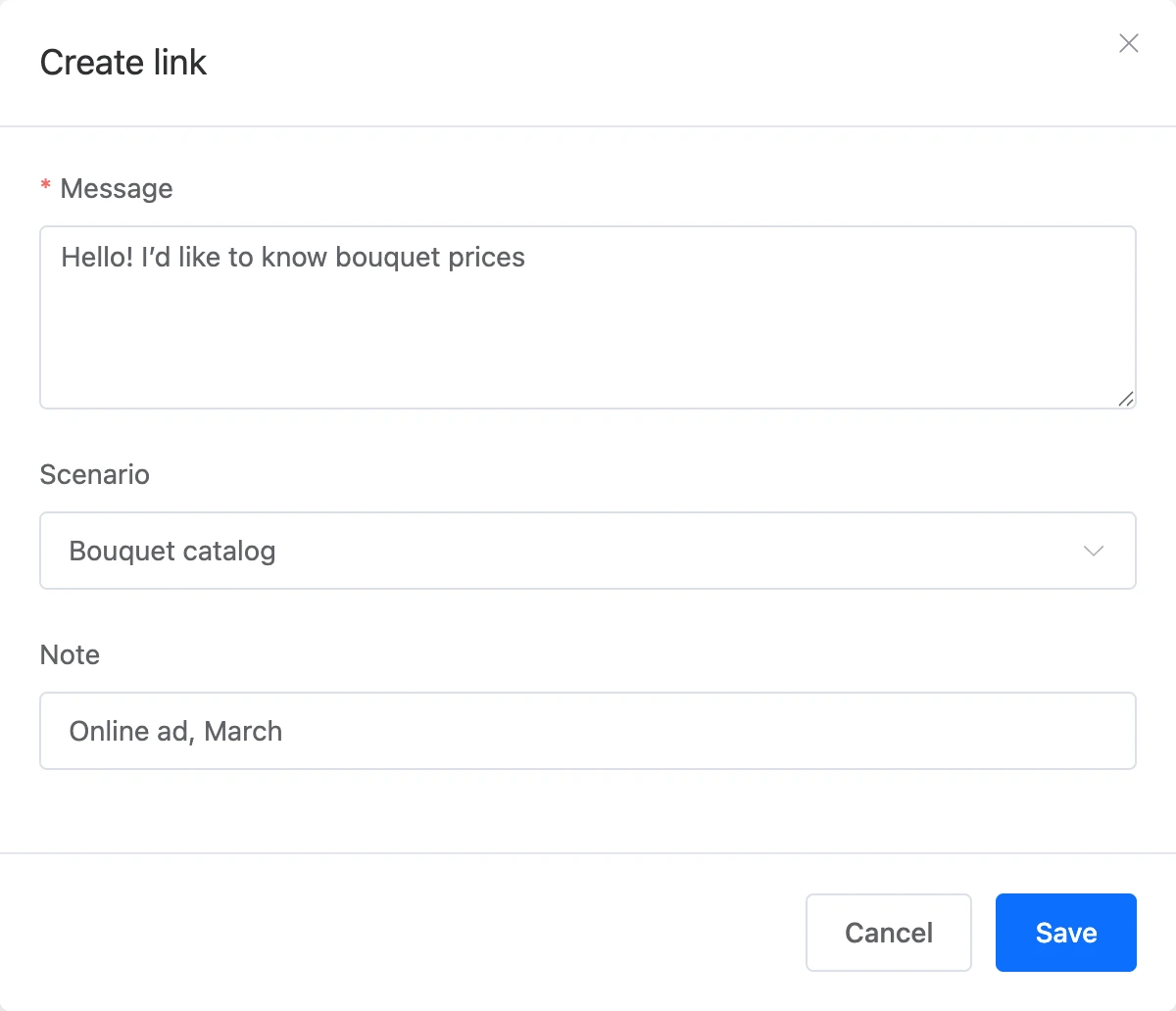
The window for creating a Viber link has one more field — "Message". It is required, up to 255 characters. It is a ready-made phrase, for example "Hello! I would like to know the prices of bouquets". The person opens the link, clicks "Send to Viber", and Viber puts this phrase into the input field. When the person sends it, the bot recognizes the link and starts its scenario.
The list of Viber links has a separate "Phrase" column.
Note
If the bot has additional Viber links, the general Viber link inserts a phrase too — that of one of them, chosen at random.
Ad tags and other data in a link
You can append parameters after the ? sign to any link — general or additional. The bot saves them to the contact's variables:
https://example.com/w/aB3x?utm_source=vk&utm_campaign=8march&promo=ROMASHKA
After following such a link, the contact gets the utm_source, utm_campaign and promo variables with the given values. You can use them in the scenario: show the right offer, split people by source in a "Condition" block, pass them to a request.
- The variables are written both for a new contact and for one who is already in the bot: the old value is replaced with the new one.
- The parameter names appear in the bot's list of variables on their own.
- The values of parameters that start with
utm_are cut to 100 characters.
How to insert variables into messages is in the Templates section, and where they are visible for a contact is in the Contacts section.
Changing or deleting a link
The scenario and the note can be changed at any time: the link's address does not change, and a link that is already placed somewhere does not need to be replaced.
Deletion asks for confirmation: "Are you sure you want to delete this link?". A deleted link disappears from the list and the statistics. The address itself still opens the bot, but now starts the main scenario — remove the link from wherever it is placed.


Limits
- No more than 100 links per day can be created in one messenger.
- The list shows 30 links per page.
If something does not work
- There is no "Add link" button and no icons in the row. You do not have the "Editing channels" permission. Ask the bot's owner to change your role.
- The "This feature is available on Pro" window opens instead of saving. The owner's subscription has ended. Links can be created and changed only with Pro.
- "You can create no more than 100 links per day." The daily limit for this messenger is reached.
- "Message is required." The "Message" field is not filled in for the Viber link.
- The link opens a 404 error. The messenger the link was created for is disconnected from the bot. Connect it again.
- There are clicks but no visits. A click is counted when a person opens the link, and a visit — when they reach the bot in the messenger. How visits differ between messengers is shown in the table above.