

Read list entries
Shows the person several list entries: a catalogue, a schedule, search results. Each entry is sent as a separate message chain built from the template.
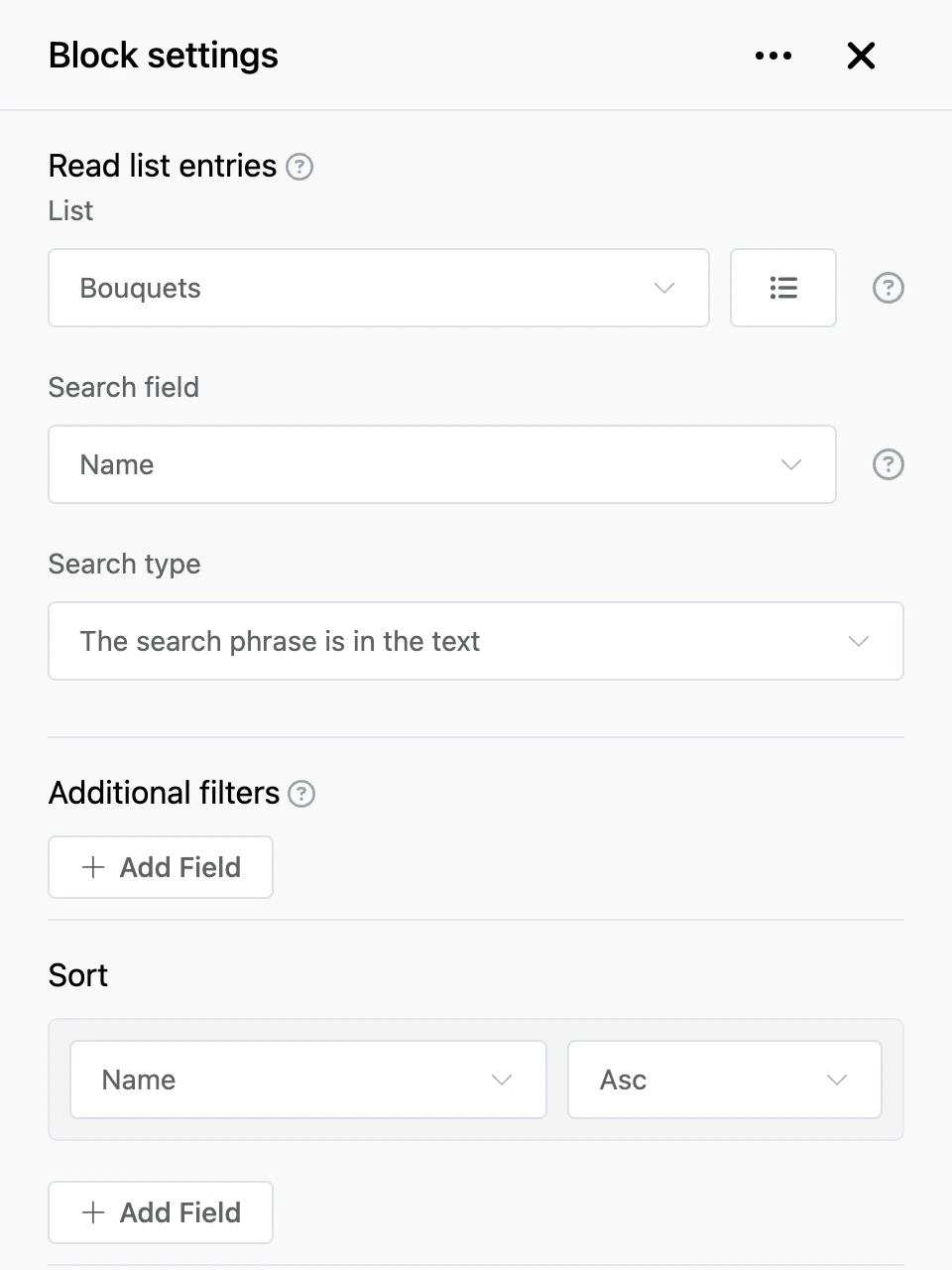
Settings
Choosing the list, "Search field", "Search type", "Additional filters", "Sort" and "Messages chain template" — as in the common settings. If "Search field" is not chosen, the block shows entries without searching — by filters only.
- "Message before sending list" and "Message after sending the list" — text before and after the entries. They are sent only if entries are found.
- "Enable Pagination" — splits the entries into pages. After the entries the bot writes "Page 1 of 5" and adds the
<<and>>buttons. After the last page comes the first one again. - "The number of records in the message" — how many entries to show at a time, from 1 to 10. Without pagination the person sees only the first entries.
- "Page Select Command Template" — the phrase a person uses to go to a particular page.
{n}is the page number: with the "Page {n}" template, the message "Page 3" opens the third page. - "Name of the list item selection button" — the caption of the button under each entry, "Open" by default. The button is available in Telegram, MAX, VK and the web chat.
- "Shopping cart (legacy)" — the bot's old cart. For sales, use the "Shop: catalog" and "Shop: cart" blocks.
- "Menu" — the block's buttons, for example "Back to menu".
Outputs
- Buttons from "Menu" — the person pressed a button.
- "Any other phrase" — the person wrote something else or pressed the button under an entry. Page navigation commands do not get here: the block handles them itself.
- "Continue" — right after the entries are sent, without waiting for a reply.
If there are no entries, the bot sends "No Records Found".
Good to know
The button under an entry sends the bot this entry's ID — as a message from the person. It goes through the "Any other phrase" output. Connect this output to a "Read list entry" block for the same list and choose "ID" as its "Search field". This gives you an entry card with a detailed description.
Tip
Do not connect "Continue" on a catalogue: the bot will move on before the person has a chance to choose anything.