

Profile
The profile opens with the "Settings" item — in the "Account" group of the main menu or in the account menu. The settings tabs are on the right:
| Tab | What is inside |
|---|---|
| "General" | Photo, name, email, phone, password, language, region, deleting the account |
| "Security" | Two-factor authentication and sessions — see Two-factor authentication and sessions |
| "Notifications" | Notifications in Telegram — see Account notifications |
| "Payment cards" | Cards saved when topping up the balance — see Account billing |
| "Permissions and roles" | Takes you to the "Access control" section — see Team and access |
| "Social networks" | Linked social network accounts |
| "API" | The API key |


Photo
On the "General" tab, hover over the photo and click the camera icon. In the "Uploading a profile photo" window, choose a picture, move and zoom it in the frame and click "Save". JPEG, PNG, GIF, WebP and AVIF formats are supported.
The photo is shown in the account menu and in the team member list of the owners of projects you were invited to.
General information
Each row of the "General information" block opens its own form.
Name
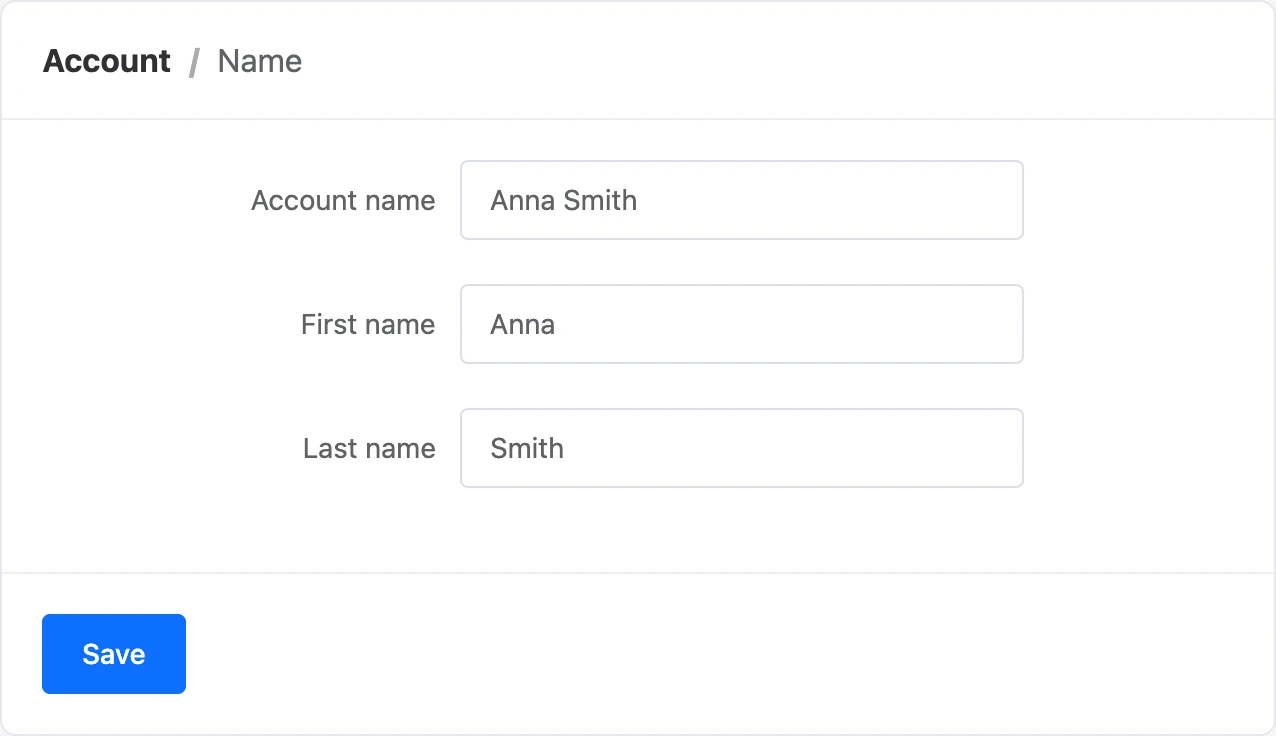
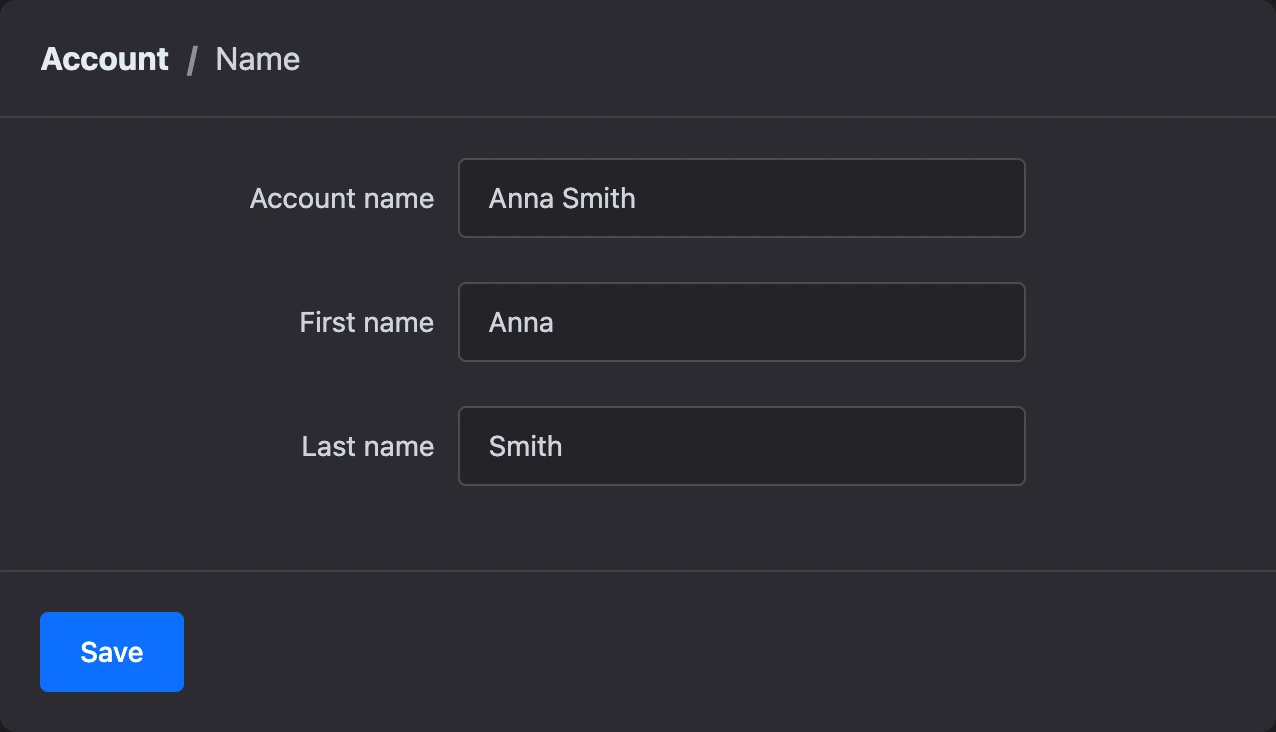
The form has three fields: "Account name", "First name" and "Last name". The account name is shown in your account and in the invitations you send to team members. The "First name" and "Last name" fields accept letters only.
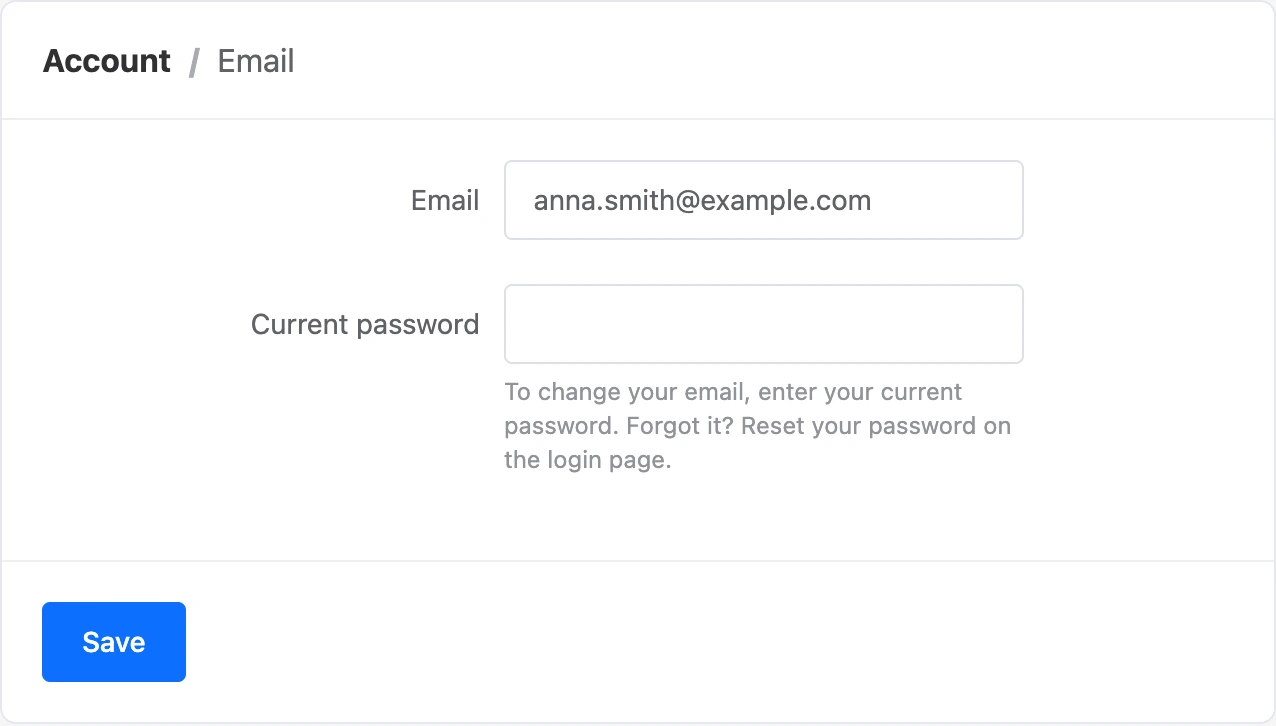
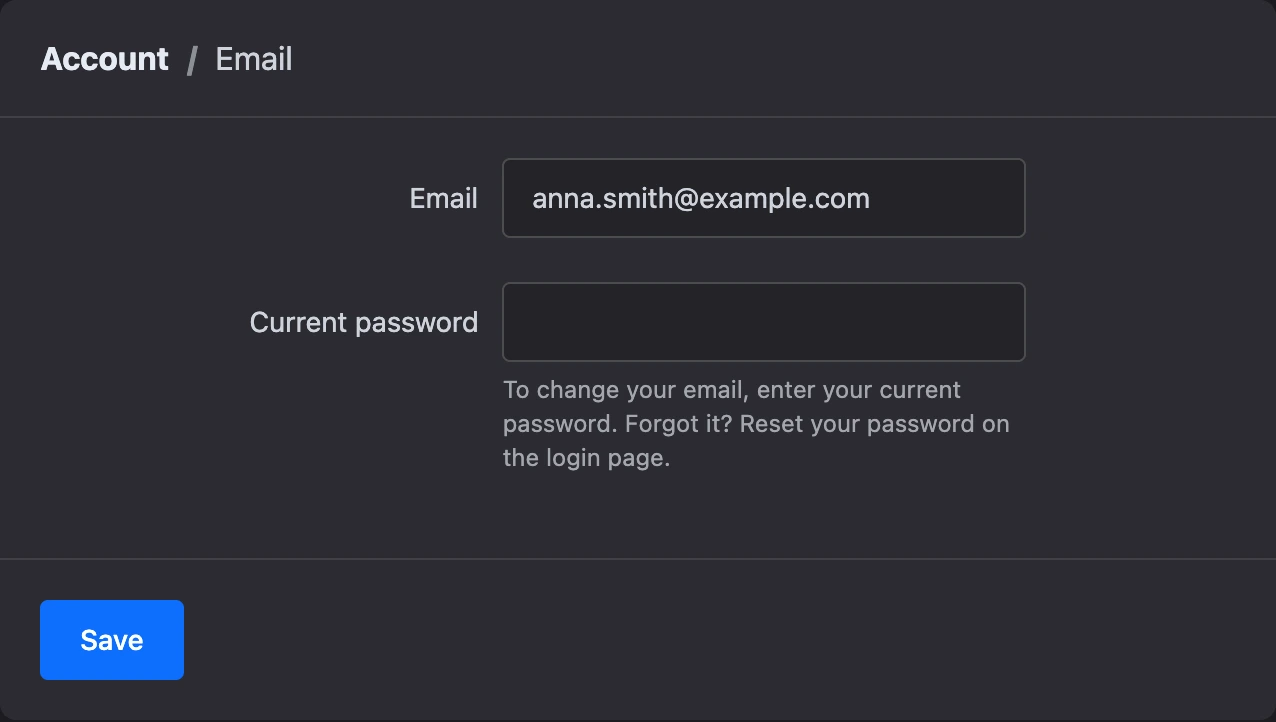
Your email is your login and the way to restore access, so it is changed in several steps.
- Open the "Email" row, enter the new address and your current password, click "Save".
- An email with a link comes to the new address. Follow it within an hour — the account's email will change.
- An email about the change with a cancellation link comes to the old address.
For 14 days after the change, the owner of the old address can cancel it. During this time the "Email" page shows a warning: "Email was recently changed. The owner of the old Email has the ability to cancel this action until …".
If the change is canceled with the link from the email, the account gets its old email back and all sessions end.
Note
Until 14 days have passed since the email change, a bot cannot be transferred to another account. More in the Managing bots section.
Phone
You can sign in to the account and recover the password with your phone number.
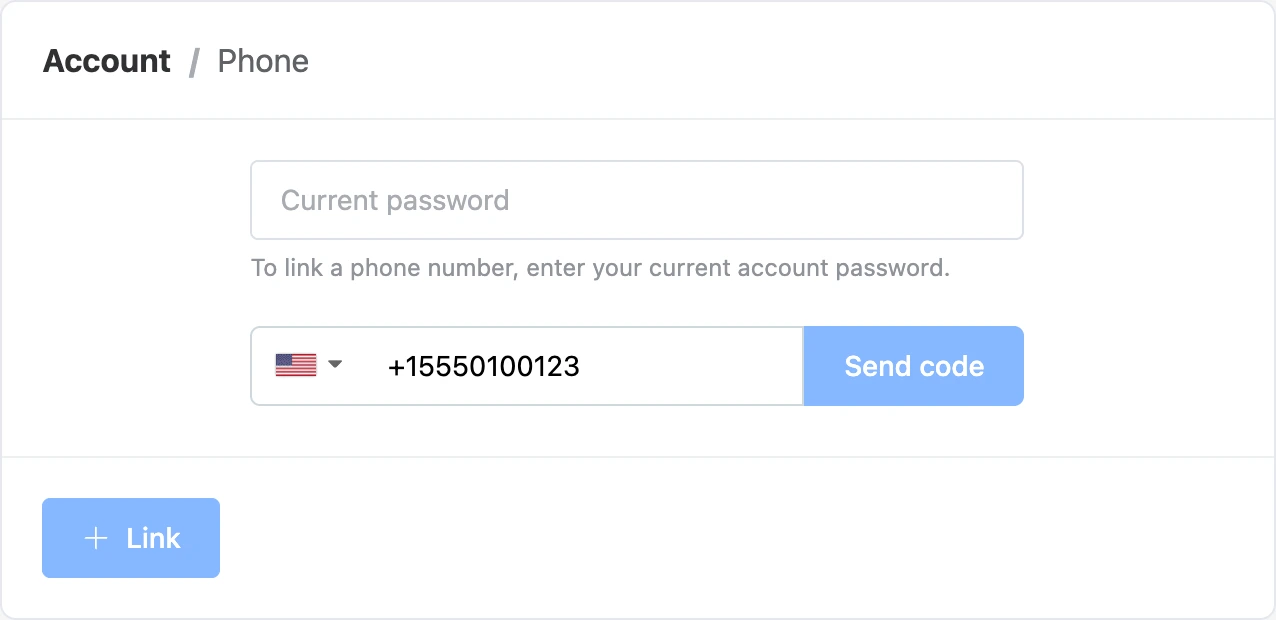
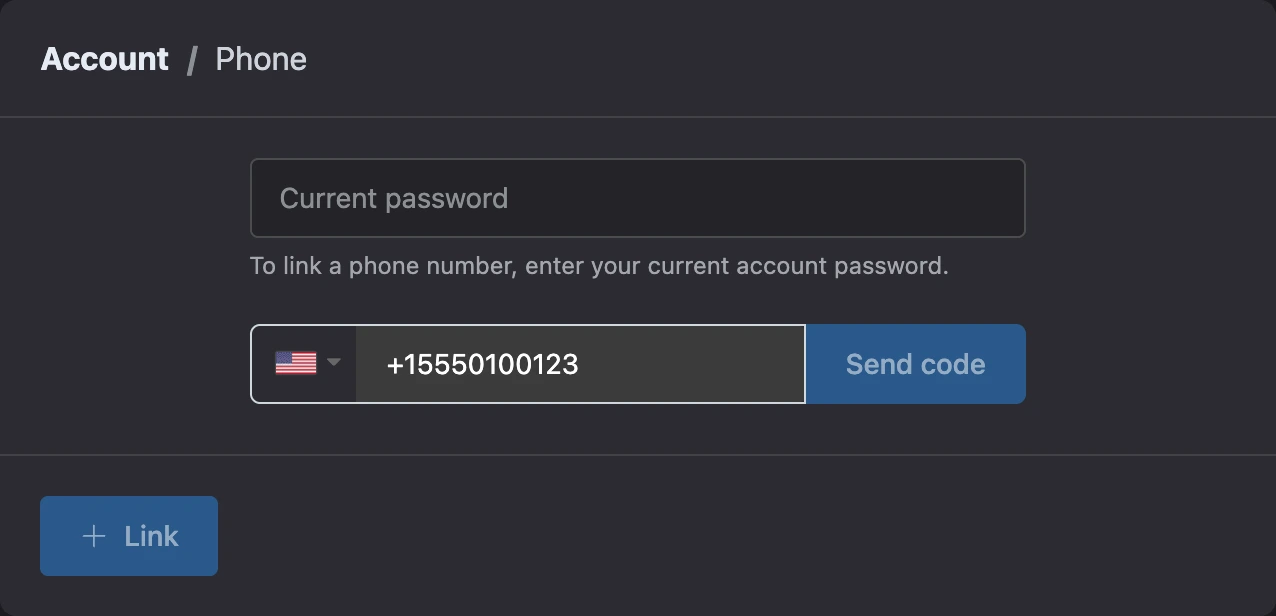
To link a number:
- Open the "Phone" row and click "Link".
- Enter your current account password and the number, click "Send code".
- Enter the code from the text message or the call.
To change the number:
- Click "Link another number", enter the new number and confirm it with a code.
- The new number starts working in 7 days — the date is shown on the page. Until then the old one works.
There are two buttons next to the date:
- "Speed up" — change the number right away. To do this, confirm the action with a code sent to the old number and with your password;
- "Cancel" — cancel the change.
Password
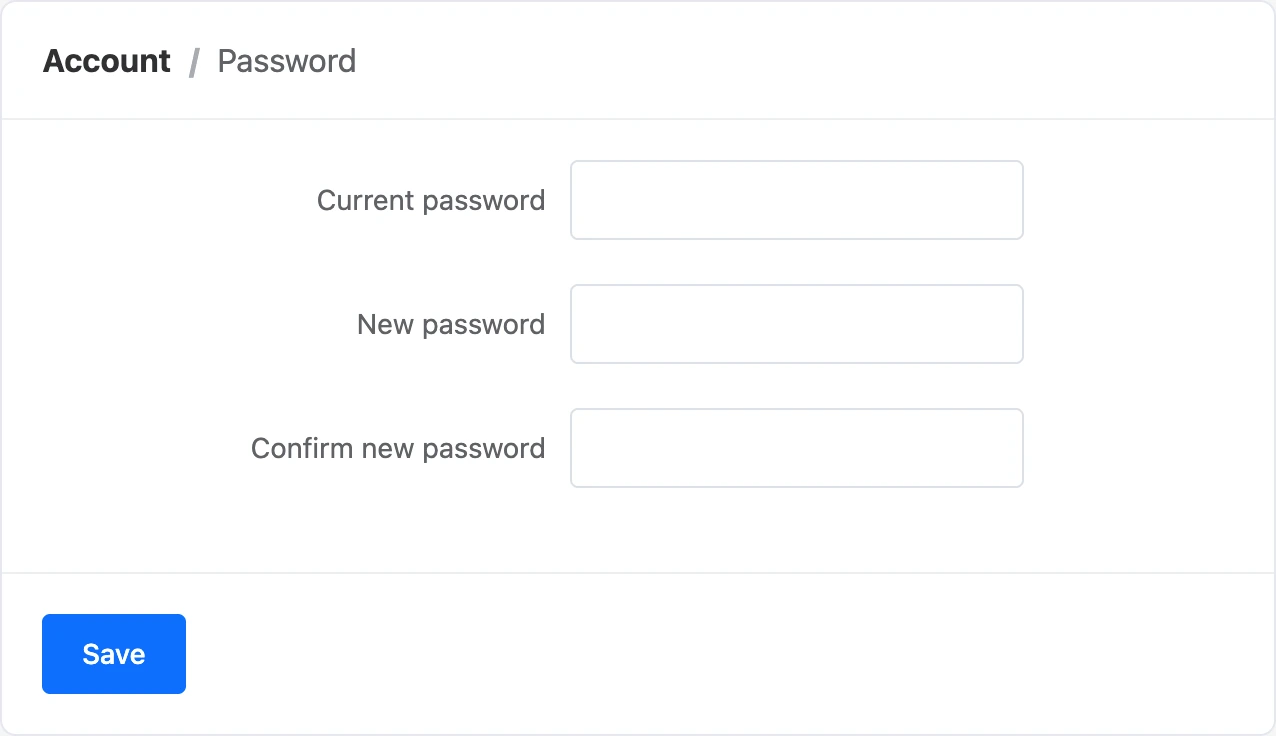
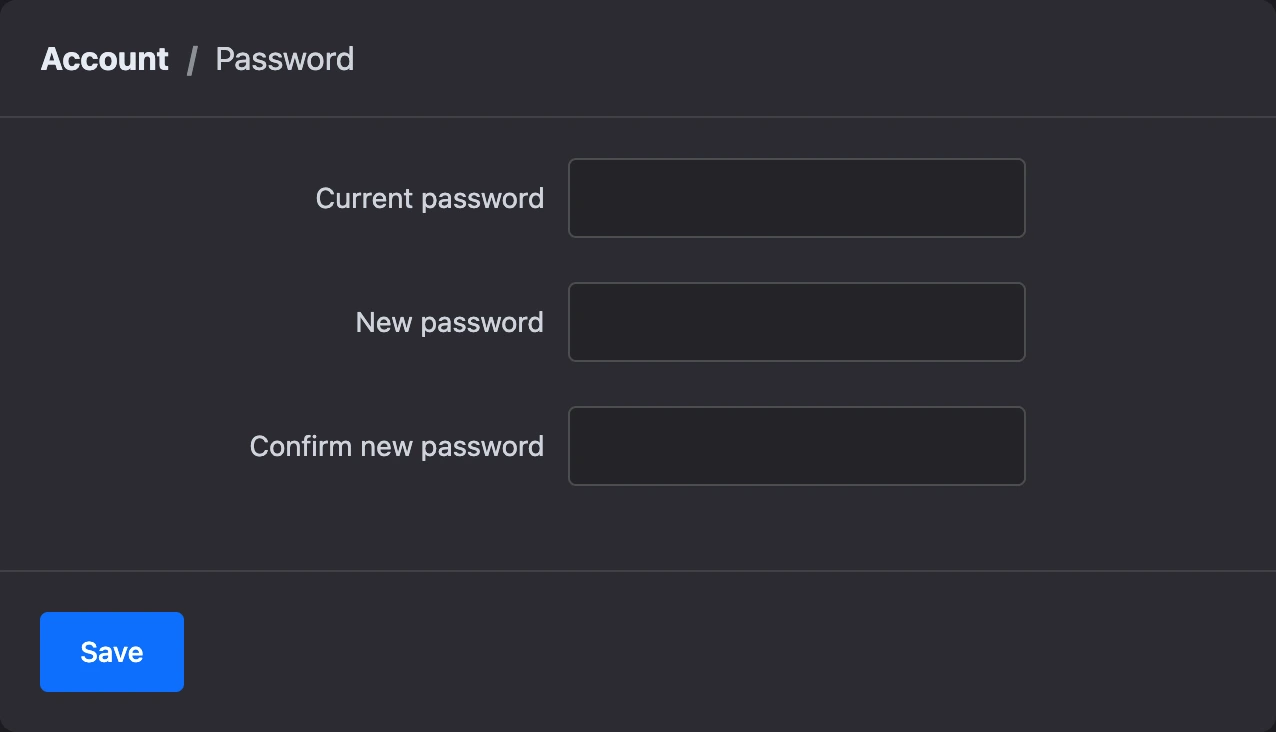
Enter your current password and the new one twice — at least 8 characters. After the password change, all other sessions end; the current one stays.
The date of the last change is shown under the password in the list.
If you signed up with Google or Yandex and don't know your password, set it with "Forgot your password?" on the sign-in page — see Sign-up and sign-in.
Language
The language of the account interface. Russian has variants by country — "Русский (Россия)", "Русский (Беларусь)", "Русский (Казахстан)", "Русский (Украина)": their interface is the same.


Region
The account's country. The platform uses it to determine your time zone when sending payment reminders. There is no separate time zone setting in the profile.
Social networks
The "Social networks" tab shows the linked Google, Yandex and VK accounts. Which social networks are available depends on the platform settings.
- A button with the social network's name links it to the account.
- The cross next to a linked account unlinks it. The platform asks: "Are you sure you want to unlink the … account?"
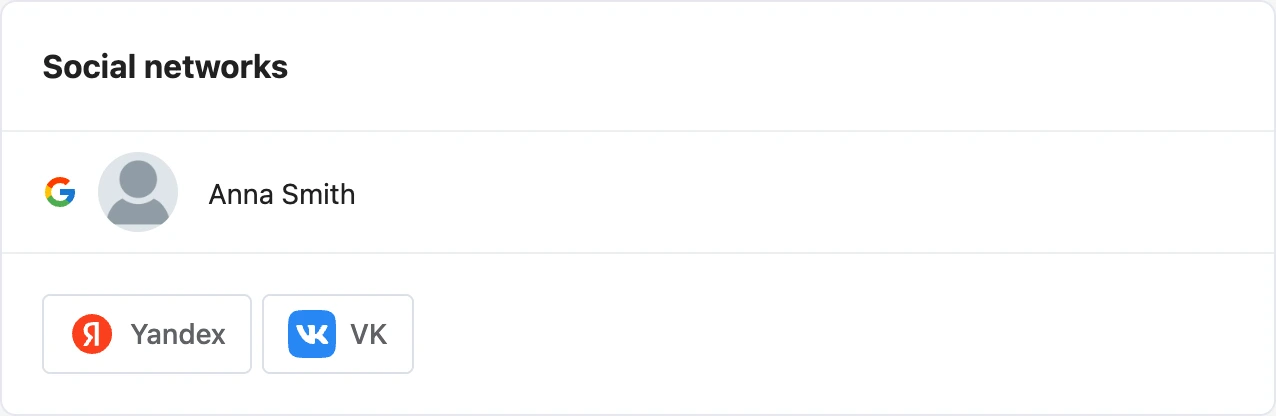
You can sign in to your account with linked Google and Yandex without a password.
API key
On the "API" tab, the "Get" button creates a key for accessing the platform API. The key is shown on the page, with a "Copy" button next to it.
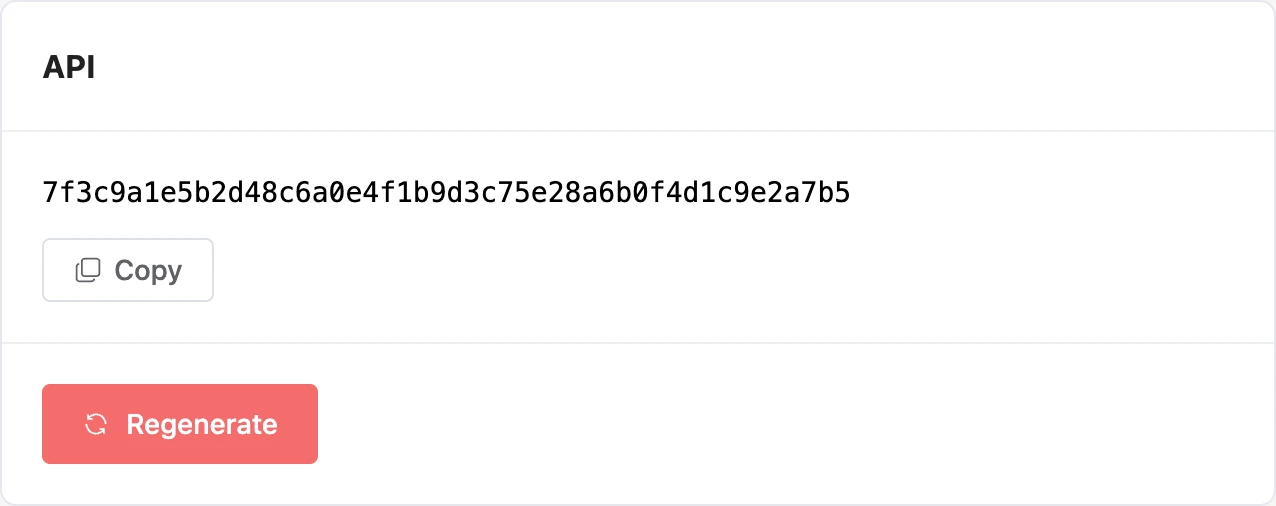
The "Regenerate" button replaces the key with a new one. The old key stops working right away — anything that accessed the API with the old key has to be reconfigured.
How to call the API with the key and which methods are available — see the API tab.
Deleting the account
- On the "General" tab, under the "General information" block, click "Delete account".
- In the "Delete account" window, enter your password and click "Delete".
Warning
The account is deleted together with all its projects. Deletion cannot be undone in the account.
What happens on deletion:
- mailings stop, messengers are disconnected from the bots;
- mini landing pages and their domains, widgets, mini apps, online schools and knowledge bases are deleted;
- the subscription ends, all sessions end;
- notifications in Telegram are turned off;
- bot transfers that have not been completed yet are canceled.
The deleted account's email is freed: you can sign up with it again, but it will be a new, empty account.
If something does not work
- "The provided password is incorrect." Changing the email or password, linking a phone and deleting the account require your current password. If you don't remember it, recover it on the sign-in page.
- "Too many attempts to change Email. Please try this action tomorrow." The daily limit on email changes has kicked in.
- The email for changing your address did not arrive. Check your spam folder and the address. The link in the email is valid for an hour — after that, request the change again.
- The photo is not saved. Check the file format and try a smaller picture.