

Notifications and reviews
The platform writes to the client about the appointment on its own: it confirms the appointment, reports a reschedule or cancellation, reminds them of the visit and asks them to rate it afterwards. All this is set up in the branch menu: "Settings" → "Notifications".
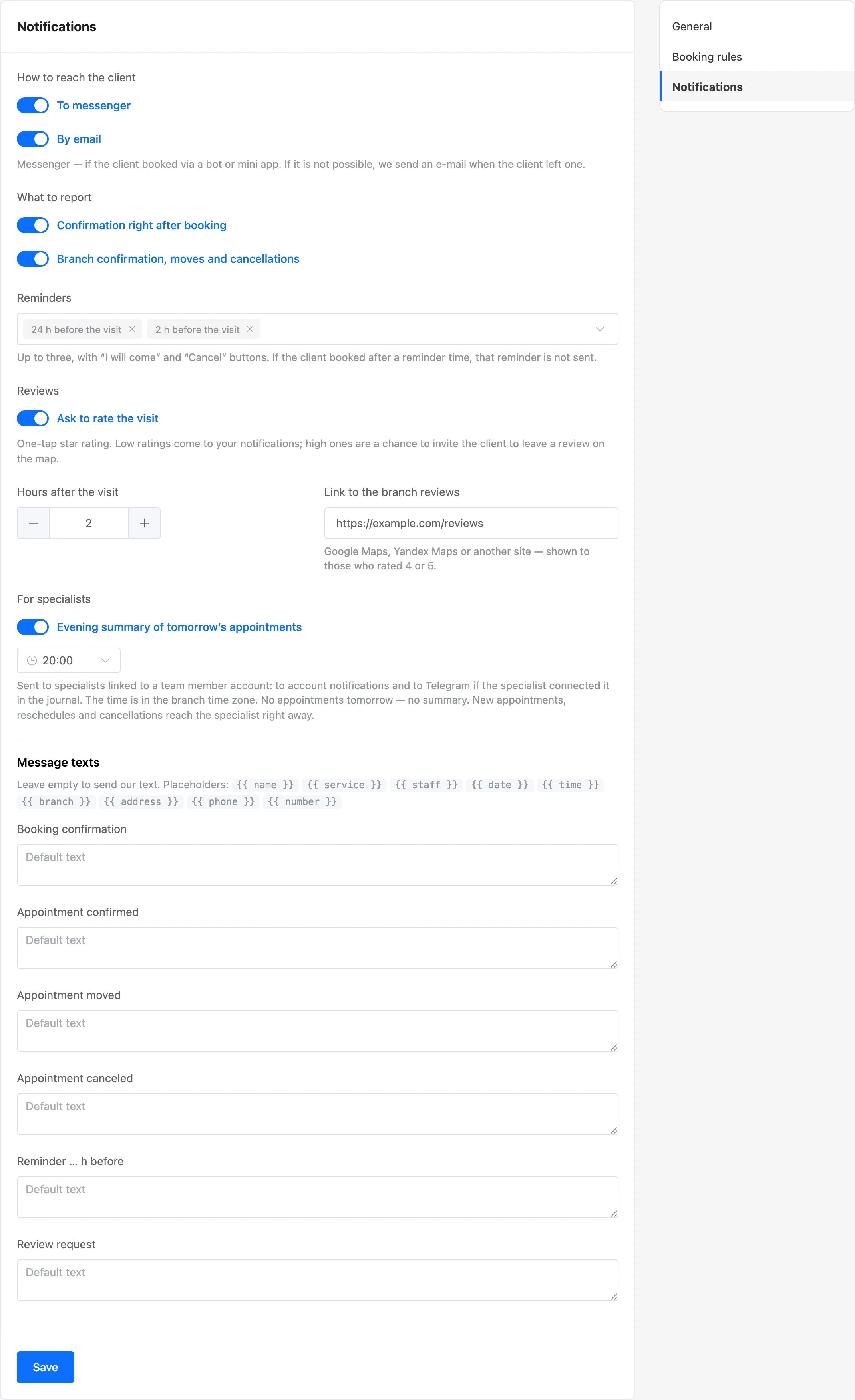
Where messages go
The "How to reach the client" block has two switches: "To messenger" and "By email".
The platform chooses the channel like this:
- Messenger — if the client booked through a mini app opened from a bot. The message comes from your bot in Telegram, MAX, VK or the website chat. A client who has blocked the bot or unsubscribed from mailings gets no messenger messages.
- Email — if it is not possible to write to the messenger and the client left an email.
If there is neither, the message is not sent — this is visible on the appointment card.
Important
Messenger messages are sent only if the project owner has a Pro subscription. E-mails are sent without Pro too. When there is no subscription, a warning is shown above the settings.
A client booked manually by an administrator receives messages only by email: they are not linked to the bot.
What to report
| Switch | Which messages |
|---|---|
| "Confirmation right after booking" | "You are booked" — right after booking. If the appointment is waiting for the administrator's confirmation, the client gets a message that the request has been received |
| "Branch confirmation, moves and cancellations" | "Your appointment is confirmed" — when the administrator has confirmed a new appointment; "Your appointment was moved" — when it is rescheduled; "Your appointment … was canceled" — when the branch has canceled it |
The client is notified about a cancellation only if "By the branch" was chosen in the journal. If the client canceled the appointment themselves or it was canceled "At client’s request", no message is sent.
Under a messenger message there are buttons:
- "Cancel" — while the cancellation deadline has not passed. The bot asks again and cancels the appointment after "Yes, cancel" is pressed;
- "Open appointment" — opens the appointment card in the mini app, if the client booked through it;
- "Book again" — under the cancellation message.
Reminders
In the "Reminders" field, choose how many hours before the visit to remind: 72, 48, 24, 12, 6, 3, 2 or 1 hour. You can choose no more than three. A new branch has 24 and 2 hours. To turn reminders off completely, clear the field.
Under a messenger reminder there are the "I will come" and "Cancel" buttons:
- "I will come" — the appointment card gets the "Confirmed they will come" mark. The appointment status does not change;
- "Cancel" — cancellation by the same rules as in the app.
If the client booked or rescheduled after the reminder time, the reminder is not sent: someone who booked an hour before the visit does not need a reminder "a day before".
Request to rate the visit
- Turn on "Ask to rate the visit".
- In the "Hours after the visit" field, set the delay — from 0 to 72 hours. A new branch has 2 hours.
- In the "Link to the branch reviews" field, paste a link to your listing on Yandex Maps, 2GIS or another site.
The client gets a message with stars from 1 to 5 and rates with one tap. The request is sent for appointments that are not canceled and not marked "No-show".
What happens after the rating:
- 4 or 5 — the client is thanked and shown the "Leave a review on the map" button with the link to the branch reviews;
- 3 or lower — the client is told that the rating has been passed on to the administrator, and the project owner, team members with the "View appointments and clients" or "Manage appointments" permission and the specialist linked to a team member get a notification in the account.
A rating from a messenger message can be given once. In the mini app the client can change it within a week and add a comment — see the Booking through a mini app page.
Note
By email, the request to rate the visit comes only to those who booked through a mini app: the button in the e-mail opens the appointment in it.
Custom message texts
In the "Message texts" block, you can replace the default text of each message: "Booking confirmation", "Appointment confirmed", "Appointment moved", "Appointment canceled", "Reminder … h before", "Review request". Leave the field empty to send the default text. A custom text is up to 1000 characters.
You can insert placeholders into the text:
| Placeholder | What is inserted |
|---|---|
{{ name }} |
The client's name |
{{ service }} |
The appointment's services, separated by commas |
{{ staff }} |
The specialist's name |
{{ date }} |
The date of the visit, for example "Fr, 9 October" |
{{ time }} |
The start time |
{{ branch }} |
The branch name |
{{ address }} |
The branch address |
{{ phone }} |
The branch phone |
{{ number }} |
The appointment number |
Example:
{{ name }}, we are expecting you on {{ date }} at {{ time }}.
{{ service }}, specialist — {{ staff }}.
Address: {{ address }}. If your plans have changed, call us: {{ phone }}
A placeholder with a typo in its name stays in the text as it is — this makes the typo easy to spot.
Note
The platform adds the "Where: …" line with the branch name and address to the default text itself. It is not added to your text — insert
{{ branch }}and{{ address }}yourself.
What was sent
The appointment card in the journal has the "Messages to the client" block: which message was sent, when and where. If a message was not sent, the reason is given:
| Mark | What it means |
|---|---|
| "To messenger", "By email" | The message was sent |
| "Turned off" | This type of message is turned off in the branch settings |
| "Nowhere to send" | The client is not linked to the bot and has not left an email, or both channels are turned off |
| "No Pro" | The project owner has no subscription, and the client has no email |
| "Email limit for this address" | No more than three "you are booked" e-mails per day go to one address if the client books on their own |
| "Error" | The message could not be sent |


Summary for specialists
The "Evening summary of tomorrow’s appointments" switch in the "For specialists" block turns on a daily message to specialists: how many appointments there are tomorrow and which ones. The summary time is chosen next to it and follows the branch's time zone; a new branch has 20:00. If there are no appointments tomorrow, no summary is sent.
Who receives it and where is described on the Specialist access page.
The "Reviews" section
Client ratings are collected in the branch menu — the "Reviews" item. The heading shows the number of reviews and the average rating.
A review row has the stars, date, comment, client's name, specialist and a link to the visit — it opens the appointment in the journal.
Filters: "All ratings" — by the number of stars, "All specialists", "With a comment".


Ratings make up the specialist's rating: it is shown on their card in the "Client rating" block and in the mini app, if "Show rating" is on in the "Booking specialists" element.
A review that should not affect the rating can be excluded with the "Hide from rating" button. It stays in the list marked "Hidden"; the "Count in rating" button includes it again. Reviews can be hidden by the project owner or a team member with the "Manage appointments" permission.
A specialist whose role has only permissions for their own appointments does not see the "Reviews" section.
If something does not work
- The client does not get messenger messages. Open the appointment and look at the "Messages to the client" block. "No Pro" — a subscription is needed. "Nowhere to send" — the client was booked manually or has blocked the bot, and has no email.
- A reminder did not arrive. The client booked after the reminder time, or the appointment is canceled. Reminders are sent for appointments in the "New" and "Confirmed" statuses.
- The request to rate the visit did not arrive. The appointment is canceled or marked "No-show", or the client has already rated the visit in the app.
- The "Reviews link" is not saved. The address must be a link like
https://…. If you paste an address withouthttps://, the platform adds it itself. - The message shows
{{ staf }}. There is a typo in the placeholder name. Fix it in the "Message texts" block.